Workspace ONE Assist, together with Omnissa Workspace ONE UEM, helps you remotely access and troubleshoot devices in real-time. Workspace ONE Assist is privacy-friendly. End users can accept, pause, and end a remote session at any time for privacy reasons.
The Workspace ONE Assist client has support tools and device information available. The combination of remote control and information allows you to troubleshoot any issues on devices quickly and accurately.
Workspace ONE Assist is already configured for Workspace ONE UEM SaaS customers who have purchased the upgrade. For the most up-to-date information about the licenses and purchases of Workspace ONE products, see the knowledge base article, Locating Workspace ONE license information in Customer Connect.
Workspace ONE Assist requires devices to have the Omnissa Workspace ONE Intelligent Hub and depending on the device platform, a Remote Management client installed.
Workspace ONE Assist Components
Workspace ONE Assist uses multiple components to facilitate the communication between admins and end-user devices. The core components are as follows.
Database
The Workspace ONE Assist databases handle system and tenant configuration, operations, and logging such as the accrual of historical device enrollment data. The Workspace ONE Assist system is composed of eight databases.
- ApAdmin – Maintains all the system configurations, tenant (customer) configuration, management information, system administration data, and server instrumentation data. There is only one ApAdmin database for all tenants.
- APOps (2) – Maintains data required for the operations of the system such as device enrollment, Access Control List (ACL), groups, users, zones, and so on. You have one template APOps database and one for the tenant with the GUID.
- APReports (2) – Contains historical data of device enrollment, session, audit, report views, and so on. You have one template APReports database and one for the tenant with a GUID.
- APJournal (2) – Contains aggregated information on the tenant necessary to construct various reports. You have one template APJournal database and one for the tenant with a GUID.
- APPublic – Contains pre-enrollment information on devices and multiple database jobs. There is only one APPublic database for all tenants.
Core Services
The Core Services component provides service discovery and auxiliary services for the Workspace ONE Assist solution through Web services and Windows services. These services include the following.
- Management Entity (ME) – Windows service that provides an in-memory datastore for admin and management Web service, which provides the operational end point to the system.
- Service Coordinator (SVC) – This Windows service is responsible for coordinating communication between various elements within the system. It provides communication to the database and is responsible for the discovery of all other Remote Management Tool services. All Workspace ONE Assist Tool services register with this service. Service coordinator service is installed on an Application (App) Server.
- Data Tier Proxy (DTP) – This Windows service works with the Service Coordinator. It serves as the gateway for all services to reach the Service Coordinator service to communicate with Remote Management Tool databases. Data Tier Proxy service is installed on the App Server.
- Data Access Proxy (DAP) – This Web service is responsible for the proper communication of all Web services. It serves a similar purpose as the Data Tier Proxy service and is installed on the App server.
- Token Service - This Windows service issues, renews, and validates the user session and device session security tokens which enables services to authorize any session request.
Portal Services
The Portal Services component handles the administrative and portal services for Workspace ONE Assist. The Portal Website is installed as part of the portal services component and consists of the following.
- AetherPal Tool Controller Service (ACS) – Acts as a gateway service that maintains a consistent socket connection between the Remote Session web console and the Connection Proctor.
- Token Service - This Windows service issues, renews, and validates the user session and device session security tokens which enables services to authorize any session request.
- Portal Web Site (ADM/ANC) – IIS Service that hosts the RS web console for managing and remoting into devices. Anchor service is responsible for mobile device registration. Also, it contains the System Admin Service (SAS) admin web portal for accessing and administering the tool and defining tenant and service configuration.
- T10 Interface – The T10 Interface is part of the Portal website and it defines an integration portal between Workspace ONE UEM and the Workspace ONE Assist server.
- The T10 interface uses Representational State Transfer (REST) communication with a JavaScript Object Notation (JSON) payload. The T10 interface provides Workspace ONE UEM with the ability to make a mobile device eligibility call.
- The T10 interface can also start a remote support session using the Workspace ONE Assist tool and delete the device from the Workspace ONE Assist system.
- T10 Interface – The T10 Interface is part of the Portal website and it defines an integration portal between Workspace ONE UEM and the Workspace ONE Assist server.
Application Services
Messaging Entity (MSG) – a core Windows service that provides the means for the Workspace ONE Assist tool to send out SMS messages to the device by way of API or direct communication. This communication is accomplished with a messaging gateway, such as Google Cloud Messaging (GCM), or any proprietary SMSC aggregator.
Connection Proctor
The Connection Proctor component uses the Windows Connection Proctor service to manage device connections to the Workspace ONE Assist server. The component also simultaneously handles multiple requests for sessions.
Supported Deployment Models
Workspace ONE Intelligent Hub and the platform-specific Workspace ONE Assist app must be installed on all devices. These two installs work together with Workspace ONE UEM to make it easy to use the console as the starting point for each support session.
Whether your Workspace ONE UEM deployment is part of an on-premises, dedicated SaaS, or shared SaaS environment, several Workspace ONE Assist deployment models are supported.
Note: Before UEM console version 2101, if Assist was enabled for a customer, all the iOS devices would enroll automatically for the entire customer. Therefore, enabling Assist for specific organization groups (OG) was not possible. With console versions 2101 and later, the remote view can be activated or deactivated for iOS devices belonging to specific OGs.
Single Customer
| Workspace ONE UEM | Workspace ONE Assist |
|---|---|
| On-Premises | On-Premises |
| Shared SaaS | Shared SaaS |
| Dedicated SaaS | Shared SaaS |
See Integrate Deployment Model, On-Prem UEM With SaaS Assist.
Multi-Tenant Partner**
| Workspace ONE UEM | Workspace ONE Assist |
|---|---|
| On-Premises | Shared SaaS |
| Shared SaaS | Shared SaaS |
| Dedicated SaaS | Shared SaaS |
** In this scenario, multiple organization groups within Workspace ONE UEM (on-premises or SaaS) communicate to a single Shared SaaS build of Workspace ONE Assist.
Typical On-premises Deployment
Most administrators deploy the Workspace ONE Assist server in an enterprise network to facilitate communication between the various components. The typical deployment scenarios are summarized in this section. For simplicity, deployment with High Availability or multiple nodes with Active or Passive configuration details is not provided here.
Standard (Single Server) Deployment
This sample diagram is a typical deployment without the use of a load balancer.
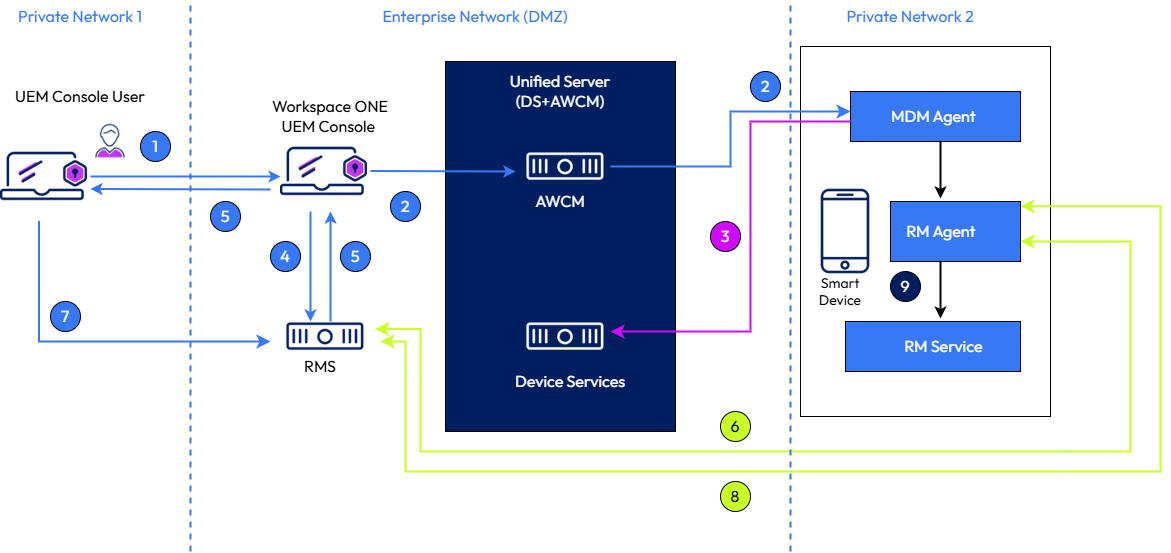
| 1. Queue Remote Control Command. | 6. Request Session URL. |
| 2. Queuing Command to Connect to Server. | 7. Admin Joins Session. |
| 3. Confirm Command. | 8. Device Joins Session. |
| 4. Create Session. | 9. Send Commands/Get Frames. |
| 5. Send Session URL. |
Medium-sized Deployment
This diagram represents a typical medium-sized deployment where two servers are utilized. One server has Core, Application, and Portal services (CAP). The second server is the CP server. You can have more than one CP server. For more information, see Load Balancer.
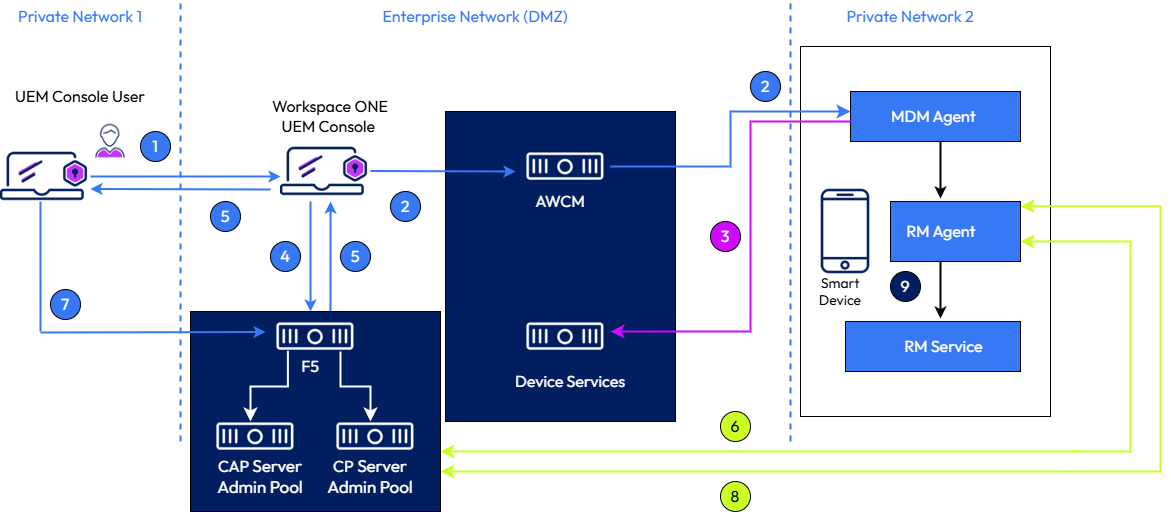
The remote session connection between the UEM console and the user device is in a two-server setup.
Workspace ONE Assist CAP Servers contain Core Services, Application Services, Portal Services, and components of the Assist system.
| 1. Queue Remote Control Command. | 6. Request Session URL. |
| 2. Queuing Command to Connect to Server. | 7. Admin Joins Session. |
| 3. Confirm Command. | 8. Device Joins Session. |
| 4. Create Session. | 9. Send Commands/Get Frames. |
| 5. Send Session URL. |
Load Balancer
A load balancer improves the workload distribution across multiple server resources and is valuable in high capacity, high availability environments. Consider a load balancer in your Workspace ONE Assist environment if your configuration features a separate CAP server and connection proctor server.
Integrate a Load Balancer to Your Deployment
- A pool of two Workspace ONE Assist servers must be defined.
- For external traffic, FQDN public IP address must be configured to the VIP (also known as Virtual IP).
- SSL passthrough is required for all server configurations on the load balancer.
- To address persistence, you must configure the load balancer to use IP or SSL session persistence.
- Incoming traffic on ports 443 [L7] and 8443 [L4] is forwarded to the servers on the same ports respectively. These ports are customizable and the same ports should be used in the assist service configurations. (For Medium/Large deployment, the same ports can be used and allowed in Load Balancer as CP and other servers are separate.]
When you initially run the installer that creates the install.config file, you are presented with the Database Credentials screen.
-
For multi-node solutions, you must enter the database server instance name or the database server instance IP address.
-
Run the database installation by itself even if you are installing other services on the same server.
-
The Workspace ONE Assist server requires a host record that points to the internal IP address of the VIP (also known as Virtual IP) for the load-balanced pool.
a.Ensure that each [FQDN] record is in the [ApAdmin].[dbo].[Server] table in the database points to the internal IP address of the VIP (also known as Virtual IP) for the load-balanced pool
b. If controlplane domain is used for the assist service configurations, ensure that each [FQDN] record in the [ApAdmin].[dbo].[Server] table in the database points to the controlplane DNS name like [controlplane.aetherpal.internal]. This must be updated as admin.controlplane.aetherpal.internal in the FQDN column of the [ApAdmin].[dbo].[Server] table in the database.
-
Ensure that you delete the Default Website from IIS once the server is running.
For more information, see Domain Name Service and also Troubleshooting, Modify Database Record for Multi-Node Configuration.
Deployment Level Features
Workspace ONE Assist can be deployed in various configurations to suit diverse business requirements. When deployed within a network infrastructure, Workspace ONE Assist can adhere to strict corporate security policies by storing all data on-site. Additionally, Workspace ONE Assist has been designed to configure different setups, and features as mentioned below, which creates seamless deployments on several different setups with different features.
The Workspace ONE Assist solution is highly customizable to meet your specific needs.
- Distributed services deployment models
- SQL Always On
- Secured IPC mechanism (Mandatory from v22.10 and later)
- Self-signed certificates used to configure the services
- IIS client certificate authentications
- TLS 1.2 and higher support
- Domain user support
Was this page helpful?