As a convenience, you can preview and confirm the device profiles, apps, compliance policies, and other resource types that are included in (and excluded from) the assigned groups within Workspace ONE UEM.
-
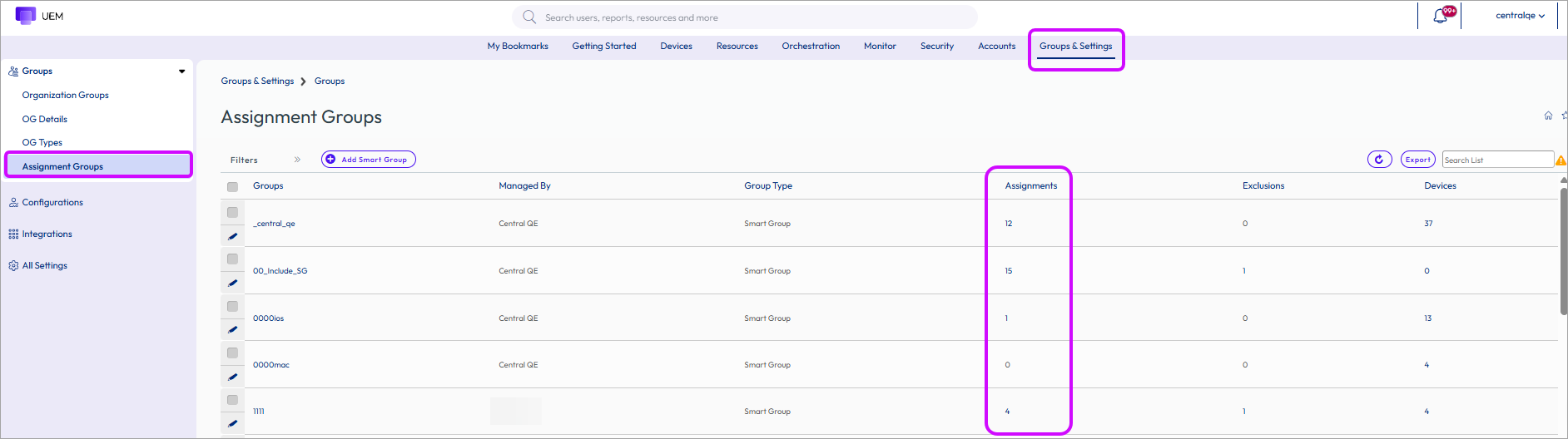
Navigate to the group listing in Groups & Settings > Groups > Assignment Groups and locate a group that has been assigned to at least one entity.
-
In the Assignments column, select the hyperlinked number to open the View Assignments page. This page displays only those categories that contain Assignments or Exclusions in the group.
From this page, you can view Profiles, Applications, Time Windows, Baselines, Workflows, Device Updates, Scripts, and Sensors that are assigned to an Assignment Group.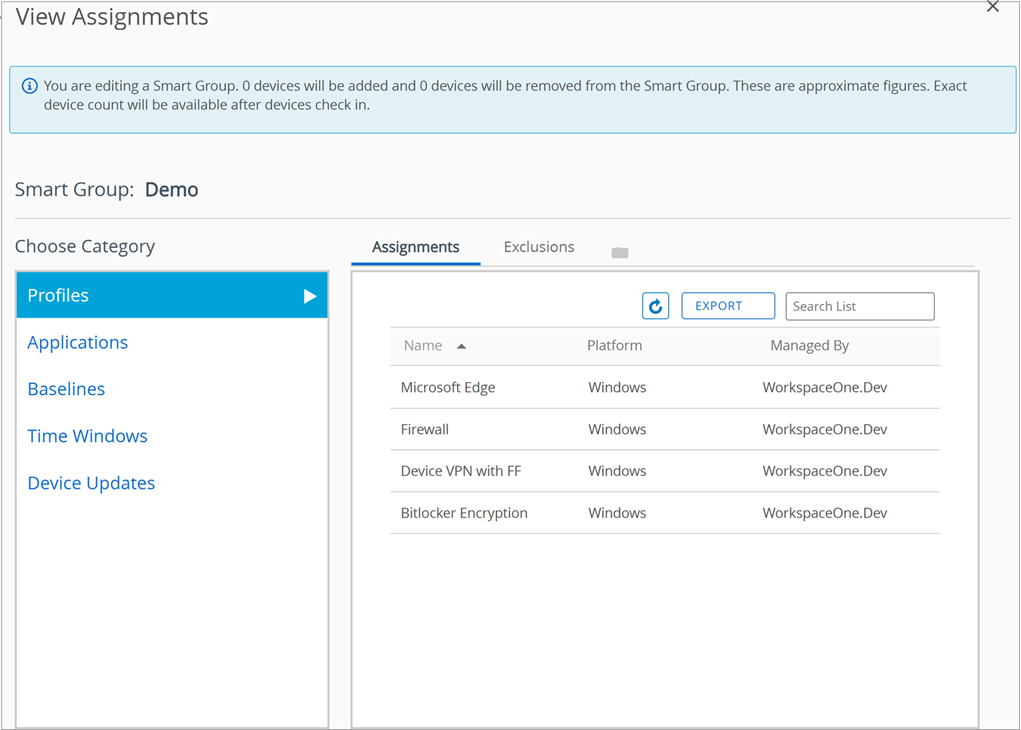
Use the Refresh button, the Export button, and the Search List to find and confirm the profile, application, Workflow, Time Window, Baseline, and other resource types that have been assigned.
Was this page helpful?