Depending upon the platform, you can use Device Updates to review a full listing of updates to the operating system, filter the listing of OS updates by function, apply OS updates to devices in need based on a schedule you define, verify whether a specific device has a specific OS update installed or not, and take full control of the over the air (OTA) updates to your Zebra devices with its Lifeguard OTA system.
Take the following steps to use Device Updates.
- Navigate to Devices > Device Updates.
- Select a platform tab.
- To see what you can do, review the topic that follows based on your platform selection.
Windows, Device Updates
With device updates for Windows, you can...
-
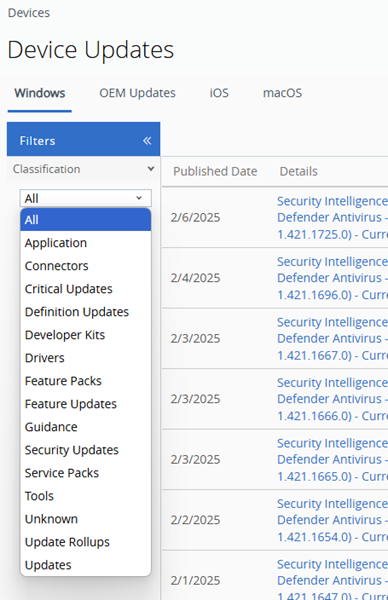
See a detailed listing of all updates, filtering by critical updates, definition updates, drivers, etc.
-
Inspect updates by their description, knowledgebase article number, and link.
-
Verify a device's installation status of the update of your choice, by selecting the View link in the Installed Status column of the listing.
-
See which Windows devices in your fleet has a specific update installed.
For instance, if you already know the knowledgebase article number associated with the update and you wanted to verify whether any Windows device in your fleet has that specific update installed, you would...
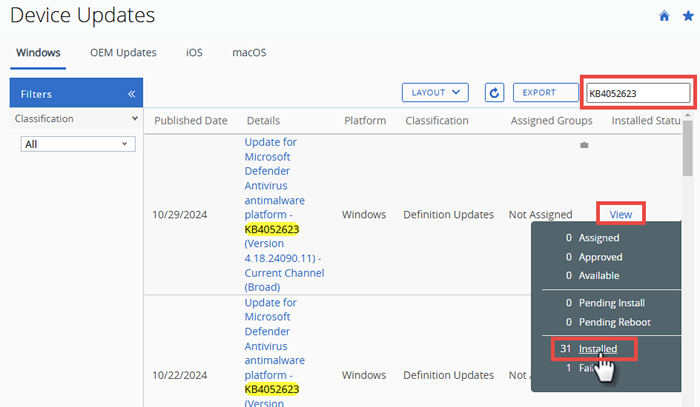
- Search the listing by KB article number
- From the search results listing, find the specific date, build, or version you wanted to investigate.
- Once you locate the specific update, select its View link in the Installed Status column.
- Select the Installed link from the view popup.
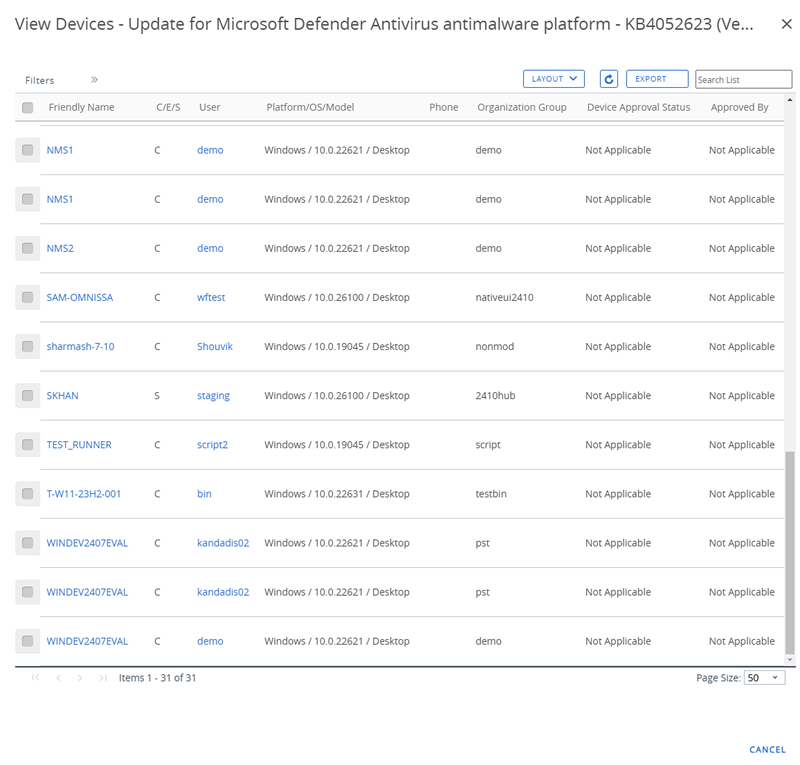
- Review the View Devices by device friendly name, user name, OG, etc.
OEM (original equipment manufacturers) Updates, Device Updates
With device updates for OEM, you can...
-
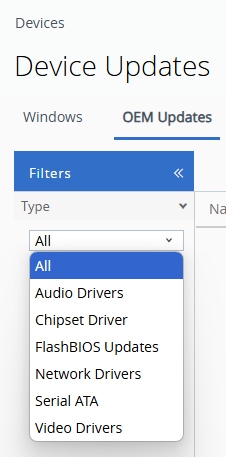
See a detailed listing of all updates, filtering by audio drivers, chipset driver, FlashBIOS Update, etc.
iOS and macOS, Device Updates
The information presented here applies to both iOS and macOS devices.
With device updates for iOS and macOS, you can...
-
Inspect the details of all versioned releases, including supported devices, release date, and expiration date.
-
Pause a scheduled Assignment
-
Delete a scheduled assignment
-
Manage Assignments: schedule the exact date and time an update is applied to devices; downloaded only, downloaded and install, or install only, and provide a push notification that you write for each event.
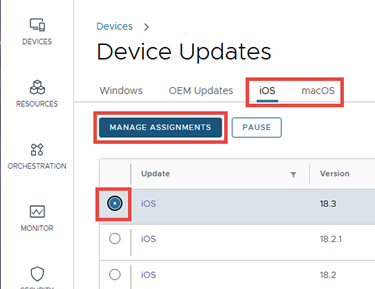
-
Select the radio button to the left of the iOS (or macOS) release you want to assign.
The Manage Assignments button becomes enabled.
-
Select the Manage Assignments button.
The Assignments screen displays. This screen includes the release date and the expiration date (the date the selection becomes Not Available).
-
Select the New Assignment button.
The Add Assignment screen displays, asking for the 1. Definition of the assignment.
-
Enter an Assignment Name and Smart Group by which the assignment is to be directed.
All the qualifying devices in the smart group you select will be updated with this release version, on the date and time specified in the Deployment screen, which is next.
-
Select the Next button.
The Add Assignment screen now asks for the assignment's 2. Deployment info.
-
Enter a date and time for Deployment Begins.
-
Select the Deployment Method. Choose from...
- Download and Install
- Download Only
- Install Only.
-
Select the Next button.
The Add Assignment screen now asks for the assignment's 3. Notifications info.
-
[OPTIONAL] You can optionally push a notification for each event related to the assignment.
Enable the Notification for
Success slider and supply the text message of the notification. -
Select the Save button.
-
Zebra (Android), Device Updates
For detailed information, see Zebra Lifeguard OTA Updates from the Product Provisioning Guide.
Was this page helpful?