Create a barcode to scan with your Zebra or Honeywell rugged devices and attach it to an existing staging package to stage the device quickly.
PREREQUISITES
You must create a staging package before you generate a barcode that uses it. This step is not optional. For more information, see Stage Devices With a Manually Created Staging Package. The staging user for the staging package must be a basic user account. Do not use staging users or multi-user staging.
PROCEDURE
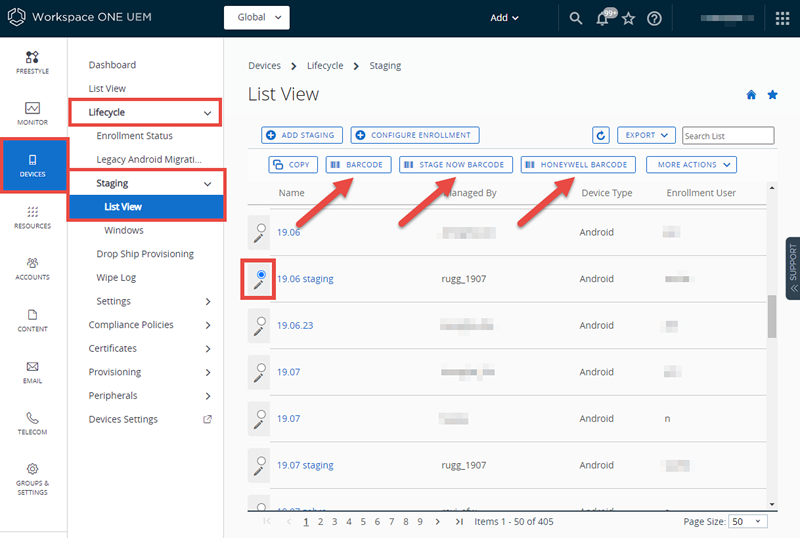
-
Navigate to Devices > Lifecycle > Staging > List View.
-
Select the radio button to the left of the name of the staging package.
A new row of buttons displays under the Add Staging and Configure Enrollment buttons.
-
Select the Barcode or Stage Now Barcode or Honeywell Barcode button.
-
Select the Staging Options.
Settings Descriptions Organization Group Select the organization group the staging package uses. Universal Barcode Enable to create a universal barcode enrollment so devices can be enrolled without automatically assigning an organization group. Android Only Note: With this setting enabled, the Omnissa Workspace ONE Intelligent Hub prompts you to enter an organization group after beginning the staging process. If you are enrolling devices into Work-Managed Mode with this barcode, take care to select an OG that is configured with Android EMM Registration settings.Enabling this box repopulates the Staging Relay Server and Staging Profile with applicable options. Staging Relay Server Select the staging relay server that hosts the staging content. Staging Profile Select the staging Wi-Fi profile and apply it to the enrolled device. Require Password. Enable to create an alphanumeric passphrase (maximum 99 characters) to be used to unlock the staging package encryption on the end-user device. Device Owner Mode Android Only. Enable to enroll the device into Android Work Managed mode. This option can only be enabled when the Universal Barcode option is enabled. -
Select the Barcode Format options. Android Only Note: Android admins can enter the optional Barcode Instructions to be included on the barcode PDF output page.
-
Select View PDF.
This option generates a preview of the barcode PDF output page for end users to scan.
-
Save the PDF file.
Was this page helpful?