Configure a relay server for product provisioning by selecting an FTP, Explicit FTPS, Implicit FTPS (Pull only), SFTP file server, or HTTPS (pull only) protocol and integrating it with Workspace ONE UEM.
PREREQUISITES
- You need an FTP, Explicit FTPS, Implicit FTPS in Pull configuration (Android only), SFTP, or HTTPS (Pull only) file server.
- Implicit FTPS relay servers are only supported in a pull configuration and can only be used with Android devices.
- For macOS: Only FTP or HTTPS file servers are supported.
- Pull service bandwidth needs and minimum hardware requirements are negligible when compared to pushing products to devices. Such needs are entirely dependent upon 1) the number of products you are pushing, 2) how often they are pushed, and 3) the size of the products in MBs.
- When assessing hardware and bandwidth needs for FTP servers, consider following general guidelines and adjust their specifications as your needs change.
- General FTP Server Guidelines: 2 GHz x86 or x64 processor and 4 GB RAM.
- For FTP, FTPS, and SFTP servers, you must create an FTP user with a home directory. This user must have read/write/delete permissions for both the directory and the files used in the relay server. This FTP user must have a user name and password for authentication.
- Workspace ONE UEM supports SFTP servers for product provisioning, however, the supported staging client, Stage Now (Android), does not support SFTP servers for use with barcode staging.
- If selecting an HTTPS protocol (pull configuration only), you must configure the HTTPS endpoint using the web server configuration tool of choice (for example, IIS). The root directory you opt in the web server config must be the same as the Pull Local Directory of the relay server.
- FTP and FTPS servers must be compliant with RFC 959 and RFC 2228 set by the Internet Engineering Task Force.
Data Security
Relay servers may hold sensitive data, so consider encrypting it.
- Data In Transit – FTPS, SFTP, and HTTPS relay servers use TLS/SSL or SSH protocols to secure data in transit between the relay server and Workspace ONE UEM and between the relay server and devices.
- Data In Storage – Consider using an OS-level disk encryption to protect your data in storage. Tools such as Bitlocker (Windows) and GnuPG (Linux) can be used to encrypt content stored on the relay servers.
PRODECURE
-
Navigate to Orchestration > Relay Servers and select the Add button, followed by Add Relay Server.
-
Complete all applicable settings in the tabs that are displayed.
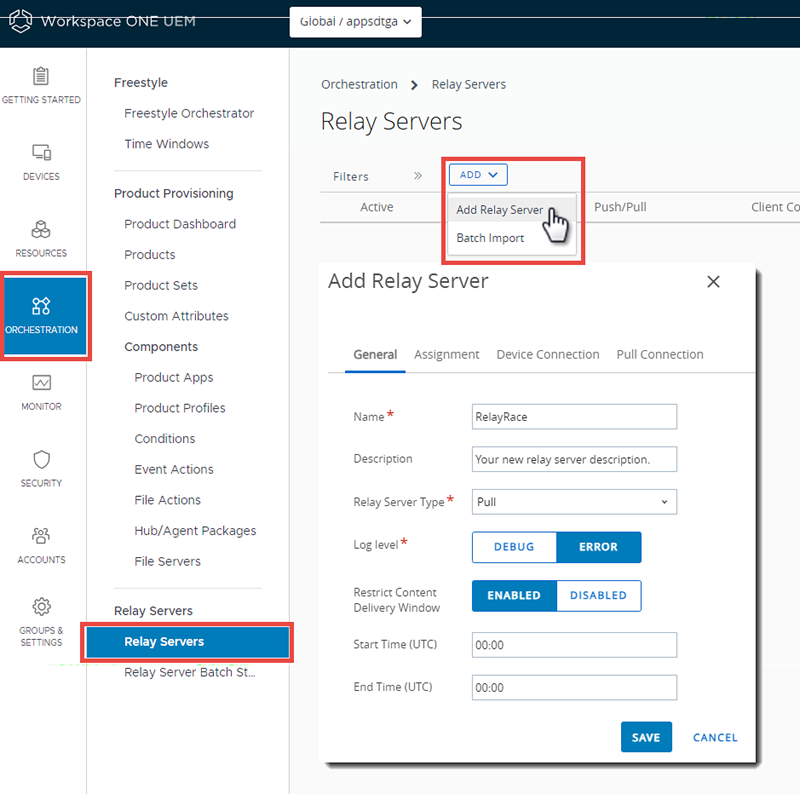
GENERAL TAB
Setting Description Name Enter a name for the relay server. Description Enter a description for the relay server. Relay Server Type Select either Push or Pull as the relay server method.
Push – This method is typically used in on-premises deployments. The UEM console pushes content and applications contained in the product or staging to the relay server.
Pull – This method is typically used in SaaS deployments. A web-based application stored in the relay server pulls content and applications contained in the product or staging from the UEM console through an outbound connection.
For more information on installing a pull server, see Pull Service Based Relay Server Configuration.Log Level This option is available only for Pull server types.
Select the level of detail you want the log to capture as your relay server operates. Error to log only when things go wrong or Debug to capture all available detail.Restrict Content Delivery Window Limits content delivery to a specific time window. Provide a Start Time and End Time to restrict the delivery of content.
The start time and end time of the restriction window is based on Coordinated Universal Time (UTC), which the system obtains by converting the console server time into Greenwich Mean Time (GMT).
Set the system time on the console server accurately to ensure that your content is delivered on time.ASSIGNMENT TAB
Setting Description Managed By Select the organization group that manages the relay server. Staging Server Assigned Organization Groups Assign the organization groups that use the relay server as a staging server. A staging server only works for the staging process involving the supported staging clients, Stage Now (Android), and Rapid Deployment. Production Server Assigned Organization Groups Assign the organization groups that use the relay server as a production server. A production server works with any device with the proper Omnissa Workspace ONE Intelligent Hub installed on it. DEVICE CONNECTION TAB
Setting Description Protocol The information the device uses to authenticate with the FTP server when downloading applications and content.
Select between FTP, Explicit FTPS, Implicit FTPS in Pull configuration (Android only), SFTP, or HTTPS (Pull only) as the Protocol for the relay server.
Only Android supports Implicit FTPS relay servers instead of Explicit FTPS relay servers and only in a pull configuration.
If using FTPS or HTTPS, your server must have a valid SSL certificate. Configure the SSL certificate on the FTPS or HTTPS server.
If selecting an HTTPS protocol, you must configure the HTTPS endpoint using the web server configuration tool of choice (for example, IIS).Hostname Enter the name of the server that hosts the device connection. Port Select the port established for your server.
Important: The ports you configure when you create your FTP, Explicit FTPS, Implicit FTPS in Pull configuration (Android only), SFTP, or HTTPS (Pull only) server must be the same ports you enter when creating a relay server in the Workspace ONE UEM console.User Enter the server user name.
Domain-based user names are supported, accepted formats for domain users areusername@domainanddomain\username.
Note: You can authenticate onto StageNow relay servers using a domain user name.Password Enter the server password. Passwords may not contain the colon : special character.
Note: Regarding Zebra Stage Now Barcodes, you are restricted from using these characters in the FTP/FTPS password.
“@” | “/” | “\” | “:” | “;” | “,” | “?” | “$” | “&” | “=” | “+” | "!"Path Enter the path for the server.
This path determines where Workspace ONE UEM content resides within the FTP/HTTP root directory. For example, if the path is set to\WS1and the FTP/HTTP root directory is set toc:\ftproot, then all content resides underc:\ftproot\WS1.Passive Mode Enable to ensure that the connection is trusted and there are no SSL errors. Verify Server This setting is only visible when Protocol is set to FTPS.
Enable ensures that the connection is trusted and there are no SSL errors.
If left deselected, then the certificate used to encrypt the data can be untrusted and data can still be sent. -
For Push server selections made in the General tab, select the Console Connection tab and finish the settings. For Pull server selections, go to step 4.
The Console Connection tab contains information that the Workspace ONE UEM console uses to authenticate with the FTP(S)/SFTP server when pushing applications and content. The settings are typically identical to the Device Connection tab. Select the Copy Values From Device Connection button to save yourself from having to enter values from the Device Connection tab manually.
- Press the Test Connection button to test your Console Connection to the push server. Each step of the connection is tested and the results are displayed to help with troubleshooting connection issues.
- Press the Export button on the Test Relay Server Connection page to export the data from the test as an XLSX or CSV (comma-separated values) file.
- Go directly to step 5.
-
For Pull server selections made in the General tab, select the Pull Connection tab and complete the settings.
Settings Descriptions Pull Local Directory. Enter the local directory path for the server.
The directory you enter here must be the same as the root directory you have selected for the FTP or HTTP file server. For example, if you have configured an HTTPS endpoint and selectedc:\rootfolderas your root directory in IIS, then you must usec:\rootfolderfor your Pull Local Directory.Pull Discovery Text. Enter the local (not public) IP address or the MAC address of the server.
IP addresses use periods as normal but MAC addresses do not use any punctuation in this form.Pull Frequency. Enter the frequency in minutes that the pull server should review the UEM console for changes in the product. -
Select Save.
Was this page helpful?