After installing the Omnissa Access Desktop application, you must connect to the Omnissa Access service from the Desktop application to obtain the ThinApp applications that are assigned to you.
Connect to the Workspace ONE Intelligent Hub Catalog
After you install the Omnissa Access Desktop application on your Windows system, sign in to the Omnissa Access service URL provided by your administrator and access the ThinApp applications that are assigned to you.
-
If Omnissa Access Desktop is not running, from the Windows Start menu, select Workspace ONE Access Desktop.
The application's icon
 appears in the Windows task bar.
 -
Click the
icon and select Connect to server.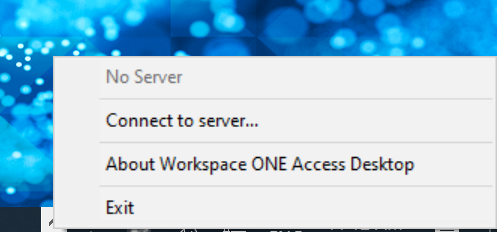
-
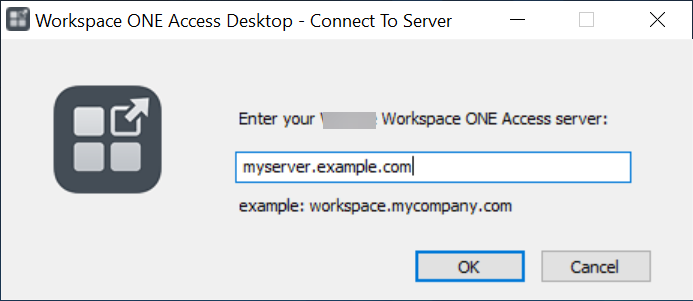
Enter the Omnissa Access service URL, and click OK.
For example: myserver.example.com
-
Click the
icon again and select Log in.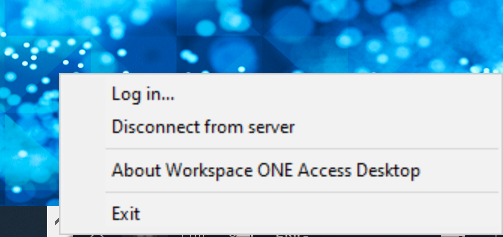
If your administrator configured Kerberos on the server, you are logged in automatically. Otherwise, proceed with the following steps.
-
Select your domain and click Next.
-
Enter your user name and password, then click Sign in.
Note: The sign in process might be different if your administrator has configured a different authentication method.
-
To view the ThinApp applications that are assigned to you, use a browser to go to the Omnissa Access portal, also referred to as the Intelligent Hub portal, and view the applications in the Apps tab.
When you log into the Omnissa Access service from Omnissa Access Desktop, ThinApp applications that are assigned to you are added to your system's Start menu and Program Files folder, or to your desktop, depending on the application. The application is either downloaded to your system or run from the network share, as configured by your administrator. Note that an application that appears in the catalog might not be available on your system until the next time the Omnissa Access Desktop syncs with the service.
The Omnissa Access Desktop syncs the applications to your Windows system at regular intervals. If your administrator entitles you to a new application, or provides an update, it appears on your system after the next sync. You can see the next scheduled sync time on the Omnissa Access Desktop menu. If you want to sync the applications immediately, select Sync Now.
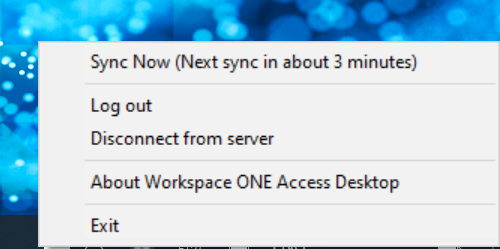
Note: Keep Omnissa Access Desktop running and connected to the service so that any new or updated applications are automatically synced to your system. The sync occurs at regular intervals. The default sync interval is 5 minutes but your administrator might have set a different interval.
Run Your ThinApp Applications
To run ThinApp applications from your Windows machine:
-
Click the Windows Start button at the bottom-left corner of your screen.
-
Select the application.
To run ThinApp applications from the Workspace ONE Intelligent Hub catalog:
-
Use a browser to log into the Omnissa Access user portal, also referred to as the Workspace ONE Intelligent Hub portal.
-
In the Apps tab, click the ThinApp package.
-
Click the application that you want to run.
-
In the Open Workspace ONE Access Desktop? dialog box, click the Open Workspace ONE Access Desktop button.
You can select the Always allow WorkspaceONEAccessURL to open links of this type in the associated app check box to prevent the prompt from appearing every time you run a ThinApp application.
If the ThinApp package is already synced to your Windows machine, the application starts. If the ThinApp package is not yet synced to your Windows machine, the sync starts and a progress dialog box indicates that sync is in progress.
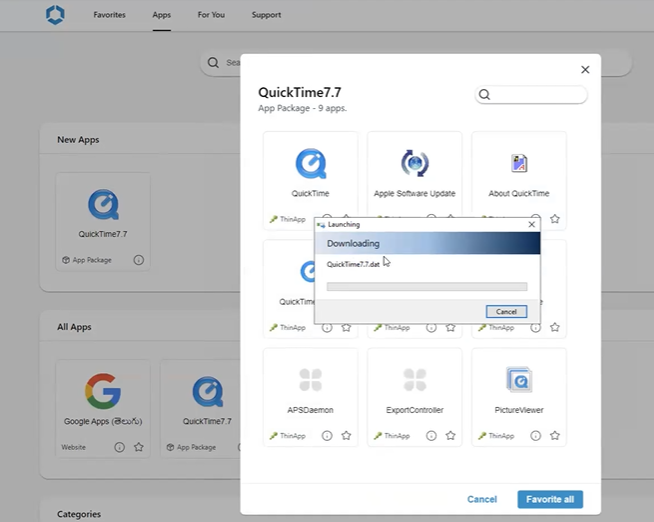
When the download is complete, the application starts.
Log Out of Omnissa Access Desktop
You can log out of the Omnissa Access Desktop without disconnecting from the Omnissa Access service.
When you are logged out, ThinApp packaged applications are not synced to your computer. Any updates are synced the next time you log in. Keep in mind that because Omnissa Access Desktop syncs with the server at regular intervals, you might not see updates until the next sync.
-
In the taskbar, click the Omnissa Access Desktop icon
. -
Select Log out.
Disconnect from the Omnissa Access Service
You can disconnect the Omnissa Access Desktop application from the server.
-
In the taskbar, click the Omnissa Access Desktop icon
. -
Select Disconnect from server.
Was this page helpful?