The Omnissa Workspace ONE Tunnel client for Android versions 22.09 and later supports standalone enrollment in addition to the existing MDM workflows. For Standalone enrollment, there is no requirement for device management or Workspace ONE HUB for configuration.
Tunnel Profile for Standalone Enrollment
To setup a new Tunnel profile within the UEM console, go to: Groups and Settings > All Settings > System > Enterprise Integration > Tunnel.
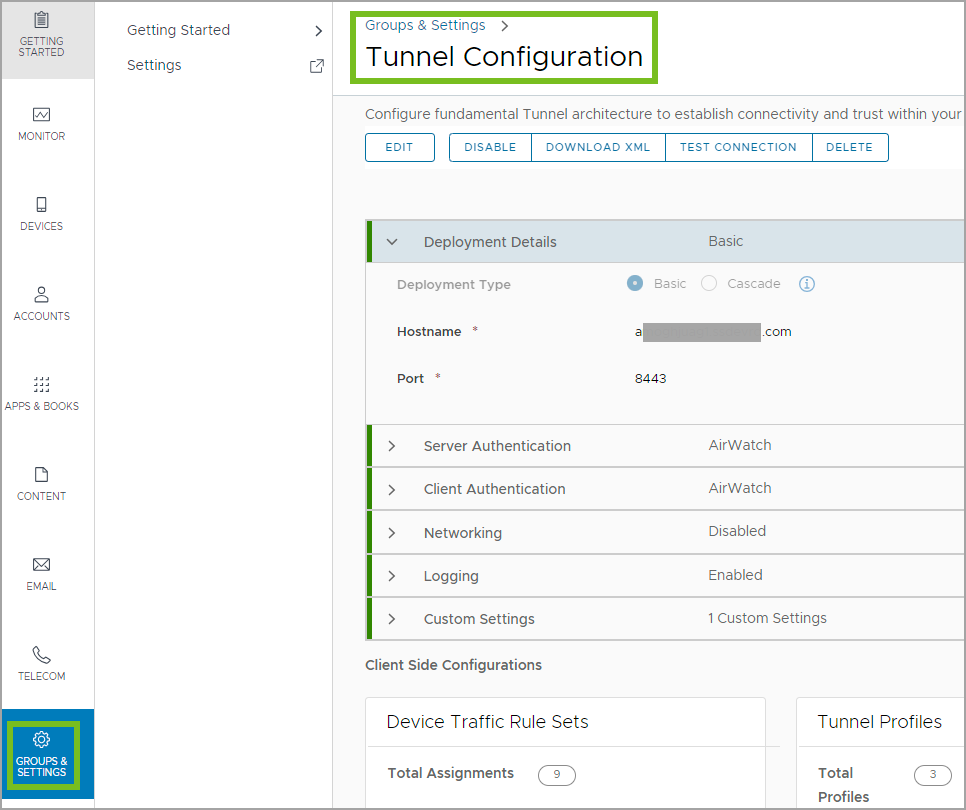
The Client-Side Configurations section includes the original Device Traffic Rule Sets and the new Tunnel Profiles. From here, admins can manage their standalone enrollment client profiles and will no longer need to configure the VPN payload under the Device Profiles.
Follow the setup wizard for the first-time profile creation.
-
Select Android from the Platform drop-down list and enter a Connection Name for the profile.
-
Select the appropriate Full Device DTR (Device Traffic Rules) for this profile.
-
Click Save.
The profile will then be associated to All devices at the Organization Group (OG).
Minimum Requirements for Standalone Enrollment:
-
UEM Console 2209+
-
Android 8+
Current Limitations for Standalone Enrollment:
-
Administrators must upload the Tunnel application in the UEM console and assign it to the desired smart groups.
-
Only one Tunnel Profile per platform can be set up at a particular Organization Group (OG).
-
The Tunnel client will only configure if it is enrolled at the OG where the Tunnel Profile is set up.
-
The profile is assigned to All devices at that OG, support for Assignment Groups is planned for a future release.
-
Administrators must allow enrollment for Boxer / Content / Web at the specific OG. This can be done by navigating to: Groups and Settings > All Settings > Content > Applications > Workspace ONE Content App. Select Disabled for the Block Enrollment via Content, Boxer, and Web setting.
Was this page helpful?