Configure Omnissa Workspace ONE Tunnel for iOS devices to provide secure access to your corporate applications and resources.
-
Go to: Devices > Profiles & Resources > Profiles > ADD > ADD Profile > iOS > Device Profile.
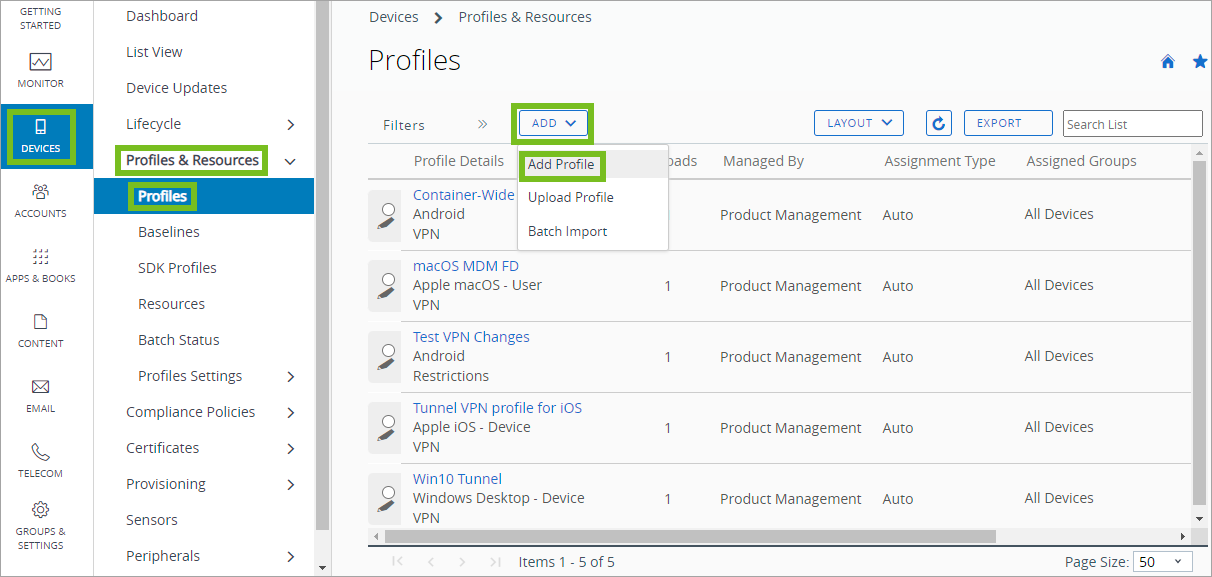
-
Configure the profile's General settings. Consider setting the Deployment type for this profile to Auto so end-users receive it automatically.
-
Select the VPN payload from the list and click Configure.
-
Enter a Connection Name, which is the name that displays on the user's device in the Tunnel application, and select Workspace ONE Tunnel as the Connection Type.
-
Select the appropriate DTR (Device Traffic Rules) from the menu.
-
Select Enable Tunnel to always push the Workspace ONE Tunnel version of the profile to device.
-
Verify or select AppProxy as the Provider Type.
-
Select Save & Publish.
What to do next: Configure an internal or public app to use the profile when making connections to the domains you specified.
Was this page helpful?