Basic health check lets you analyze whether your Omnissa Workspace ONE Tunnel is operating within the acceptable performance limits.
Access Logs and Syslog Integration
Omnissa Workspace ONE UEM supports exporting access logs to the syslog server for the Proxy and the Per-App Tunnel components of Tunnel. Access logs are generated in the standard HTTP Apache logs format and directly transferred to the syslog host you defined. They are not stored locally on the Tunnel server. In relay-endpoint deployments, the relay server writes the access logs, in a cascade deployment, the back-end server writes the access logs and in a basic deployment, the basic server writes the access logs.
Under high loads and peak hours, average of 10,000 devices for an hour roughly generates around 0.5 GB of logs to the syslog server. However, your mileage might depend on the load that you might have on your Tunnel server. For additional support, contact your syslog administrator.
Important:
You must enable access logs before you install any of the components. Any changes you make to the access logs configuration on the Workspace ONE UEM console require reinstallation of the Tunnel server.
Monitor and Analyze VPN Report
VPN report gives detailed statistics on the VPN use. Network administrators can monitor the activities being performed over the VPN and use the statistical report during troubleshooting .
There are two types of statistical reports administrators can run to get information about the VPN:
-
VPN allowlist Report that fetches the allowlist information.
-
VPN Statistics Report to get statistical information about the number of connected devices, downstream traffic , service synchronization time and so on.
Run VPN Allowlist Report
Network administrators can run the vpnreport allowlist to get the allowlist information report for the devices.
The allowlist report allows administrators to complete the following actions:
-
Print the report in an XML format.
-
Get the allowlist information for a device with UDID.
-
Print the help information.
-
Get the verbose output.
You can run the vpnreport allowlist from the command line to get the allowlist information report for the devices. Complete the following steps to Run VPN Allowlist Report:
-
Go to the
vpndfolder. -
Run the
./vpnreport allowlistas root. -
(Optional) Run the commands that are supported by the VPN report.
Command Action -x,--xmlPrint c in an XML format. -u,--udid=Get the allowlist information for the device with UDID. -h,--helpPrint the help information. -v,--verboseView the verbose output.
Run VPN Statistics Report
Administrators can run the VPN Statistics report to get statistical information about the number of connected devices, downstream traffic, service synchronization time and so on. The report displays interactive graphs that visually represent statistical information.
You can run the vpnreport stat from the command line using the following steps:
-
Go to the
vpndfolder. -
Run the
./vpnreport statas root.You can add
--jsonto create a JSON output and--textto create a text output.Here’s a screen shot that shows the visual representation of the usage statistics about the number of connected devices, downstream traffic, service synchronization time and so on:
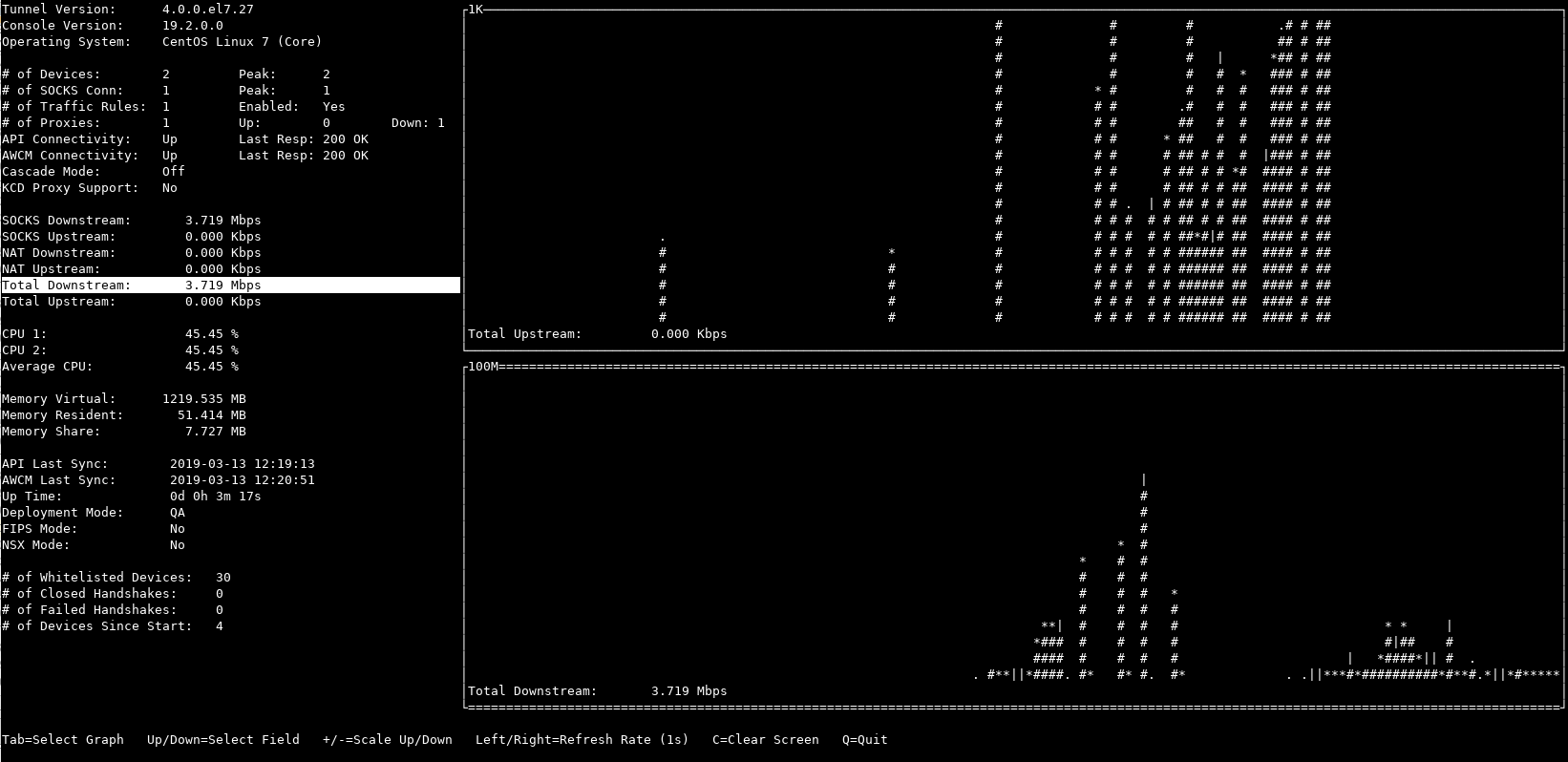
You can use the following menu options while working with the report:
Menu Options Descriptions Tab Select graph Up/Down Select field +/- Scale up/down Left/Right Adjust refresh rate C Clear screen Q Quit You can use the following legend to analyze the report:
Legend Descriptions Last digit 0 empty Last digit 1 . Last digit 2 to 4 | Last digit 5 to 9 * Any value larger or equal to 10 #
Was this page helpful?