This documentation page applies to first-gen tenants. After importing an image into the image catalog or after creating an image version, you must publish the image version to your first-gen tenant's pods. Publishing an image version makes for the sealed image that can be used in pool assignments, desktop assignments, and farms.
Important: This information applies solely when you have access to a first-gen tenant environment in the first-gen control plane. As described in KB-92424, the first-gen control plane has reached end of availability (EOA). See that article for details.
Introduction
Your first-gen tenant's pod fleet might consist of both types of deployments: Horizon 8 pods that run on Horizon Connection Server software and Horizon Cloud on Microsoft Azure deployments that are based on Horizon Cloud pod-manager technology.
Even when your first-gen tenant's pod fleet has both types of pods, the Publish Image Version workflow only publishes to pods that are of the same type of resource capacity. Images from Horizon pods running Connection Server are only published to the same such pods, and images from pod-manager-based pods in Microsoft Azure are only published to those same such pods.
You use the Horizon Universal Console to run the Publish Image Version wizard. The prerequisites and specific steps are different depending on the pod type.
First-Gen Horizon Cloud, IMS, Horizon Cloud on Microsoft Azure Pods - Publish an Image Version
This documentation page describes the steps for publishing images and image versions from first-gen Horizon Cloud on Microsoft Azure deployments and replicating the image to selected Horizon Cloud on Microsoft Azure pods within the first-gen tenant's pod fleet. You use the Horizon Universal Console to perform these steps. Published image versions can be used in desktop assignments and farms for the pods you select in the Publish Image workflow.
After importing an image from a Horizon Cloud on Microsoft Azure pod into the image catalog, or after creating an image version, you publish the image version to selected first-gen tenant's Horizon 8 pods. Publishing an image version makes it available to use in VDI desktop assignments and farms from the Horizon Cloud pods.
Note: Even when your first-gen tenant's pod fleet consists of pods from both pod types, the Publish Image workflow only publishes to pods that are of the same type of resource capacity. The two types are: Horizon pods that run on Horizon Connection Server software and Horizon Cloud pods that are based on Horizon Cloud pod-manager technology. Images from Horizon pods running Connection Server are only published to the same such pods, and images from pod-manager-based pods in Microsoft Azure are only published to those same such pods.
Important:
For best success, adhere to the following critical points.
-
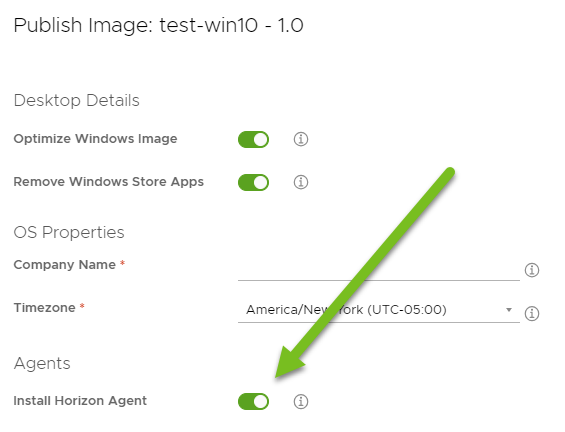
Ensure Install Horizon Agent option is enabled in the Publish Image wizard
For Horizon Cloud pods, you should always ensure that the Publish Image wizard's Install Horizon Agent option is enabled and the agent options you want selected.
This practice is critical for ensuring the system's Publish Image processes install the agent software with the agent configuration parameters required for the published image to work properly for cloud-plane features, especially the agent parameters for the App Volumes Agent. Otherwise, unexpected results will occur.
The system's Publish Image process to install the agent software uses the local admin credentials that were specified when the base image was imported. Only in rare atypical circumstances where your organization locks down use of local admin accounts, only then might you choose to pre-install the agent software into the image to avoid the system's automated process of installing the agent. However, because preventing the Publish Image process from installing the agent software will affect the proper working of cloud-plane features such as App Volumes for Azure, if you believe your organization is in this atypical circumstance that prevents use of local admin accounts, please first seek assistance from Horizon Cloud Support team to discuss your organization's use cases prior to publishing images with the Install Horizon Agent switched off.
This screenshot illustrates the location of the enabled Install Horizon Agent option in the Publish Image wizard for an image in a Horizon Cloud on Microsoft Azure pod, where the tenant has only one pod in its fleet.
-
Remove all admin users set in the image except for a single admin user
To avoid AppX package removal errors that can happen during image publishing, a best practice is to remove all admin users except one.
-
Do not use the Microsoft Azure Portal to perform actions on images that have been published (sealed) by the service
Warning: After you publish an image sourced from a pod on Microsoft Azure and it is in its sealed state in Horizon Cloud, do not use the Microsoft Azure Portal to perform actions on that image VM or copies of it. Using the Microsoft Azure Portal to perform direct actions on a VM that is in the published state in Horizon Cloud is unsupported and will cause unexpected behavior. Always use the Horizon Universal Console to perform actions on sealed images.
-
Follow this best practice when your tenant's pod fleet has multiple Horizon Cloud pods that are running different pod manifest versions
In the scenario where your tenant's pod fleet has multiple Horizon Cloud pods that are running different pod manifest versions, a best practice is to always run the Publish Image workflow on image versions that are sourced from the lowest version pod in the fleet. In the scenario of multiple pods running various manifests, avoid running the Publish Image workflow on an image version sourced from the higher version pods.
The reason why publishing the image from the lowest version pod and replicating to the higher version pods is a best practice is because the agent software installed in the published image from the lowest version pod will be more compatible with the higher version pods than the reverse. Each first-gen Horizon Cloud on Microsoft Azure pod version is compatible with a specific set of agent versions (as indicated in the Product Interoperability Matrix). When you run the Publish Image flow on an image sourced from a higher version pod, the system replicates the published image to the lower version pod, which will result in an incompatibility between the lower pod manifest version and the higher agent software version.
If you run Publish Image on an image version that was deployed on a higher pod manifest and the system deploys the published image to all of the fleet's Horizon Cloud pods, and encounter the error
Cannot publish because the destination pods lower-version-pod-name belong to a lower version compared to the source pod, you can try the following workarounds:- Re-run the Publish Image wizard, and this time, in the Destination section, deselect those pods reported in the error message as lower-version-pod-name. This workaround results in making the image available to that selected subset of pods. Then later in time, when those lower manifest pods are later updated to the latest pod manifest, then you can make a new image version based on the published image version, and publish that new image version to all of the pods.
- Create a new starting image by identifying the pod with the lowest manifest version (the versions are displayed on the console's Capacity page) and then running the Import Image workflow and in the Import Image wizard, select the pod that is running the lowest manifest version. This workaround results in a starting image that the Publish Image flow can successfully publish to all of the pods and avoid agent incompatibilities.
-
Images are only published to pods within the same pod-type family
The two families are: Horizon pods that run on Horizon Connection Server software and Horizon Cloud pods that are based on Horizon Cloud pod-manager technology. Images from Horizon pods running Connection Server are only published to the same such pods, and images from pod-manager-based pods in Microsoft Azure are only published to those same such pods. Images from Horizon pods can be either VDI or RDSH, but images from Horizon Cloud pods must be VDI desktop images.
Prerequisites
Before running the Publish Image wizard, verify the following:
- Ensure that all the tenant's first-generation Horizon Cloud on Microsoft Azure pods are healthy and online and that there is sufficient quota in all regions for your Microsoft Azure subscription.
- Confirm the image is imported into the IMS image catalog.
- In order for an image to be usable for a VDI desktop assignment or farm, it must have at least one marker on it. You can add markers to the image during the creation or import process.
- Ensure that there are no pending Windows updates on the parent image or on the image version that you want to publish. If there are Windows updates pending, the publication of the image fails.
- If the image you are selecting for the Publish Image workflow is an imported image VM in which you installed software or used automation tools that might have added custom script extensions (CSEs) to that VM, verify that custom script extensions (CSEs) are removed from the VM before you attempt to publish it in the Publish Image workflow. Pre-existing CSEs on the image VM interfere with the system's image publishing processes.
Procedure
-
In the console, select Inventory > Images - Multi-Pod.
The console displays all the images registered in the image catalog.
-
Click the name of the image containing the version that you want to publish.
Remember: As described earlier in this page, in the scenario where your tenant's pod fleet has multiple Horizon Cloud pods that are running different pod manifest versions, a best practice is to always run the Publish Image workflow on image versions that are sourced from the lowest version pod in the fleet. This best practice will avoid encountering the issue
Cannot publish because the destination pods belong to a lower version compared to the source pod.The details page for the image appears, listing all its versions.
-
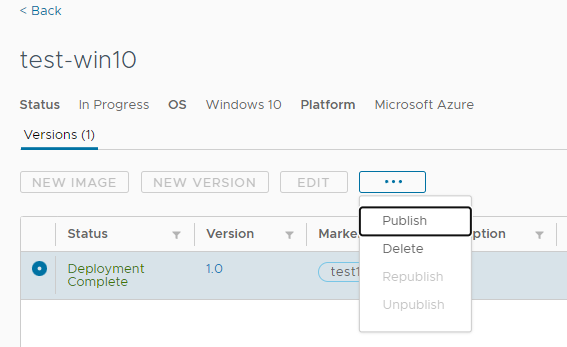
On the image details page, select the version that you want to publish. Click the more ( ... ) button and select Publish from the menu.
Note: You can only publish an image with the status Deployment Complete.
The following screenshot illustrates a selected image and the Publish action.
The Publish Image wizard displays.
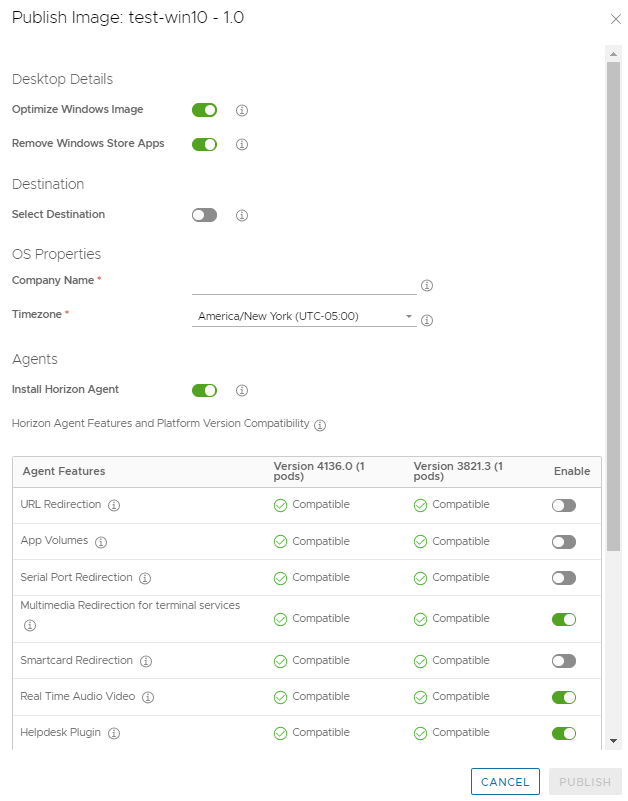
The following screenshot illustrates the Publish Image wizard when it is initially displayed. In this example, the first-gen tenant's pod fleet has two Horizon Cloud pods, where one pod is running manifest version 4136.0 and the other is running a prior manifest version.
-
Specify your desired options.
Option Description Optimize Windows Image Select to optimize the Windows image. This option deactivates physical desktop features for more efficient VM performance and capacity utilization, and helps avoid Microsoft Windows Sysprep issues. For more information, see Deciding to Optimize the Windows Image When Using the Import Virtual Machine from Marketplace Wizard. Attention:This toggle is completely different and separate from the OS Optimization Tool (OSOT). Use of this toggle does not run OSOT. Remove Windows Store Apps Select to remove Windows Store applications, also known as AppX packages, deactivate automatic application and Windows Store updates and downloads. This improves performance and helps avoid Microsoft Windows Sysprep issues. For more information, see Using the Remove Windows Store Apps Option When Using the Import Desktop Wizard. Select Destination Select to choose target pods for replication. If this option is not selected, the image is published to all of the tenant's Horizon Cloud on Microsoft Azure pods. If the tenant has only one Horizon Cloud on Microsoft Azurepod, this field is not displayed. When you select this option, the system displays a list of available pods. Select the check box next to each pod to select it. The source pod for the image is selected by default and cannot be deselected. Company Name Name to appear as the default for the desktops created from this image. Time Zone Time zone where the company is located. Install NSX Agent Select this option to install NSX agent on the image. This option only appears if the capability for installing the NSX agent in Image Management is activated in your environment. Note: Before selecting this option, ensure that all relevant NSX components are installed and configured. Enable NSX Cloud networking and security features for assignments associated with this pod. For more information, see NSX Cloud and Horizon Cloud Pods in Microsoft Azure This option can only be used if NSX Cloud version 3.1.1 or later is installed on the pod's virtual network. For NSX Cloud versions earlier than 3.1.1, configure the Microsoft Azure private DNS for NSX Cloud gateways as described in NSX-T KB 81158 or the image publish will fail. Install Horizon Agent This toggle determines whether the Publish Image workflow installs the Horizon Agent and its default agent parameters, along with the agent features you select in the wizard displayed below this toggle. Important: Ensure this toggle is enabled when you plan to use App Volumes on Azure features with VDI desktops built from the published image.
The automated configuration that the system does when Install Horizon Agent is enabled is especially important when you intend to use the published image with App Volumes on Azure features.
Important: Keeping this toggle selected is the best practice and is the standard publishing workflow. Keep this toggle on for agent features such as the App Volumes Agent to work correctly.
If you choose to turn off this toggle, configuration parameters such as the App Volumes Agent IP will not be configured correctly on each pod.
By default this toggle is enabled and the Publish Image workflow installs the Horizon Agent, its default agent configuration parameters, and the agent features displayed as selected in the wizard. Having the Publish Image workflow install the agent provides for the best experience and outcomes because IMS's automated validation and configuration can ensure appropriate agent functionality in the published images on the destination pods.
IMS's automated configuration is especially important when you intend to use the published image with App Volumes on Azure features. When you plan to use the published image with App Volumes on Azure, ensure Install Horizon Agent is enabled.
CAUTION: When you switch off this toggle, the workflow does not attempt to install the Horizon Agent and does not validate your selected image in terms of what agent software resides on it. In this scenario, by switching off the toggle, you are knowingly preventing the workflow from installing the Horizon Agent software in the image before the workflow seals the image. In this case, you are responsible for ensuring valid agent software, the correct agent version, and valid agent options are pre-installed in the image.
When you switch off this toggle, you are explicitly representing to the system that you have pre-installed the agent software correctly with the appropriate agent options into the image before you imported the image into the image catalog.
You would deselect this option only in rare atypical circumstances, as described earlier in this documentation page. If you switch off this toggle, then you must refrain from using the resulting published image with App Volumes on Azure features. Otherwise, unexpected results occur later in the use of App Volumes in the VDI desktops built from the image.
Note: The Horizon Universal Console has a feature on the older Inventory > Imported VMs page that is labeled Move to Multi-Pod Images. If you see that the Install Horizon Agent toggle is switched off when the Publish Image wizard initially displays, and you cannot switch it on, that is a result from the selected image having been imported using that older Imported VMs page and then moved to the Multi-Pod Images page. This practice is discouraged for the same reasons stated above, because it prevents IMS's automated validation and configuration processes from ensuring appropriate agent functionality in the published image. For such images, you must refrain from using the resulting published image with App Volumes on Azure features. Otherwise, unexpected results occur later in the use of App Volumes in the VDI desktops built from the image.
Horizon Agent Features To specify which agent features you want the Publish Image workflow to install in the image, turn on or turn off the toggle for each feature. Each Horizon Cloud on Microsoft Azure pod manifest has a corresponding agent version. If your tenant fleet has multiple pods running different manifests, the wizard displays a column for each software version showing the agent options available for that version. Each column header indicates the number of pods running that manifest. Placing your pointer on the header shows more information about that version's corresponding pods, such as their names. For information about Horizon Agent features, see the Horizon 8 Documentation. -
Click Publish.
The publication process begins. During this operation, Horizon Image Management Service replicates and places a copy of the image version in the destination pods' Azure resource groups.
The image version shows the in-progress (
 ) status while the publishing operation is underway.
 -
To monitor the publication progress, click the version number on the image details page.
The version details page appears.
Results
The Image Copies section shows the status of the image version as it is replicated to each pod. During the replication process, the version copy shows the in-progress () status. When the replication is complete, the status changes to Available.
For Horizon Cloud on Microsoft Azure pods, there is only one copy. The status of this copy is Deployment Complete before you publish it and then becomes Available after you publish it.
Note: You cannot make changes to a published image version.
The replication process might fail on some or all pods due to environmental issues such as pod going offline.
- Failure on some pods and success on others results in a status of Partially Available.
- Failure on all pods results in a status of Failed.
If an image version has a status of Partially Available or Failed, you can republish it after you have corrected any environmental issues that caused the failure on a particular pod. See Republish an Image Version Using the Horizon Universal Console.
What to do next
- Create a desktop assignment based on that newly published image. See Pods in Microsoft Azure - Creating VDI Multi-Cloud Assignments with Managed Images.
- To re-associate an existing desktop assignment to use the newly published image, see Update Desktop Assignments with a Customized Image.
First-Gen Tenants - IMS and Horizon 8 Pods - Publish an Image Version
This section describes the steps for publishing images and image versions from a Horizon 8 pod and replicating the image to selected Horizon 8 pods within the first-gen tenant's pod fleet. You use the Horizon Universal Console to perform these steps. Published image versions can be used in pools, desktop assignments, and farms for the selected Horizon 8 pods.
After importing an image from a Horizon 8 pod into the image catalog, or after creating an image version, you publish the image version to selected first-gen tenant's Horizon 8 pods. Publishing an image version makes it available to use in pools and farms from the Horizon 8 pods.
Note: Even when your first-gen tenant's pod fleet consists of pods from both pod types, Publish Image Version workflow only publishes to pods that are of the same type of resource capacity. The two types are: Horizon pods that run on Horizon Connection Server software and Horizon Cloud pods that are based on Horizon Cloud pod-manager technology. Images from Horizon pods running Connection Server are only published to the same such pods, and images from pod-manager-based pods in Microsoft Azure are only published to those same such pods.
Prerequisites
Before running the Publish Image wizard, verify the following:
-
For the Horizon 8 pods that you are using with IMS, set up the participating vCenter Server instances. See First-Gen Horizon Cloud, IMS, and Horizon 8 Pods - Configuring the vCenter Server Instances.
-
Confirm the image is imported from vCenter into the IMS image catalog.
-
Confirm the image has at least one marker on it. In order for an image to be usable for a pool, desktop assignment, or farm, it must have at least one marker on it. You can add markers to the image during the creation or import process.
-
Ensure that there are no pending Windows updates on the parent image or template of the image version that you want to publish. If there are Windows updates pending, the publication of the image fails.
-
Installing 32-bit agent software using the automated Publish Image workflow is unsupported. If the Horizon 8 pod is version 2103 or later and you want to use a 32-bit image, then you must manually pre-install the 32-bit Horizon Agent into the image before importing the image into the catalog. If the pod is version 2103 or later, the 32-bit image must already have a 32-bit Horizon Agent installed in it before you import that image into the catalog. After importing that 32-bit image, then in the Publish workflow, you must deselect the Install Horizon Agent option so that the publish workflow will skip installation of the agent.
Important: In this scenario of pre-installed 32-bit agent software, you are responsible for ensuring valid agent software, the correct agent version, and valid agent options are pre-installed in the 32-bit image before you imported the image into the IMS image catalog.
Procedure
-
In the console, select Inventory > Images - Multi-Pod.
The console displays all the images registered in the image catalog.
-
Click the name of the image containing the version that you want to publish.
The details page for the image appears, listing all its versions.
-
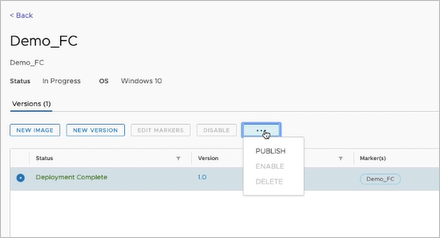
On the image details page, select the version that you want to publish. Click the more ( ... ) button and select Publish from the menu.
Note: You can only publish an image with the status Deployment Complete.
The Publish Image wizard starts.
-
Complete each wizard step, specifying the options you want for the published image.
Option Description Clone Type Select from the following options: - Full Clone
- Instant Clone
Image Type Select from the following types: - VDI
- Session Desktop
- Remote Application
Select Destination Optional. Specify target pods for the published image replicas. By default, the system publishes the image to all of the Horizon pods which are configured for use with IMS in your tenant. If you want the image published to only a subset of the pods, switch off this toggle to select that subset. When you select this option, the system displays a list of available pods. Select the check box next to each pod to select it. The source pod for the image is selected by default and cannot be deselected. Datastore and Network Select a Host or Cluster, Resource Pool, Datastore, and Network. For the Network option, only the vSphere standard virtual switch network is supported. Install Horizon Agent This toggle determines whether the Publish Image workflow installs the Horizon Agent and its default agent parameters, along with the agent features you select in the wizard displayed below this toggle. Important: Keeping this toggle selected is the best practice and is the standard publishing workflow.
By default this toggle is enabled and the Publish Image workflow installs the Horizon Agent, its default agent configuration parameters, and the agent features displayed as selected in the wizard.
Having the Publish Image workflow install the agent provides for the best experience and outcomes because the system's automated validation and automated processes can ensure appropriate agent functionality in the published image.
CAUTION: When you switch off this toggle, the workflow does not attempt to install the Horizon Agent and does not validate your selected image in terms of what agent software resides on it.
In this scenario, by switching off the toggle, you are knowingly preventing the workflow from installing the Horizon Agent software in the image before the workflow seals the image.
In this case, you are responsible for ensuring valid agent software, the correct agent version, and valid agent options are pre-installed in the image. When you switch off this toggle, you are explicitly representing to the system that you have pre-installed the agent software correctly with the appropriate agent options into the image before you imported the image from vCenter into the IMS image catalog.
If the Horizon pod is version 2103 or later and this is a 32-bit image, then you must already have installed the 32-bit Horizon Agent on the image prior to importing the image from vCenter into the IMS image catalog. In this scenario of a 32-bit image, you must switch off this Install the Horizon Agent toggle, because you have selected an image that already has the agent software on it. If the toggle is enabled in the situation where the selected image already has the agent software on it, the Publish Image workflow attempts to install the agent software in the image, and a failure will occur.
Horizon Agent Features To specify which agent features you want the Publish Image workflow to install in the image, turn on or turn off the toggle for each feature. Each Horizon 8 version has a corresponding agent version. If your tenant fleet has multiple Horizon 8 pods of different software versions, the wizard displays a column for each software version showing the agent options available for that version: - Each column header indicates the number of pods using that Horizon 8 version. Placing your pointer on the header shows more information about that version's corresponding pods, such as their names.
- Each column indicates whether the agent feature is compatible with that Horizon 8 version.
CAUTION: If the wizard shows you have multiple Horizon 8 versions (multiple columns) and the image you selected to publish has the agent software already installed on it, you must confirm that the image's installed agent version is not higher than the lowest Horizon 8 version displayed in the columns.
If the image's installed version is higher than the lowest shown in the columns, you should cancel out of the Publish Image wizard, uninstall the agent software from the selected image, and re-run the Publish Image wizard with the Install the Horizon Agent toggle selected, so that the system installs the appropriate agent software in the images for each Horizon 8 pod. Otherwise a failed agent installation can occur in images for the lower Horizon 8 version pods when the image is replicated to those destination pods.
For information about Horizon Agent features, see the Horizon 8 Documentation.
-
On the wizard's Summary step, review the information and ensure it matches your expectations.
-
Click Finish.
The publication process begins. During this operation, Horizon Image Management Service replicates and places a copy of the image version in the content library of each Horizon 8 pod that you selected as destinations.
The image version shows the in-progress (
) status while the publishing operation is underway. -
To monitor the publication progress, click the version number on the image details page.
The version details page appears.
Results
The Image Copies section shows the status of the image version as it is replicated to each pod. During the replication process, the version copy shows the in-progress () status. When the replication is complete, the status changes to Available.
For Horizon 8 pod deployments, the source pod from which you originally imported the image shows two version copies. The Deployment Complete copy represents the source image that was replicated to the pod's content library. The Available copy represents the published image version that you can use for assignments.
Note: You cannot make changes to a published image version.
The replication process might fail on some or all pods due to environmental issues such as pod going offline.
- Failure on some pods and success on others results in a status of Partially Available.
- Failure on all pods results in a status of Failed.
If an image version has a status of Partially Available or Failed, you can republish it after you have corrected any environmental issues that caused the failure on a particular pod. See Republish an Image Version Using the Horizon Universal Console.
What to do next
- Create a desktop assignment based on that newly published image. See First-Gen Tenants - Horizon 8 - Creating Desktop Assignments with Cloud-Managed Images.
- To re-associate an existing desktop assignment to use the newly published image, see Update Desktop Assignments with a Customized Image.
Was this page helpful?