Each device in your organization's deployment must be enrolled in your organization's environment before it can communicate with Workspace ONE UEM and access internal content and features using Mobile Device Management (MDM). iOS devices enroll using MDM functionality built into the native OS.
Enrollment Requirements
To enroll an iOS device, you or your end users must gather specific information. The information the users need depends on whether you associated an email domain to their environment as part of auto-discovery.
Associating an email domain with your environment requires end users to enter an email address and credentials (and sometimes select a Group ID from a list) to complete enrollment. This choice simplifies enrollment because end users likely already know this information.
Alternatively, if you do not set up an email domain for enrollment, users are additionally prompted for the Enrollment URL and Group ID, which admins must provide to them.
For more information on enrollment requirements, see iOS Device Enrollment Requirements.
Single Device Enrollment
The device management capabilities available for enrolled devices depend on the type of enrollment you choose. Workspace ONE UEM provides a matrix comparing supported features for Hub-based and agentless enrollment types. Use this matrix to determine what type of enrollment meets your organization's needs.
Formore information on the comparison matrix between Hub-based and browser-based enrollments, see Capabilities Based on Enrollment Type for iOS Devices.
Hub-Based Enrollment
The Hub-based enrollment process secures a connection between iOS devices and your Workspace ONE UEM environment through the Workspace ONE Intelligent Hub app. The Workspace ONE Intelligent Hub application facilitates the enrollment, and then allows for real-time management and access to device information. Hub-based enrollment is best suited for deployments where users have an available Apple ID, which they must download the Workspace ONE Intelligent Hub from the App Store.
For more information on hub based enrollment, see Workspace ONE Intelligent Hub for iOS and Enroll an iOS Device with Workspace ONE Intelligent Hub in Apps for iOS.
Browser-Based Enrollment
You can also enroll devices using a web-based enrollment process through the iOS device's built-in Safari browser. This approach is best suited for deployments where users do not have an available Apple ID to download the Workspace ONE Intelligent Hub.
For more information on browser based enrollment, see Enroll an iOS Device with the Safari Browser.
Bulk Device Enrollment
Depending on your deployment type and device ownership model, you may want to enroll devices in bulk. Workspace ONE UEM provides bulk enrollment capabilities using the Apple Configurator 2 and the Apple Business Manager's Device Enrollment Program (DEP).
Bulk Enrollment with Apple Configurator 2
Workspace ONE UEM helps businesses take advantage of the unique setup capabilities offered by Apple Configurator 2, such as iOS versioning enforcement and complete backup prevention. You can bulk-enroll devices using Apple Configurator 2 on a macOS computer through a USB connection.
For more information on using Apple Configurator for bulk enrollment, see Bulk Enrollment of iOS Devices Using Apple Configurator.
Bulk Enrollment with Apple Device Enrollment Program
Deploying a bulk enrollment through the Apple Device Enrollment Program(DEP) allows you to install a non-removable MDM profile on a device, which prevents end users from being able to remove the profile from their device. You can also provision devices in Supervised mode to access additional security and configuration settings.
For more information on enrollment with the Apple Business Manager, see Device Enrollment with the Apple Business Manager's Device Enrollment Program.
iOS Device Enrollment Requirements
To enroll an iOS device, you or your end users need information that depends on whether you associate an email domain to their environment as part of auto discovery. If an email domain is associated to their environment, users will need:
Email address – Email address associated to your organization. For example, JohnDoe@acme.com.
QR Code – Users can scan a QR code generated from the UEM console and received through email.
Apple ID – This Apple ID is needed for each user performing Hub-based enrollment.
If an email domain is not associated to your environment: If a domain is not associated to an environment, end users are prompted to enter an email address. Since auto discovery is not enabled, end users are also prompted for the following information:
Enrollment URL – This URL is unique to your organization’s enrollment environment and takes the user directly to the enrollment screen. For example, https://
Group ID – This Group ID associates a user’s device with their corporate role and is defined in the UEM console for a given organization group. Point to the organization group drop-down menu to see the Group ID of the current group.
Apple ID – This Apple ID is needed for each user performing Hub-based enrollment.
Capabilities Based on Enrollment Type for iOS Devices
| Feature | Hub-Based | Agentless |
|---|---|---|
| Enrollment | ||
| Requires Apple ID | Required | Optional |
| Force EULA/Terms of Use Acceptance | Yes | Yes |
| Active Directory/LDAP/SAML Integration | Yes | Yes |
| Two Factor Authentication | Yes | Yes |
| BYOD Support | Yes | Yes |
| Device Staging Support | Yes⁰ | Yes |
| Branding | Partial | Yes |
| Configuration Profile Management | ||
| View and Manage Profiles | Yes | Yes |
| Security Settings (Data Encryption, Password Policy, etc.) | Yes | Yes |
| Device Restrictions | Yes | Yes |
| Certificate Management | Yes | Yes |
| Email and Exchange ActiveSync management | Yes | Yes |
| Device Information | ||
| Device Information (model, serial number, IMEI number, etc.) | Yes | Yes |
| GPS Tracking | Yes | No |
| Phone Number | Yes | Yes |
| Memory Information | Yes | Yes |
| Battery Information | Yes | Yes |
| UDID | Yes | Yes |
| Compromised/Jailbreak Detection | Yes | Yes† |
| Activation Lock Status | Yes | Yes |
| Find my iPhone Status | Yes | Yes |
| iCloud Back Up Status | Yes | Yes |
| Last Back Up Time | Yes | Yes |
| Network Information | ||
| Cellular Information (MCC/MNC, SIM card info, etc.) | Yes | Yes |
| Telecom Roaming Information | Yes | Yes |
| Telecom Usage Information | Yes | Yes† |
| IP Address | Yes | Yes† |
| Bluetooth MAC address | Yes | Yes |
| Wi-Fi MAC address | Yes | Yes |
| Management Commands | ||
| Full Device Wipe | Yes | Yes |
| Enterprise Wipe | Yes | Yes |
| Lock Device | Yes | Yes |
| Clear Passcode | Yes | Yes |
| Email Messaging | Yes | Yes |
| SMS Messaging | Yes | Yes |
| APNs Push Messaging | Yes | Yes† |
| Remote View | Yes | No |
| Set Device Name | Yes | Yes |
| Clear Restrictions Passcode | Yes | Yes |
| Application Management | ||
| View and Manage Applications | Yes | Yes |
| Volume Purchase Program (VPP) | Yes | Yes |
| Application List | Yes | Yes |
| Number Badging for App Updates | Yes | Yes† |
| Content Management | ||
| Content Management | Yes* | Yes* |
⁰ Requires end user to transfer purchases when syncing for first time.
† Requires Workspace ONE UEM SDK embedded application to be present on device.
* Requires Content Locker App from iTunes.
Enroll an iOS Device with the Workspace ONE Intelligent Hub
The Hub-based enrollment process secures a connection between an iOS device and your Workspace ONE UEM environment. The Workspace ONE Intelligent Hub application facilitates enrollment and allows for real-time management and access to device information.
If you want to take full advantage of the Workspace ONE Intelligent Hub capabilities while also allowing the Web enrollment process, you can allow users to enroll through the Workspace ONE Intelligent Hub. This setting prevents the end users from enrolling if they have not downloaded the Workspace ONE Intelligent Hub.
Navigate to Groups & Setting > All Settings > Devices & Users > General > Enrollment > Authentication, and select the Require Hub Enrollment for iOS.
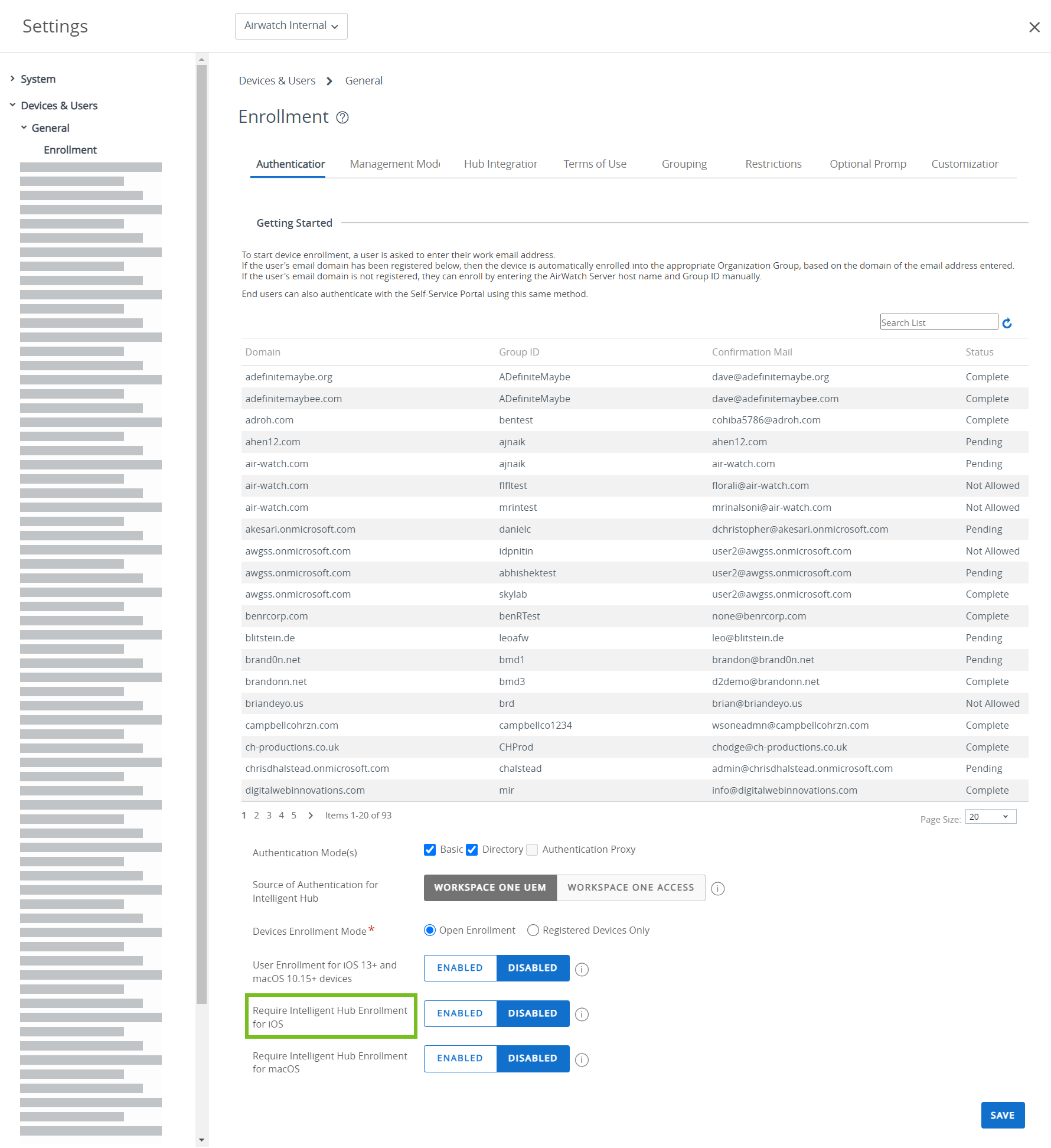
To enroll an iOS device with the Workspace ONE Intelligent Hub perform the following steps:
-
Navigate to getwsone.com from the Safari browser. Workspace ONE UEM automatically prompts the end user to go to the App Store and download the Workspace ONE Intelligent Hub application. Follow the download prompts. An Apple ID is required to download the Workspace ONE Intelligent Hub from the iTunes store.
-
Select the Workspace ONE Intelligent Hub application and then select either one of the following authentication methods:
a. Email Address – Select auto-discovery, if it is configured in your environment. In addition, you might be prompted to select a group from a drop-down menu.
b. Server Details – Select to enroll using the server URL. The server URL is the network location of your organization’s Workspace ONE UEM instance and the Group ID of the group associated with your device.
c. QR Code – Select and use the device to scan the QR code received through email or Support tab.
-
Enter credentials, which can include either a Username and Password, or a Token, or a combination of both to authenticate the device.
a. If you enter the credentials incorrectly, a Captcha code appears. Enter the displayed Captcha code to complete the authentication.
-
Complete the following process flow as determined by the administrator. Select Next after you complete each page.
a. Select your Device Ownership type, if applicable.
b. Accept your organization's Terms of Use, if applicable.
c. Enter the device Asset Number, if applicable.
-
Select Next after reviewing privacy collection information.
-
Once redirected to Safari webview, you are prompted to download the MDM profile. The following message is displayed:
This website is trying to download a configuration file. Do you want to allow this?
-
Tap Allow and when the download is complete, tap Close.
a. For iOS devices 12.2 and later, tap Continue and open Hub to follow the instructional screens to install the MDM profile and accept the MDM warning message by selecting Install.
b. For devices below iOS 12.2, install the MDM profile when prompted and accept the MDM warning message by selecting Install.
-
Select Allow to download the MDM profile.
-
Install the MDM profile. Accept any prompts for trust, if applicable.
-
Once MDM profile is installed, navigate back to Hub.
-
Select Done to complete enrollment. A success message is displayed. The enrollment into Workspace ONE UEM is now complete.
a. If prompted, set up a passcode or enter more credentials for shared devices. To set up a passcode, log in to the Self-Service Portal and follow the instructions.
b. Optionally, select Open to see the Workspace ONE Intelligent Hub details.
Enroll an iOS Device with the Safari Browser
You can enroll devices using a web-based enrollment process through the iOS device's built-in Safari browser. This approach is best suited for deployments where users do not have an available Apple ID to download the Workspace ONE Intelligent Hub.
To enroll an iOS device using a web-based enrollment process perform the following steps:
-
Open the Safari browser on the iOS device.
-
Navigate to https://<Environment_URL>.com/enroll.
-
Select Group ID or your Email Address (if auto-discovery is set up for your environment) to enroll your iOS device. Select Next.
-
Enter the credentials, which can include either a Username and Password, or a Token, or a combination of both to authenticate the device.
a. If you enter the credentials incorrectly, a Captcha code appears. Enter the displayed Captcha code to complete the authentication.
-
Complete the following process flow as determined by the administrator. Select Next after you complete each page.
a. Select your Device Ownership type, if applicable.
b. Enter the device Asset Number, if applicable.
c. Accept the Terms of Use of your organization, if applicable.
-
When prompted, download the MDM profile. The following message is displayed:
This website is trying to download a configuration file. Do you want to allow?
-
Tap Allow and when the download is compete, tap Close.
You have successfully installed the profile.You can view the profile in Settings and continue with installation.
-
Download and install the MDM profile. Accept any prompts for trust, if applicable.
- For devices below iOS 12.2, install the MDM profile when prompted and accept the MDM warning message by selecting Install.
- For devices iOS 12.2 and later, follow the instructional screens to install the MDM profile and accept the MDM warning message by selecting Install. Note: You can also perform an agentless enrollment without using the Workspace ONE Intelligent Hub for web-based enrollment. To perform an agentless enrollment, navigate to Groups & Settings > All Settings > Devices & Users > General and ensure that the Require Hub Enrollment for iOS check box is not selected.
Bulk Enrollment of iOS Devices Using Apple Configurator
You can bulk enroll devices using Apple Configurator on a macOS computer to configure and deploy iOS devices. By using Apple Configurator with Workspace ONE UEM, you can benefit from maintained management visibility of devices, complete backup prevention, and continued life-cycle management beyond the initial configuration.
With Apple Configurator, you can:
- Prepare a single, central backup image to consistently mass-configure devices.
- Install the Workspace ONE UEM MDM profile as part of the configuration to enroll and manage devices.
- Assign devices to specific users by adding registered device details such as serial number or IMEI to a user's registered device in the UEM console before enrolling with Configurator.
- Configure and update corporate device settings and apps over-the-air in Workspace ONE UEM.
For steps to use Apple Configurator with Workspace ONE UEM or for more information, refer to the Workspace ONE UEM Integration with Apple Configurator document.
Device Enrollment with the Apple Business Manager's Device Enrollment Program
Device Enrollment Program (DEP) maximizes the benefits of Apple devices enrolled in Mobile Device Management (MDM).
With DEP, you can perform the following.
- Install a non-removable MDM profile on a device, preventing end users from being able to delete it.
- Provision devices in Supervised mode (iOS only). Devices in supervised mode can access additional security and configuration settings.
- Enforce an enrollment for all end users.
- Meet your organization's needs by customizing and streamline the enrollment process.
- Prevent iCloud back up by disabling users from signing in with their Apple ID when generating a DEP profile.
- Force iOS updates for all end users.
For more information, see the following topics:
- Apple Business Manager - Device Enrollment Program in Introduction to Apple Business Manager.
- The Apple Business Support Portal.
- The Apple Device Enrollment Program Guide, or contact your Apple Apple representative.
User Enrollment
User Enrollment allows organizations to effectively manage settings, applications, and corporate data while protecting user privacy and personal data on iOS devices. With User Enrollment, MDM is permitted to install applications, configure profiles, and issue commands only to a managed user container on the device rather than the entire device.
User Enrollment is achieved through MDM providing a user context called a Managed Apple ID in the MDM profile installed on the device during enrollment. The user context instructs the device to prompt the user for their Managed Apple ID credentials to install the MDM profile. After enrollment, a specific Apple File System (APFS) volume is created for the managed data. Data in the personal volume cannot be accessed from the managed volume keeping user data private.
Due to the creation of the new managed volume of data, there are several existing management capabilities that are not possible for privacy purposes. For example, if any app is manually installed by the user from the App Store, that app is considered personal and cannot be managed by MDM. Such user installed apps must first be uninstalled and then reinstalled by Workspace ONE UEM to be managed.
For this reason, Workspace ONE does not permit User Enrollment using the Intelligent Hub app. If the Intelligent Hub is already installed by the user, uninstall and reinstall the Hub through MDM so that the app's data can be accessed by other Workspace ONE SDK enabled apps.
User Enrollment Workspace ONE UEM Settings
Enable the User Enrollment option for iOS devices by accessing the Enrollment settings page on the Omnissa Workspace ONE UEM console (Groups & Setting > All Settings > Devices & Users > General > Enrollment). Enabling the option allows the devices to enroll to the Organization Group using Apple's User Enrollment method. User Enrollment uses the users' Managed Apple IDs rather than the enrollment user name as a way to indicate which user the device is enrolling. The Managed Apple ID should correspond a user’s email address in Workspace ONE UEM. For more information on mapping Managed Apple IDs to users in Workspace ONE UEM, see Managed Apple IDs.
Setting up Infrastructure for User-Enrollment
Supporting User Enrollment it requires an organization to host what Apple refers to as a Service Discovery URL. The Service Discovery URL allows Apple devices to lookup a company's domain name and then associate that domain name with an enrollment flow. For the technical details involving this lookup process see Implementing the simple authentication user enrollment flow.
By publishing an external file named com.apple.remotemanagement on a company's webserver, the process allows for a smooth enrollment experience.
The most important detail about a Service Discovery URL is that the web domain name used MUST MATCH the email address domain name configured in Apple Business Manager for Apple Managed IT. For example if the company name is company.com, and the Apple Managed ID is name@company.com, the service discovery URL must be hosted on www.company.com. Sub-domains and different domain names are not supported.
The technical configuration of the Service Discovery URL differs based on your web server platform. Here is an example setup for Apache2.
-
On the Apache2 web server in the main directory of your website (for example /var/www/mysite ) create a new sub-directory named .well-known (make sure you include the period in the directory name). The end result should be, for example, /var/www/mysite/.well-known.
-
Create a new file: /var/www/mysite/.well-known/com.apple.remotemanagement that contains the following text (change wxyz to match the UEM tenant):
{
    "Servers": [
        {
            "Version" : "mdm-byod",
            "BaseURL" : "https://dswxyz.awmdm.com/DeviceManagement/Enrollment/AccountDrivenUserEnroll"
        }
    ]
}
- Create a new file: /var/www/mysite/.well-known/.htaccess (Do not forget the period) that contains the following text:
AddDefaultCharset utf-8
RequestHeader set Content-Type "application/json;charset=UTF-8"
-
The .well-known directory is now a sub-directory of your main website with two files in it:
.htaccessandcom.apple.remotemanagementand you are finished with the required configuration. -
In order for the
.htaccessto apply to the .well-known folder, the main Apache2 configuration file located within your root web folder MUST include Override=Allow which lets Apache2 subfolders read the.htaccessfiles.
Enroll an iOS Device Using Account Driven User Enrollment
Ensure that you have the following pre-requisites before the User Enrollment:
- iOS device running iOS 15 or later
- Exactly one enrollment user with an email address that matches a Managed Apple ID in Apple Business Manager
- Service Discovery configured for account-driven user enrollment To enroll an iOS device:
-
Open Settings > General > VPN & Device Management > Sign In to Work or School Account.
-
Enter the enrollment user's email address corresponding to their Managed Apple ID and tap Continue.
Note: User Enrollment does not currently support the custom Managed Apple ID feature possible for Shared iPads.
-
Continue through any authentication screens or prompts. This step will vary depending on your organization's Apple Business Manager setup.
-
Tap Allow Remote Management and wait for the MDM profile to get installed on your iOS device.
Account Driven User Enrollment is now complete.
App Management on User Enrolled Devices
Applications installed by Omnissa Workspace ONE UEM on the User Enrolled devices are managed and associated to the Managed Apple ID, that is used to enroll the device. Any application installed by the user through the App Store is associated to the user’s personal Apple ID and cannot be managed.
Since User Enrollment must associate the managed application to a Managed Apple ID, only managed distribution with User-Based Licenses purchased in Apple Business Manager is supported. For example, applications assigned through the Public tab under the Resources > Apps page on the UEM console are not supported on User Enrolled devices. There are no differences between managing User-Based Licenses on User Enrollment compared to Device Enrollment. When the application is assigned to a User Enrolled device, a VPP license is assigned to the Managed Apple ID associated with the device and the app is installed.
For more information, refer the Managed Distribution by Apple IDs section in the Integration with Apple Business Manager guide.
Enroll an iOS Device Using Profile-driven User Enrollment
Enroll an iOS 13 - iOS 17 later device using Managed Apple IDs in Apple Business Manager federated to Azure AD.
Note: Apple no longer supports Profile-driven user Enrollment as of iOS 18. For devices running iOS 18 and above, use Account-driven User Enrollment.
User Enrolled device allows the enhanced privacy focus for users by separating managed data from personal while still providing the core management capabilities such as installing apps, configuring Wi-Fi, and requiring a passcode.
Ensure that you have the following pre-requisites before the User Enrollment:
- Apple Business Manager w/ federation to Azure AD
- Azure AD
- Unsupervised iOS 13 and later device
- Exactly one enrollment user with an email address that matches a Managed Apple ID in Apple Business Manager.
To enroll an iOS device:
-
Open the Safari browser on the iOS 13 or later device and navigate to your environment’s User Enrollment URL. The URL is your device services hostname appended with the
/enroll/userpath.For example:
Complete URL/enroll/user/
-
Enter the enrollment user's email address matching a Managed Apple ID.
Optionally, enter the Group ID of an Organization Group at or below the Organization Group of the enrollment user. Otherwise, the user’s enrollment Organization Group is used.
-
Confirm the download of the User Enrollment MDM profile.
-
Navigate to Settings in the app and tap Enroll in {Your Company}.
-
Tap through the prompts to redirect to Azure AD for authentication and conditional access prompts.
Azure AD configurations, user type, device, or organization determines the type and number of prompts .
User Enrollment is now complete. The device starts receiving the commands from the UEM console.
Was this page helpful?