With the OS update management system, admins can block and require Apple OS updates on their supervised iOS devices to keep all devices on a common iOS version for a consistent management experience. Maintaining the OS ensures that the device security issues are addressed with minor iOS updates and the devices are always up to date. Apple has announced the deprecation of imperative software update management. To ensure compatibility with future macOS and iOS versions, Workspace ONE UEM provides a unified experience to transition your fleet to Declarative Device Management (DDM) for software updates.
OS update management offers an ideal solution for admins to:
- View a single, unified Apple list of both macOS and iOS updates in the Device Updates List View.
- Block end-user devices from detecting new iOS updates released by Apple. For more information on configuring the restriction profile to block end-users, refer Restriction Profile Configurations in Device Profiles.
- Get information on current available patches/updates available for devices.
- Publish iOS updates to end-user devices.
iOS Update Management Features
The major features available are:
- Block Update – Configure the device not to detect an update for up to 90 days from the release date of the update by Apple. For more information on configuring the restriction profile to block the updates, refer Restriction Profile Configurations (Block Update works only for Imperative Software Updates).
- List available updates – Lists all the available updates from Apple and lists out the devices that are eligible for the respective updates.
- OS Update Action – Define the OS update action; download only, install only, or download and install immediately.
- Monitor – Display the status of an OS update on assigned devices.
iOS Update Management Prerequisites
Ensure to have the minimum requirements explained in this section before initiating the OS update management on managed devices from the UEM console.
Supported Devices
- Supervised iOS 11.3 and later and iOS 17 and later for Declarative Updates
- Device must have at least 50 percent battery
- Device must have enough storage space available to download the update
- Device must have a network connection Apple's update servers
Network Requirements
For information on network architecture and its requirements, refer to the Recommended Architecture guide.
View the Available iOS Updates
View the snapshot of the list of latest or active iOS updates available from Apple for all your managed and eligible devices.
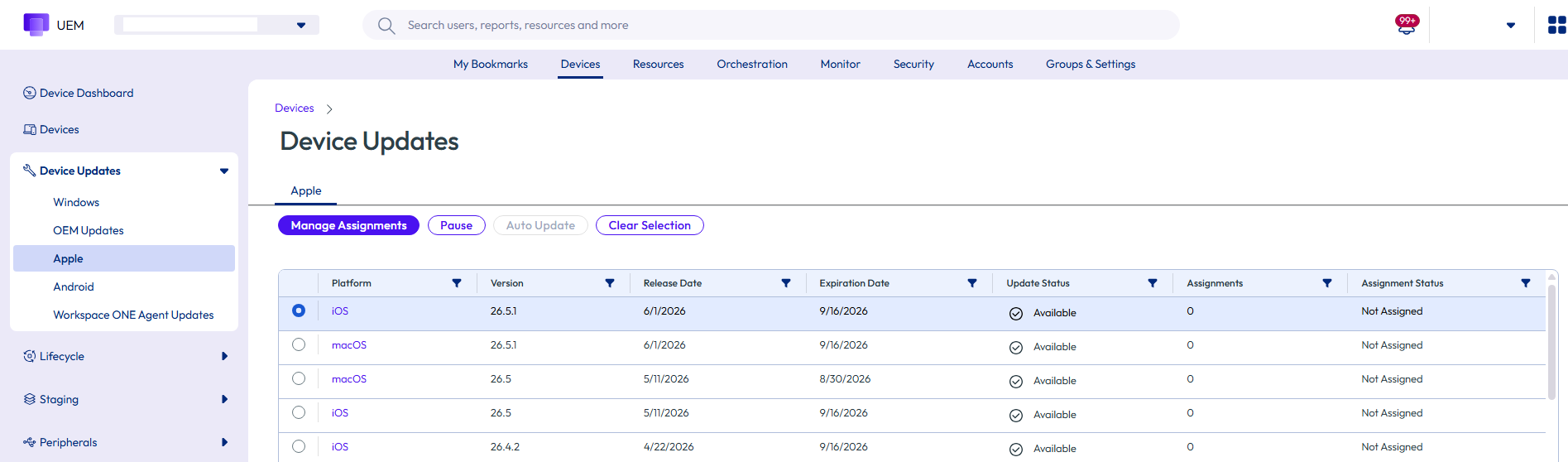
Navigate to the Devices > Device Updates > Apple > iOS tab to view the available OS updates and other related details, including:
- Update – Name of the update.
- Version – Version of the update.
- Release Date – Date when the update is released.
- Expiration Date – Date when the update expires.
- Update Status – Status of the iOS update if available or not available from Apple.
- Assignments – Number of assignments applied to an update.
- Assignment Status – Status of the assignments applied to the update such as Assigned, Not Assigned, or Paused.
The list of iOS update details is pulled from the Apple using the Sync Device Updates scheduler job at the specified interval which runs at an interval of 6-24 hours (that pulls data from Apple).
Note: The Update Status shows the OS versions that are not available in https://gdmf.apple.com/v2/pmv. Whenever there is any change in the Expiry Date, the sync job inserts new records or updates the records accordingly. The update becomes unavailable only if the Expiry Date is over. To overcome this issue, the job must be fixed to update the Expiry Date of missing updates to one day less than the job runs so that the updates can be displayed as not available in UEM.
Assign and Publish iOS Updates
To deploy an OS Update, assign one or more smart groups to an iOS update and publish to the device.
To assign smart groups and deploy the iOS updates:
-
Navigate to the Devices > Device Updates > Apple > iOS tab.
-
Select an iOS Update by selecting the corresponding radio button. The Manage Assignments option appears on top of the page.
-
Select Manage Assignments for the assignment page to display.
-
Select New Assignment under the Assignment section. The Add Assignment page appears.
-
In the Definition tab, enter the assignment name and select one or more smart groups. Select Next.
-
In the Deployment tab, enter the date and time for the deployment to begin and select one deployment method. The available deployment methods are:
Method Description Management Type Select the management type such as Declarative(Recommended) or Imperative.
Note: Apple is deprecating Imperative Update Management.Enforcement Deadline (Available only for Declarative) Choose the date and time of the enforcement deadline. Details URL (Available only for Declarative) Enter the URL. -
Select Save to publish the iOS update.
When the assignment gets saved for the selected iOS update in the UEM console, any eligble, assigned devices will receive the update command on their next check in. Keep in mind a device may not immediately check in depending on your console's settings. After saving, the status of the iOS update will change to Assigned and the status for assigned devices can be monitored in the Update Details page.
Note: These settings can be changed at any time after the update has been published.
If devices have multiple iOS update assignments, the deployment settings and iOS version will be evaluated in the following priority:
- Newest iOS version (e.g. iOS 13.3 be prioritized over iOS 13.1).
- Closest assignment at or above the Organization Group where the device is enrolled (e.g. if a device is enrolled at a child Organization Group, the device will take the assignment at the child Organization Group rather than any at a parent level. This assumes the assignments are for the same iOS version).
- Highest priority within the assignment selected based on the first two criteria with an ascending priority (e.g. priority of 1 is higher than a priority of 2).
Pause and Unpause iOS Updates
As an admin, you can even pause any updates that have been assigned. This holds any updates that have not been sent to iOS devices until the update is unpaused.
To pause an iOS update:
-
Navigate to the Devices > Device Updates > Apple > iOS tab.
-
Select an assigned iOS update.
-
Select the PAUSE option at the top of the page.
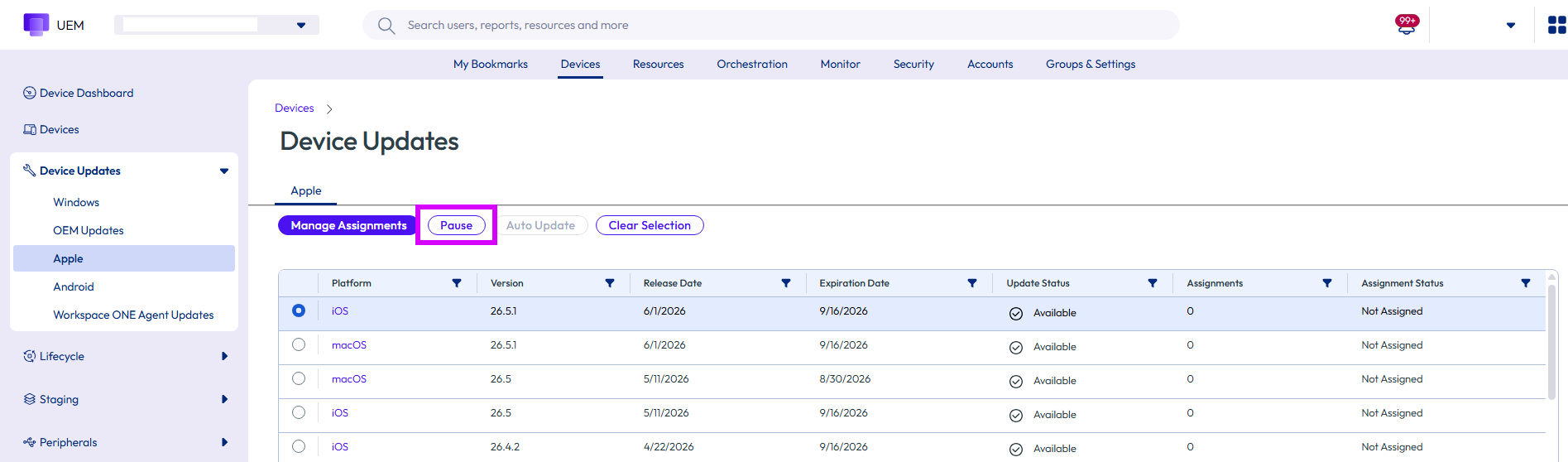
Note: Pausing does not stop the updates that have already been processed on the device such as already downloading the update. Pause only stops the assigned future downloads of the update.
Auto Update
The Auto-Update feature eliminates the need for administrators to manually create a new update assignment every time Apple releases a new OS version. Instead, once configured, the system automatically evaluates eligible devices and delivers the appropriate OS update configuration via DDM (Declarative Device Management) based on a set of predefined timing rules.
When a new OS version becomes available in GDMF (Apple's software update feed), the system checks whether each enrolled device is eligible for that update. If the device qualifies and the configured timing conditions are met, the software update enforcement configuration is automatically pushed to the device — no manual intervention required.
The auto-update assignment operates on two key timing parameters:
-
Deployment Begins — Specifies the number of days after the OS release date before the configuration is delivered to the device.
-
Enforcement Delay — Specifies the number of days after the deployment begins date by which the update must be installed on the device. This becomes the enforcement deadline stamped on the configuration delivered to the device.
To create a new Auto-Update assignment:
-
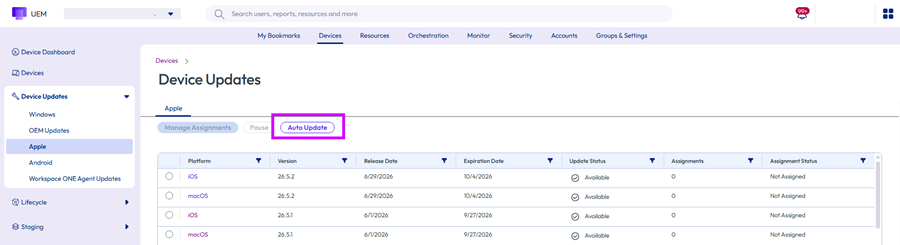
Navigate to the Devices > Device Updates > Apple > Auto Update tab.
 .
. -
On Apple OS Automatic Updates page, click New Assignment.
 .
. -
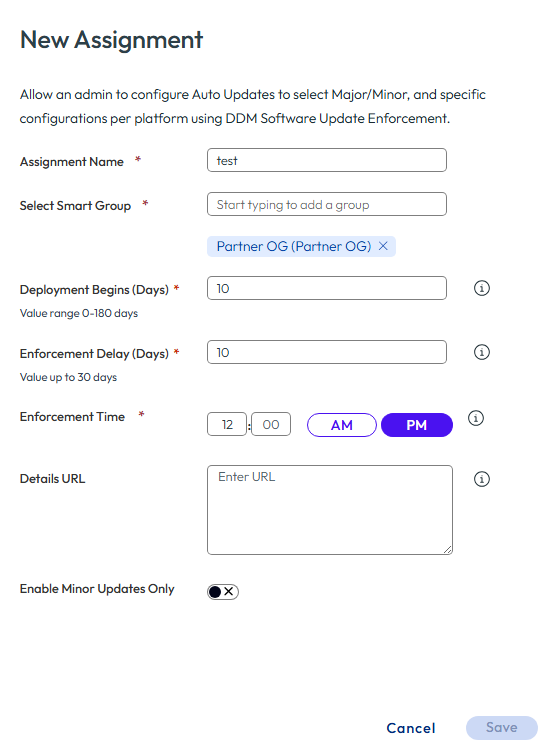
Enter the following options:
| Settings | Description |
|---|---|
| Assignment Name | A descriptive name to identify the assignment. |
| Select Smart Group | The smart group of devices to which the assignment applies. Multiple groups can be added. Start typing to search; select from suggestions. |
| Deployment Begins (Days) | Number of days after the OS release date when the configuration starts being delivered to devices. Enter a value between 0-180 days. |
| Enforcement Delay (Days) | Number of days after the Deployment Begins date by which the update must be installed on the device. Enter a value upto 30 days. |
| Enforcement Time | The time of day at which the update enforcement takes effect. |
| Details URL(Optional) | A URL pointing to additional information or documentation about the update. |
| Enable Minor Updates Only | Controls whether only minor updates or all updates (minor and major) are delivered to devices. Choose ON — Minor updates only . OFF — Minor and major updates. |
- Click Save.
To view Auto-Updates:
Auto-update assignments do not have a separate reporting dashboard. All devices receiving updates via auto-update appear in the same OS version-level reporting dashboard used for manual declarative assignments. The dashboard shows:
- Install status — State reported by the device (e.g., downloading, installing, installed, failed, not eligible, none).
- Install reason — The reason or trigger behind the current install state as reported in the device's status sample.
- Device grid — A list of all devices assigned the update, along with user information, current install status, and assignment details.
The device reporting tracks the OS version being updated to, and not which specific declaration (manual or auto) triggered it.
Monitor iOS Update Assignments
After assigning and publishing iOS updates to devices, the next step is to monitor their deployment.
To see the status of a deployment, select an iOS update from the Devices > Device Updates > Apple > iOS tab to view additional information. The Details section shows the details of the iOS update (such as version details, supported devices and so on). The graphs beneath the Details section are for monitoring and taking action on the assigned devices. Those graphs show:
- Management Type - Provides information about Imperative or Declarative types. For Imperative, you can see Device Readiness and Device Status analytics and for Declarative, you can see Install Status and Install Reason analytics data.
- Device Readiness (Applicable only for Imperative) – Provides information related to the update and the devices enrolled at the organization group and below. This includes devices that are eligible to receive the update, devices that are not eligible to receive the update (e.g. unsupervised, incompatible hardware, etc.), devices that are on higher version, or devices already on the selected version.
- Device Status (Applicable only for Imperative) – Provides information on the status of the iOS Update on the assigned, eligible devices. This includes the devices that downloaded the update, installed the update, or failed with a specified error code.
- Install Status (Applicable only for Declarative) - Provides a status report of the software update install state.
- Install Reason (Applicable only for Declarative) - Provides a status report of the reason for a pending software update on the device.
- Devices – The table shows the status of the iOS update on eligible and non-eligible devices that are triggered from an assignment. The values of this table are:
| Values | Description |
|---|---|
| Last Seen | The last time the device communicated back to Workspace ONE UEM. |
| Device Name | The friendly name of the device. |
| User | The enrollment user’s first and last name assigned to the device. |
| Status | The most recent status received for this iOS version’s update. |
| Reason | Additional context for the status of an update if it was a failure. |
| Next Retry | An estimate of when the system retries to send the update to the device when a failure occurs. It can be more frequent than the time listed. |
The table is also used to take action on devices for the selected update. The actions include:
- Query – Request latest information for the device related to the iOS update.
- Override – Trigger a Download and/or Install command for the device. It ignores any assignments made for the device previously.
Manage iOS Updates for Individual Devices
Managing iOS Updates can be achieved at an individual device level for a more direct approach to ensure that the latest updates and their functionalities are applied across a managed device. These updates can be deployed and monitored for an individual device by navigating to Devices > Devices > Select Device > Updates.
Publish iOS Updates for a Device
To publish a specific update to a selected device:
-
Select Updates tab to view the snapshot of the available OS Updates details.
-
Select an OS Update name and then select Publish. The Update page appears.
-
Select the preferred Device Installation Method.
Note: Download/Install option for Update Assignments performs either download or install actions based on the status of the OS update on the device.
If the OS update has already been downloaded, then the command installs the OS update. However, if the OS update is not downloaded yet, then the command triggers a download instead. Send the command again after the download is completed to trigger the install.
-
Select Send to publish the OS Update to the device.
-
Select Query Update Progress to request the latest status on the update.
Note: This does not impact any iOS updates assigned to the device. Any assignments will continue to be published to devices until they are on or above the assigned iOS version.
Track the Status for iOS Updates
The status for iOS updates are not shown until you schedule an update from the UEM console whether manually publishing or by assigning an update to the device. If an update is downloaded manually on an iOS device, the status of that update will not appear in the Updates list view. Once an admin schedules the update, the status on the console is updated. If an update installed manually, this is reflected in the Device Details Summary.
Troubleshooting
All commands and responses can be seen in event data by navigating to Device Details → More → Troubleshooting tab.
Delay iOS Updates
Admins can delay iOS updates for up to 90 days from when the update is released by Apple using a configuration profile. This is applicable only for Imperative Updates.
To delay an iOS update:
-
Navigate to Resources > Profiles & Baselines > Profiles > Add.
-
Select Apple > iOS and configure Restrictions settings.
-
Select Delay Updates (Days) from the OS Updates restrictions subsection.
-
Restrict Delay Updates and specify the number of days to delay the software update. Number of days range from 1 to 90. The number of days dictate the length of time after the release of the software update and not after the time of installation of the profile
Note: Any managed OS update command will bypass the delay OS updates restriction even if the OS version is within the restriction window of 90 or fewer days. However, if an update is downloaded while a restriction window is active, the update may still not be visible to the user. Once the restriction window expires, the update becomes visible to users.
Was this page helpful?