In addition to using the Custom Settings payload to send XML code that enables or disables specific Launcher settings, you can use custom XML to customize the UI for your organization.
You can change text on the login page, change messages for loading screens, and change several buttons or commands throughout Launcher.
Use this page to configure the customizations you can turn on through custom XML.
Custom XML Format Example
Here is a sample of how the Custom XML looks in the console:
<parm name="ConfigureLauncherViewProperties" value="
{
"login_screen" :
[
{
"resourceId" : "login_button",
"text" : "Sample text",
"textColor" : "#A8383F"
},
{
"resourceId" : "guest_login_button",
"text" : "Sample text",
"textColor" : "#A8383F"
}
]
}
" />
| Key Name | Description |
|---|---|
| resourceid | Resource ID is the name of the screen component. For example: login_button or guest_login_button. |
| Text | Use this parameter to change and prompts or dialog text. |
| Text Color | Use this parameter to change the text color. Use a hexadecimal format such as #FFFFFF, otherwise it does not work. |
Configure Multiple Screens with Custom XML
You can use multiple custom XML to customize multiple screens under the same parameter. You do not have to create multiple custom XML inputs. Instead, you will comma separated value to include multiple key names.
Sample Custom XML with Multiple Customizations
<characteristic type="com.airwatch.android.androidwork.launcher" uuid="568bc89d-1df8-4ce9-a041-e5a24acdb7ec">
<parm name="ConfigureLauncherViewProperties" value="
{
"guest_mode_password_entry_screen" :
[
{
"resourceId" : "guest_mode_password_entry_text",
"text" : "Sample text",
"textColor" : "#A8383F"
},
{
"resourceId" : "guest_mode_login_button",
"text" : "Sample text",
"textColor" : "#A8383F"
}
],
"exit_guest_mode_dialog" :
[
{
"resourceId" : "dialog_title",
"text" : "Sample text"
},
{
"resourceId" : "dialog_text",
"text" : "Sample text"
},
{
"resourceId" : "confirmation_button",
"text" : "Sample text",
"textColor" : "#A8383F"
}
]
}
" />
</characteristic>
Offline Mode Screens that can be customized using Customize XML
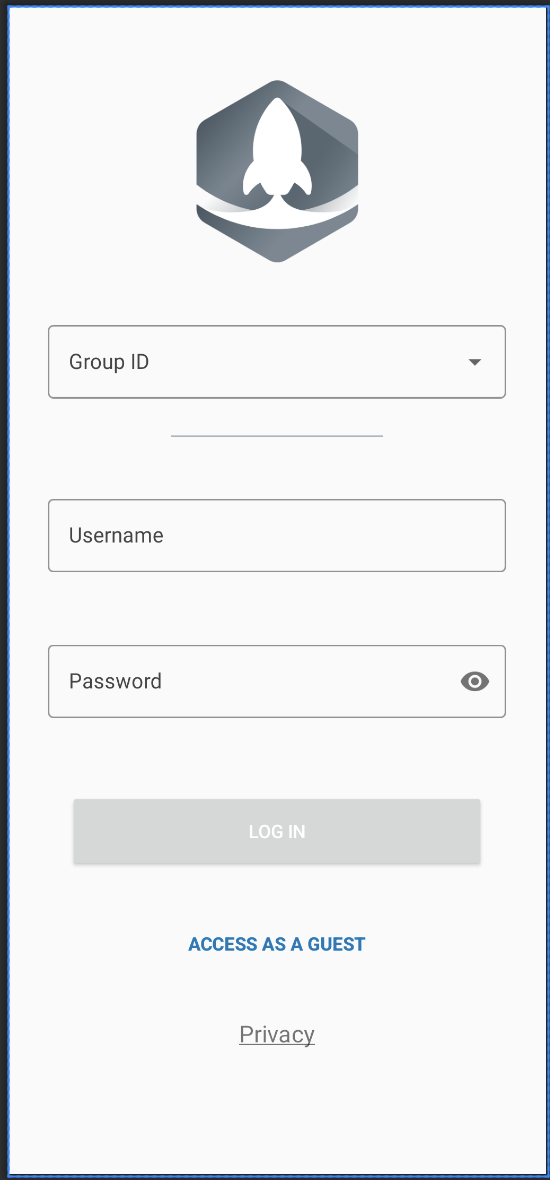
Login Screen
On the login screen, you can customize the Checkout button and the guest log in button. Use the following custom XML to change these buttons:
<parm name="ConfigureLauncherViewProperties" value="
{
"login_screen" :
[
{
"resourceId" : "login_button",
"text" : "Sample text",
"textColor" : "#A8383F"
},
{
"resourceId" : "guest_login_button",
"text" : "Sample text",
"textColor" : "#A8383F"
}
]
}
" />
</characteristic>
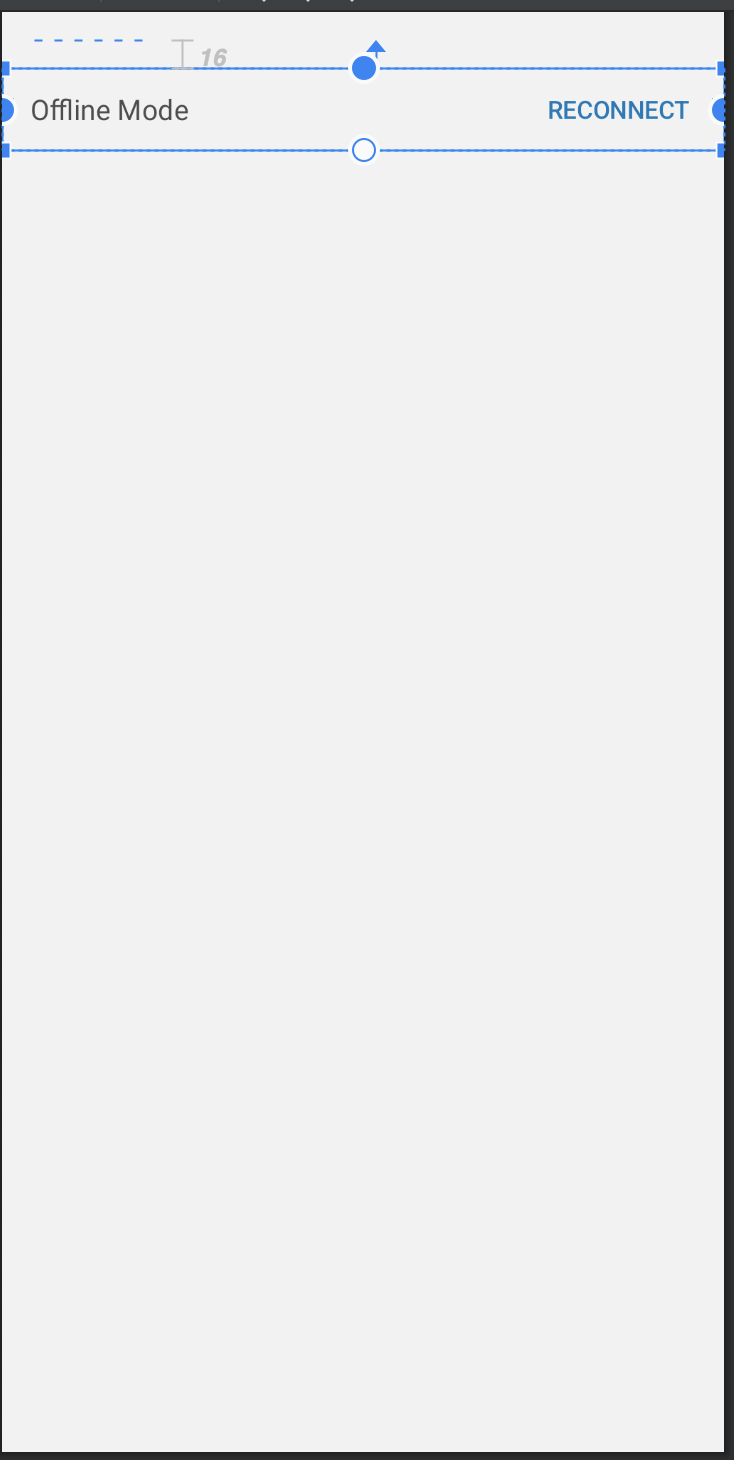
Offline Banner
Change the text on the Offline Banner.
<characteristic type="com.airwatch.android.androidwork.launcher" uuid="568bc89d-1df8-4ce9-a041-e5a24acdb7ec">
<parm name="ConfigureLauncherViewProperties" value="
{
"offline_mode_banner" :
[
{
"resourceId" : "status_text_banner",
"text" : "Sample text",
"textColor" : "#A8383F"
},
{
"resourceId" : "reconnect_button_banner",
"text" : "Sample text",
"textColor" : "#A8383F"
}
]
}
" />
</characteristic>
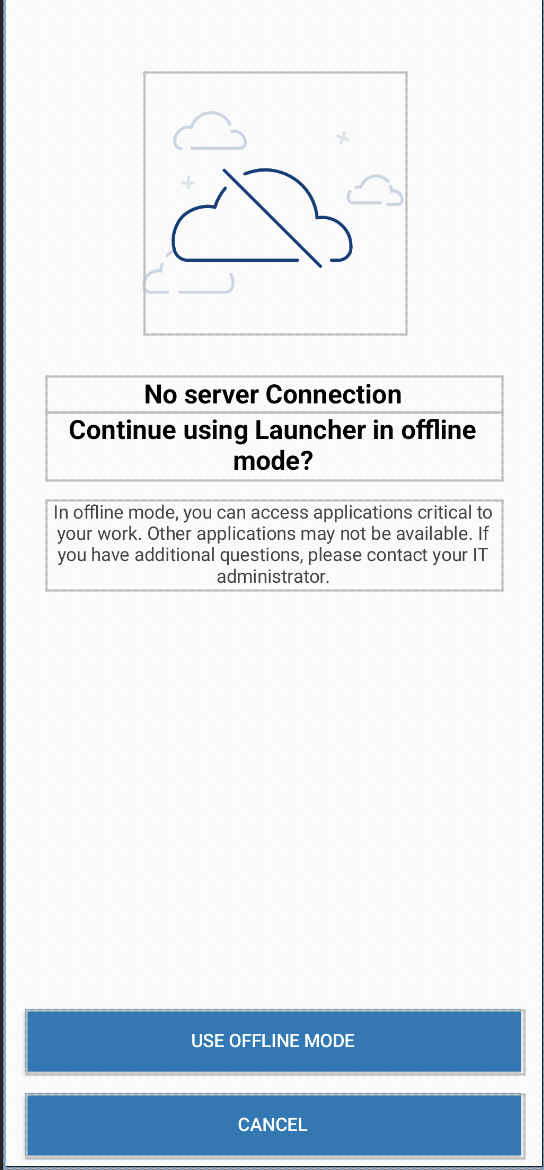
Offline Mode
The offline mode screen displays when the device is not connected to the network. You can edit the dialogue which tells users the tasks they can still perform when in offline mode and the offline mode button.
<characteristic type="com.airwatch.android.androidwork.launcher" uuid="568bc89d-1df8-4ce9-a041-e5a24acdb7ec">
<parm name="ConfigureLauncherViewProperties" value="
{
"offline_login_screen" :
[
{
"resourceId" : "offline_login_screen_textX",
"text" : "Sample text",
"textColor" : "#A8383F"
},
{
"resourceId" : "offline_login_button",
"text" : "Sample text",
"textColor" : "#A8383F"
},
{
"resourceId" : "offline_login_screen_textY",
"text" : "Sample text",
"textColor" : "#A8383F"
},
{
"resourceId" : "offline_login_screen_textZ",
"text" : "Sample text",
"textColor" : "#A8383F"
}
]
}
" />
</characteristic>
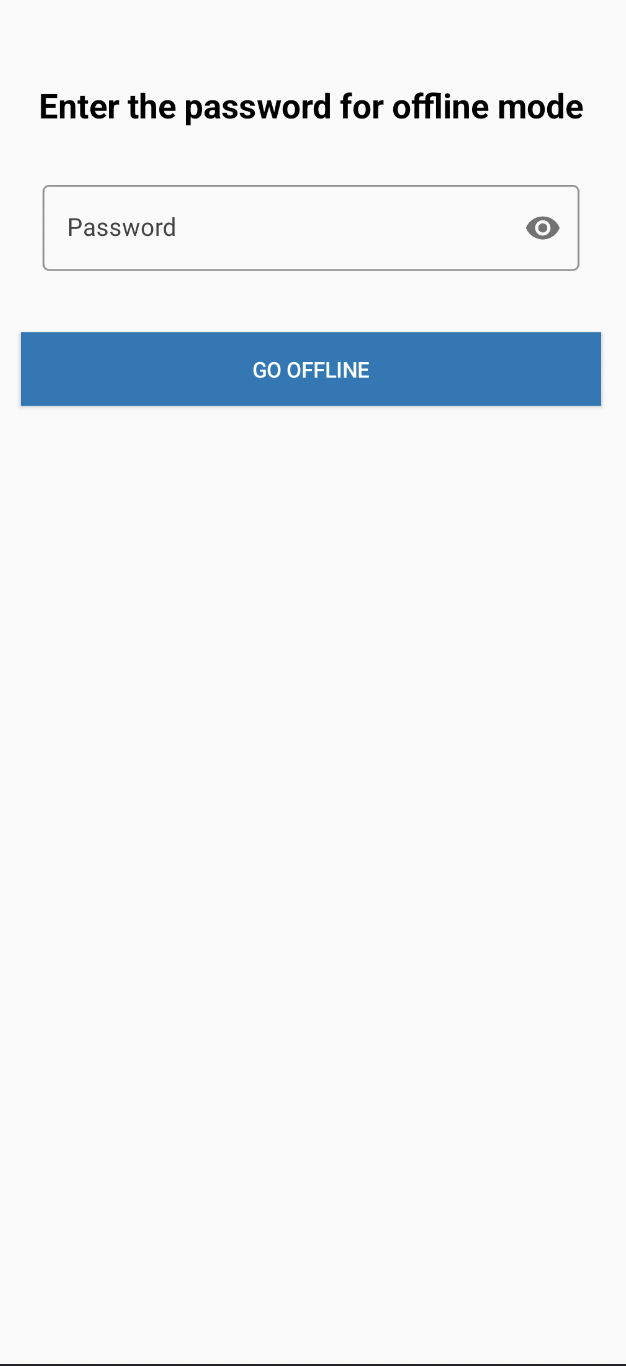
Offline Passcode Screen
On this page, you can edit the password entry text and the offline login button text.
<characteristic type="com.airwatch.android.androidwork.launcher" uuid="568bc89d-1df8-4ce9-a041-e5a24acdb7ec">
<parm name="ConfigureLauncherViewProperties" value="
{
"offline_password_entry_screen" :
[
{
"resourceId" : "password_entry_text",
"text" : "Sample text",
"textColor" : "#A8383F"
},
{
"resourceId" : "offline_login_button",
"text" : "Sample text",
"textColor" : "#A8383F"
}
]
}
" />
</characteristic>
Server Connection Information Screen
This screen allows you to customize the text for server connection information and server connection error texts.
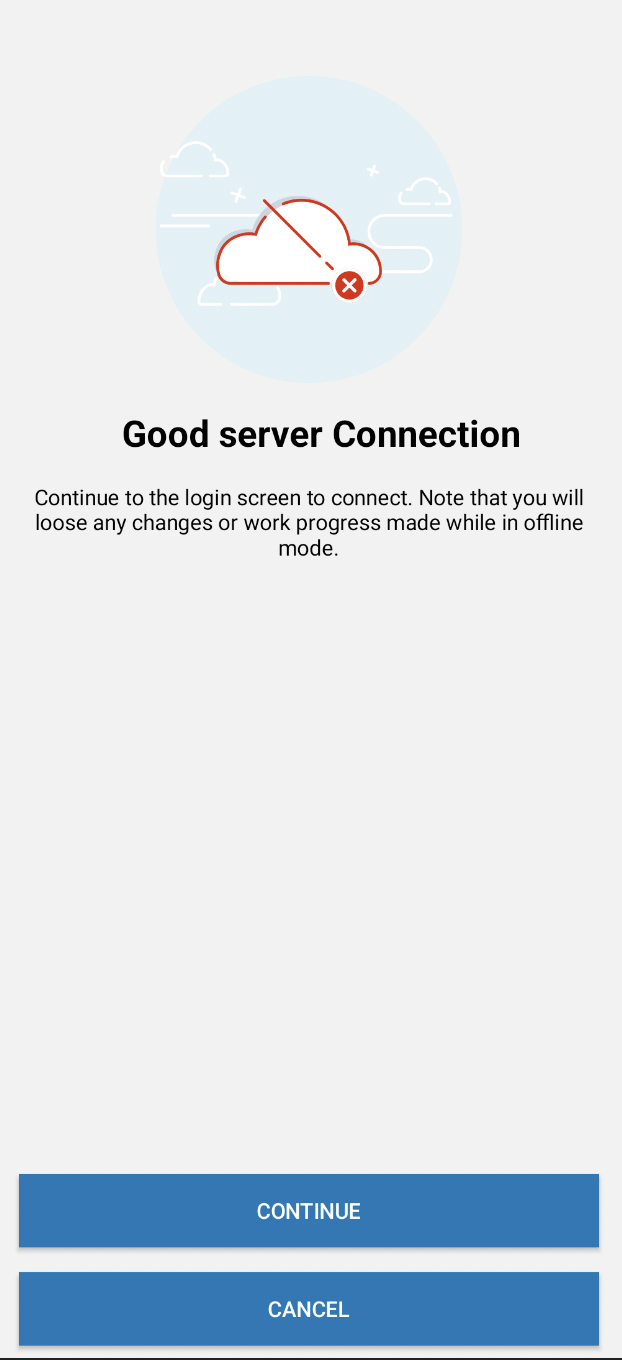
<characteristic type="com.airwatch.android.androidwork.launcher" uuid="568bc89d-1df8-4ce9-a041-e5a24acdb7ec">
<parm name="ConfigureLauncherViewProperties" value="
{
"server_connection_status_screen" :
[
{
"resourceId" : "server_connection_info_text",
"text" : "Sample text",
"textColor" : "#A8383F"
}
]
}
" />
</characteristic>
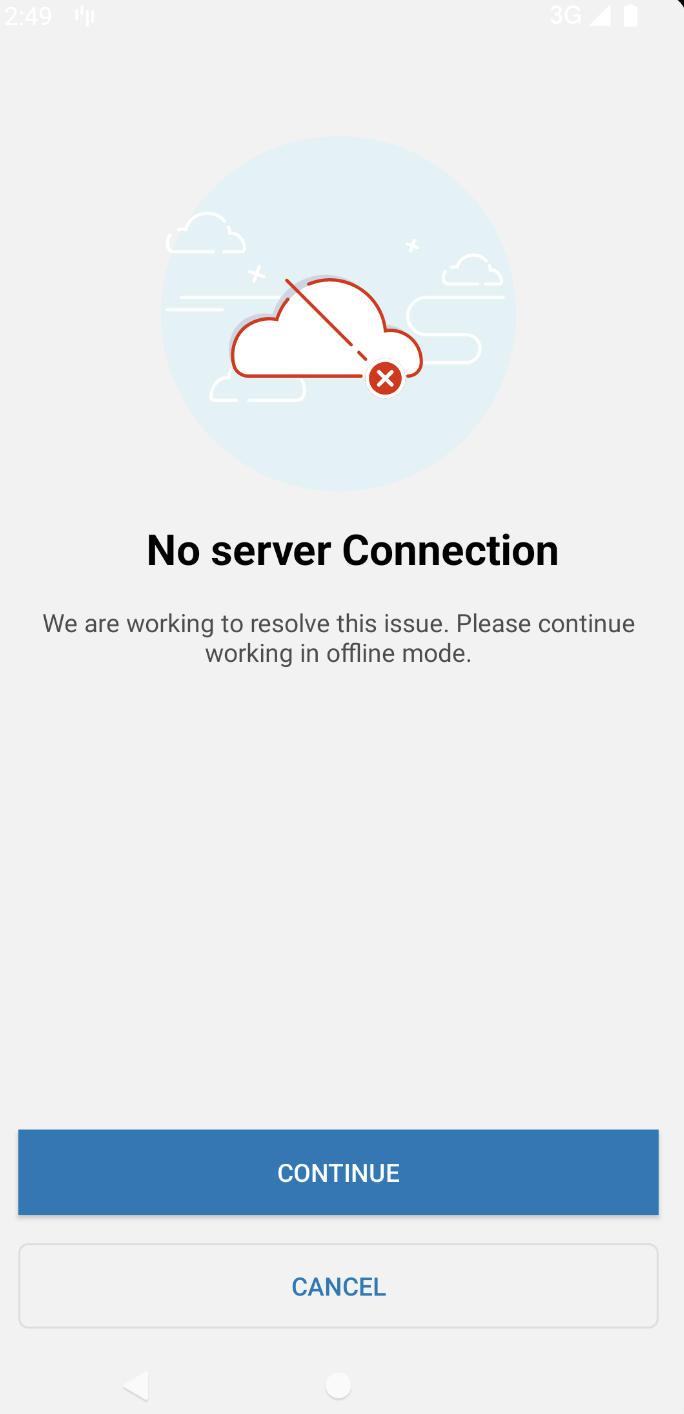
<characteristic type="com.airwatch.android.androidwork.launcher" uuid="568bc89d-1df8-4ce9-a041-e5a24acdb7ec">
<parm name="ConfigureLauncherViewProperties" value="
{
"server_connection_status_screen" :
[
{
"resourceId" : "server_connection_error_text",
"text" : "Sample text",
"textColor" : "#A8383F"
}
]
}
" />
</characteristic>
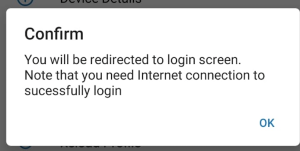
Exit Offline Mode Alert Dialog
This screen lets you customize the offline mode dialog. You can customize the dialog text and confirmation button.
Guest Mode Screens that can be customized using Customize XML
These are the screens that can be customized using custom XML while the devices are in guest mode.
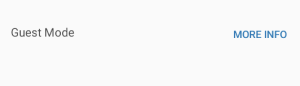
Guest Mode Banner
On the guest mode banner, you can customize the status text and the information text.
<characteristic type="com.airwatch.android.androidwork.launcher" uuid="568bc89d-1df8-4ce9-a041-e5a24acdb7ec">
<parm name="ConfigureLauncherViewProperties" value="
{
"guest_mode_banner" :
[
{
"resourceId" : "status_text_banner",
"text" : "Sample text",
"textColor" : "#A8383F"
},
{
"resourceId" : "info_text_banner",
"text" : "Sample text",
"textColor" : "#A8383F"
}
]
}
" />
</characteristic>
Guest Mode Info Dialog
You can customize the guest mode information text with this custom XML.
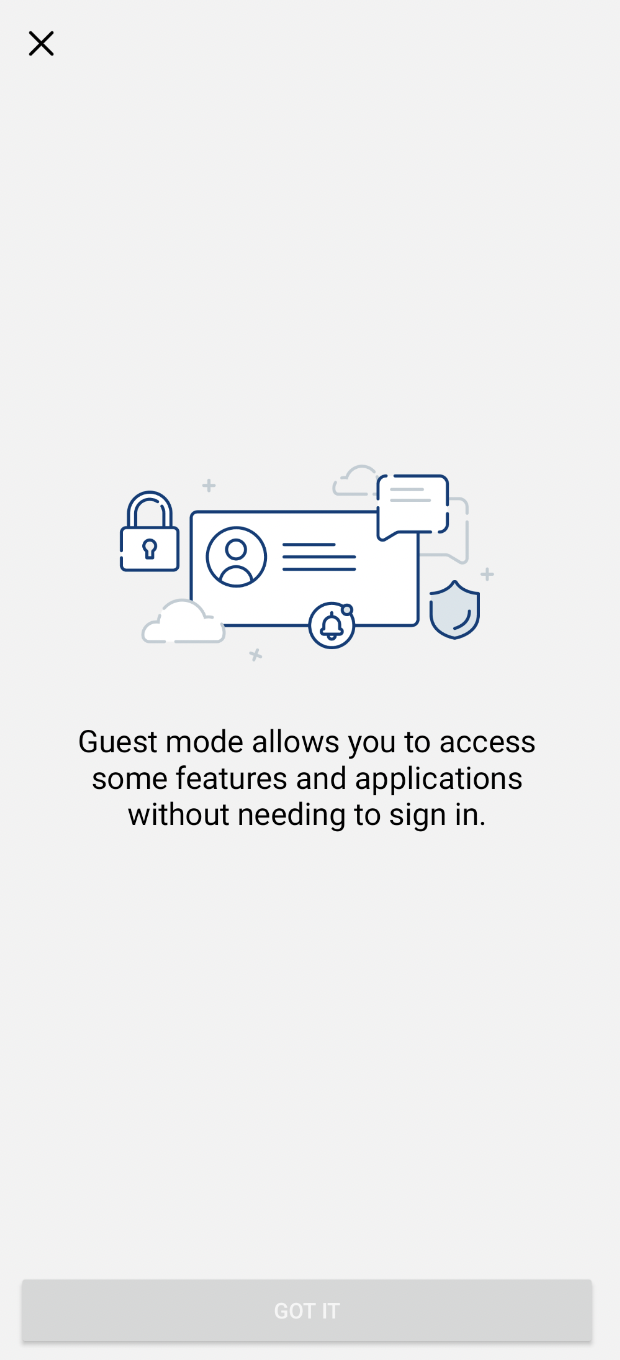
<characteristic type="com.airwatch.android.androidwork.launcher" uuid="568bc89d-1df8-4ce9-a041-e5a24acdb7ec">
<parm name="ConfigureLauncherViewProperties" value="
{
"guest_mode_info_screen" :
[
{
"resourceId" : "guest_mode_info_text",
"text" : "Sample text",
"textColor" : "#A8383F"
}
]
}
" />
</characteristic>
Guest Checkout
This hub login screen allows the users to checkout the devices as a guest.
You can customize the guest checkout link and the login button.
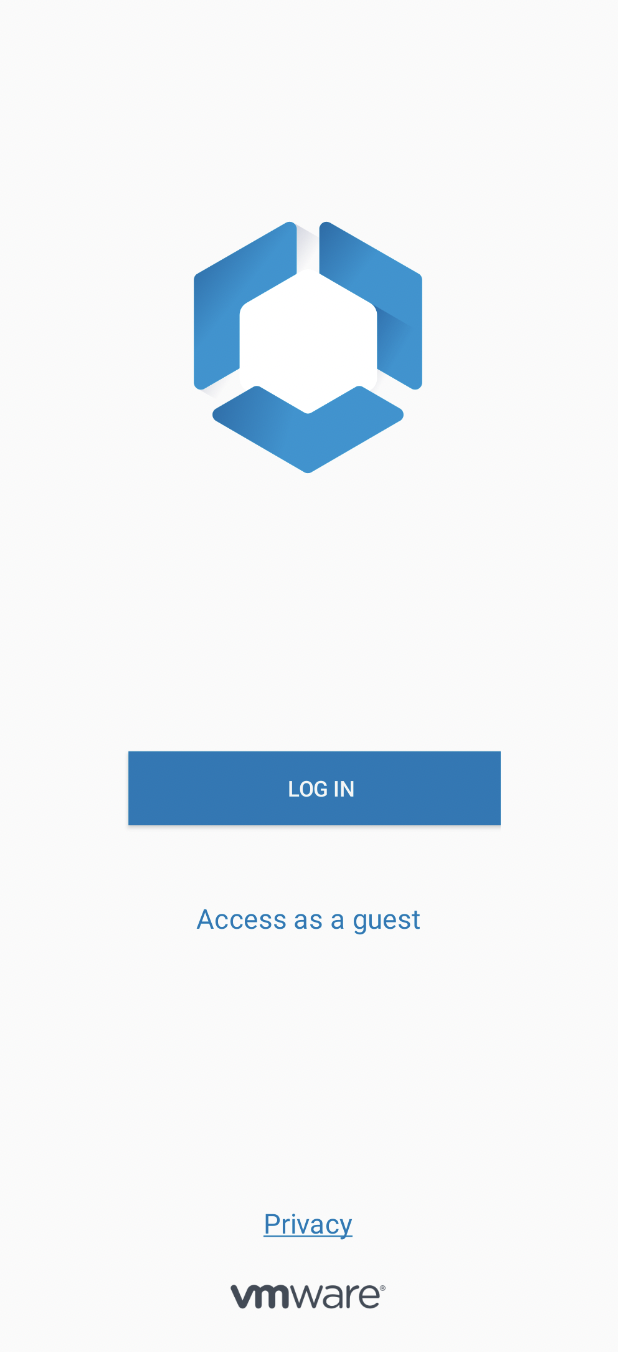
<characteristic type="com.airwatch.android.androidwork.launcher" uuid="568bc89d-1df8-4ce9-a041-e5a24acdb7ec">
<parm name="ConfigureLauncherViewProperties" value="
{
"hub_login_screen" :
[
{
"resourceId" : "guest_login_button",
"text" : "Sample text",
"textColor" : "#A8383F"
},
{
"resourceId" : "login_button",
"text" : "Sample text",
"textColor" : "#A8383F"
}
]
}
" />
</characteristic>
Guest Mode Authorization
On this screen, you can customize the text prompting users to enter their password and the guess access button.
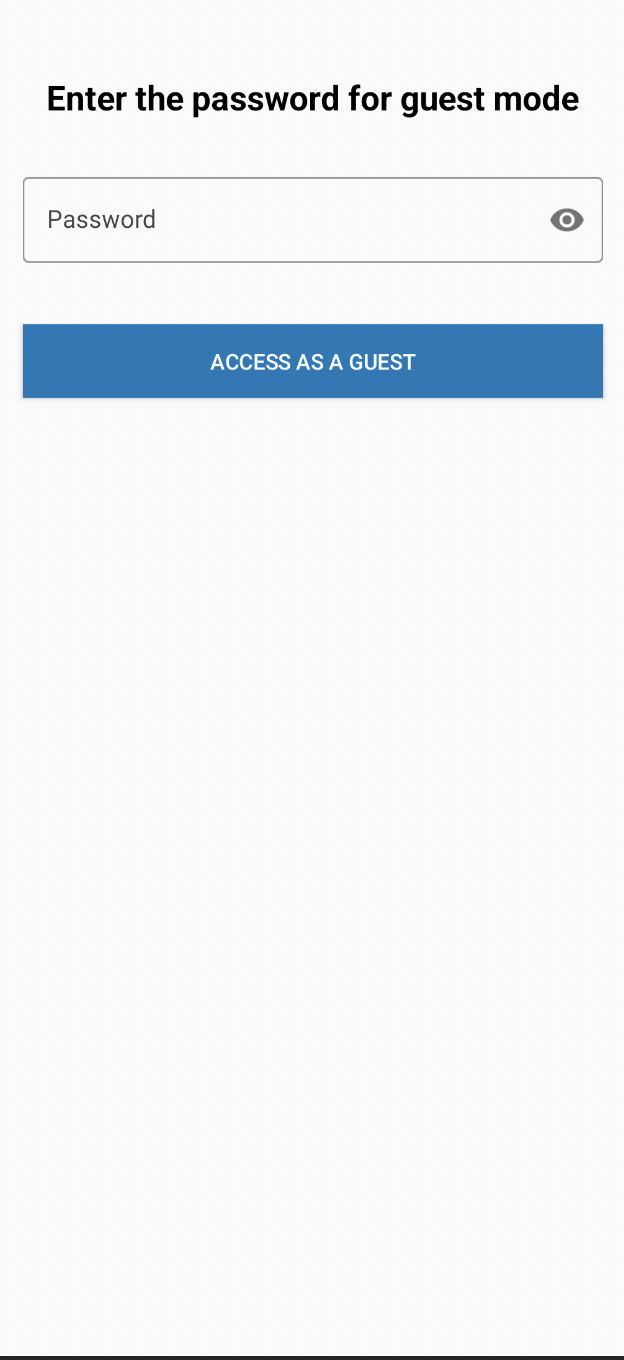
<characteristic type="com.airwatch.android.androidwork.launcher" uuid="568bc89d-1df8-4ce9-a041-e5a24acdb7ec">
<parm name="ConfigureLauncherViewProperties" value="
{
"guest_mode_password_entry_screen" :
[
{
"resourceId" : "guest_mode_password_entry_text",
"text" : "Sample text",
"textColor" : "#A8383F"
},
{
"resourceId" : "guest_mode_login_button",
"text" : "Sample text",
"textColor" : "#A8383F"
}
]
}
" />
</characteristic>
Guest Alert Dialog
On this screen, you can customize the dialog prompting customers to end guest mode. You can customize the dialog title, text, and confirmation button.
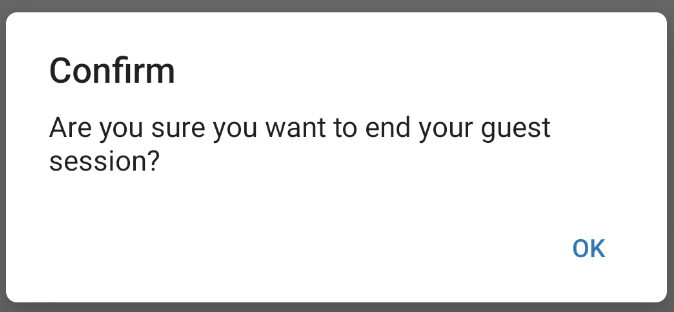
<characteristic type="com.airwatch.android.androidwork.launcher" uuid="568bc89d-1df8-4ce9-a041-e5a24acdb7ec">
<parm name="ConfigureLauncherViewProperties" value="
{
"exit_guest_mode_dialog" :
[
{
"resourceId" : "dialog_title",
"text" : "Sample text"
},
{
"resourceId" : "dialog_text",
"text" : "Sample text"
},
{
"resourceId" : "confirmation_button",
"text" : "Sample text",
"textColor" : "#A8383F"
}
]
}
" />
</characteristic>
Custom Icons
Launcher supports custom icons listed in this vision library which admins can use by providing the appropriate icon details. Here the keyword "ic" is constant, followed by the section name such as action, communication and icon title like info, bookmark, etc.
Here is an example of how to input a particular icon:
ic_Action_Bookmark
Another aspect of customizing your Launcher UI is implementing custom icons. These icons allows you to convey messages quickly, perform quick actions, and draw attention to important information.
Icons are available in the following categories:
- Action
- Communication
- Navigation
- Social
- Time
- Security
- Media
- Selection
- Meta
A few things to consider when you are configuring icons for your Launcher UI:
- Size- The icon framework supports four icon sizes: 16px, 24px, 32px, 40px. The most common size is 24px. Please make sure to have a consistent icon size across the UI.
- Touch Target- The touch target should be no less than 48px for interactive icons, and the icon should be center aligned inside the designated touch area.
- Color- Icons should be one solid color and must have the same color contrast ratio as typography (4.5:1). The color of the icon should reflect the significance of the icon's action, which should always be to aid in user navigation.
- Alignment- You should center align icons when they are next to text.
Vision Icon Library
This section serves as a library of available icons you are able to customize within the Launcher profile.
Action Icons

Communication Icons

Navigation Icons

Social Icons

Time Icons

Security Icons

Media Icons

Selection Icons

Meta Icons

Was this page helpful?