Before creating a Omnissa Access directory, review the User Attributes page and specify the user attributes to sync to Omnissa Access. You can select which attributes are required. You can also add custom attributes.
When you configure the User Attributes page before any directory is created, you can change default attributes from required to not required, mark attributes as required, and add custom attributes.
After a directory is created, you can change a required attribute not to be required, and you can add and delete custom attributes. You cannot change an attribute to be a required attribute.
Procedure
-
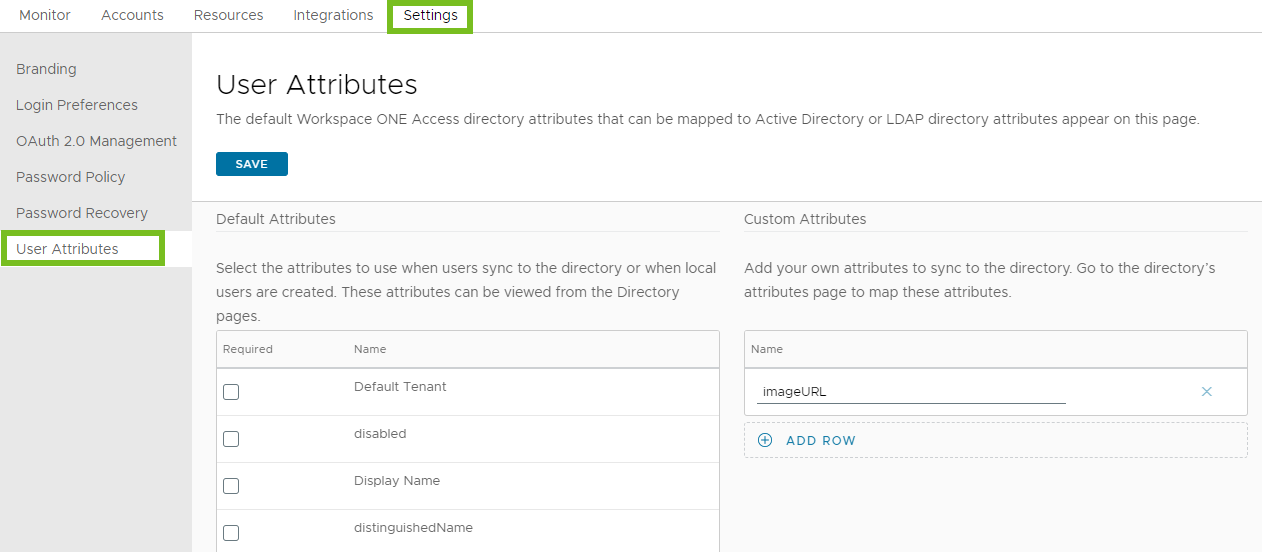
In the Omnissa Access console, select Settings > User Attributes.
-
In the Default Attributes column, review the required attribute list and make changes, if necessary.
-
In the Custom Attributes column, add other attributes to sync to the directory, if necessary.
-
Click Save.
Was this page helpful?