本主题介绍了如何修改管理控制台登录页面的元素。
登录页面徽标
要修改徽标,请编辑组织内两个租户设备中的 stylesForCustomBranding.css 文件:
$> /usr/local/desktone/release/dt-platform-20_2_0/deploy/dt-tenant-node-20.2.0-bin/horizonadmin/static/css/production/ stylesForCustomBranding.css
编辑相应的代码部分,使其类似于以下示例。
- 删除注释
/*! Remove this when the logo is required. */。 - 取消对其他已注释行的注释。
- 更改图像文件的 URL。
/*! App Logo with text */
.login-wrapper .login .brand-logo {
      display: none;
      /*! Remove this when the logo is required. */
      background: url('../../static/images//EUC_HorizonLogin_bg.png') no-repeat;
      width: 100px;
      height: 100px;
      margin: 0 auto 1rem auto;  }
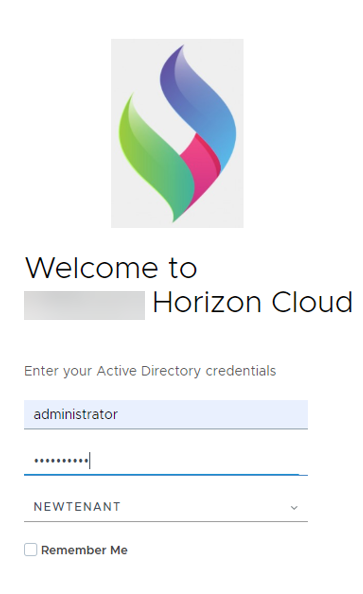
下图显示了按照上述方式对代码进行编辑后的页面外观示例。
| 之前 | 之后 |
|---|---|
 |  |
登录页面背景
要修改背景,请编辑组织内两个租户设备中的 stylesForCustomBranding.css 文件:
$> /usr/local/desktone/release/dt-platform-20_2_0/deploy/dt-tenant-node-20.2.0-bin/horizonadmin/static/css/production/ stylesForCustomBranding.css
通过取消已注释文本的注释,然后图像文件的 URL,编辑相应的代码部分,使其类似于以下示例。
/*! Login Page Background changes */
.login-wrapper {
   background: url('../../images/FBG.jpg') no-repeat; };
}
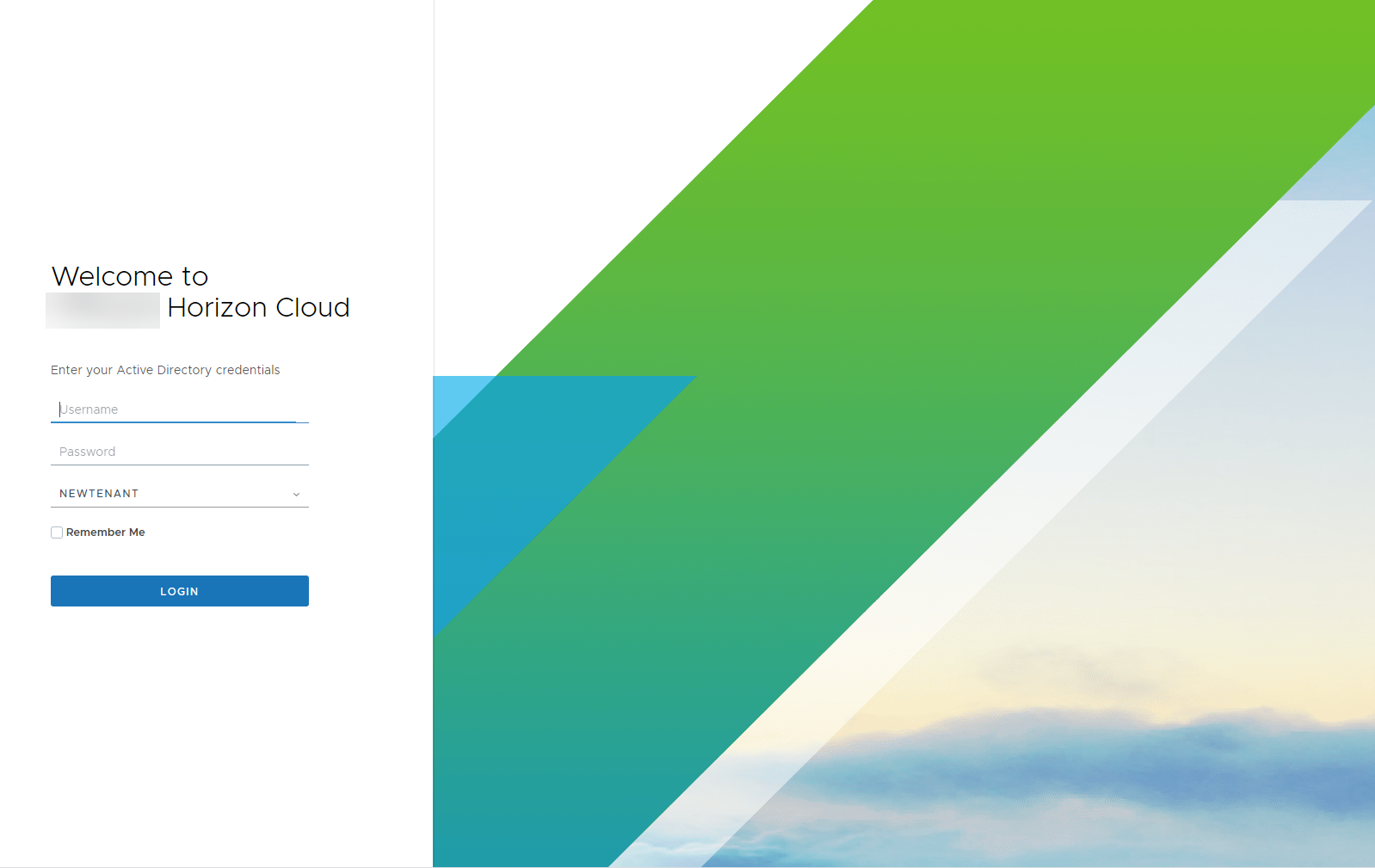
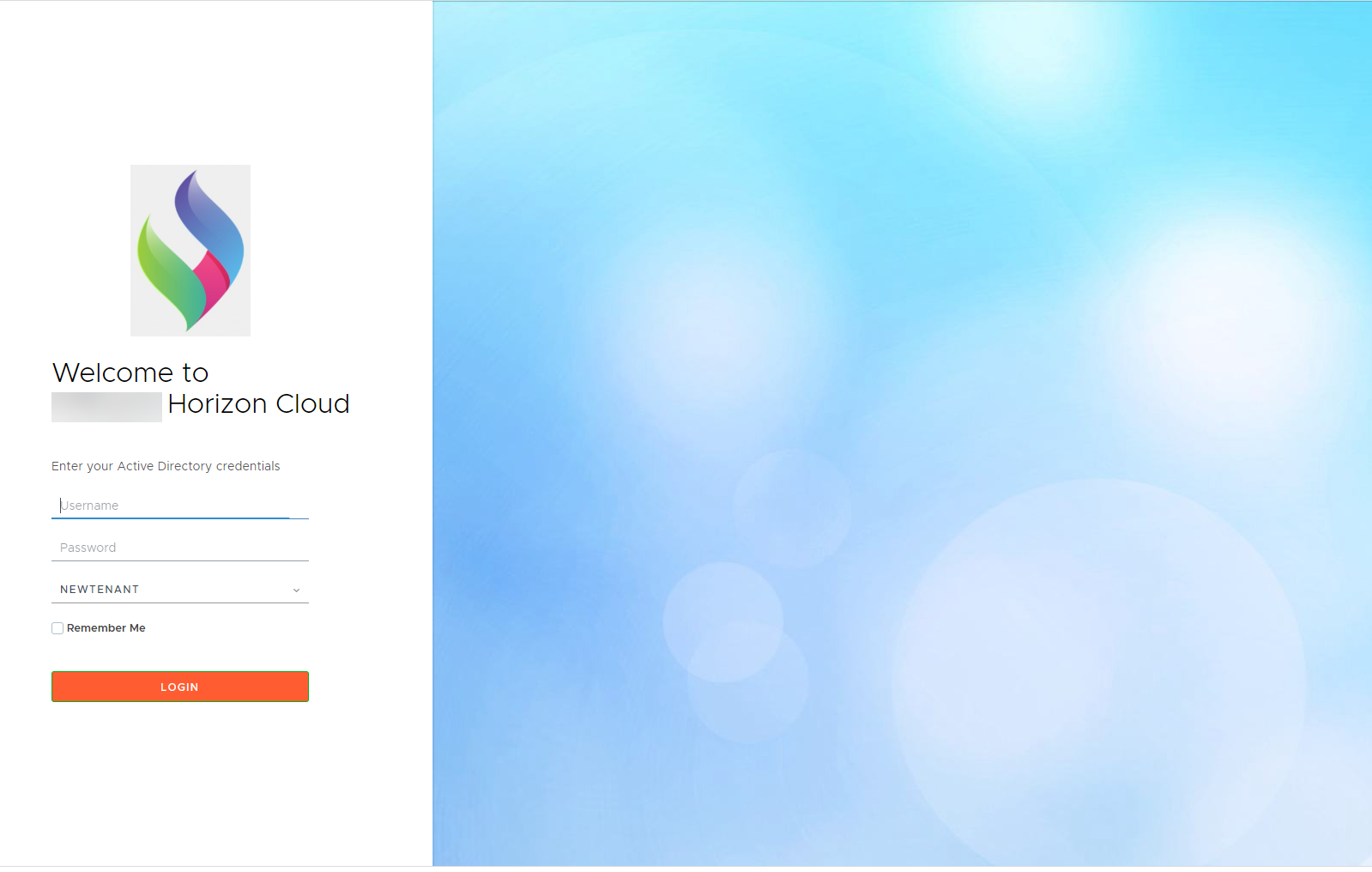
下图显示了按照上述方式对代码进行编辑后的页面外观示例。
| 之前 | 之后 |
|---|---|
 |  |
登录按钮
要修改该按钮,请编辑组织内两个租户设备中的 stylesForCustomBranding.css 文件:
$> /usr/local/desktone/release/dt-platform-20_2_0/deploy/dt-tenant-node-20.2.0-bin/horizonadmin/static/css/production/ stylesForCustomBranding.css
通过取消对两行已注释代码的注释并更改 border-color 和 background-color 的颜色,编辑相应的代码部分,使其类似于以下示例。
/*! login button */
.login-wrapper .login .login-group .btn {
       border-color: #00b315;
       background-color: #ff5733;
下图显示了按照上述方式对代码进行编辑后的页面外观示例。
| 之前 | 之后 |
|---|---|
 |  |
此页面对您有帮助吗?