Concurrent Usage and Peak Usage are data fields displayed on every application and package details page. Using this data, administrators can effectively manage their applications. For example, administrators can determine the number of licenses required for each application and improve their application management.
Concurrent Usage
Shows the total number of concurrent users actively using an application.
Peak Usage
Shows the maximum number of concurrent users actively using an application for a specific time period.
This data can be reset using a RESET button.
Note:
-
Application usage is considered when package attachment occurs. Hence, usage data is calculated when a package is attached to an entity.
-
In the application details page, usage data displayed is an aggregate of all packages in an application. In the package details page, usage data displayed is for a specific package.
-
A background job, Refresh Usages, runs every hour and updates both the data fields.
The Last Updated time stamp for the Concurrent Usage field shows the time at which the concurrent usage data is updated for an application. For information about the background job, see Background Jobs in App Volumes Manager.
How to reset Peak Usage data
The RESET button can be used to reset the peak usage data for an application and each of its packages. When the button is used, the peak usage data is cleared (the value of the field becomes 0), and new peak usage data is tracked from the current time.
At the application level, the peak usage data of all packages in that application is reset. When used at the package level, peak usage data for only that specific package is reset.
The time stamp for peak usage data displays the time at which the peak data is reset and new data is tracked.
How is the data tracked when App Volumes is set up for application synchronization
When multiple App Volumes instances are configured for application synchronization, the usage data is displayed for the current App Volumes instance and all related App Volumes instances. The RESET button is available only at the source instance and not at the target instances. When the button is used, depending on whether it is at the application level or package level, peak data is reset either for all packages of the application or for a specific package at both the current and target instances.
Note: Usage data is fetched and displayed only for instances which have App Volumes 2506 and later versions. If any instance has earlier versions of App Volumes, then the usage data for such an instance is not fetched. Hence it is recommended that all instances are upgraded to the current or later versions of App Volumes.
Example scenarios showing application usage data
-
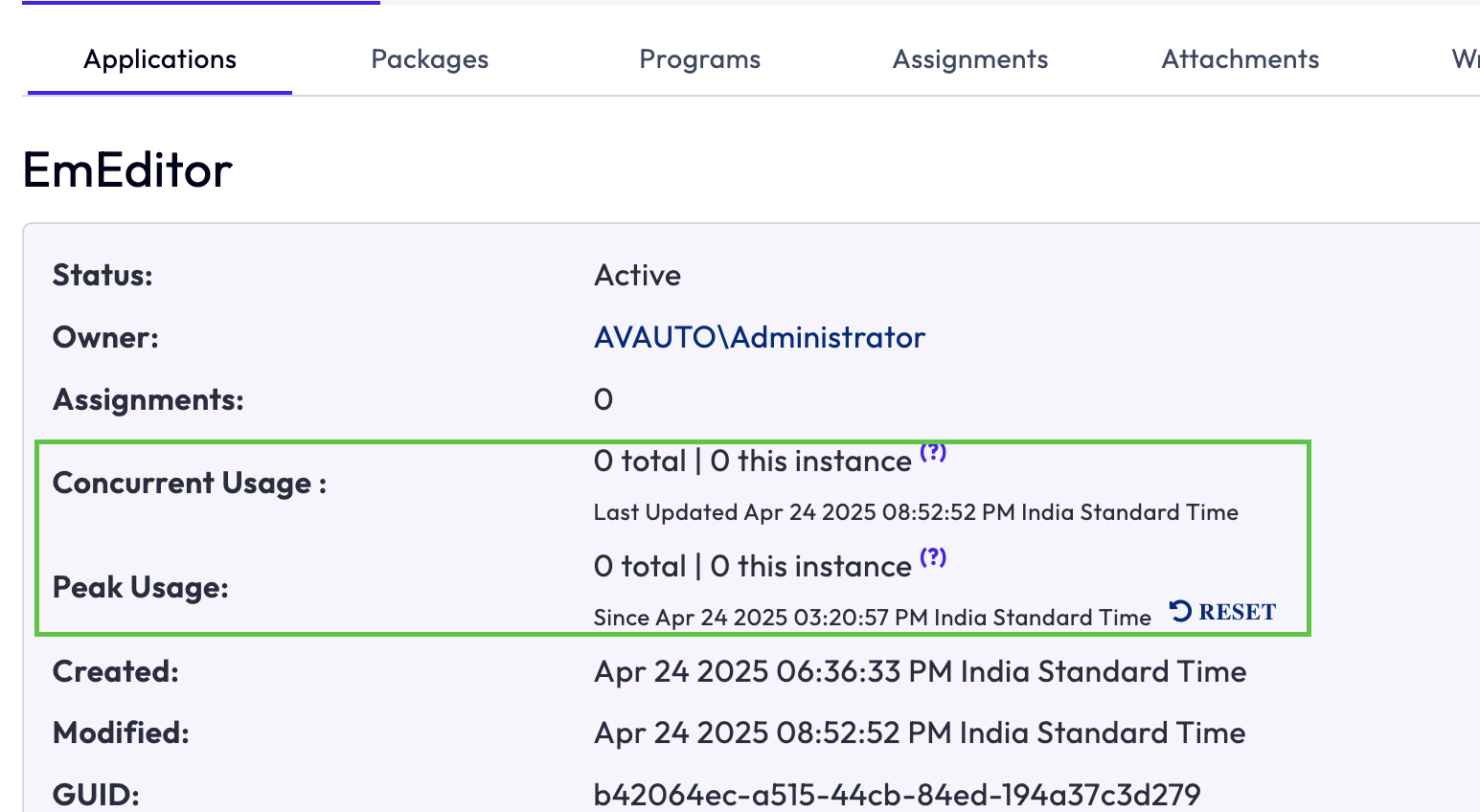
The following screenshot shows usage data displayed for EmEditor on the application details page. As no users are using the application, the Concurrent Usage and Peak Usage data is
0.
-
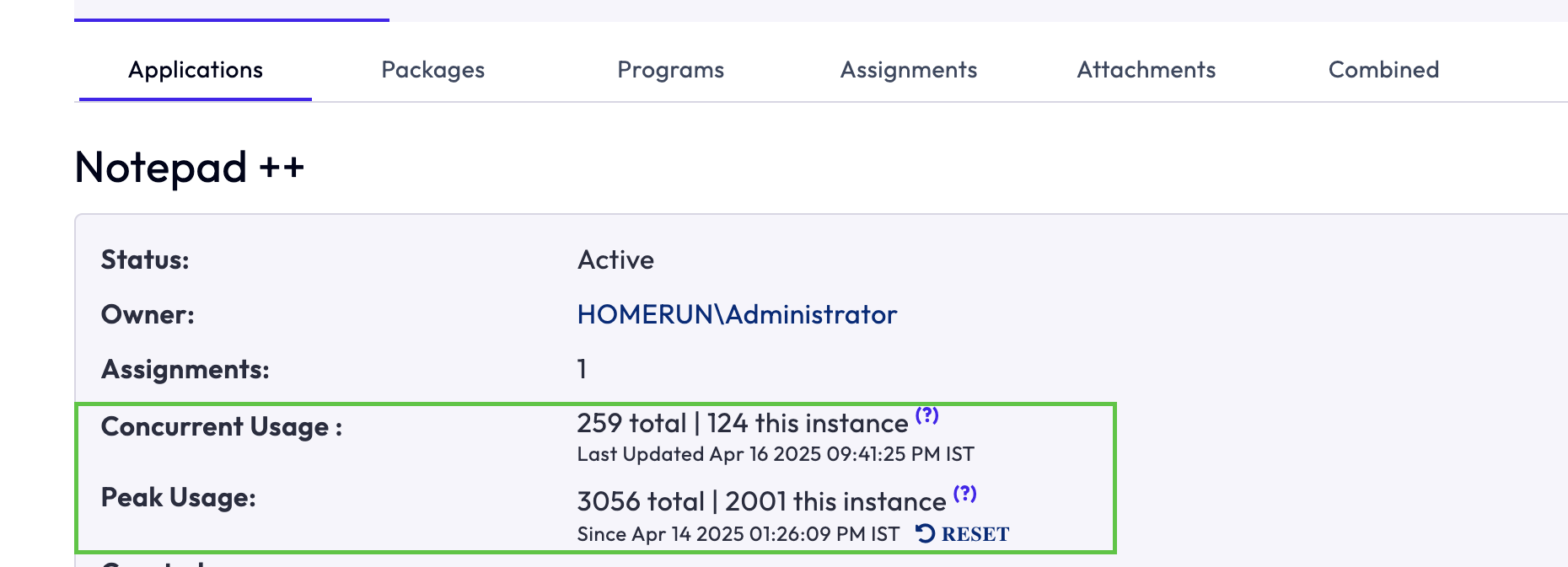
The following screenshot shows usage data displayed for Notepad++ on the application details page:
Note: The assignment count is
1because the application is assigned to a group.259 total - indicates the total number of users actively using the application across source and target instances. As the data is displayed on the application details page, this data includes all packages of Notepad++.
124 this instance - indicates the number of users actively using the application in the current instance. As the RESET button is present, the current instance is the source instance.
Was this page helpful?