An end user can install any software apart from the managed applications that are deployed through the Software Distribution client. For example, the end user can be an administrator or a standard user and can install applications such as iTunes, Chrome, on the user's device without triggering the User Account Control (UAC) prompt.
After the application is installed on the device, a newer version of the application might be released, and the old application versions are vulnerable to attacks. Sometimes, a zero-day vulnerability can occur without any ways to identify and remediate the application with an upgrade.
To mitigate such issues, administrators can create workflows to act on the resources based on certain conditions defined in the workflow. Various workflows can be defined based on the requirement.
Define Actions on Resources Using Conditions for Freestyle Orchestrator Desktop
Workflows can be created based on the following criteria:
-
Software Version Identification and Distribution: Identify devices with a specific version of software installed, and configure workflows to distribute a particular version of the software to those devices.
-
Software Upgrade Without Management Overhead: Perform software upgrades without assuming full management responsibility for the affected software.
-
Condition-Based Actions: Define conditions based on the value of a sensor, whether a file exists at a specific path, or the values in a defined registry path.
-
Scheduled Updates and Resource Delivery: Set specific schedules for updates and resource delivery. This ensures that apps, profiles, and scripts are downloaded and installed at the optimal time for the business, minimizing disruption to end users.
Create Workflow with the Application Name and Application Version Condition
As an administrator, you can create a workflow to apply conditions that filter an application based on the application name and application version. You can select the Apps Exists or Apps Does Not Exist values in a condition to preview the applications that match the condition. The applications that are present in the application inventory across devices are displayed.
Note: An administrator can create a condition to check if an application name and a specific application version are installed on a device. When the condition is run on a device, the device first checks if the application is installed on the device and populates the results. In the results populated, the device checks if the specific application version is installed. There is no accurate versioning syntax for the applications. So, applying criteria like greater than or less than for alphanumeric application versions might not provide accurate results. However, when the actual workflow runs on the devices the system performs a more accurate search and populates the results.
This example demonstrates a scenario where an admin creates a workflow and adds a condition to the workflow. The condition checks if the latest version of the Zoom application is installed on the devices in a smart group. The admin first checks the existing version of the Zoom application on the device. If the latest version of the Zoom application is not installed, then the admin creates a step in the workflow to install the latest version of the Zoom application.
Prerequisites
Before you begin creating a workflow, you must add the latest version of the Zoom application to your system inventory. To add the required applications to the system inventory, navigate to your organization group (OG), and follow the procedure described in the Deploy Applications to devices topic of the Application Lifecycle Management guide.
Note: When you create a condition in a workflow, the input field for the Application Name searches for any results based on the name provided by the admin when uploading the app into Omnissa Workspace ONE UEM. When the condition runs on the device, the following steps are considered:
-
Workflow engine (WFE) receives the Application Name (provided by the admin) from the workflow manifest.
-
Workflow engine sends the Application Name to the Hub, so that the App Entitlement Name (app package name) can be fetched.
a. When using the App Exists condition for macOS, ensure that the uploaded app has an Application Name that matches the App Entitlement Name.
-
After the Application Name is fetched, the device then validates the condition set by the admin using the App Entitlement Name.
Procedure
The following procedure describes the steps to create a workflow that checks the existing Zoom application version on the device and install the latest version of the Zoom application on the device.
-
Login to the Workspace ONE UEM Console.
-
Navigate to Orchestration > Freestyle > Freestyle Orchestrator > New.
-
Enter a name for the workflow in the New Freestyle Workflow. You can add an optional description to your workflow.
-
In the right admin panel Workflow Settings, select the Platform from the drop-down menu, and select Smart Groups that you want to assign this workflow.
-
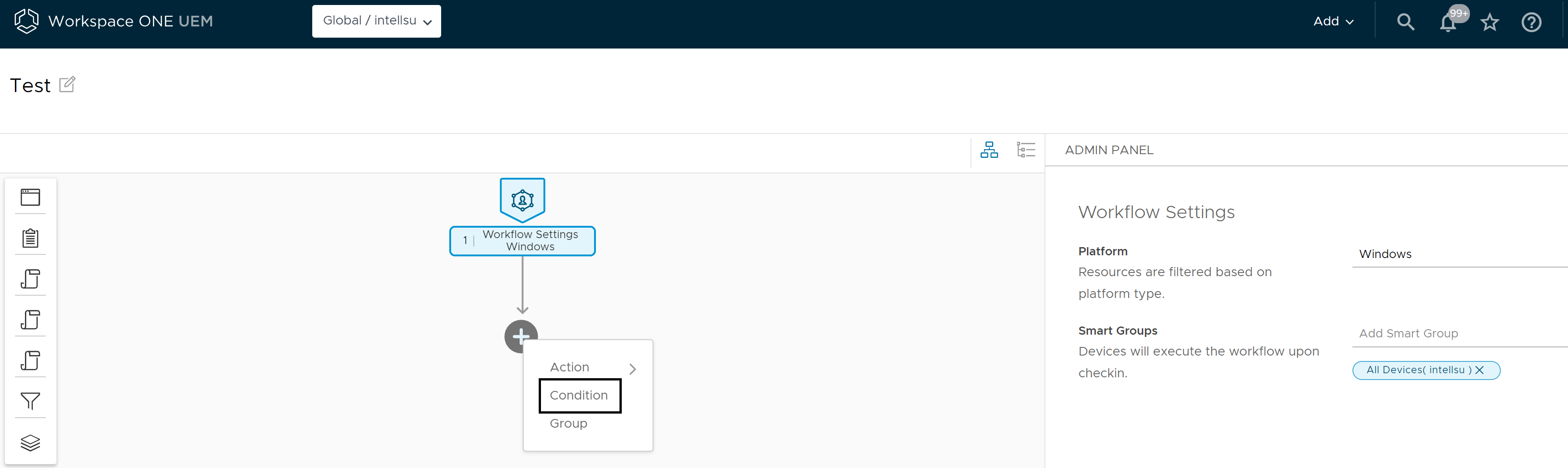
In the left panel, click + > Condition.
-
In the right Admin Panel, under Check Condition 1, enter a name for the condition.
-
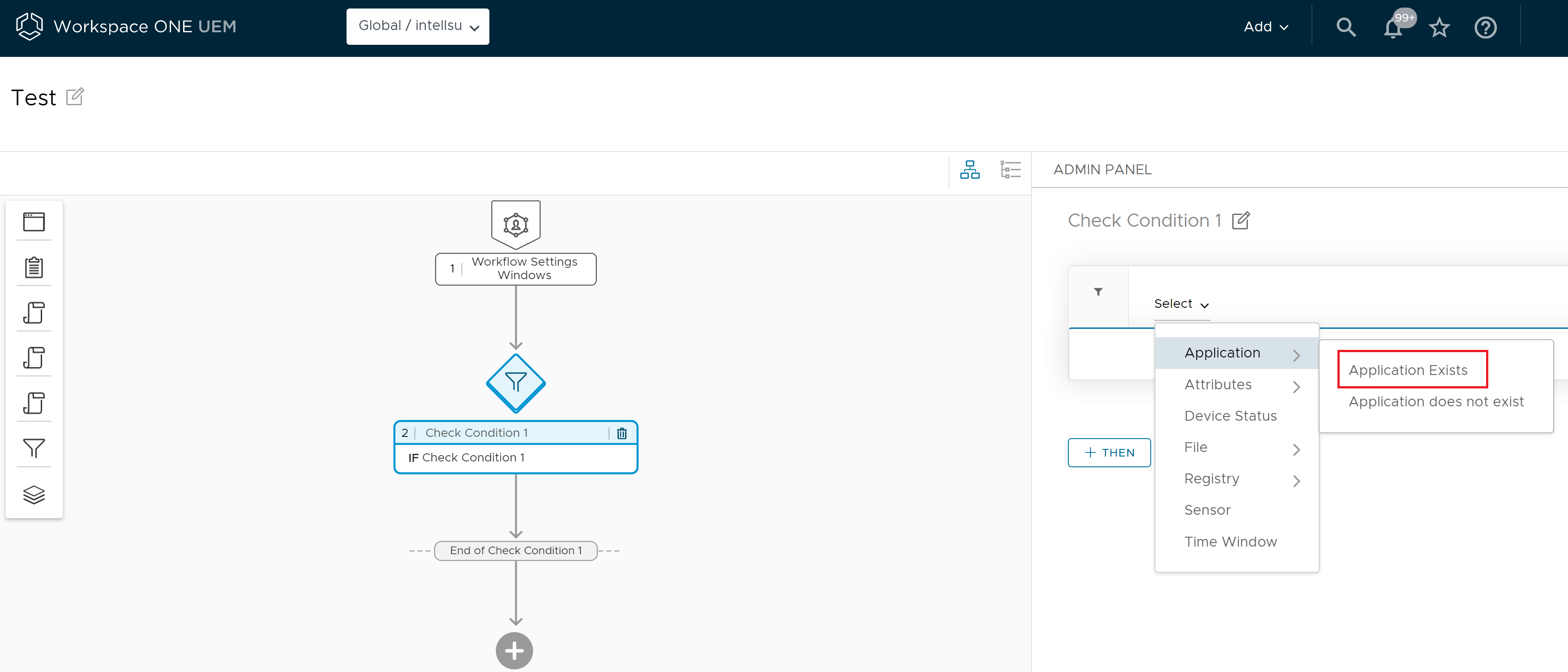
Click If > Application > Application Exists.
-
In the Filter (if) screen, select Application Exists.
-
In the Application name, select Contains, enter the Zoom as the application name, and in the Application version, select Less than or equal to, and enter 5.0.2 as the application version.
Note: In this example, the admin defines a condition to check whether the Zoom application exists, and if the application exists, check whether the application version is earlier than or equal to 5.0.2.
-
Click Then > Add > Action > Application.
-
In the Install Application screen, search for the application and select the Zoom application from the list that is auto populated and, in the Version drop-down menu, select Latest.
-
Click the + Then and select Else.
-
In the right Admin Panel, click Install Application, and click Else.
-
On the Else screen, click Add to select Proceed to next step.
Note: If you want to change the action for the Else, then click the Change Action option in the Admin panel Else Proceed to next step screen.
-
Click Save to save your workflow.
-
Select your workflow from the Freestyle Orchestrator dashboard and click Publish to publish your workflow.
Results
You can view the workflow created in the Freestyle Orchestrator dashboard. When the devices check-in and the workflow are assigned to the devices, the device checks if the latest version of the Zoom application installed. If the version of the Zoom application installed is earlier than or equal to 5.0.2, then the device installs the latest version of the Zoom application.
Create Workflow with the File Exists Condition
You can use the condition feature of the workflow to check whether a specific file exists or does not exist on the device. In this example, the administrator creates a workflow to check if certain files in a specific path exist on the device. In case the file exists, then the admin can specify the actions to be taken for the file.
Prerequisites
Before you begin creating a workflow, you must add the latest version of the Excel application, that is, 11.0.0 to your system inventory. After you add the application, you can refer to the application resource in a workflow. To add the required applications to the system inventory, navigate to your organization group (OG), and follow the procedure described in the Deploy Applications to devices topic of the Application Lifecycle Management guide.
Procedure
The following procedure describes the steps to create a workflow that checks whether a file in a location exists on a device. If the file exists, then the version of the application installed on the device is checked. If an earlier version of the application exists on the device, then the admin creates a step to install the latest version of the application.
-
Log in to the Workspace ONE UEM console.
-
Navigate to Orchestration > Freestyle > Freestyle Orchestrator > New.
-
Enter a name for the workflow in the New Freestyle Workflow. You can add an optional description to your workflow.
-
In the right admin panel Workflow Settings, select the Platform from the drop-down, and select Smart Groups to which you want to assign this workflow.
-
In the left panel, click +, and select Condition.
-
In the right Admin Panel, under Check Condition 1, enter a name for the condition.
-
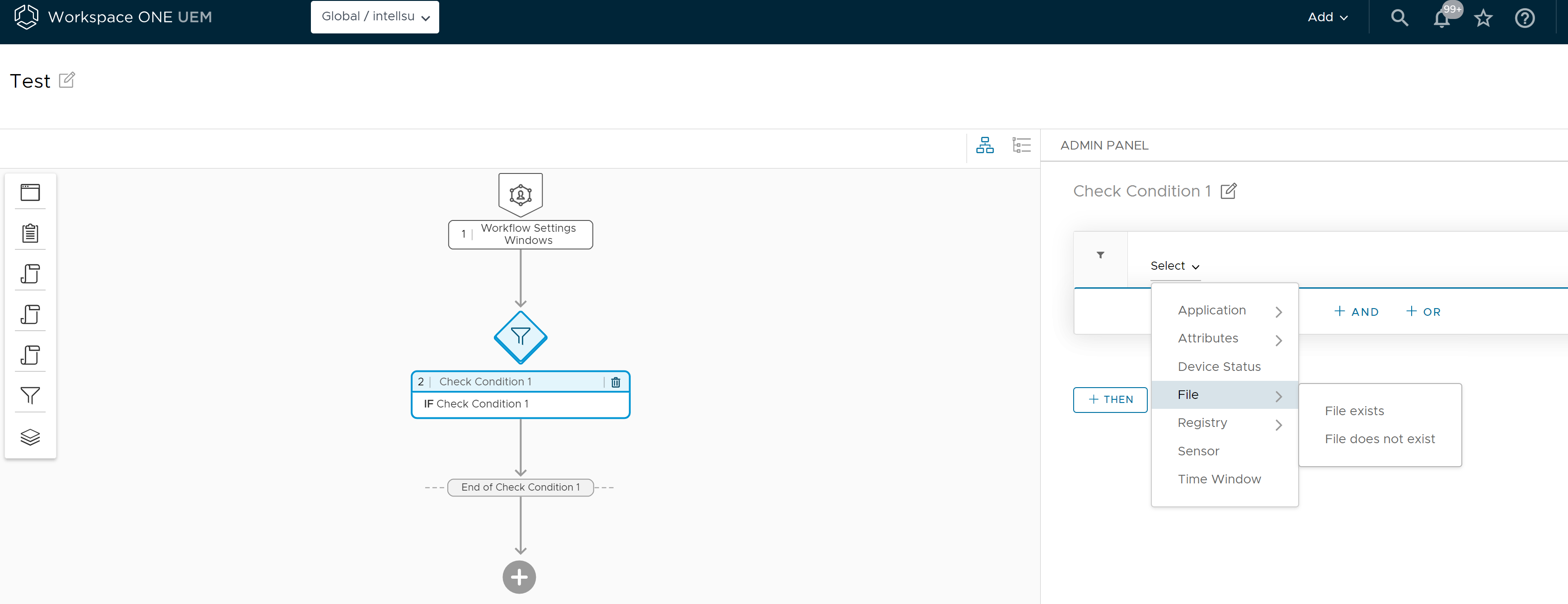
Click Select > File > File Exists.
-
Enter the following details in the File Exists condition.
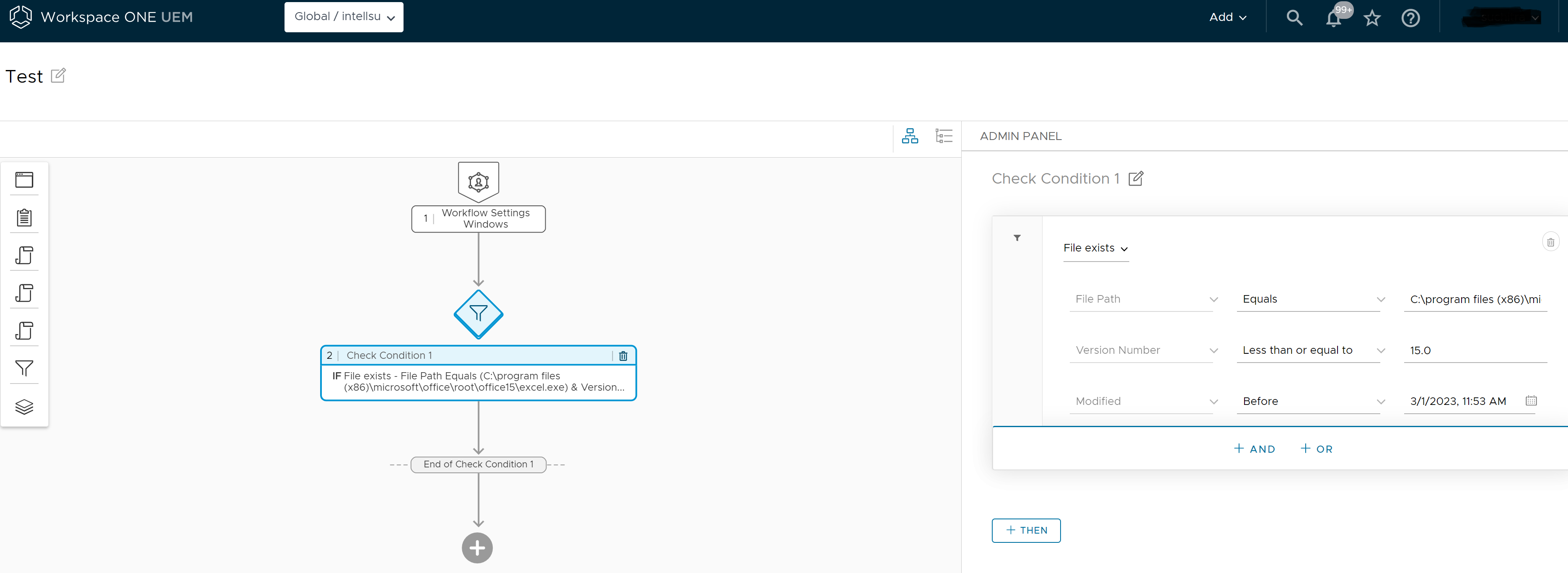 a. In File Path, select Equals, and enter C:\program files (x86)\microsoft\office\root\office15\excel.exe. Note: Quotes are not allowed as an input in the file path.
b. In Version Number, select Less than or equal to, and enter 15.0. c. In Modified, select Before, and enter a date to filter the files modified before a particular date.
-
In the Filter (If) screen, click + Then > Add > Resource > Application.
-
In the Install Application screen, click on the Search and select, and enter Excel. Select the Excel application from the auto populated list.
-
In version, select 16.0.0 to be installed on the device.
-
Click Save to save your workflow. Workflow is saved and you can view the saved workflow in the Freestyle Orchestrator dashboard.
-
Select your workflow from the Freestyle Orchestrator dashboard and click Publish to publish your workflow.
Results
You can view the workflow created in the Freestyle Orchestrator dashboard. A workflow is created to check if the Excel file version 11.0.0 is available and if a lower version of the Excel is available then install the latest version.
Create Workflow with the Registry Exists Condition
You can use the condition feature of the workflow to check whether a specific registry key exists or does not exist on the device. In this example, the administrator creates a workflow to check if a registry key exists on the device, and if the registry key exists then the admin specifies an action to be taken for the registry key.
Note: The registry condition is only supported on Windows devices. You cannot add a registry condition for macOS devices.
Prerequisites
Before you begin creating a workflow, the Excel application must be added to the system inventory. To add the required applications to the system inventory, navigate to your organization group (OG), and follow the procedure described in the Deploy Applications to devices topic of the Application Lifecycle Management guide.
Procedure
The following procedure describes the steps to create a workflow to check whether a specific registry key exists on a device. If the registry key exists, then the admin creates a step to install the Excel application on the device.
-
Log in to the Workspace ONE UEM console.
-
Navigate to Orchestration > Freestyle > Freestyle Orchestrator > New.
-
Enter a name for the workflow in the New Freestyle Workflow. You can add an optional description to your workflow.
-
In the right Admin Panel Workflow settings, select the Platform from the drop-down menu, and select Smart Groups to which you want to assign this workflow.
-
In the left panel, click +, and select Condition.
-
In the right Admin Panel, under Check Condition 1, enter a name for the condition.
-
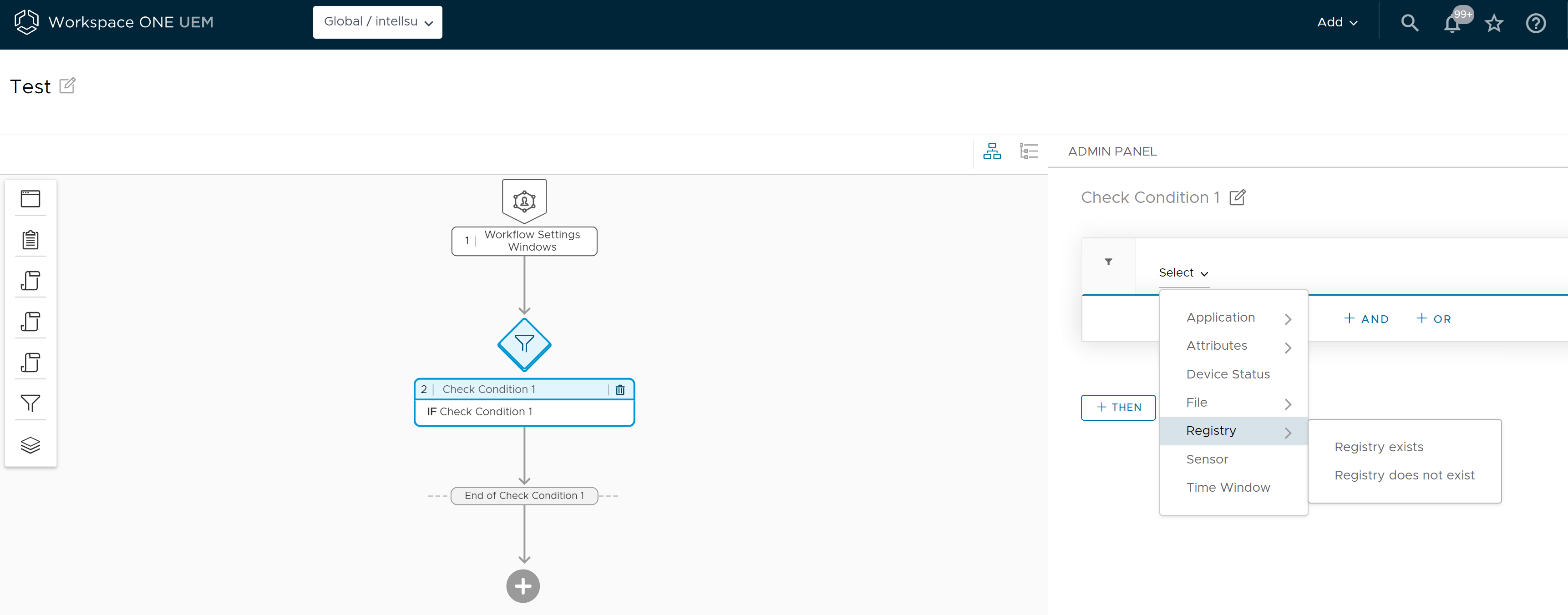
Click If > Registry, and select Exists.
-
Enter the following details in the Registry option.
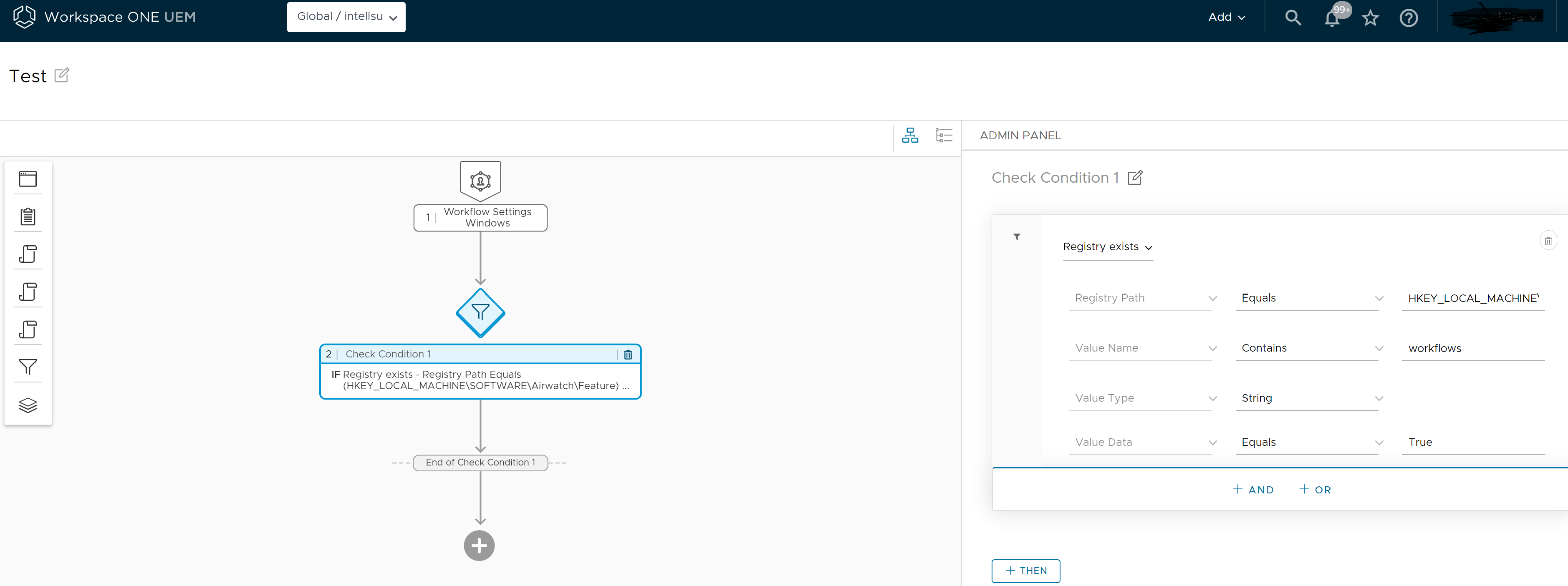
a. In the Registry Path, select Equals, and enter HKEY_LOCAL_MACHINE\SOFTWARE\Airwatch\Feature.
b. In the Value Name option enter workflows, in Value type option select string, and in the Value data option select Equals and enter True.
-
Click + > Then > Add > Action > Application.

-
In Install Application, search for the Excel application, and select the application from the search results.
-
Select the Version to be installed from the drop-down menu.
-
Click Save to save your workflow. Workflow is saved and you can view the saved workflow in the Freestyle Orchestrator dashboard.
-
Select your workflow from the Freestyle Orchestrator dashboard and click Publish to publish your workflow.
Results
You can view the workflow created in the Freestyle Orchestrator dashboard. A workflow is created to check whether the HKEY_LOCAL_MACHINE\SOFTWARE\AIRWATCH\Feature\workflows registry exists on the devices, and if the value is true, then the system installs the Excel application on the devices.
Create Workflow with the Sensor Value Condition
The following procedure shows the steps to create an example workflow to use a sensor condition to determine if a device's printer access is enabled. If the printer access is not enabled, the procedure provides steps to run a script on the device to refresh the printer configuration.
For more information about creating sensors, see the Collect Data with Sensors for macOS Devices topic in the macOS Device Management guide and the Collect Data with Sensors for Windows Desktop Devices topic in the Windows Desktop Documentation guide.
Prerequisites
Before creating a workflow, you must first create the sensor to check the printer access.
In this example, the macOS Bash sensor to check for printer access is named printer_status and the response data type is string.
/usr/bin/lpstat -p 2>/dev/null | awk '{print $5}' | sed '/^$/d'
If the printer is configured correctly, this sensor must return the string enabled.
Next, create a script to refresh the printer service. For more information about creating scripts, see the * Create a Script for macOS Devices* topic in the macOS Device Management guide and the Create a Script for Windows Desktop Devices topic in the Windows Desktop Documentation guide.
In this example, the macOS Bash script to refresh the printer service is named refresh_printer.
do
	/usr/bin/cancel -ax
	/usr/sbin/cupsdisable $printer
	/usr/sbin/cupsenable $printer
	echo "Refreshed $printer"
done
If this script runs successfully the script must complete with an exit (return) code of 0, in which the workflow updates the status as successful.
Procedure
The following procedure describes the steps to create a workflow with a sensor condition to check the printer status on all devices in the assigned smart group and then run a script on devices that cannot access the printer to refresh the configuration.
-
Log in to the Workspace ONE UEM console.
-
Navigate to Orchestration > Freestyle > Freestyle Orchestrator > New.
-
Enter a name for the workflow in the New Freestyle Workflow. You can add an optional description to your workflow.
-
In the right Admin Panel Workflow Settings, select the Platform from the drop-down, and select Smart Groups to which you want to assign this workflow.
-
In the left panel, click +, and select Condition.
-
In the right Admin Panel, under Check Condition 1 enter a name for the condition. For example, Check Printer Status.
-
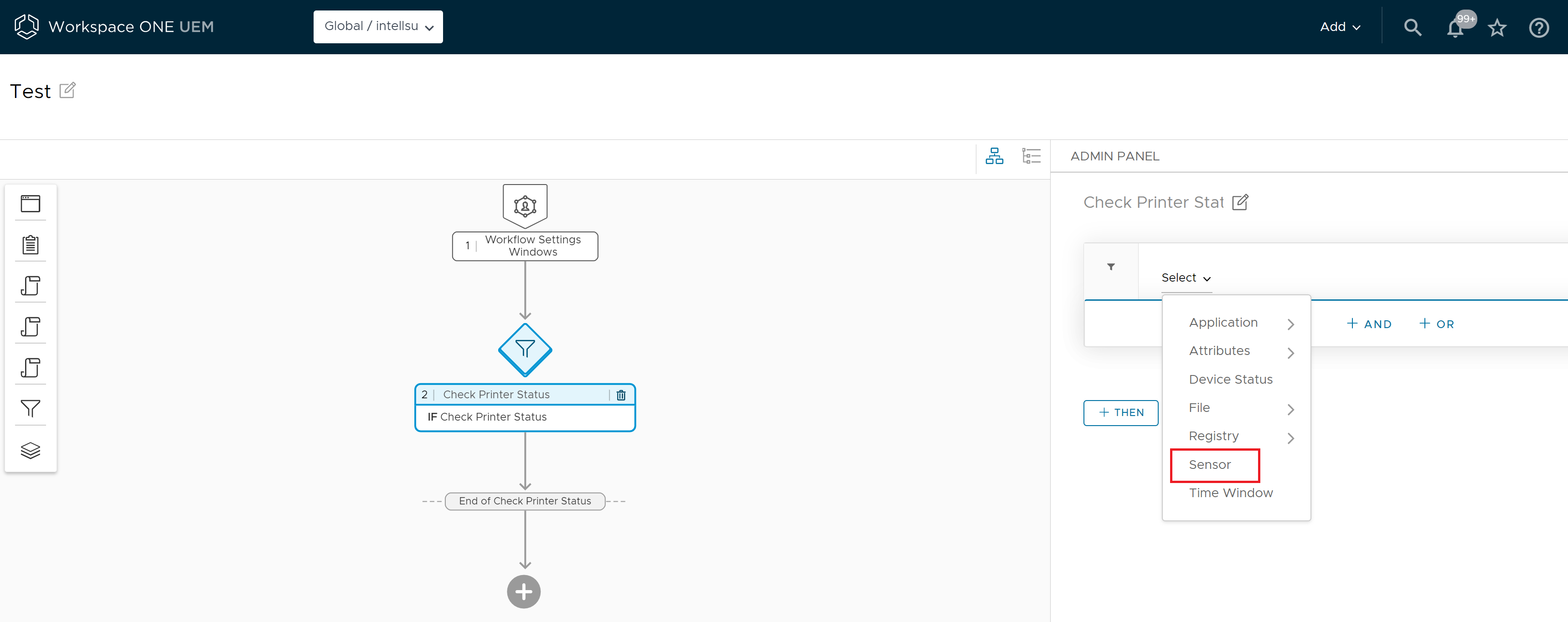
Click Select > Sensor and click search in the Sensor screen.
Note: In the Filter (If) screen, you can click the Additional Settings tab and enable the Re-evaluate Condition option. If the Re-evaluate Condition option is enabled, and the sensor value is modified or the workflow itself is modified, then if required, the condition is re-evaluated, and the workflow steps are retriggered. If the workflow is paused, the workflow will not be retriggered until the workflow is resumed.
-
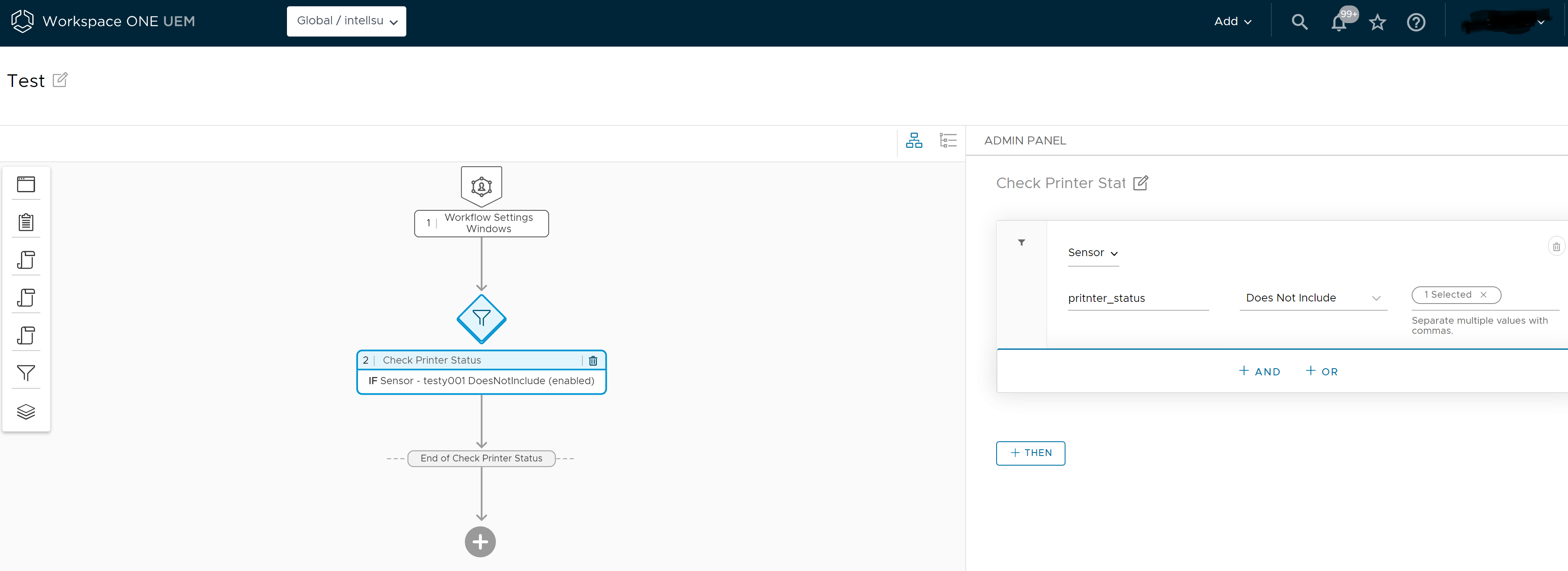
Enter the sensor name printer_status and Does Not Include from the drop-down and enter enabled in the required information field.
-
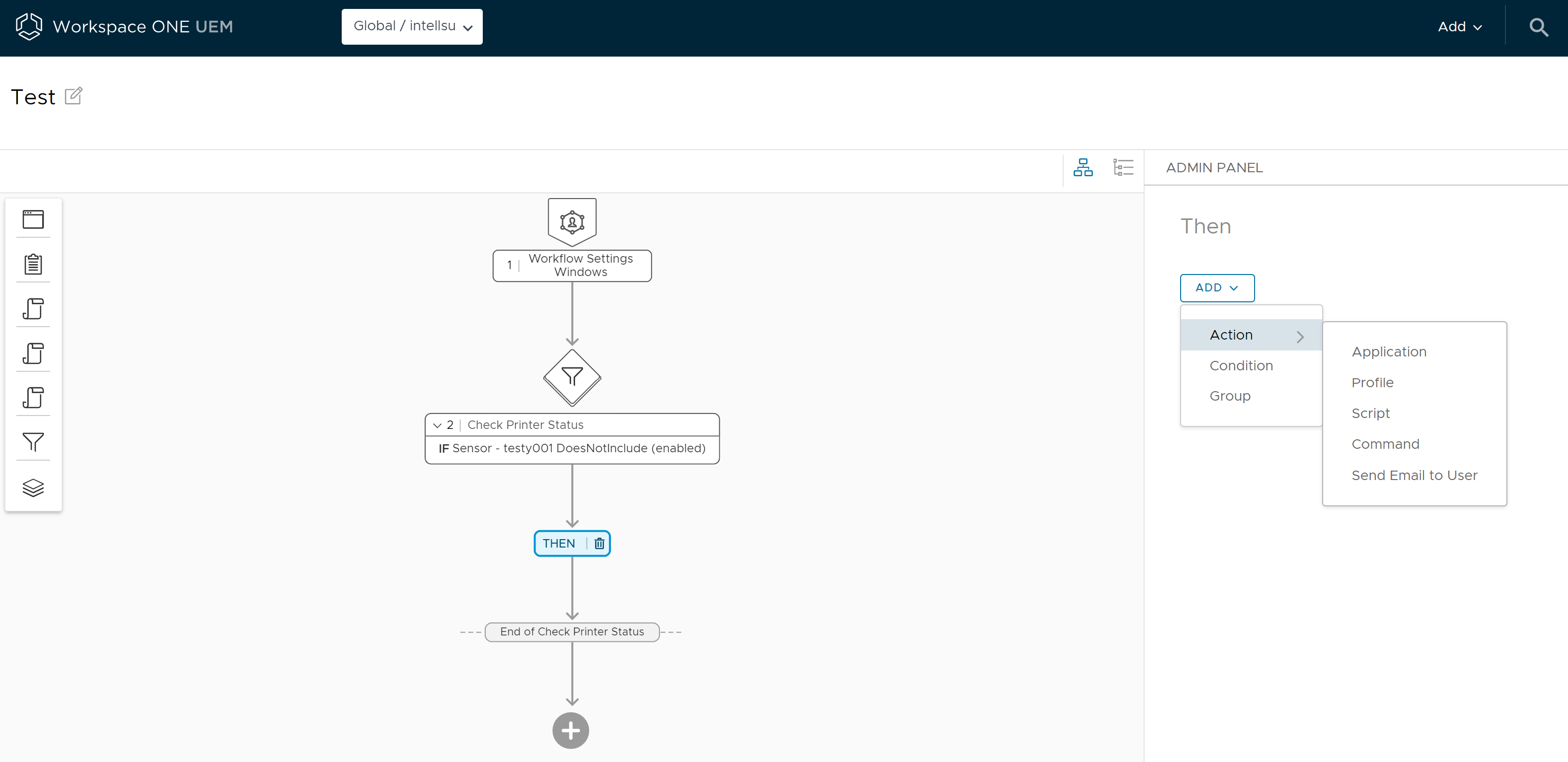
Click + Then > Add > Action > Script.
-
In the right Admin Panel, click Search and Select under the Run Script > Script. All the available scripts are auto populated.
-
In the Results list, search for the refresh_printer script and click Select.
-
Click Save to save your workflow.
-
Click Publish to publish the workflow to all the selected devices upon device check-in.
Results
You can view the saved workflow in the Freestyle Orchestrator dashboard. When the workflow is assigned to the device, as per the order specified in the workflow, first the sensor to check for the printer status printer_status is run and then if needed, the script to refresh the printer configuration refresh_printer is run.
Create Workflow with the Time Window Condition
As an administrator, you can use the time window condition to schedule updates and deliver resources at a specific time for your business. You can define one-time, daily, weekly recurring time windows during which apps, profiles, and scripts are downloaded and installed. You can select a time window category such as business hours or maintenance hours and choose to take actions when the device is In or Not In time window.
The Time window condition re-evaluates every 30 minutes until the device meets the criteria. If there are multiple actions within a Time window condition, the condition is evaluated before each step. To apply the time window resource to a device, you must reference the time window resource as a condition in a workflow.
Prerequisites
Before you begin creating a workflow to apply the time window condition to a device, navigate to your organization group (OG) and create a time window resource. To create a time window resource, see the Make a Time Window and Apply it to Devices section in the Managing Devices guide. The Skype and Zoom applications must be added to the system inventory before adding the application resources in a condition.
Procedure
The following procedure describes the steps to create a workflow with a time window condition to check if the devices in the assigned smart group are in their respective maintenance window and then install the Skype and Zoom applications.
-
Log in to the Workspace ONE UEM console.
-
Navigate to Orchestration > Freestyle > Freestyle Orchestrator > New.
-
Enter a name for the workflow in the New Freestyle Workflow. You can add an optional description to your workflow.
-
In the right Admin Panel Workflow Settings, select the Platform from the drop-down, and select Smart Groups to which you want to assign this workflow. Note: Time window condition is only supported for Windows devices.
-
In the left panel, click +, and select Condition.
-
In the right Admin Panel, under Check Condition 1 enter a name for the condition. For example, Time window condition.
-
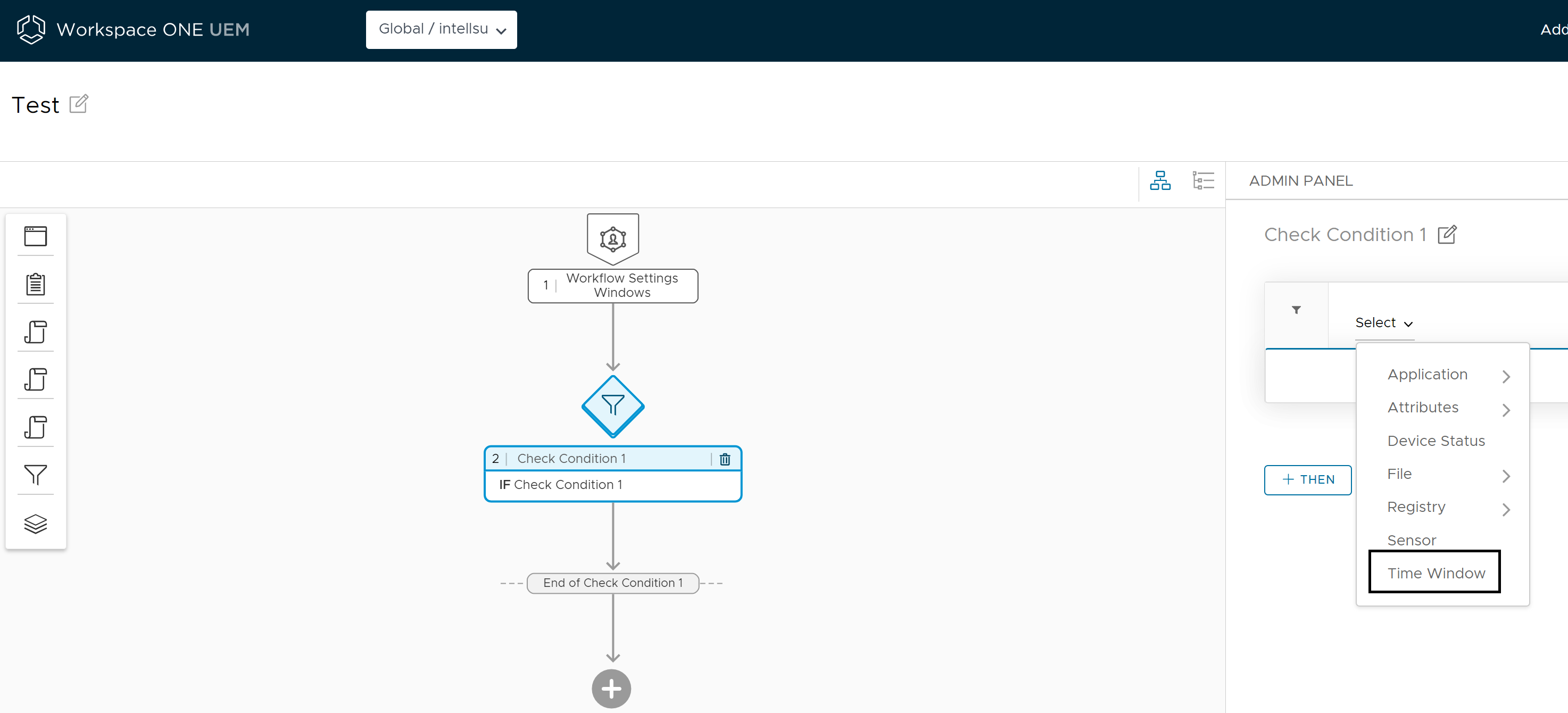
Click Select > Time Window and enter the following details:
-
Enter the following details in the **Time Window".
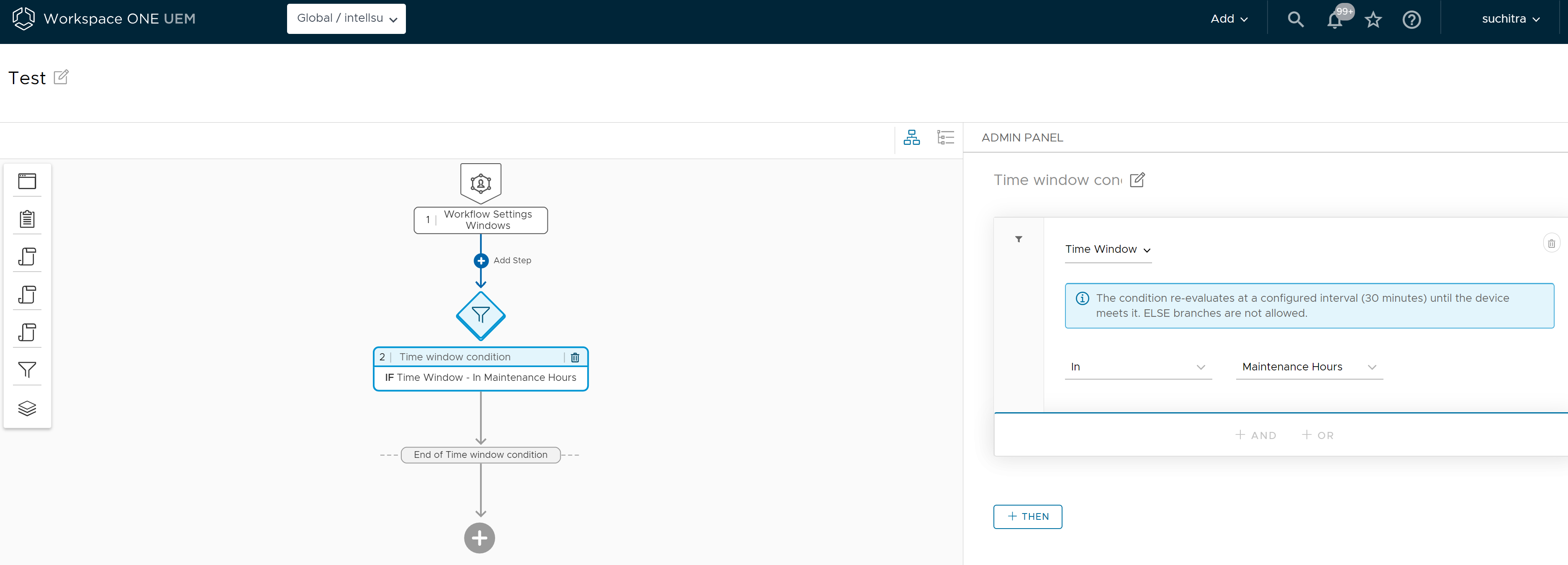
a. Select In from the drop-down menu.
b. Select Maintenance Hours from the drop-down menu.
c. Click Then > Add > Action > Application.
d. Search and select the Skype application to be installed on the device during the defined device maintenance hour.
e. Search and select the Zoom application to be installed on the device during the defined device maintenance hour.
-
Click Save to save your workflow.
-
Click Publish to publish the workflow to all the selected devices upon device check-in.
Results
You can view the saved workflow in the Freestyle Orchestrator dashboard. When the workflow runs, the Skype and Zoom applications are installed when the devices are in their respective maintenance window. Once the workflow successfully runs, the workflow will not re-run. A repeating time window provides a given workflow more chances for a successful run.
A workflow will only re-run during the following scenarios:
-
If there is an update to the workflow definition and a new version of the workflow gets published.
-
If the configurations Reevaluate condition or reinstall app if removed are enabled on any of the workflow steps.
Define Actions on Resources Using Conditions for Freestyle Orchestrator Mobile
Workflows can be created based on the following criteria:
-
Software Version Identification and Distribution: Identify systems with a specific version of software installed and implement a method for distributing a designated version of the software.
-
Software Upgrades Without Management Overhead: Perform software upgrades without assuming full management responsibility for the affected software.
-
Condition-Based Actions: Define workflows based on specific device attributes, such as model name, OS version, and other relevant parameters.
Create Workflow with the Application Name and Application Version Condition
As an administrator, you can create a workflow to apply conditions that filter an application based on the application name and application version. You can select the Apps Exists or Apps Does Not Exist values in a condition to preview the applications that match the condition. The applications that are present in the application inventory across devices are displayed.
Note: An administrator can create a condition to check if an application name and a specific application version are installed on a device. When the condition is run on a device, the device first checks if the application is installed on the device and populates the results. In the results populated, the device checks if the specific application version is installed. There is no accurate versioning syntax for the applications. So, applying criteria like greater than or less than for alphanumeric application versions might not provide accurate results.
This example demonstrates a scenario where an admin creates a workflow and adds a condition to the workflow. The condition checks if the latest version of the Zoom application is installed on the devices in a smart group. The admin first checks the existing version of the Zoom application on the device. If the latest version of the Zoom application is not installed, then the admin creates a step in the workflow to install the latest version of the Zoom application.
Prerequisites
Before you begin creating a workflow, you must add the latest version of the Zoom application to your system inventory. To add the required applications to the system inventory, navigate to your organization group (OG), and follow the procedure described in the Deploy Applications to devices topic of the Application Lifecycle Management guide.
Note: When you create a condition in a workflow, the input field for the Application Name searches for any results based on the name provided by the admin when uploading the app into Omnissa Workspace ONE UEM. When the condition runs on the device, the following steps are considered:
-
Workflow engine (WFE) receives the Application Name (provided by the admin) from the workflow manifest.
-
Workflow engine sends the Application Name to the Hub, so that the App Entitlement Name (app package name) can be fetched.
a. When using the App Exists condition for macOS, ensure that the uploaded app has an Application Name that matches the App Entitlement Name.
-
After the Application Name is fetched, the device then validates the condition set by the admin using the App Entitlement Name.
Procedure
The following procedure describes the steps to create a workflow that checks the existing Zoom application version on the device and install the latest version of the Zoom application on the device.
-
Login to the Workspace ONE UEM Console.
-
Navigate to Orchestration > Freestyle > Freestyle Orchestrator > New.
-
Enter a name for the workflow in the New Freestyle Workflow. You can add an optional description to your workflow.
-
In the right admin panel Workflow Settings, select the Platform from the drop-down menu, and select Smart Groups that you want to assign this workflow.
-
In the left panel, click + > Condition.
-
In the right Admin Panel, under Check Condition 1, enter a name for the condition.
-
Click If > Application > Application Exists.
-
In the Filter (if) screen, select Application Exists.
-
In the Application name, select Contains, enter the Zoom as the application name, and in the Application version, select Less than or equal to, and enter 5.0.2 as the application version.
Note: In this example, the admin defines a condition to check whether the Zoom application exists, and if the application exists, check whether the application version is earlier than or equal to 5.0.2.
-
Click Then > Add > Action > Application.
-
In the Install Application screen, search for the application and select the Zoom application from the list that is auto populated and, in the Version drop-down menu, select Latest.
-
Click the + Then and select Else.
-
In the right Admin Panel, click Install Application, and click Else.
-
On the Else screen, click Add to select Proceed to next step.
Note: If you want to change the action for the Else, then click the Change Action option in the Admin panel Else Proceed to next step screen.
-
Click Save to save your workflow.
-
Select your workflow from the Freestyle Orchestrator dashboard and click Publish to publish your workflow.
Results
You can view the workflow created in the Freestyle Orchestrator dashboard. When the devices check-in and the workflow are assigned to the devices, the device checks if the latest version of the Zoom application installed. If the version of the Zoom application installed is earlier than or equal to 5.0.2, then the device installs the latest version of the Zoom application.
Visualization of Workflow Management for Mobile Devices
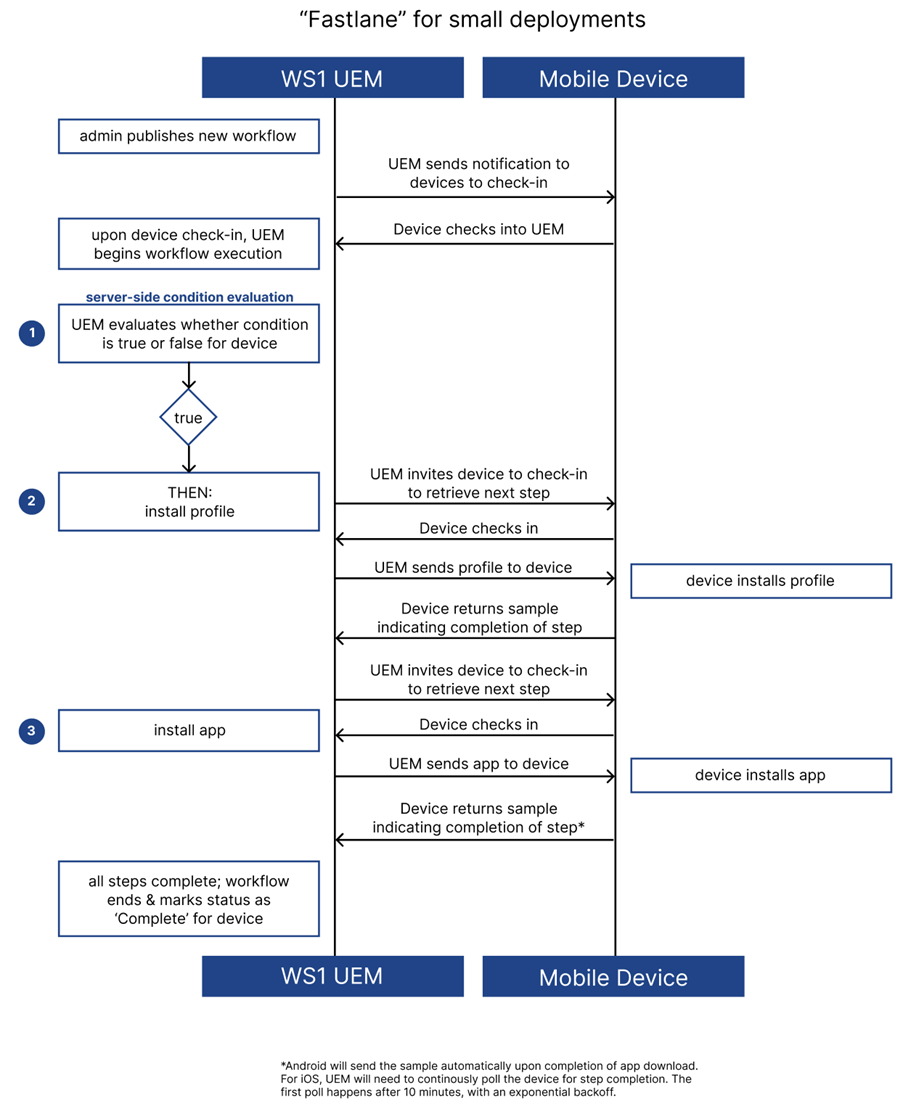
Workflows are managed on the server-side through Freestyle Orchestrator and various Control Plane services. Workflows for mobile devices are managed, run, and resources are sent to the device sequentially as per the steps outlined in the workflow.
During each step in the workflow, the server and the device communicate with each other as the workflow progresses. A notification system ensures efficient coordination between the server and the device. The server uses the notification system to request updates from the device, confirming the readiness of the device to run the subsequent steps. The device notifies Workspace ONE UEM when a step is complete and is ready to receive the next step.
Due to the to and fro communication between the server and the device and based on the size of certain resources, the time for completing each step might vary. For application downloads, there are behavioural differences between Android and iOS platforms. For example, Android devices send a sample to Workspace ONE UEM when the device completes an app download.
However, for an iOS device, when Workspace ONE UEM receives an acknowledgment of the command from the device, the device triggers a request for samples. Workspace ONE UEM continues to poll the device for step completion until Workspace ONE UEM receives a sample indicating the step is complete. The first poll occurs at 10 minutes, with an exponential backoff (for example 10 min, 20 min, 40 min). If the step is not complete, Workspace ONE UEM continues polling with an exponential backoff, that is, subsequent polls occur at increasing intervals. For profiles, both Android and iOS send samples instantaneously.
The following diagram displays and describes how the to and fro communication between the server and device work.
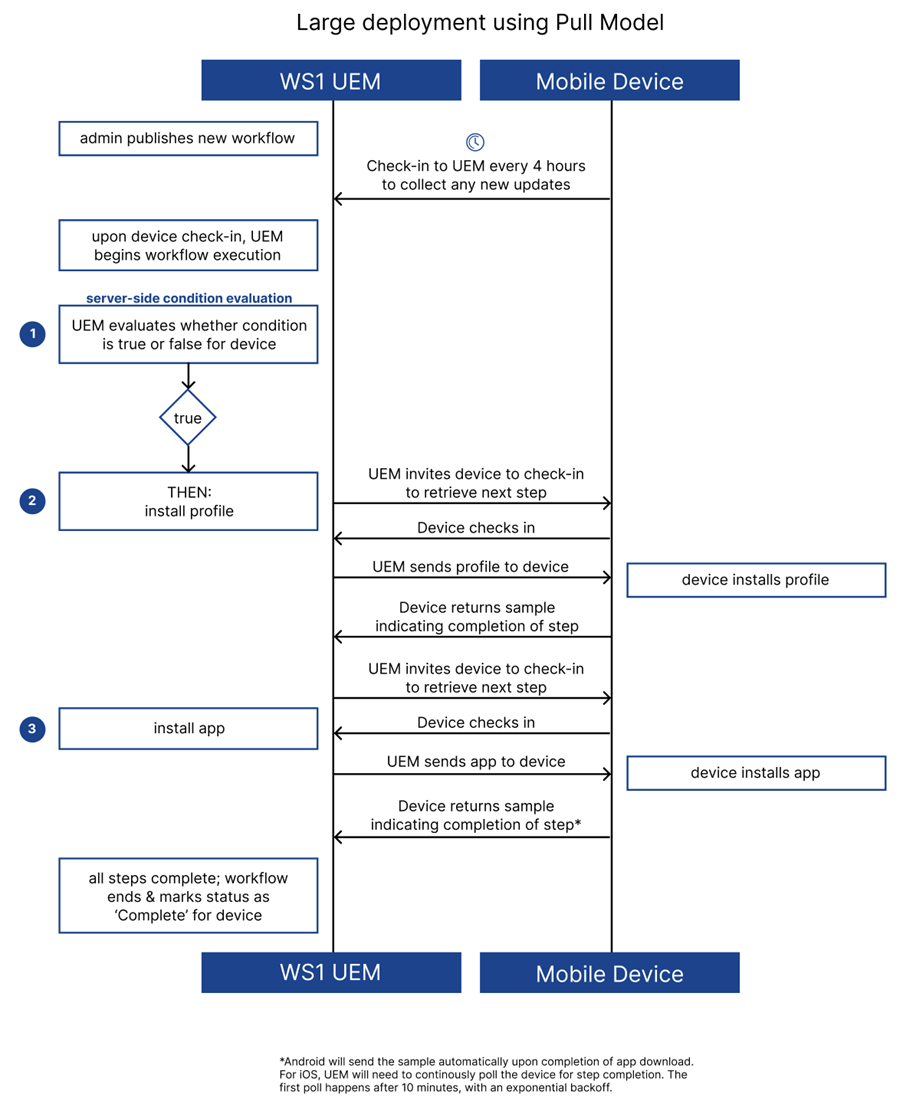
This process is designed for large-scale device deployments, utilizing the new pull model. Every 4 hours, each device checks in with Workspace ONE UEM and retrieves any new workflows assigned to the device since the last check-in. This approach facilitates phased deployments, ensuring smooth updates and rollouts over time.
For smaller-scale deployments, a fast-lane deployment model is used. In this model, once a workflow is published, Workspace ONE UEM immediately sends a notification to the device, prompting the device to check in and retrieve the newly assigned workflow. The following diagram illustrates the workflow deployment process in the fast-lane deployment model.
Immediate Deployment Threshold
The Fast-Lane Deployment model in Freestyle Orchestrator is designed to streamline the workflow deployment process for organizations with fewer than 2,000 devices. This model prioritizes speed and efficiency, ensuring that workflows are triggered and executed quickly without requiring complex scheduling or delays. Once a workflow is published, devices are immediately invited to check in and the workflow starts running.
On the workflow details page you can use the Force Execute option to manually trigger a workflow run on a single device, ensuring that critical updates or configurations are applied as needed, even if the device has not yet checked in.
Was this page helpful?