Omnissa Workspace ONE UEM console allows you to deploy applications as a link. If you have application packages stored in a repository, internal to your network, or in a cloud, you can use links to these repositories to add the application to the Workspace ONE UEM console. You can use the following delivery configurations to deploy applications as a link to end users.
Host and distribute applications from cloud storage
If you are using cloud storage to host an internal application, Workspace ONE UEM facilitates the connection for the device to get the application package from the cloud storage system when the deployment is initiated. Workspace ONE UEM currently does not support cloud storage system links that require authentication. The internal application package that you host on a cloud storage system must be a direct link. This direct link allows the end users to accept the application package through the URL.
Download and Distribute with Workspace ONE UEM
Select to have Workspace ONE UEM retrieve the package file from a link and store it rather than distributing the link directly to end-users. This functionality is useful for customers who use Workspace ONE UEM for continuous integration between systems to distribute applications. Go to the API help in the console to find the API value. Workspace ONE UEM downloads packages hosted on your internal network repository as well, but you must enable the option to access them with the Content Gateway.
Note: Windows app deployments currently require you to select Download & Distribute via WS1 UEM server when you deploy them as a Link.
Host application on internal network repository via Content Gateway
If you are using a repository on your internal network, the Content Gateway facilitates the connection for the device to get the application from this repository when the Workspace ONE UEM console initiates the deployment. You can host internal applications on your network and manage the applications with Workspace ONE UEM. Workspace ONE UEM uses Windows File Share protocols to make externally hosted applications available to user devices.
Workspace ONE UEM provides Content Gateway as a service on the Unified Access Gateway appliance. The Content Gateway provides a secure and effective medium for end users to access internal repositories. You can configure the Content Gateway for Windows to transfer data from the on-premises network to Workspace ONE UEM.
Note: Adding an application package link to an internal repository to access via Content Gateway is no longer supported. We recommend that you host and distribute apps either from cloud storage or Workspace ONE UEM.
- Configure and use the Content Gateway for Windows to secure communications between your network and Workspace ONE UEM. Find information about the Content Gateway on the Omnissa Docs site.
- Enter the credentials for the external app repository so Workspace ONE UEM can direct users to the application packages hosted on your network in the app repository. Workspace ONE UEM supports one set of credentials to authenticate to repositories. If you have multiple repositories set up, use a common set of credentials to authenticate.
- Enter the location of internal applications on the external app repository using a Link.
Deploy applications via Enterprise App Repository
Enterprise App Repository within Workspace ONE UEM speeds the delivery of frequently used Windows apps. Enterprise App Repository serves as a one-stop-shop for commonly used, pre-packaged apps that they can instantly deploy to employees' Intelligent Hub catalog. The apps are pre-tested across the latest OS builds and kept up-to-date for protection against potential vulnerabilities. If you use the Content Gateway for Windows and house applications on an external server system, you can set external repositories for various platforms and application types. Workspace ONE UEM supports specific file types for external app repositories. The external app repository feature supports only internal applications.
The application link must contain any of the following supported file extensions in the URL. UEM console also supports links that contain query parameters at the end.
- app
- appx
- apk
- dmg
- exe
- ipa
- msi
- pkg
- xap
- zip
The following table lists the platform-specific supported extensions for all the applications that are uploaded as a link:
| Platform | Supported File Types |
|---|---|
| Apple iOS | IPA |
| macOS | Application package bundle |
| Android | APK |
| Symbian | SIS and SISX |
| Windows Phone | XAP |
| Windows Desktop that works for all three processors, x64, x86, and ARM | APPX, msi, zip and .exe |
Supported Deployments:
- SaaS deployments using the Content Gateway for Windows for secure communications.
- On-premises deployments using the Content Gateway for Windows for secure communications.
If your repositories require authentication, Workspace ONE UEM uses one set of credentials to communicate between the Content Gateway and your repositories. For this feature to work, use a common set of credentials for the Content Gateway to communicate with your repositories. Add one set of credentials for the repositories you configured with the Content Gateway.
Add Internal Applications From External Repositories
Configure Workspace ONE UEM to direct users to internal applications on your network in an external app repository. Manage settings in Workspace ONE UEM to distribute a link to a resource or to retrieve a file package and store and distribute it. The Content Gateway for Windows uses this information to access the repository and to open communications between the device and the repository.
-
Navigate to Groups & Settings > All Settings > Apps > Workspace ONE > External App Repository.
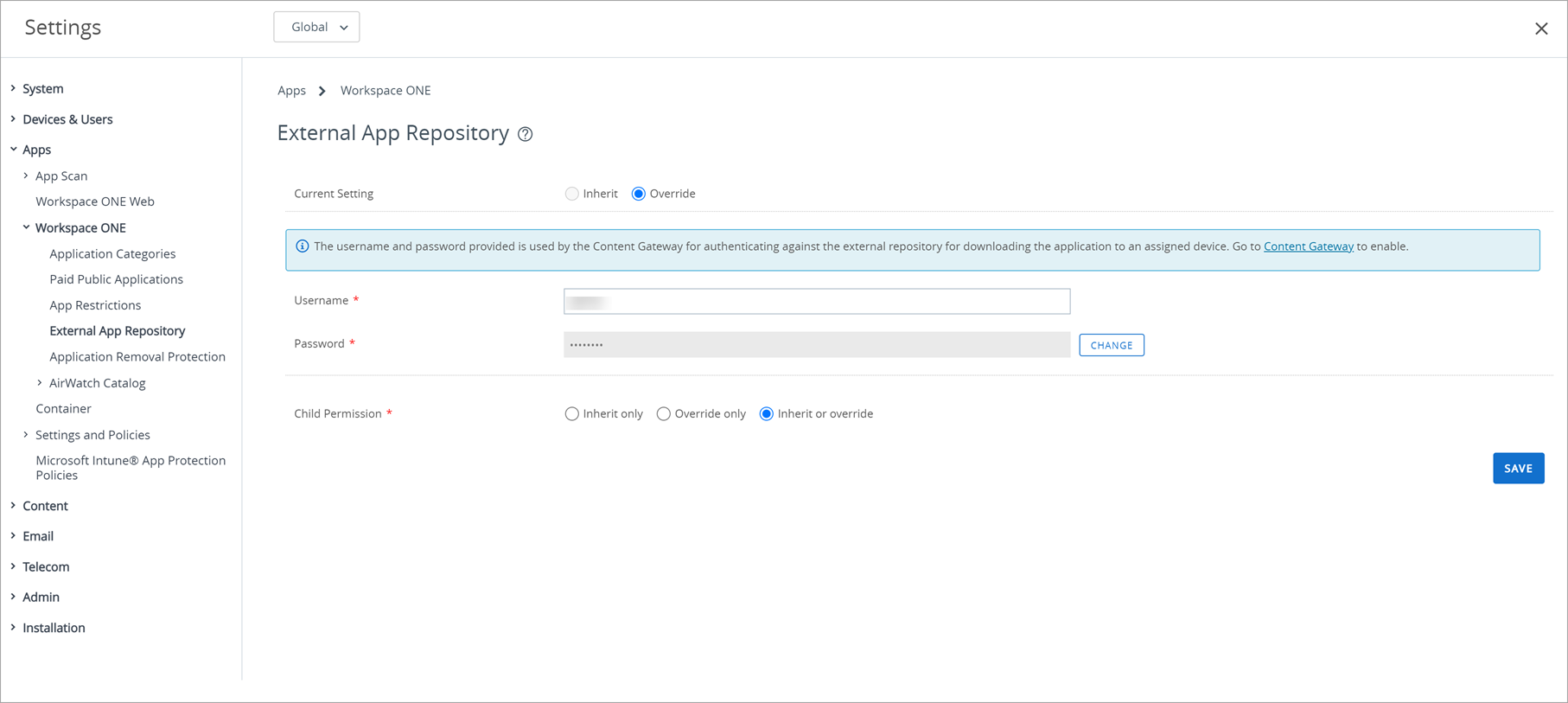
-
Complete the following options.
Setting Description Username Enter the username for the external app repository. Password Enter the password for the external app repository. -
Click Save.
-
Navigate to Resources > Apps > Native > Internal and select Add Application.
-
Select Upload, select Link, confirm that access uses the Content Gateway, and select the gateway you want. However, if the link to the application is publicly available then the Content Gateway is not required.
-
Enter the location of the internal application in your external app repository. You can use a server file path, a network file share path, an HTTP address, or an HTTPS address. The string must include the name of the internal application and the file extension. For example, http://
/<InternalAppFileName.FileExtension. -
If this application is hosted on an internal network repository that you want to distribute, select Access via Content Gateway.
-
If you want Workspace ONE UEM to retrieve the file package, store it, and distribute it rather than just passing the link to devices, select Download and Distribute Via Workspace ONE UEM Platform.
-
Select Save and Continue and then configure the remaining tabs.
Was this page helpful?