If you log in as root to the Unified Access Gateway console with the correct username and password and get a "Login incorrect" error, check for keyboard mapping issues and reset the root password.
There are several reasons why a login error occurs:
- the keyboard used does not map certain password characters correctly according to the keyboard definition of Unified Access Gateway
- the password expired. The root password expires 365 days after deploying the OVA file.
- the password was not set correctly when the appliance was deployed. This is a known issue with older versions of Unified Access Gateway.
- the password has been forgotten.
To test that the keyboard is mapping characters correctly, try entering the password in response to the "Login:" username prompt. This allows you to see each password character and may identify where characters are being misinterpreted.
For all other causes, reset the root password of the appliance.
Reset the root password
To reset the root password, you must have the following information:
- login access to vCenter
- vCenter login password
- permission to access the appliance console
- For STIG-compliant appliances, a GRUB 2 bootloader menu
usernameandpasswordare set by default, and both these details must be entered as part of this procedure.
Procedure
- Restart the appliance from vCenter and immediately connect to the console.
- When the GRUB bootloader screen appears, quickly use the UpArrow and DownArrow keys to stop the countdown timer.
- Press
eto edit the boot configuration.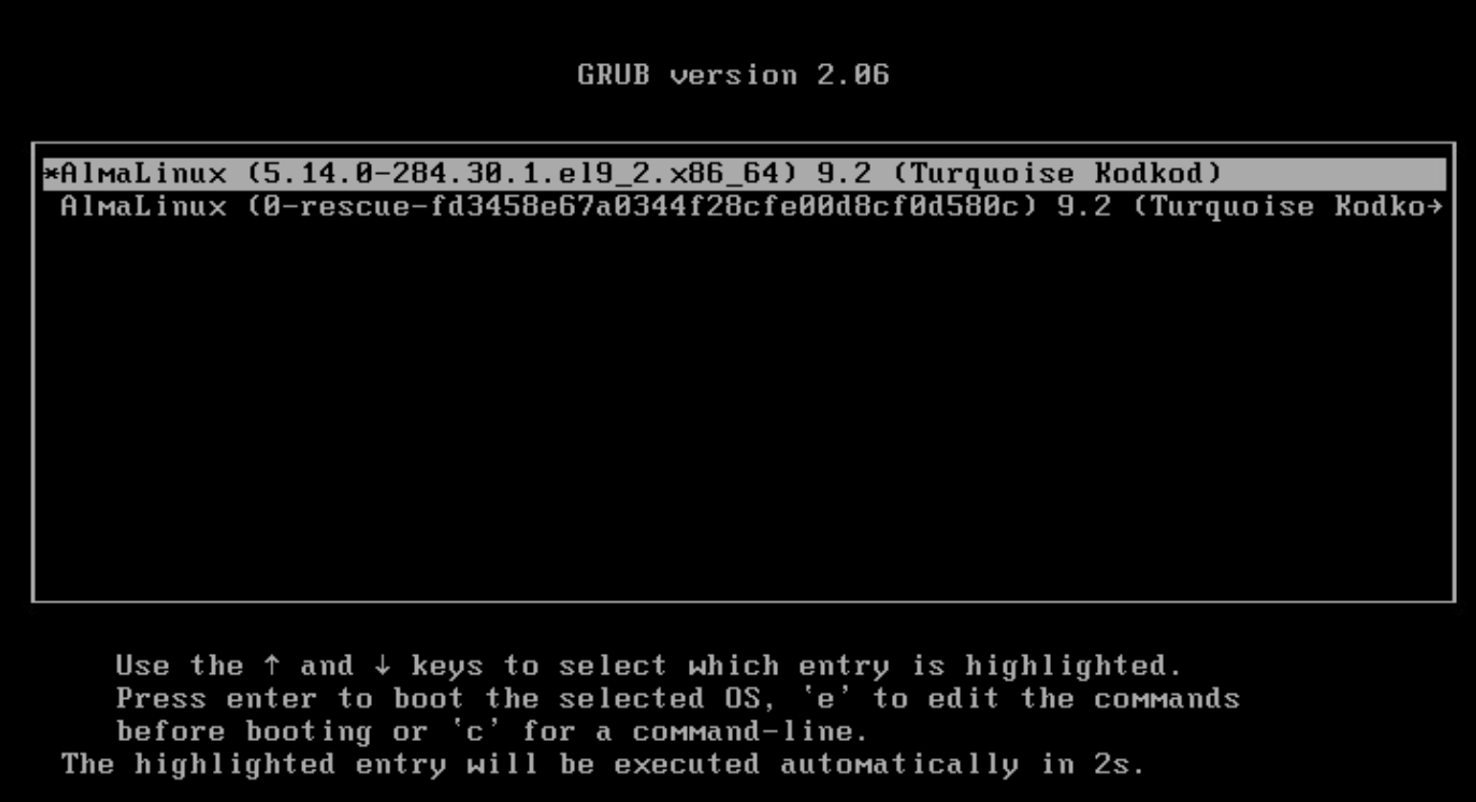
- On the GRUB, if prompted, enter the
GRUB usernameandGRUB password. If not prompted, proceed to step 5. - The kernel boot parameters is displayed.
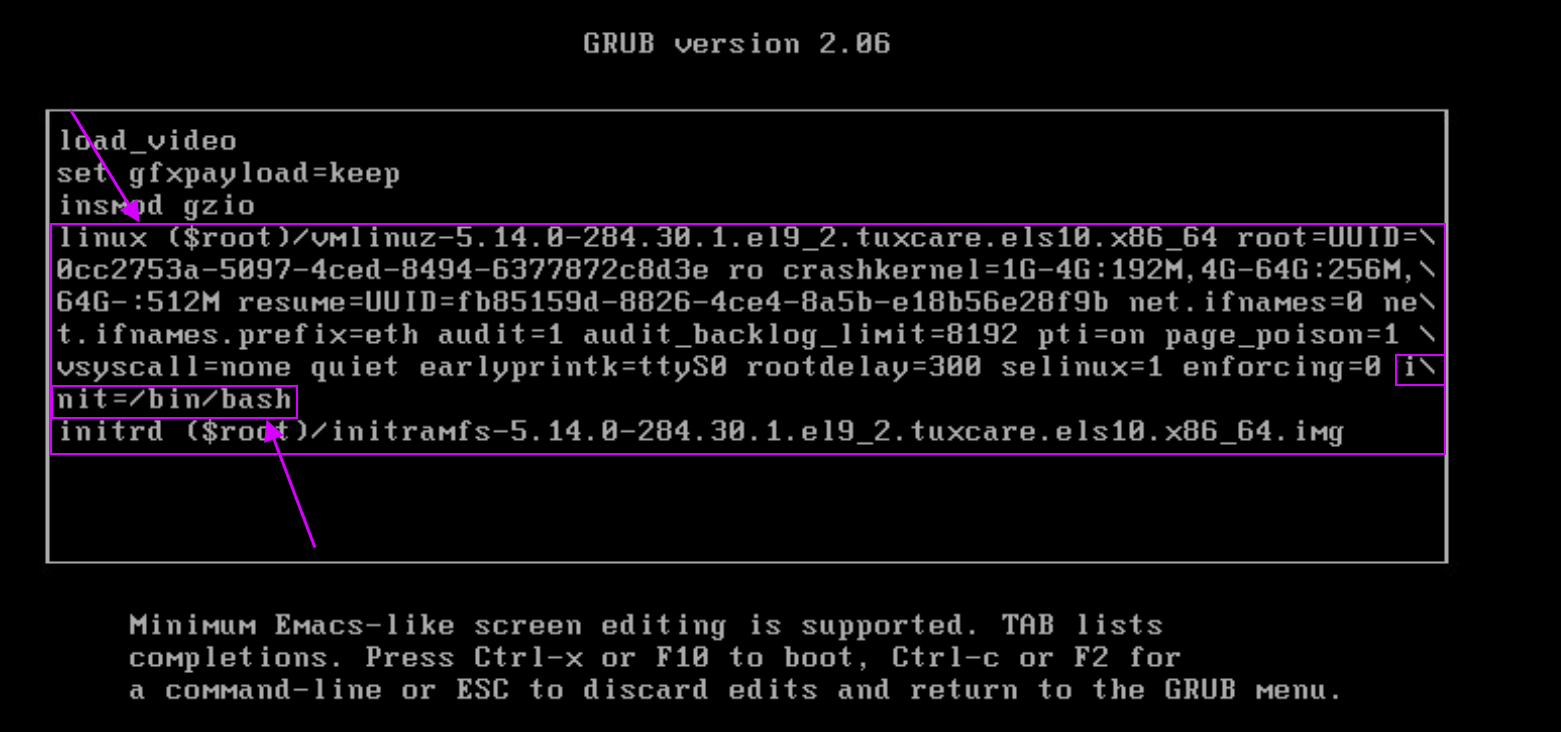
- Use the arrow keys to navigate to the line that starts with
linux. - Carefully, remove all the occurrences of
console=andvconsole=key-value pairs. - Go to the end of the line and add
init=/bin/bash. - Press
Ctrl + Xto proceed with the boot process.
- Use the arrow keys to navigate to the line that starts with
- On the bash-5.1# prompt, enter the following command to remount the system’s root as read/write.
mount -o remount,rw / - Run this command to change the root password.
passwd root
You see the messageChanging the password for user root.
Set the new password.New password:
Retype new password:
Resultpasswd: all authentication tokens updated successfully. - Run this command. Ensure that there are no typos when you enter the command.
touch /. autorelabel - Run this command to reboot the appliance.
/usr/sbin/reboot -f
Was this page helpful?