If you log in as root to the Unified Access Gateway console with the correct username and password and get a "Login incorrect" error, check for keyboard mapping issues and reset the root password.
There are several reasons why a login error occurs:
- the keyboard used does not map certain password characters correctly according to the keyboard definition of Unified Access Gateway
- the password expired. The root password expires 365 days after deploying the OVA file.
- the password was not set correctly when the appliance was deployed. This is a known issue with older versions of Unified Access Gateway.
- the password has been forgotten.
To test that the keyboard is mapping characters correctly, try entering the password in response to the "Login:" username prompt. This allows you to see each password character and may identify where characters are being misinterpreted.
For all other causes, reset the root password of the appliance.
Note: To reset the root password you must have the following information:
- login access to vCenter
- vCenter login password
- permission to access the appliance console
If you have set up a Grub 2 boot loader menu password for the appliance, you will need to enter this as part of this procedure.
Procedure
-
Restart the appliance from vCenter and immediately connect to the console.
-
When the GRUB bootloader screen appears, quickly use the UpArrow and DownArrow keys to stop the countdown timer.
-
Press
eto edit the boot configuration.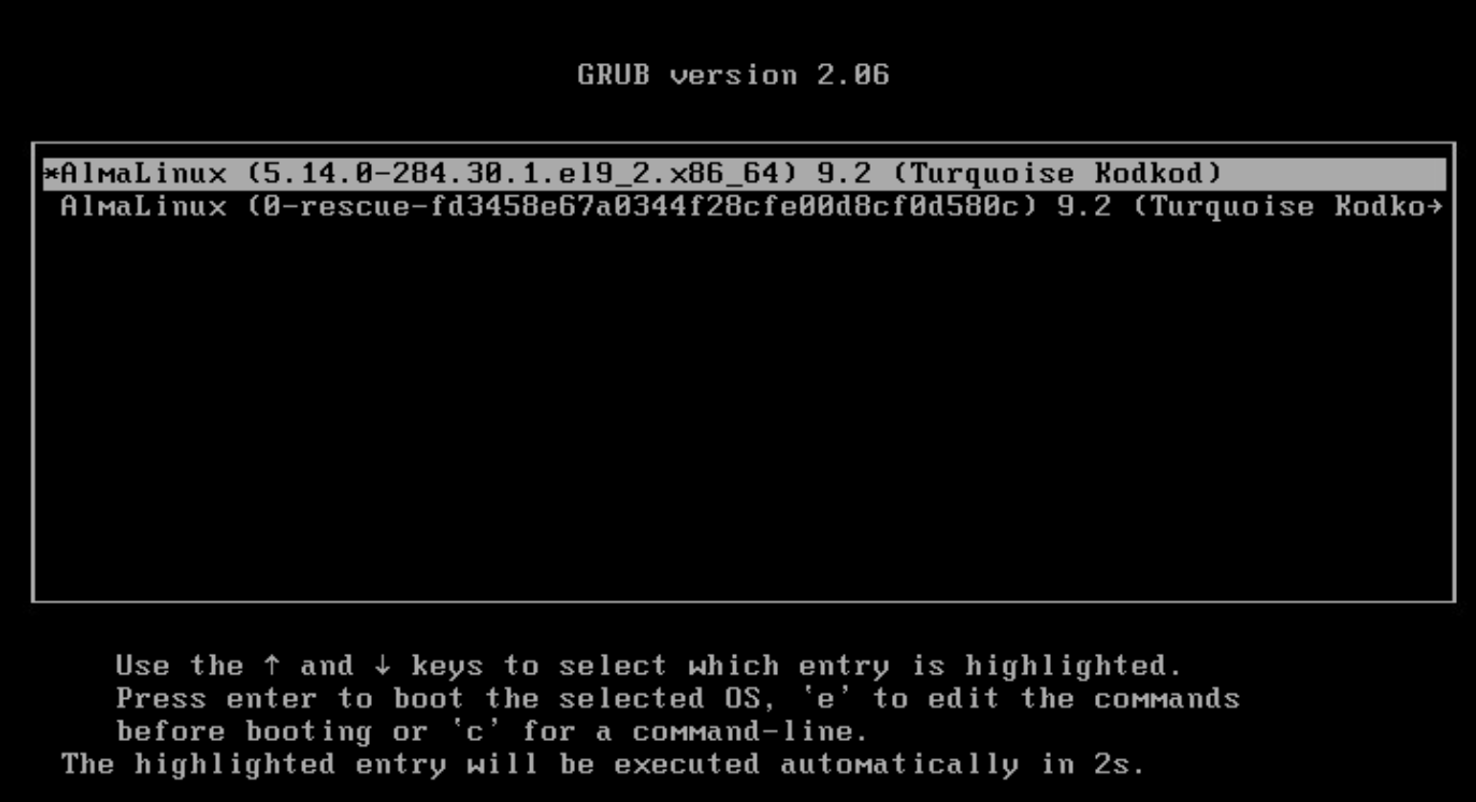
-
On the GRUB prompt, enter the
GRUB usernameandGRUB password.
The kernel boot parameters is displayed. Use the arrow keys to navigate to the line that starts with linux.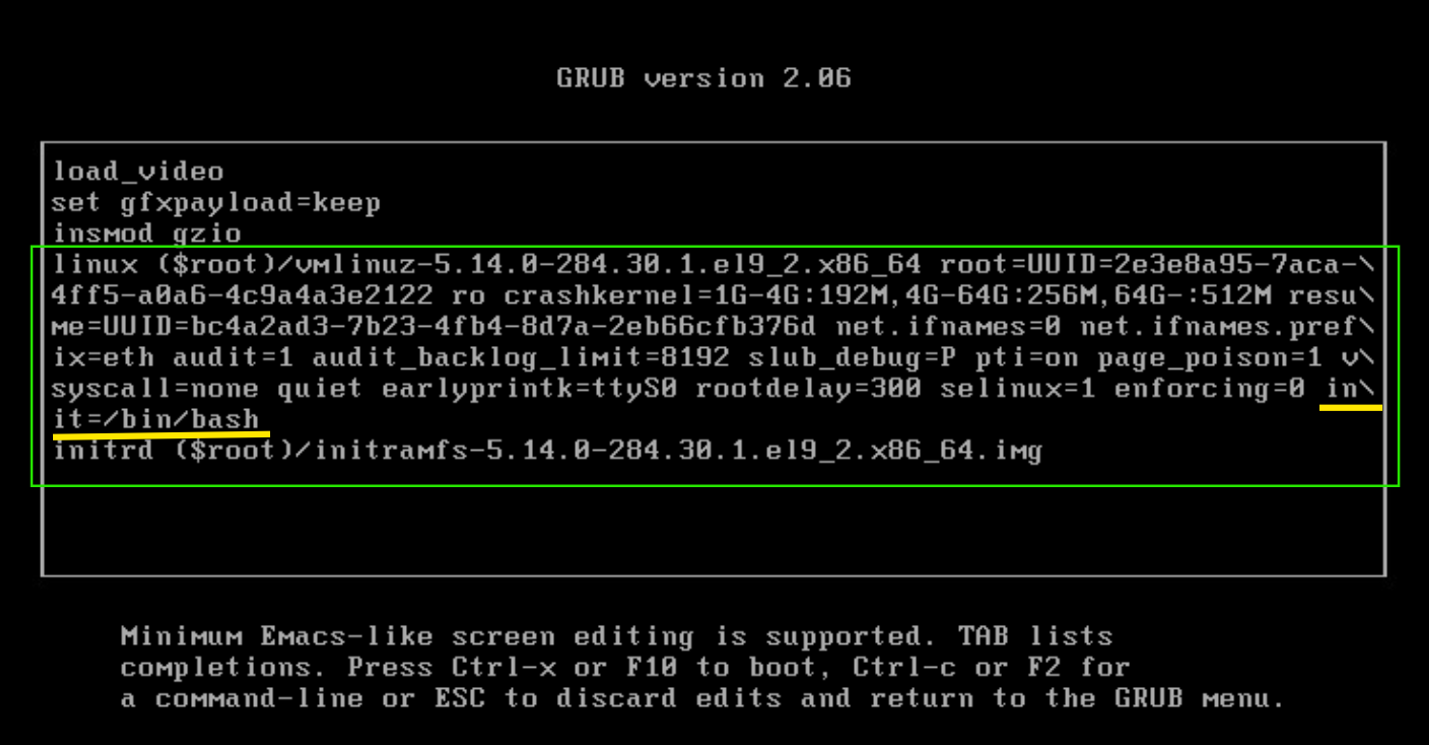
-
Remove all instances of
console=andvconsole= key-value pairs. -
Go to the of the line and add
init=/bin/bashand then pressCtrl + Xto proceed with the boot process. -
On the bash-5.1# prompt, enter the following command to remount the system’s root as read/write.
mount -o remount,rw / -
Run this command to change the root password.
passwd rootYou see the message
Changing the password for user root.Set the new password.
New password:

Retype new password:
Result
passwd: all authentication tokens updated successfully. -
Run this command. Ensure that there are no typos when you enter the command.
touch /. autorelabel -
Run this command to reboot the appliance.
/usr/sbin/reboot -f
Was this page helpful?