Autonomous Single App Mode (ASAM) allows apps enable or disable Single App Mode autonomously (without intervention from an MDM/Admin), when allowed by the admin in the Console. This mode allows you to lock a device with a particular app for a specific time; all other apps are available when the autonomous app has relinquished control. ASAM requires a supervised device that is enrolled in Workspace ONE UEM, and works only with apps that support ASAM.
Supported Modes
ASAM is supported in both Normal and Kiosk modes in Workspace ONE Web. The location of the exit option differs by mode:
- Kiosk mode: Kiosk Settings > Exit Single App Mode
- Normal mode: Settings > Security & Privacy > Exit Single App Mode
To configure ASAM with Workspace ONE Web, complete the following steps:
Step 1: Enable supervised mode using Automated Device Enrollment (ADE)
Automated Device Enrollment (ADE) is Apple's recommended method for enrolling and supervising iOS/iPadOS devices. It works together with Apple Business Manager (ABM) and Workspace ONE UEM. With ADE, devices purchased directly from Apple or authorized resellers are automatically linked to the organization's ABM/ASM account. When assigned to an MDM server, these devices can be deployed with zero manual setup; supervision and enrollment happen during the initial device setup process.
- Integrate Workspace ONE with ABM.
- Upload the ABM server token in Workspace ONE UEM to establish trust.
- Assign devices in ABM to the Virtual MDM server.
- Create an Automated Enrollment Profile in Workspace ONE with Supervision enabled.
- Deploy the devices. For more information, see Automated Device Enrollment Program.
Step 2: MDM Enrollment
Enroll the device in Workspace ONE UEM (MDM), which allows the IT admin to push configurations to the device.
Step 3: Create a Device Profile in the Workspace ONE UEM Console
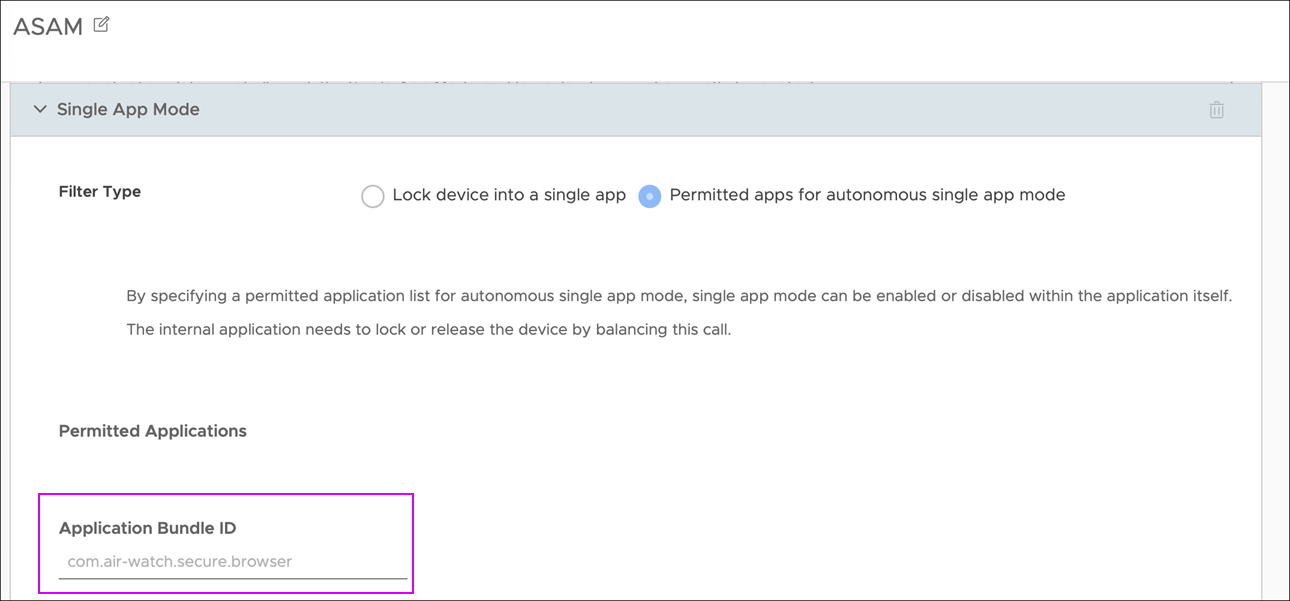
Create a Device Profile in the Workspace ONE UEM Console to configure the permitted app for ASAM using Workspace ONE Web bundle identifier. Set the Application Bundle ID as com.air-watch.secure.browser.
Step 4: Set an Admin Passcode in the Workspace ONE Web managed app configuration
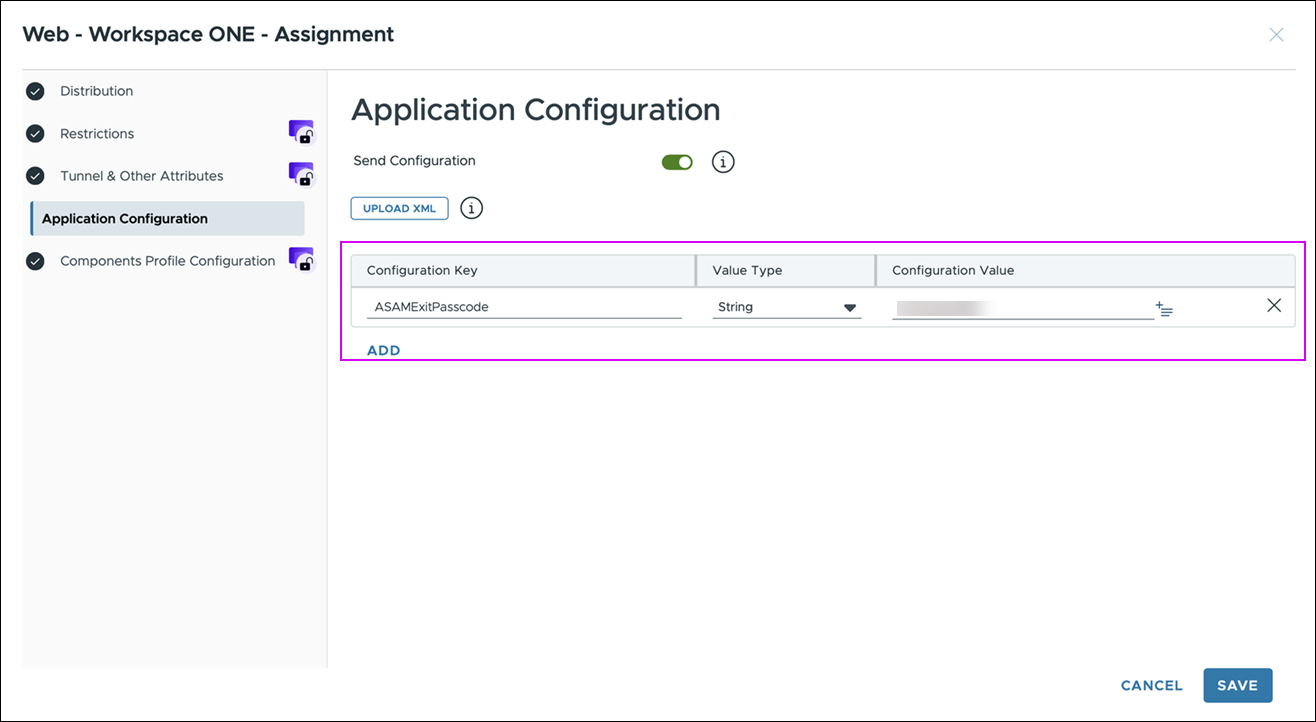
Enter a strong alphanumeric admin password that must be entered to unlock the device.
KVP: ASAMExitPasscode: "<admin-chosen secret>"
Steps for users to exit ASAM in Workspace ONE Web
-
Open the Web Settings and click Exit Single App Mode.
-
Enter the administrator-defined passcode.
- If the passcode is correct, the application exits ASAM. Workspace ONE Web closes, restoring access to the device.
- If the passcode is incorrect, an error message is displayed and the ASAM session remains active. There is no lockout or attempt counter.
When Workspace ONE Web is launched again, the application automatically re-enters ASAM.
Was this page helpful?