Factors such as network conditions and the location of both the device and the administrator can influence the quality of a screen-sharing session. With a poor-quality screen sharing session, it can be challenging for an admin to identify and troubleshoot the issue.
Using the Experience Controller, you can adjust the remote control settings to improve the screen sharing quality, thereby improving the overall user experience.
The experience controller offers four modes, display settings, and other advanced settings. The mode you select is saved and applied to the device for future sessions. Your selected mode determines other factors such as Bit Rate, Frame Rate, and Grayscale.
Modes
| Mode | Description |
|---|---|
| Auto | This is the default mode. BitRate and Frame Rate (FPS) are dynamically adjusted throughout the session based on measured Round-Trip Time (RTT).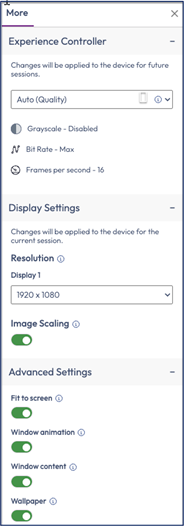 |
| Balanced | Select this mode for the best balance between speed and image quality. This mode activates Image scaling and removes Wallpaper. |
| Speed | Select this mode for faster screen refresh rates when image quality is less of a priority. This mode activates Image scaling, Grayscale, and removes Wallpaper. |
| Custom | Manually adjust Frame Rate and Bitrate to customize your experience.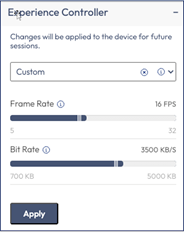 |
Display and Advanced Settings
| Settings | Description |
|---|---|
| Resolution | Adjust the remote device’s screen resolution to balance clarity and performance for the duration of the Assist session. |
| Image Scaling | Improve performance during low bandwidth connections by scaling images for a faster, more responsive remoting experience. |
| Fit to Screen | Resize content to fully fit within the Assist Console canvas. |
| Windows animation | Activate or deactivate Windows animation. |
| Windows content | Show or hide windows content while dragging and moving windows. |
| Wallpaper | Remove wallpaper and set blank. |
Was this page helpful?