The Compliance Policies List View in Workspace ONE UEM enables you to see all the active and inactive compliance policies and their configurations.
Devices are placed in a Pending compliance status during an initial enrollment. Creating, saving, and assigning a policy to an enrolled device causes the device compliance status to either be Compliant or NonCompliant.
Changes to Smart Group assignments also cause a device compliance policy to be Pending but only when the device is new to the smart group. Devices already assigned to the smart group cannot see their compliance status change simply because the smart group expands (or contracts) its assignment.
Similarly, when a user checks in or checks out a shared device, it also moves to Pending status. Afterward, UEM re-evaluates compliance based on the scheduled time interval or in real time when the device reports updated samples.
View the Compliance Policy List view by navigating to Devices > Compliance Policies > List View.
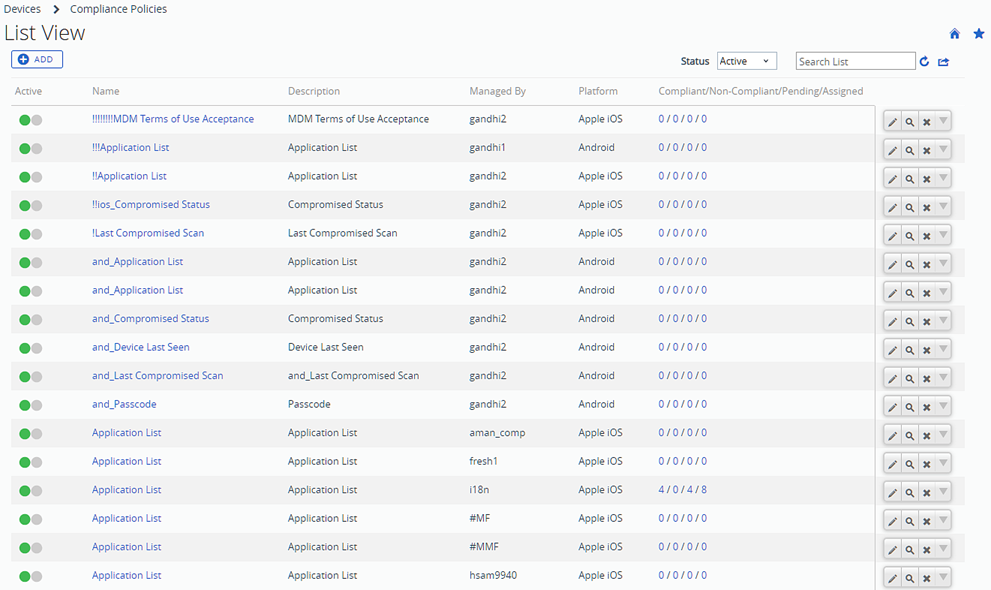
| Setting | Description |
|---|---|
| Status | Filter the listing between All, Active and Inactive statuses. |
Green / Red buttons  | Activate or deactivate individual compliance policies by selecting the green button (on active policies) to deactivate them or the red button (on inactive policies) to activate them. You are able to see individual compliance policies change from active to inactive only if the Status drop down menu is set to "All," allowing you to see both kinds of policies in the same listing. |
Actions Menu  | View and edit individual policies, view devices to which the policy has been assigned, and delete policies you no longer want to keep. Any edits you make to an existing policy causes options such as escalation schedules to be reset. |
| Compliant / NonCompliant / Pending / Assigned | The digits in this column feature hypertext links that, when selected, display the View Devices page for the specific status on the selected compliance policy. The Assigned status is the sum of Compliant, NonCompliant, and Pending devices. For more information, see View Devices Page (Compliance). |
| Export button | You can download reports in the default comma-separated values format (CSV) of the Compliance Policies list view. |
Was this page helpful?