In the Omnissa Access console, you can view details about the desktop and application pools synced from your Horizon Cloud environment to Omnissa Access.
Note: This topic applies to Omnissa Access integration with Horizon Cloud Service on Microsoft Azure with Single-Pod Broker or Horizon Cloud Service on IBM Cloud, using Omnissa Access connector version 22.05 or later.
Procedure
-
In the Omnissa Access console, select Resources > Virtual Apps.
The virtual apps list includes desktops and applications synced from Horizon Cloud.
-
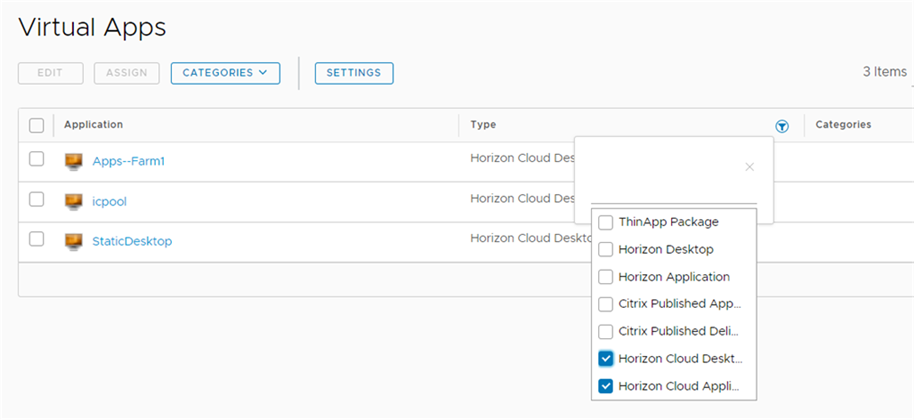
To view only Horizon Cloud desktops and applications, click the icon in the Type column heading and select Horizon Cloud Desktop and Horizon Cloud Application.
You can also search for a specific desktop or application by its name.
-
Click a desktop or application.
The Definition section in the desktop or application page lists attributes synced from the Horizon Cloud tenant, such as the following:
- Desktop or application UUID
- Pool name, Pool ID, and Pool Domain
- Desktop operating system
- Supported launch clients See the Horizon Cloud documentation for information about these attributes.
You cannot edit these attributes from the Omnissa Access console.
Note: On this page, you can also view Omnissa Access settings for the application or desktop, such as categories, access policies, and licensing. You can edit these settings by clicking Edit at the top of the page.
Was this page helpful?