You can integrate Web apps and Virtual Apps with Omnissa® Access™ to make these apps and desktops available to end users in the Omnissa® Intelligent Hub app and portal. Omnissa Access provides multi-factor authentication, conditional access, and single sign-on to the apps.
You can integrate the following types of resources with Omnissa Access:
- Web apps
- Virtual apps
-
Horizon® applications and desktops
-
Citrix-published resources
-
Horizon® Cloud Service™ applications and desktops
See Providing Access to Horizon Cloud Service Desktops and Applications in Omnissa Access for information on the types of Horizon Cloud Service environments supported.
-
ThinApp® packaged applications
-
Except for Web applications, each resource type requires you to integrate Omnissa Access with another product or component.
You integrate these resources from the Resources tab in the Omnissa Access console.
-
To integrate Web applications, you use the Resources > Web Apps page.
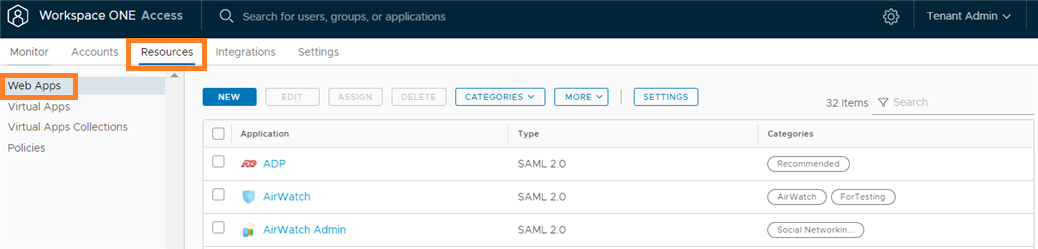
-
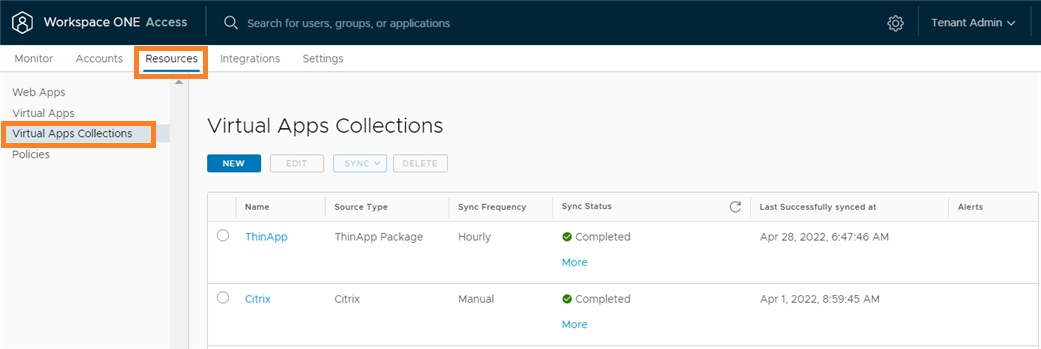
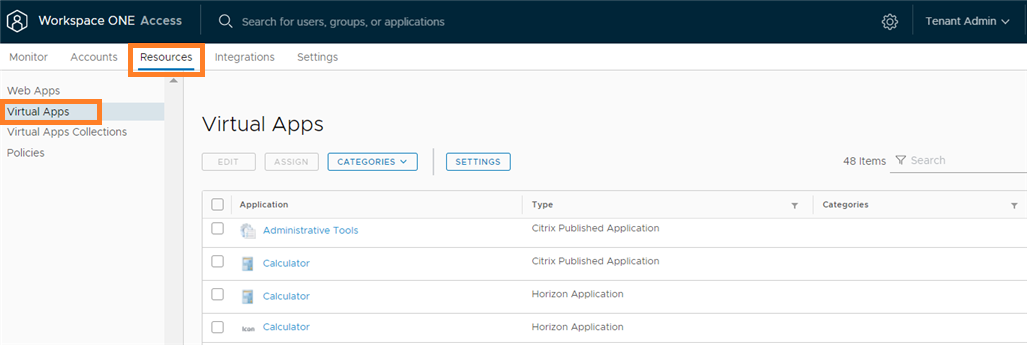
To integrate and manage Horizon desktops and applications, Citrix-published resources, or ThinApp packaged applications, you use the Resources > Virtual Apps Collections and Resources > Virtual Apps pages.
You configure the integrations in the Resources > Virtual Apps Collections page.
You view the synced resources in the Resources > Virtual Apps page.
-
To integrate with the Horizon Cloud Service, you either configure the integration from the Horizon Cloud console or configure virtual apps collections in Omnissa Access, based on the type of Horizon Cloud environment that you have.
You can manage settings for integrated resources from the following pages.
-
Settings for Web applications are available from the Settings button on the Resources > Web Apps page.

-
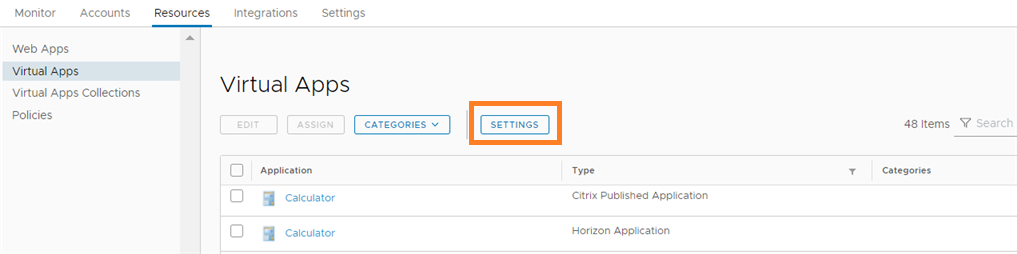
Settings for Horizon, Horizon Cloud, ThinApp, and Citrix-published resources are available from the Settings button on the Resources > Virtual Apps tab.
-
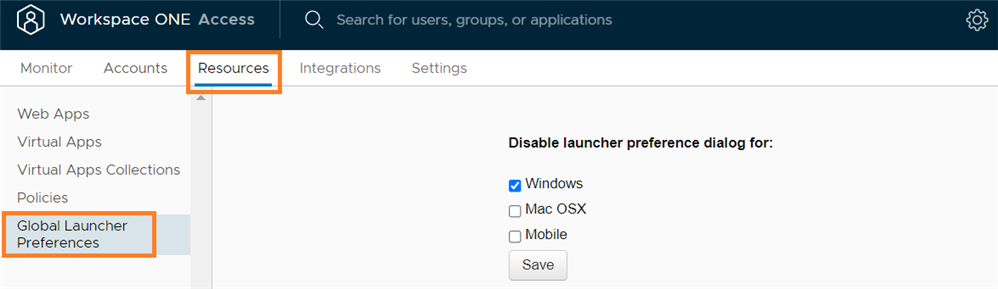
Launcher preference settings for virtual apps are available on the Resources > Global Launcher Preferences page.
-
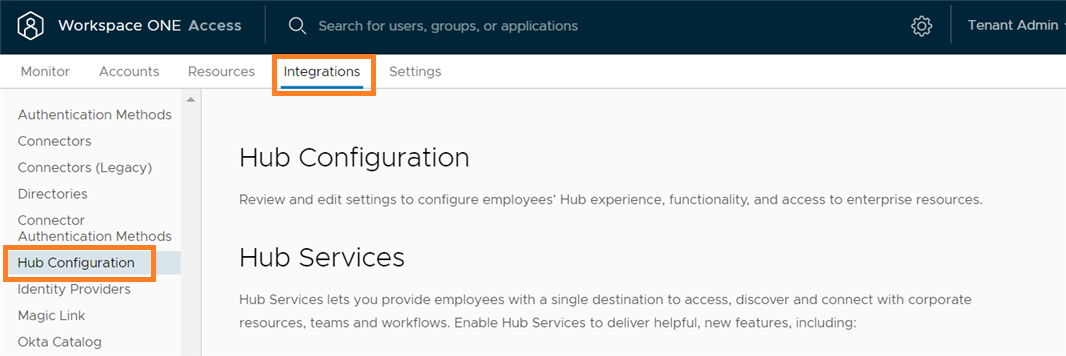
Global settings for the Intelligent Hub app catalog are available from the Integrations > Hub Configuration pages.
-
You can also manage settings for individual applications by clicking the application in the Resources > Web Apps or Resources > Virtual Apps page and clicking Edit.
Navigating in the New Admin Console
Beginning with the April 2022 release of Omnissa Access Cloud and with version 22.09 of Omnissa Access on premises, the Omnissa Access admin console is redesigned for better navigation to key settings.
| Page | Location in New Console | Location in Old Console |
|---|---|---|
| Web Apps | Resources > Web Apps | Catalog > Web Apps |
| Virtual Apps Collections | Resources > Virtual Apps Collections | Catalog > Virtual Apps Collections |
| Virtual Apps | Resources > Virtual Apps | Catalog > Virtual Apps |
| Global Launcher Preferences | Resources > Global Launcher Preferences | Catalog > Settings > Global Settings |
| Policies | Resources > Policies | Identity & Access Management > Manage > Policies |
| Connectors | Integrations > Connectors | Identity & Access Management > Setup > Connectors |
| Directories | Integrations > Directories | Identity & Access Management > Manage > Directories |
| User Attributes | Settings > User Attributes | Identity & Access Management > Setup > User Attributes |
This publication shows you how to configure features with the new navigation. To see information about how to configure features using the old navigation, go to the Omnissa Access Cloud > Legacy Admin Console-Based Documents folder in the Omnissa Access documentation center. Note that the legacy documents will not be updated with new features after April 2022.
About Omnissa App and Web Portal End-of-Life
Important: The Omnissa App and Web Portal is end-of-life on May 15, 2022. Customers who have the Omnissa App deployed should migrate users immediately to the Omnissa Intelligent Hub app, available in the App Store and Play Store.
About this Publication
This publication is based on the latest available version of the Omnissa Access connector.
Was this page helpful?