After you create a virtual apps collection for the Horizon Cloud integration in the Omnissa Access console, configure SAML authentication in the Horizon Cloud tenant.
If you are integrating multiple Horizon Cloud tenants, ensure that you configure SAML authentication in all the tenants.
Important: The Horizon Cloud tenant appliance and Omnissa Access must be in time sync. If they are not in time sync, when you try to launch Horizon Cloud desktops and applications, an invalid SAML message appears.
Note: This topic applies to Omnissa Access integration with Horizon Cloud Service on Microsoft Azure with Single-Pod Broker or Horizon Cloud Service on IBM Cloud, using Omnissa Access connector version 22.05 or later.
Procedure
-
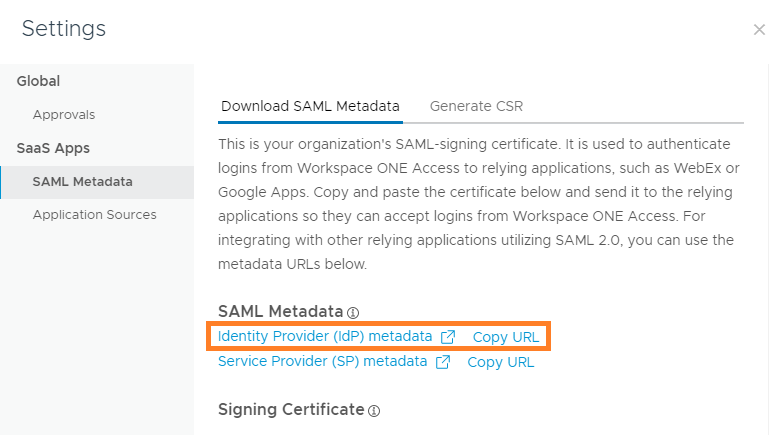
In the Omnissa Access console, select Resources > Virtual Apps, then click Settings.
-
In the left pane, select SAML Metadata.
-
In the Download SAML Metadata tab, click Copy URL next to the Identity Provider (IdP) metadata link.
The URL, which is in a format similar to https://WorkspaceONEAccessFQDN/SAAS/API/1.0/GET/metadata/idp.xml, is copied to your clipboard.
-
Log in to the Horizon Cloud tenant.
-
Navigate to Settings > Identity Management.
-
Click New.
-
Configure the required settings.
For Horizon Cloud Service on Microsoft Azure with Single-Pod Broker environments, the following settings appear.
Option Description Omnissa Access Metadata URL The Omnissa Access IdP metadata URL that you copied in step 3. The URL is typically in the following format:
https://WorkspaceONEAccessFQDN/SAAS/API/1.0/GET/metadata/idp.xml
where WorkspaceONEAccessFQDN is the FQDN of your Omnissa Access environment.Timeout SSO Token (Optional) The amount of time, in minutes, after which you want the SSO token to time out. Location Select a location to filter the Pod drop-down list to the pods associated with that location. Pod Select the pod to integrate with Omnissa Access. Data Center The drop-down displays a numeric related to the Horizon Cloud pod software version. Keep the default. Client Access FQDN The FQDN that end users connect to for Horizon Cloud. Omnissa Redirection If you have set the configuration in Horizon Cloud to force end-user access to go through Omnissa Access, you can set this toggle to YES to have the end users' clients automatically redirect to the Omnissa Access environment. For information about forcing end-user access through Omnissa Access, see Configure the Option to Force End-User Access to Use Omnissa Access in the Horizon Cloud documentation.
With the automatic redirection set to YES, and forced authentication through Omnissa Access configured, when the client attempts to connect to Horizon Cloud the client is automatically redirected to the Omnissa Access environment that is integrated with the pod. When the automatic redirection toggle is set to NO, automatic redirection is not enabled. When automatic redirection is not enabled and forced access is configured, the clients display an informational message to the user instead. For more details, see the Horizon Cloud documentation.For Horizon Cloud Service on IBM Cloud environments, the following settings appear.
Option Description Omnissa Access Metadata URL The Omnissa Access IdP metadata URL that you copied in step 3. The URL is typically in the following format:
https://WorkspaceONEAccessFQDN/SAAS/API/1.0/GET/metadata/idp.xml
where WorkspaceONEAccessFQDN is the FQDN of your Omnissa Access environment.Timeout SSO Token (Optional) The amount of time, in minutes, after which you want the SSO token to time out. Data Center The name of your Horizon Cloud data center. Select the name from the drop-down list. Client Access FQDN The Horizon Cloud tenant address. Specify the floating IP address or hostname of the Horizon Cloud tenant appliance, or the Unified Access Gateway IP address or hostname. For example, mytenant.example.com. Omnissa Redirection If you have set the configuration in Horizon Cloud to force end-user access to go through Omnissa Access, you can set this toggle to YES to have the end users' clients automatically redirect to the Omnissa Access environment. For information about forcing end-user access through Omnissa Access, see Configure the Option to Force End-User Access to Use Omnissa Access in the Horizon Cloud documentation.
With the automatic redirection set to YES, and forced authentication through Omnissa Access configured, when the client attempts to connect to Horizon Cloud the client is automatically redirected to the Omnissa Access environment that is integrated with the pod. When the automatic redirection toggle is set to NO, automatic redirection is not enabled. When automatic redirection is not enabled and forced access is configured, the clients display an informational message to the user instead. For more details, see the Horizon Cloud documentation. -
Click Save.
A status of green indicates that the integration is successful.
What to do next
Sync the virtual apps collection to sync resources and entitlements from Horizon Cloud to Omnissa Access. In the Resources > Virtual Apps Collections page, select the collection and click Sync > Sync with safeguards or Sync > Sync without safeguards.
After you sync the Horizon Cloud virtual apps collection, you can view desktop and application pools in the Omnissa Access console and end users can launch the resources to which they are entitled from the Intelligent Hub app or portal.
Important: Each time resources or entitlements change in Horizon Cloud, a sync is required to propagate the changes to Omnissa Access.
Was this page helpful?