You can create one or more virtual apps collections in the Omnissa Access console for each type of integration, such as Horizon, Citrix, or ThinApp.
Prerequisites
- Install the Virtual App service, a component of the Omnissa Access connector.
- The following administrator roles are required:
- To get started with virtual apps collections, use the Super Admin role. See About Omnissa Access Virtual Apps Collections for more information.
- To create, edit, or delete Horizon or Citrix virtual apps collections, use any role that can perform the Manage Desktop Apps action in the Catalog service.
- To create, edit, or delete ThinApp collections, use any role that can perform the Manage ThinApp action in the Catalog service.
- To edit and save the Network Ranges page for Horizon and Citrix virtual apps collections, use the Super Admin role.
Procedure
-
Log in to the Omnissa Access console.
-
Select Resources > Virtual Apps Collections.
-
If an information page appears, review the information and click Get Started, otherwise click New.
-
Select the type of resource to integrate.
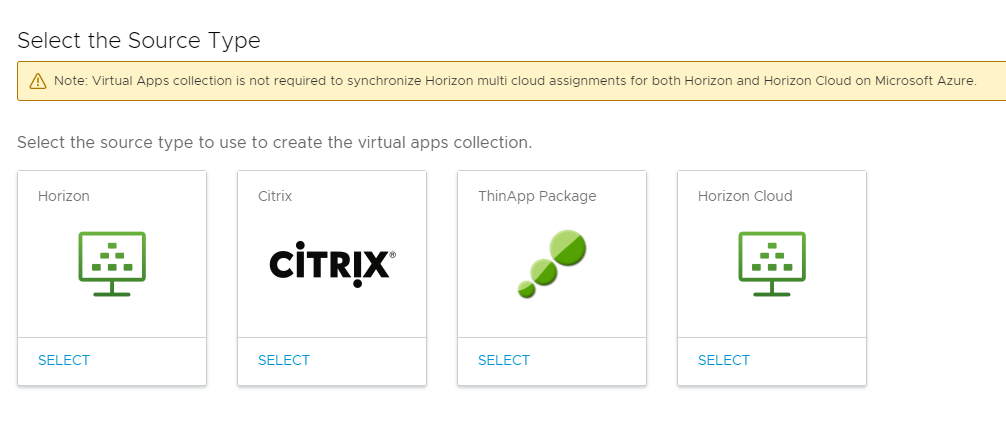
-
Follow the New Collection wizard to create the collection.
The configuration information for each type of integration is different.
- For a Horizon on premises integration, see Configure Horizon Pods and Pod Federations in Omnissa Access for more information.
- For a Citrix integration , see Configuring Citrix Server Farms in Omnissa Access for more information.
- For a ThinApp integration, see Configure ThinApp Packages in Omnissa Access for more information.
Some settings, such as the following, appear for all source types.
Option Description Connector Select the connectors to use to sync this collection. You can add multiple connectors and arrange them in failover order. Only connectors that have the Virtual App service component installed appear in the list. Sync Frequency Select when and how frequently you want to sync the resources in the collection. The sync frequency can range from hourly to weekly. If you do not want to set up an automatic sync schedule, select the Manual option. If you select Manual, you must sync the collection manually after you create it and whenever you want to sync updates from the source server.
For more information about sync, see Syncing Virtual Apps Collections in Omnissa Access.Activation Policy Select how you want resources in this collection to be available to users in the Omnissa Intelligent Hub portal and app. If you intend to set up an approval flow, select User-Activated, otherwise select Automatic.
With both the User-Activated and Automatic options, the resources are added to the Apps tab. Users can run the resources from the Apps tab or mark them as favorites and run them from the Favorites tab. However, to set up an approval flow for any of the apps, you must select User Activated for that app.
The activation policy applies to all user entitlements for all the resources in the collection. You can modify the activation policy for individual users or groups per resource, from the Accounts > Users or Accounts > User Groups pages.
What to do next
The resources in the new collection are not yet synced. If you set up a sync schedule for the collection, the resources are synced at the next scheduled time. If you selected the Manual option for sync, you must sync the resources manually by selecting the collection in the Virtual Apps Collections page and clicking Sync > Sync with safeguards or Sync > Sync without safeguards.
Was this page helpful?