To configure high availability for Kerberos authentication in Omnissa Access, a load balancer is required. After you install and configure the Kerberos Auth service instances, install a load balancer in your internal network inside the firewall and add the Kerberos Auth service hosts to it.
You must also establish SSL trust between the load balancer and the Kerberos Auth service hosts, and change the IdP Hostname value in the Workspace IDP for Kerberos authentication.
Load Balancer Settings
Configure these settings on the load balancer:
-
Load Balancer Timeout
You might need to increase the load balancer request timeout from the default. The value is set in minutes. If the timeout setting is too low, you might see the following error.
502 error: The service is currently unavailable
Certificate Requirement for the Connector
Each Omnissa Access connector on which the Kerberos Auth service is installed must have a trusted SSL certificate. While you can use the Omnissa Access connector generated, self-signed certificate for testing purposes, for production use we recommend you use trusted SSL certificates signed by a public or internal CA.
Upload the Omnissa Access Connector Root Certificate to the Load Balancer
To establish trust between the load balancer and the Kerberos Auth service host, upload the connector's root CA certificate to the load balancer.
If you are using the Omnissa Access connector generated self-signed certificate, you can get the root certificate, root_ca.cer, from INSTALLDIR\Workspace ONE Access\Kerberos Auth Service\conf.
Upload the Load Balancer Root Certificate to the Omnissa Access Connector
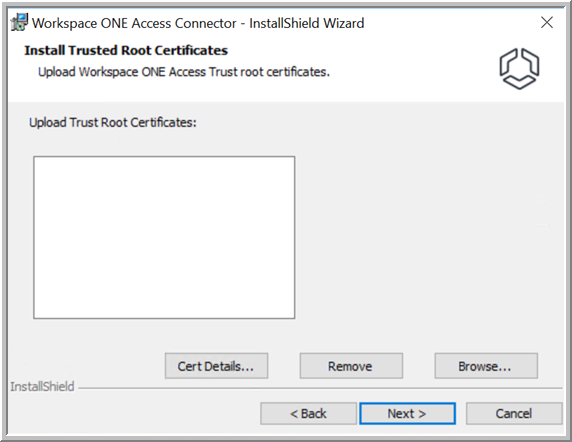
To establish trust between the load balancer and the Kerberos Auth service host, upload the load balancer's root CA certificate to each Kerberos Auth service host.
To upload the certificate, run the Omnissa Access connector installer and add the certificate on the Install Trusted Root Certificates page.
Update Authentication URL
-
Select Integrations > Identity Providers.
-
Select the Workspace IDP that has the Kerberos authentication method configured.
-
In the IdP Hostname text box, change the host name from the connector host name to the load balancer host name.
For example:
mylb.example.comNote: If the load balancer is not running on the default port, specify the port number. For example,
mylb.example.com:443.
Was this page helpful?