You can configure high availability for virtual apps by associating the virtual apps collection with multiple Virtual App service instances and arranging them in failover order. The Omnissa Access service uses the first Virtual App service in the list to sync and manage virtual apps. If the first Virtual App service is unavailable, it uses the next one in the list, and so on.
Each virtual apps collection has its own list of Virtual App service instances.
As a best practice, set up your deployment in a way that the same Virtual App service instance does not sync multiple virtual apps collections at the same time. You can use the following strategies.
- Use a different set of Virtual App service instances for different collections.
- If you use the same set of Virtual App service instances in the same failover order, schedule the sync at different times for each collection.
- If you use the same set of Virtual App service instances for multiple collections, set a different failover order for each collection so that sync does not fall back to the same instance.
Prerequisites
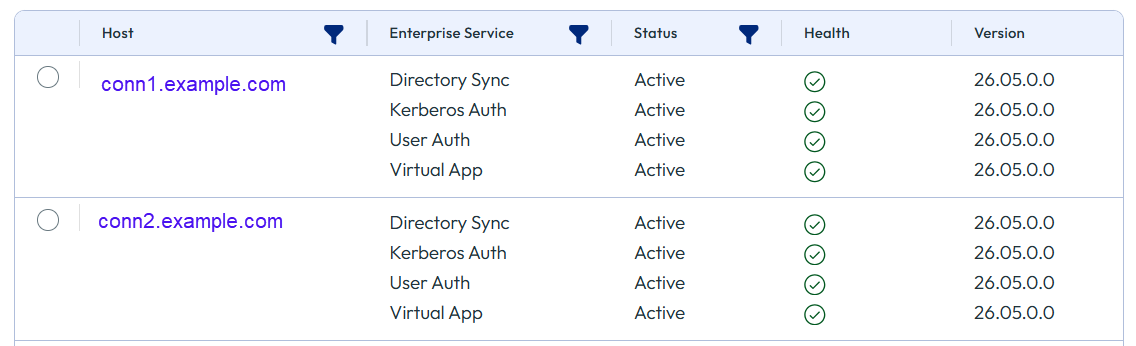
- You have installed and configured multiple Virtual App service instances. For example:
Procedure
-
In the Omnissa Access console, select Resources > Virtual Apps Collections.
-
Click the virtual apps collection for which you want to configure high availability.
-
Click Edit.
-
On the Connector page of the Edit wizard, add all the Virtual App service instances that you want to use with the collection.
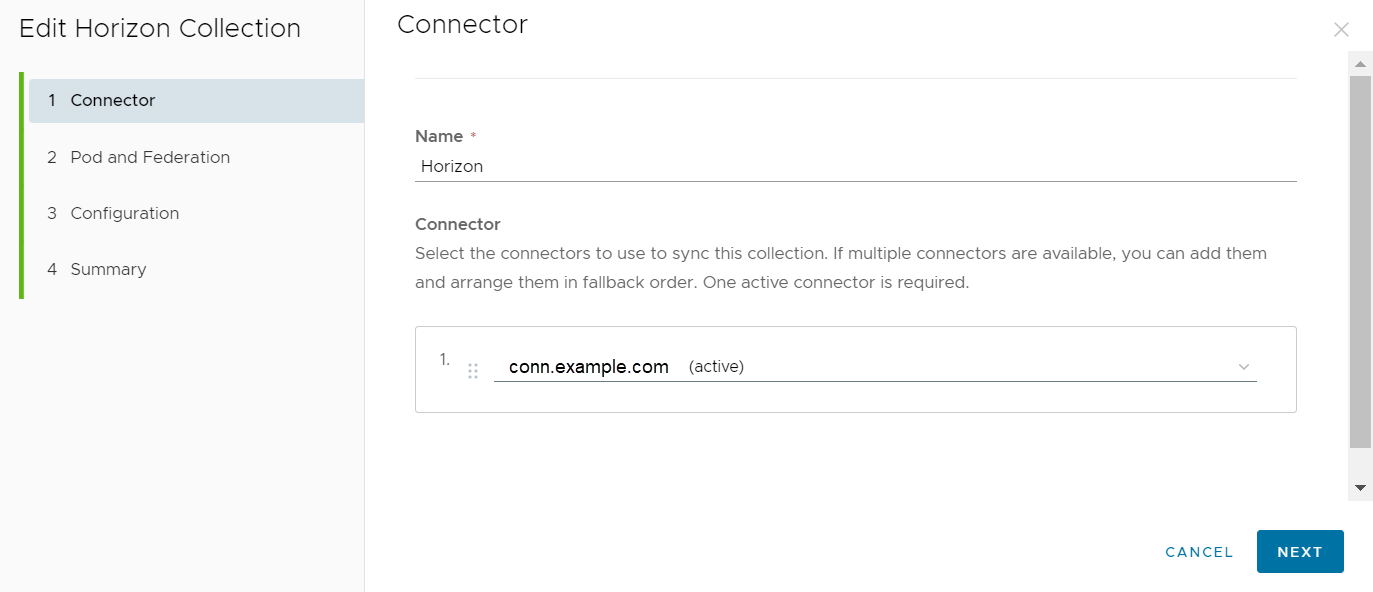
Note: Only those connector instances that have the Virtual App service installed appear in the drop-down menu.
-
Arrange the Virtual App service instances in failover order by dragging and dropping them.
To sync the virtual apps collection, Omnissa Access uses the first Virtual App service instance in the list. If the first instance is unavailable, it tries to use the second one, and so on.
-
Click Next and save your changes.
Results
The list of Virtual App service instances is saved and is applied from the next sync onwards.
Was this page helpful?