After the first ADE profile is initially created, create profiles quickly without having to return to the ADE wizard. This allows you to create multiple profiles to use for different deployments.
You can now configure platform-specific default ADE profiles for iOS, macOS, tvOS, and visionOS devices, addressing the limitation of having a single default profile across all device types. You can now select individual default profiles through dedicated dropdowns for each platform, with the option to set "none" if no default assignment is desired. When configured, newly synced devices will automatically be assigned to their platform's designated default profile immediately upon enrollment, and any changes to default profile settings will retroactively apply to all existing synced device records for that platform.
To create and push ADE profile:
-
In Apple Business Manager, assign a DEP profile to your devices based on their platform type (iOS, macOS, visionOS, tvOS).
-
In the UEM console, navigate to Devices > Registration > Sync Devices to initiate synchronization.
Newly synced devices will automatically be assigned their platform's designated default profile.
-
Select a device and verify that the correct default DEP profile appears on its Summary page.
-
To configure platform-specific default profiles, navigate to Groups & Settings > All Settings > Devices & Users > Apple > Automated Device Enrollment in the UEM console.
-
In the Default Profile Assigned for Newly Synced Devices menu, you have the option to assign separate default ADE/DEP profile to each of the OS platforms.
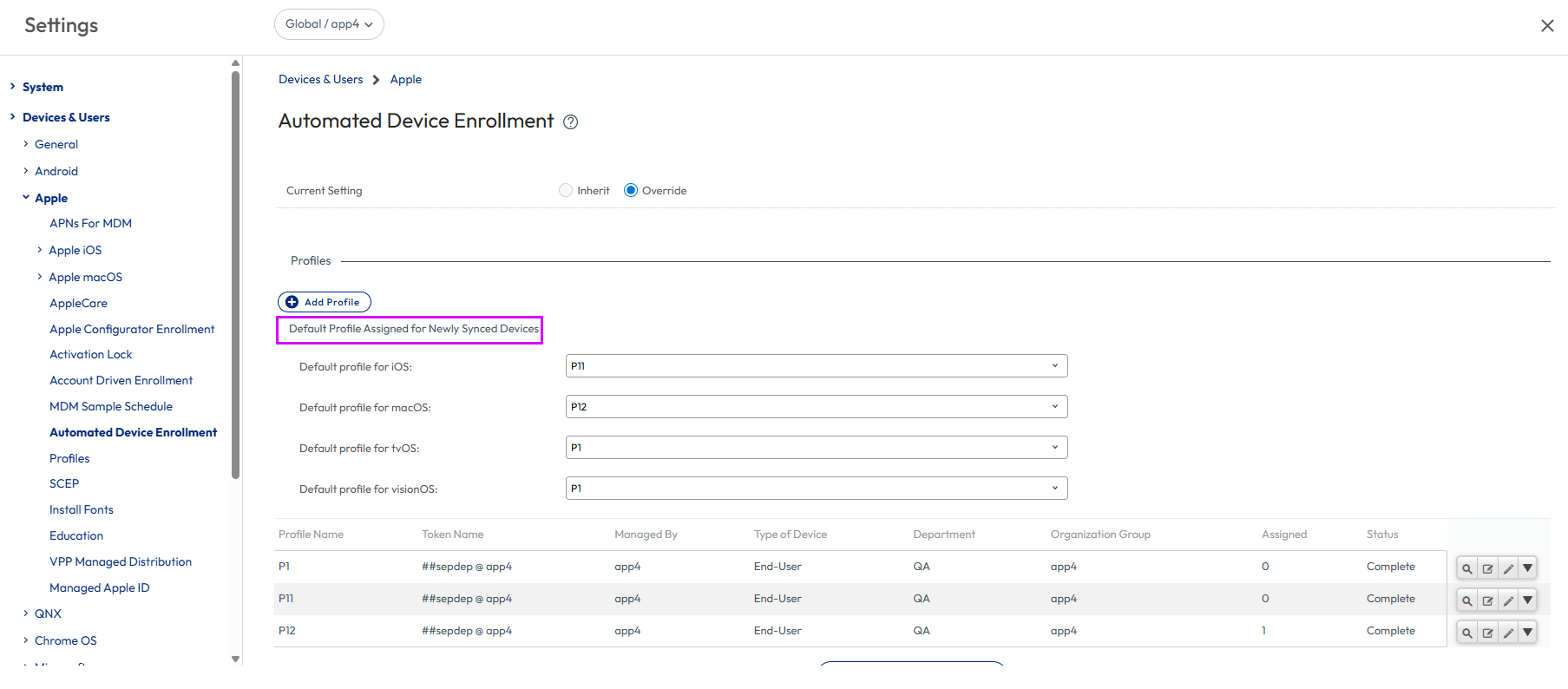
- If you want to skip automatic ADE profile assignment for new devices, select None.
- Save the profile.
Edit an Existing ADE Profile
Modify existing ADE profiles to more closely meet the needs of your organization or deployment.
To edit an existing ADE profile:
- Navigate to Settings > Devices & Users > Apple > Automated Device Enrollment. The ADE profiles you have already created appear.
- Select the pencil icon to edit the profile. The Edit Profile window appears.
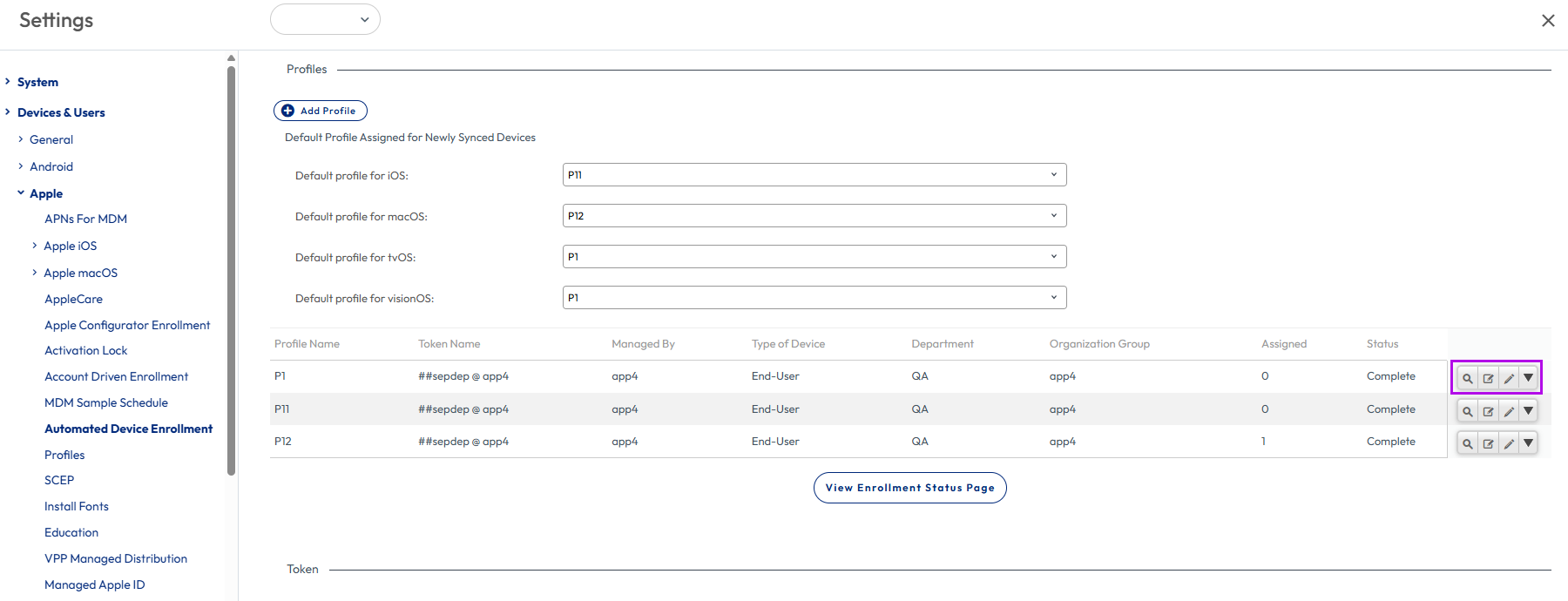
- Edit the ADE profile settings from this window. Settings are not applied until the changes register during the Setup Assistant.
- Select Save.
Manually Assign or Remove a ADE Profile
For Apple School Manager deployments, you must assign profiles to the appropriate devices after creating them for both Shared iPad and one-to-one configurations.
- Navigate to Devices > Lifecycle > Enrollment Status.
- Select the devices needed for the action.
- Select the More Actions > ADE Profile and select one of the following options:
- Assign Profile – Assign new or additional ADE profiles to selected devices. The ADE profile is not updated on a device until the device is factory wiped or re-connected to Wi-Fi.
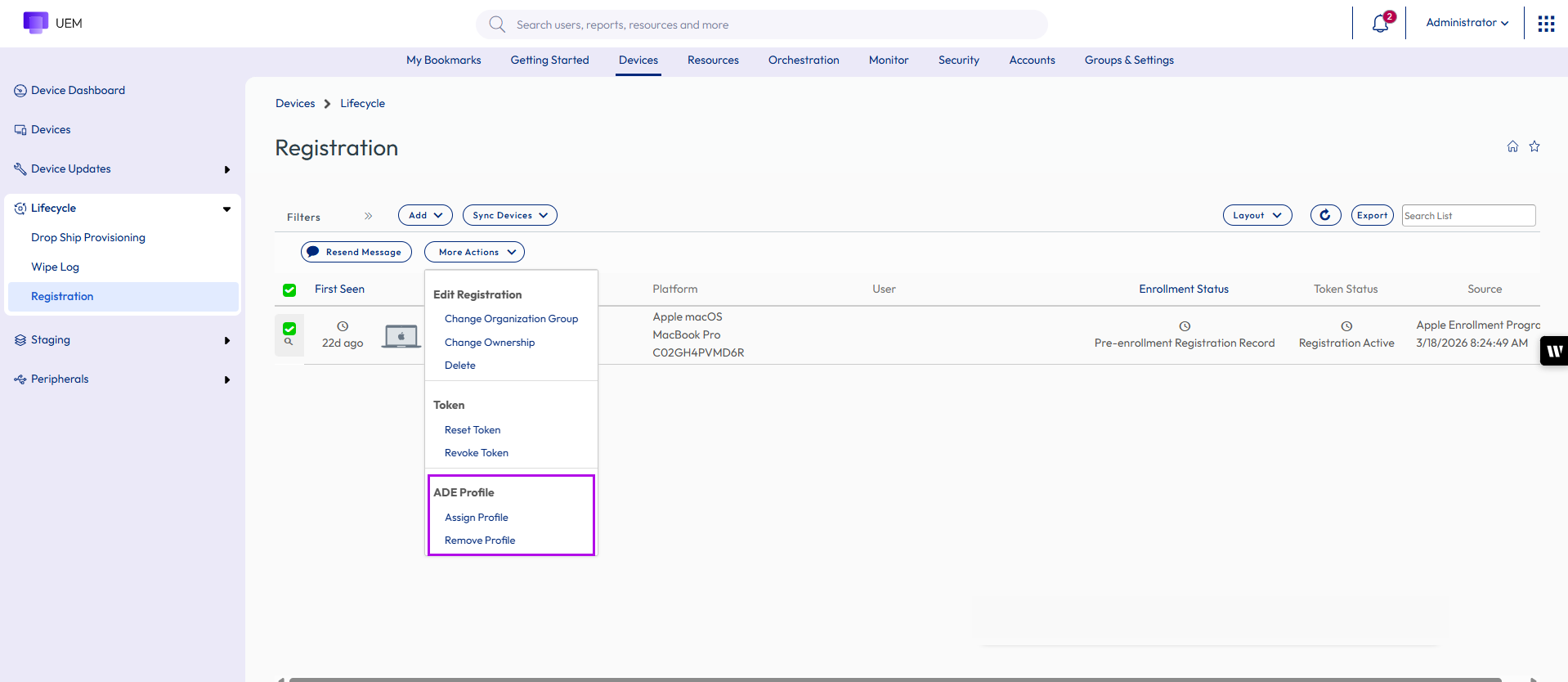
- Remove Profile – Removes existing ADE profiles from selected devices.
- Assign Profile – Assign new or additional ADE profiles to selected devices. The ADE profile is not updated on a device until the device is factory wiped or re-connected to Wi-Fi.
Was this page helpful?