If you plan to use a Public Windows Server Amazon Workspaces Core bundle, first review the AWS prerequisites for using a Public Bundle.
-
On the AWS WorkSpaces screen, provision a Public bundle of Windows Server WorkSpaces Core instance as an Always On instance, or use the CLI to create a Manual instance.
-
Always On - Billed per month based on calendar date.
-
Manual/Power Optimized - Billed hourly and can be suspended when not in use.
-
-
The directory used for Server OS needs to be a shared directory (not dedicated for Bring Your Own License (BYOL) W10/W11).
Note: Use the UI to launch an Always On instance or use cloudshell to launch a Manual (hourly billing) or decoupled (no user) instance to customize.
Example of cloudshell command:
aws workspaces create-workspaces --workspaces DirectoryId=d-XXXXXXXX,UserName="'[UNDEFINED]'",BundleId=wsb-XXXXXXX,WorkspaceProperties={RunningMode=MANUAL},WorkspaceName=XXXXXXXXwhereDirectoryIDis the directory in which you want to place the WorkSpace instance
Note: This directory should not be dedicated to BYOL.
-
BundleIDis the bundle you want to make a copy of (the Windows Server OS) -
WorkSpaceNameis customizable
-
Use RDP to go to that WorkSpace instance.
-
Set up the RDS host and install Horizon Agent on the RDS host. For more information, see Remote Desktop Services Hosts and Install Omnissa Horizon Agent on a Remote Desktop Services Host.
-
After installing the Horizon Agent, restart the computer.
-
Return to the Connection Server and go to Settings > Registered Machines.
-
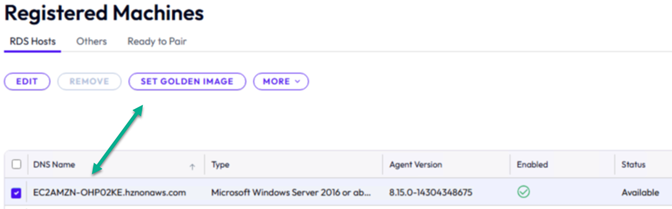
On the RDS Hosts screen, select the machine you installed the agent on. Select Set Golden Image.
-
On the WorkSpaces screen, navigate to that rebooted instance's details and then convert the instance to an AWS WorkSpaces image using the Workspaces UI's Create image action. This clones the now-paired instance that has the Horizon Agent to a WorkSpaces image. The Create image Action is used for the cloning process.
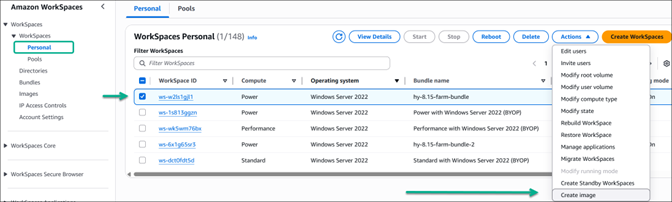
Tip: To distinguish the bundles that have the Horizon Agent installed from the other bundles in the WorkSpace's Bundles list, use the bundle's description to keep notes. For example, "Farm Image v1 installed".
-
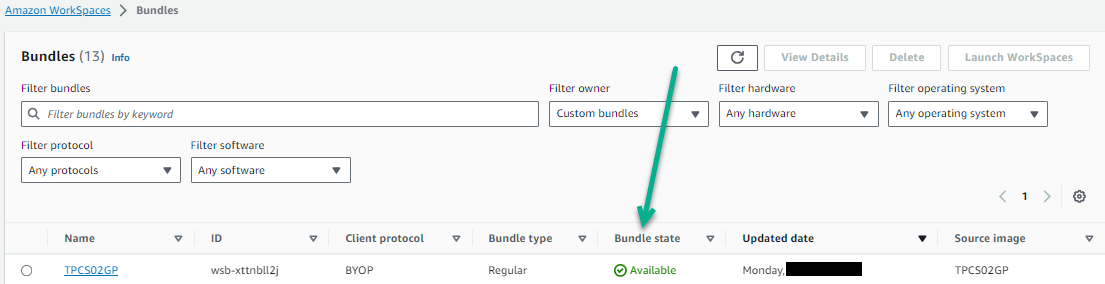
When the image (created in Step 8) has an Available status, create a bundle from that image. This combines that image with the hardware type for the farm’s machines.

The hardware type selected is not dependent on the original hardware type selected for the bundle created in Step 2. The hardware type selected here is the type the farm’s machines will have.
The following image shows the New Bundle screen with an image that has the Bundle name TPCS02GP. On the New bundle screen, select the hardware options for the bundle.
Tip: To distinguish the bundles that have the Horizon Agent installed from the other bundles in the WorkSpace's Bundles list, use the bundle’s description to keep notes. For example, add "Horizon Agent installed" to the name.
-
After the bundle is created, verify that its status is Available. The following image shows that the bundle
iwthwith ID wsb-xttnbll2jis Available.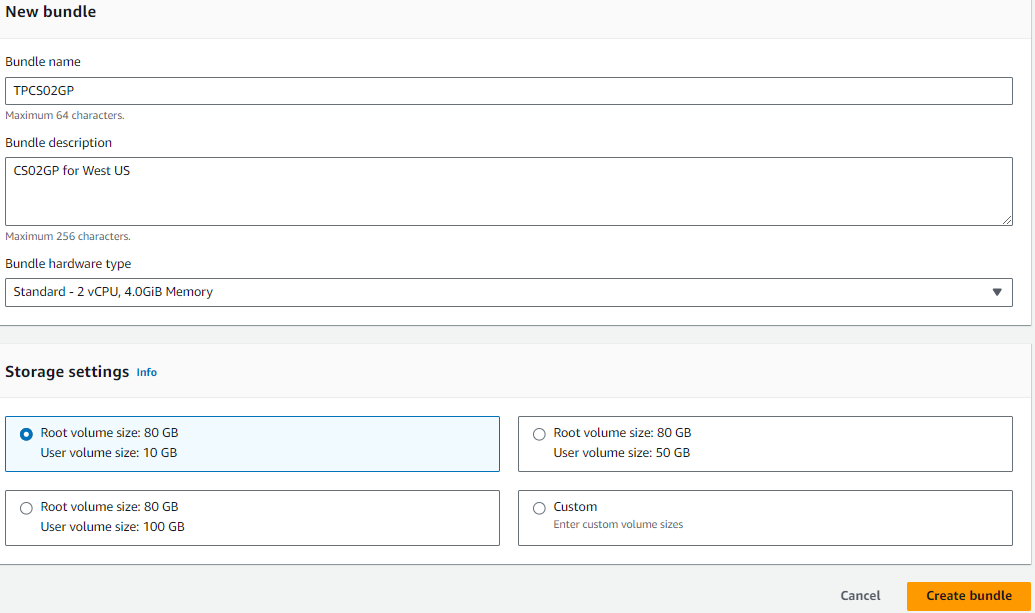
A bundle is created which is the combination of the golden image with Horizon Agent and the hardware type for the automated farm.
-
In the Add Farm wizard, select the created bundle as the source of the farm’s RDS hosts.
Was this page helpful?