After the domain information is saved successfully in Horizon Cloud, connect your identity provider to your organization ID for end user authentication and access.
Note: If you use a Microsoft Entra ID and later change the organization ID after connecting, you must reconnect the Microsoft Entra ID.
Connecting Microsoft Entra as the Identity Provider
When Microsoft Entra ID Commercial or Microsoft Entra ID Government is your identity provider, a user with Microsoft Entra ID App Global Administrator privileges must do the following:
-
Approve the requested permissions. For the list of required permissions, see To Use a Custom Role for Horizon Cloud App Registration.
-
Provide consent for the entire organization.
-
Provide consent for the Entra ID application to access your organization's data. Microsoft Graph permissions will be requested by the application for the following items:
| Permission | Details | Administrator Consent Required - Yes/No |
|---|---|---|
| Group.Read.All |
|
Yes |
| GroupMember.Read.All |
|
Yes |
| User.Read.All |
|
Yes |
| openid |
|
No |
| profile |
|
No |
| User.Read |
|
No |
| user_impersonation |
|
Yes |
Note: For legacy reasons, Horizon Cloud may request consent for the Directory.Read.All permission. That permission can be safely removed later from the application permissions list.
For related information, also see Configure Microsoft Entra ID as Your Identity Provider.
Connecting Workspace ONE Access as the Identity Provider
When Workspace ONE Access Cloud or Workspace ONE Access On Premises is your identity provider, a user with Administrator privileges must do the following:
- Approve the requested permissions.
- Provide consent for the entire organization.
Connecting Omnissa Identity Service as the Identity Provider
When the Omnissa Identity Service is your identity provider, a user with Administrator privileges must do the following:
- Approve the requested permissions.
- Provide consent for the entire organization.
Procedure to Connect Your Identity Provider
-
Click Integrations from the Horizon Universal Console.
-
Click Manage on the Identity and Access tile.
Microsoft Entra ID Commercial or Microsoft Entra ID Government
-
On the Identity and Access page, select Microsoft Entra ID Commercial or Microsoft Entra ID Government as the Identity Provider.
-
Add the Tenant subdomain for the Broker URL for your end users to access their entitlements.
If you are not a Global Administrator, click Generate Link to generate a link and share with your administrator to request approval.
-
Click Connect.
-
Review the page content and then click Accept to give permissions to navigate to the Horizon Universal Console.
Perform the subsequent steps as prompted.
Workspace ONE Access Cloud
-
On the Identity and Access page, select Workspace ONE Access Cloud as the Identity Provider.
-
Add the Tenant subdomain for the Broker URL for your end users to access their entitlements.
-
Add the Workspace ONE Access tenant FQDN in the format yourcompany.workspaceoneaccess.com.
-
Click Connect to navigate to the Horizon Universal Console.
Workspace ONE Access On Premises
-
On the Identity and Access page, select Workspace ONE Access On Premises as the Identity Provider.
-
Add the Tenant subdomain for the Broker URL for your end users to access their entitlements.
-
Add the Workspace ONE Access tenant FQDN in the format yourcompany.workspaceoneaccess.com.
-
Enter the OAuth Client ID configured on Workspace ONE On-Prem.
-
Enter the OAuth Client secret configured on Workspace ONE On-Prem.
-
Click Connect to navigate to the Horizon Universal Console.
Omnissa Identity Service
-
On the Identity and Access page, select Omnissa Identity Service as the Identity Provider.
-
Specify the Tenant subdomain for your end users to access their entitlements.
-
Specify the Tenant URL for your end users to access their entitlements.
-
Click Connect.
-
Review the page content and then click Accept to give permissions to navigate to the Horizon Universal Console.
-
Perform the subsequent steps as prompted.
-
Reconnect your Identity Provider for Microsoft Entra ID
If you change your organization ID, you must reconnect your Entra ID to the new organization ID to maintain resource capabilities and end user access.
Procedure
-
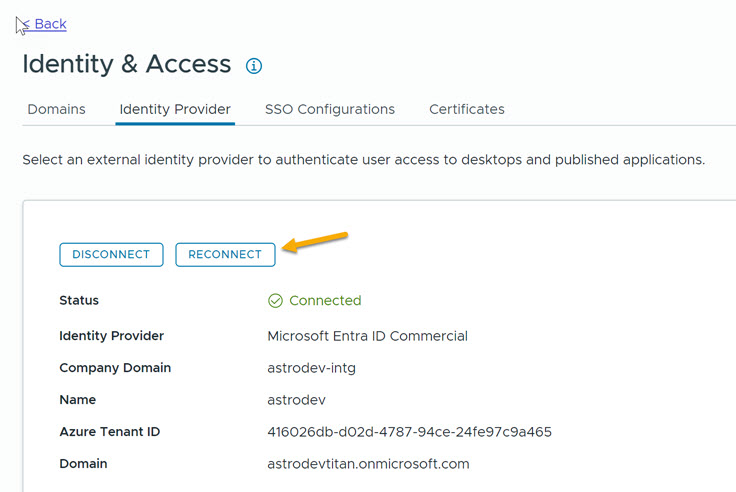
Click Integrations > Identity & Access and click the Reconnect option on the Identity Provider tab.
-
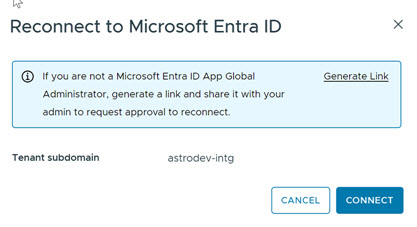
You are prompted to generate a link or click Connect. If you have Microsoft Entra ID App Global Administrator privileges, you can click Connect directly. Otherwise, click Generate Link and respond as prompted.
-
Respond to all Microsoft prompts.
When the reconnection is complete, a connected message appears on the Identity & Access page and the status for the identity provider displays as Connected for the tenant.
Remove the old application after reconnecting your Identity Provider
After you reconnect your identity provider, you can remove the old application. Removal is not required, but may be desired as it will not be used in the future.
-
Verify that the new Omnissa-based identity provider is present for the Entra ID. A sample is shown below:
Application ID: b3227489-6673-4623-xxxx-b805fb2f8009 Homepage URL: https://cloud.horizon.omnissa.com -
Delete the old application. A sample is shown below:
   Application ID: 7909838c-2842-xxxx-8440-aaedd5a6998c
   Homepage URL: https://cloud.horizon.omnissa.com
What to do next
After connecting your identity provider, you can add a Horizon edge as described in Using and Managing Horizon Cloud
Was this page helpful?