If you are using a SaaS subscription license, you can enable your Omnissa Horizon 8 deployment to connect to the Omnissa Horizon Control Plane. You can optionally use the SaaS services provided by the Horizon Control Plane.
-
For installations and upgrades to Horizon 8 version 2312 and earlier, you must deploy Omnissa Horizon Edge or the Horizon Cloud Connector virtual appliance to connect your Horizon 8 deployment with the Horizon Control Plane and activate your SaaS subscription license.
-
For installations and upgrades to Horizon 8 version 2406 and later, you can activate your SaaS subscription license without deploying Horizon Edge. However, it is recommended that you also deploy Horizon Edge to receive the benefits of the SaaS services provided by the Horizon Control Plane.
SaaS Subscription Licenses
There are three types of SaaS subscription licenses:
- Universal subscription license
- Horizon PLUS subscription license
- Apps subscription license
The SaaS subscription license for Horizon 8 is managed by Omnissa. You will not receive the Horizon 8 license key with this license. However, you will receive license keys for vSphere, vCenter Server, vSAN, Omnissa App Volumes, and Omnissa Dynamic Environment Manager with some packages of this subscription license.
Some license packages are designed to be used either in an environment without vSphere (for example, Horizon Cloud on Azure) or in an environment that already contains VMware SDDC licenses (for example, Horizon 8 on Azure VMware Solution). These packages do not include vSphere, vCenter Server, and vSAN license keys.
Horizon subscription licenses include the date of the last license successful synchronization with the Horizon Cloud Control Plane and an additional grace period. The Horizon Cloud License service on the Horizon Control Plane syncs once every 24 hours with the connection server to maintain the health of the subscription license.
Activate a Subscription License With Horizon Edge or Horizon Cloud Connector
You can activate a subscription license for a new or upgrade installation of Horizon 8 by deploying the component that connects your Horizon 8 deployment to the Horizon Control Plane. The component you deploy depends on the version of the Horizon Control Plane.
-
For Horizon 8 version 2312 or earlier, deploying the appropriate component is the only way to activate your subscription license.
-
For Horizon 8 version 2406 or later, you can activate your subscription license by deploying the appropriate component. You also have the option to activate your subscription license using edgeless activation.
Horizon Cloud Control Plane
Install Horizon Edge by following the instructions provided in the Horizon 8 Edge Deployments section of the Horizon Cloud product documentation.
Activate a Subscription License With Edgeless Activation
Starting with Horizon 8 version 2406, you can activate your subscription license for a new or upgrade installation without deploying Horizon Edge or Horizon Cloud Connector. Follow the procedure in this section.
Once you activate a subscription license, it remains active for 90 days. To continue using all the features of Omnissa Horizon Console, you must renew the license by performing the activation steps again.
If you do not activate your subscription license, Horizon Console operates in restricted mode with limited functionality. For more information, see About Restricted Mode.
Prerequisites
To complete the license activation process, you need an administrative computer that has:
- An internet connection
- A web browser configured to allow access to the following sites:
Note: The license activation process does not require the Omnissa Horizon Connection Server to have internet connectivity. The administrative computer handles all external communication with the sites involved in the activation and transfers the necessary data to the Horizon Connection Server, which can remain confined to an internal network if needed.
Procedure to Activate a Subscription License
-
In Horizon Console, navigate to Settings > Product Licensing and Usage.
-
From the Activate drop-down menu, select SaaS subscription license.
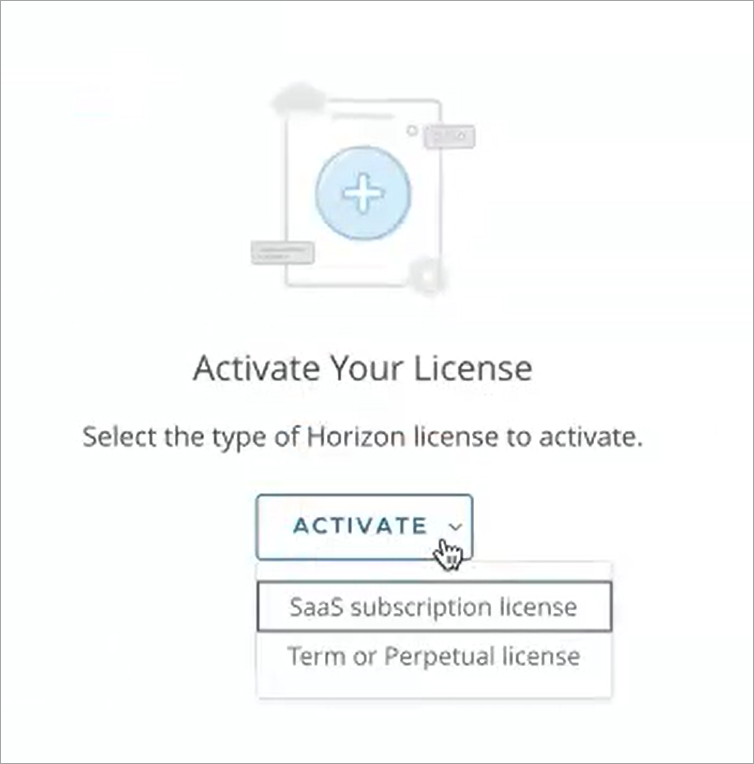
Horizon Console displays a screen describing the steps required to prepare for license activation.
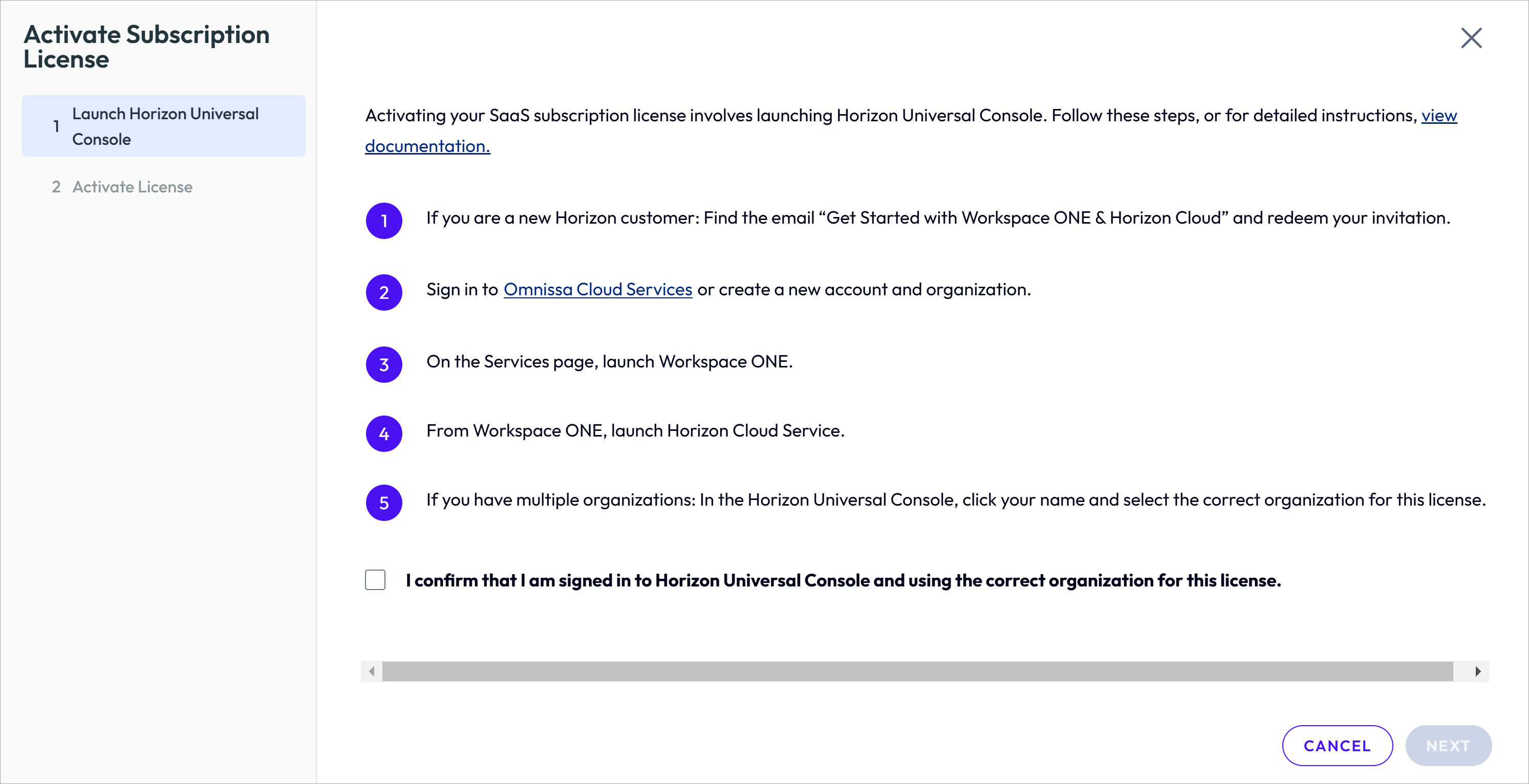
-
Complete the preparation steps listed on the screen.
These steps require you to redeem an email invitation, log in to Omnissa Cloud Services, and perform operations in the Omnissa Horizon Universal Console. For detailed instructions, see Add and Deploy a Horizon 8 Edge.
-
After you complete all the preparation steps, return to Horizon Console and the license activation screen. Select the checkbox to confirm that you are signed in to the Horizon Universal Console and using the correct organization.

-
Click Next to continue to the final stage of license activation.
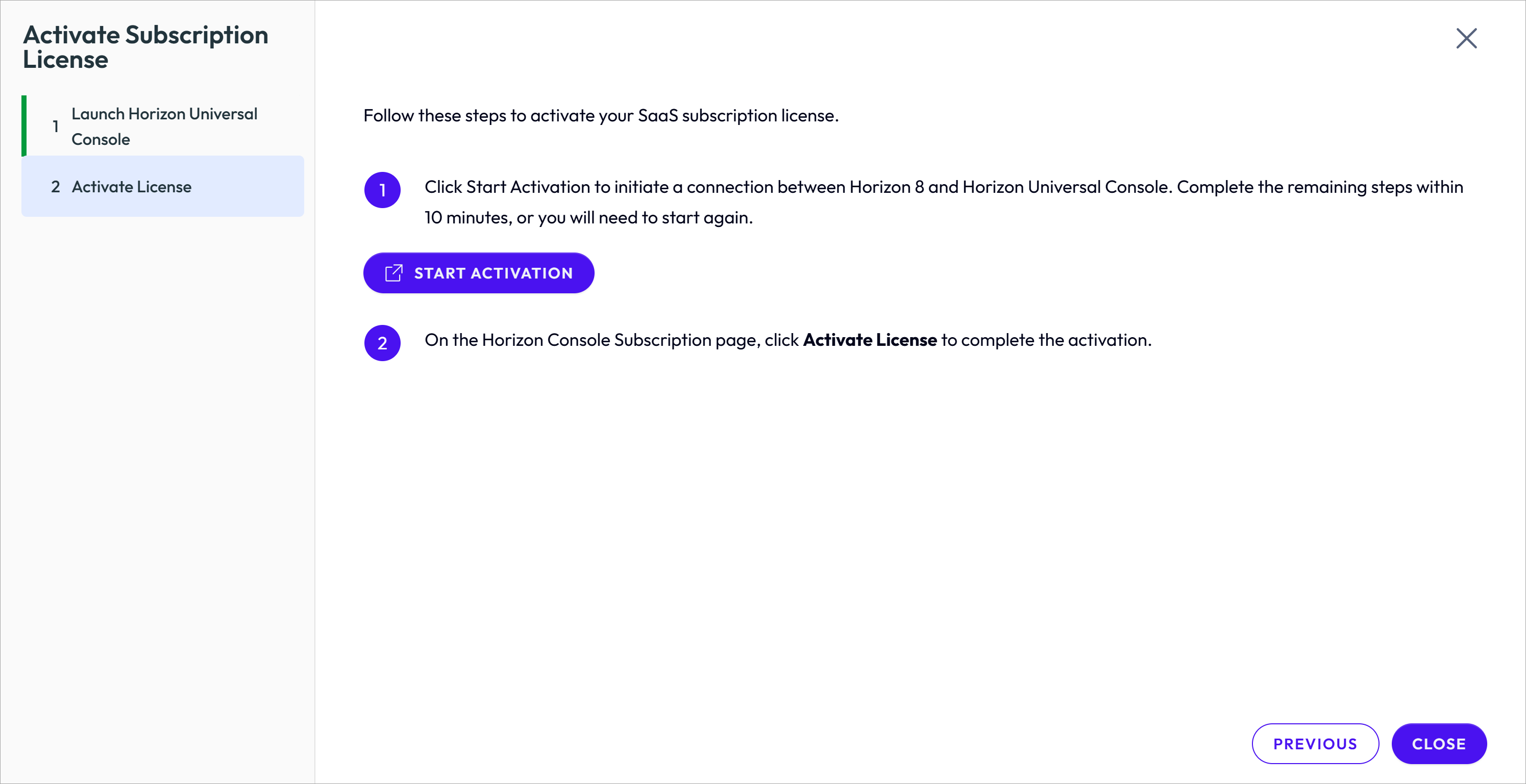
A second screen in Horizon Console provides controls for the final activation steps. The process requires access to both Horizon Console and the Horizon Universal Console, and you must complete the interactive steps within 10 minutes.
-
Click Start Activation to open a connection between Horizon 8 and the Horizon Universal Console for the final activation process.
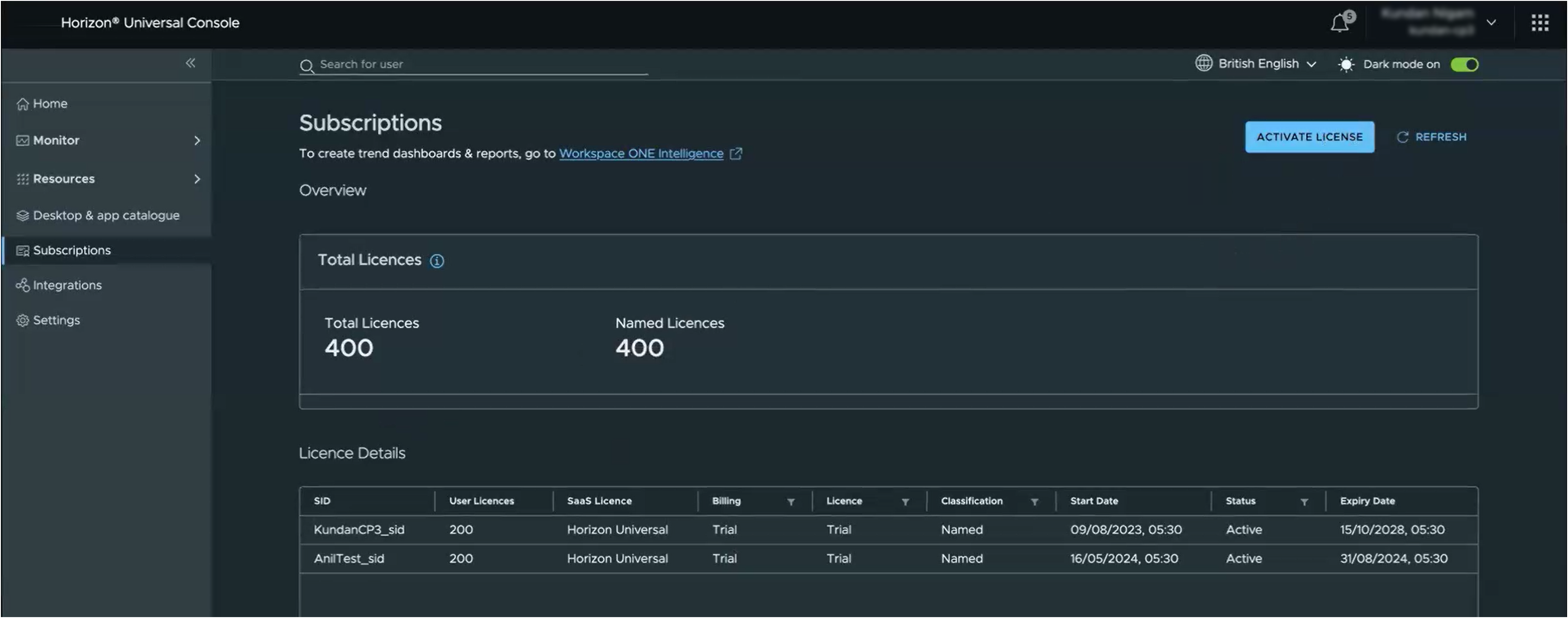
The Horizon Universal Console automatically opens in a new browser tab and displays the Subscriptions page.
-
On the Subscriptions page in the Horizon Universal Console, click Activate License to complete the license activation process.
When activation is complete, the Horizon Universal Console tab is automatically closed.
-
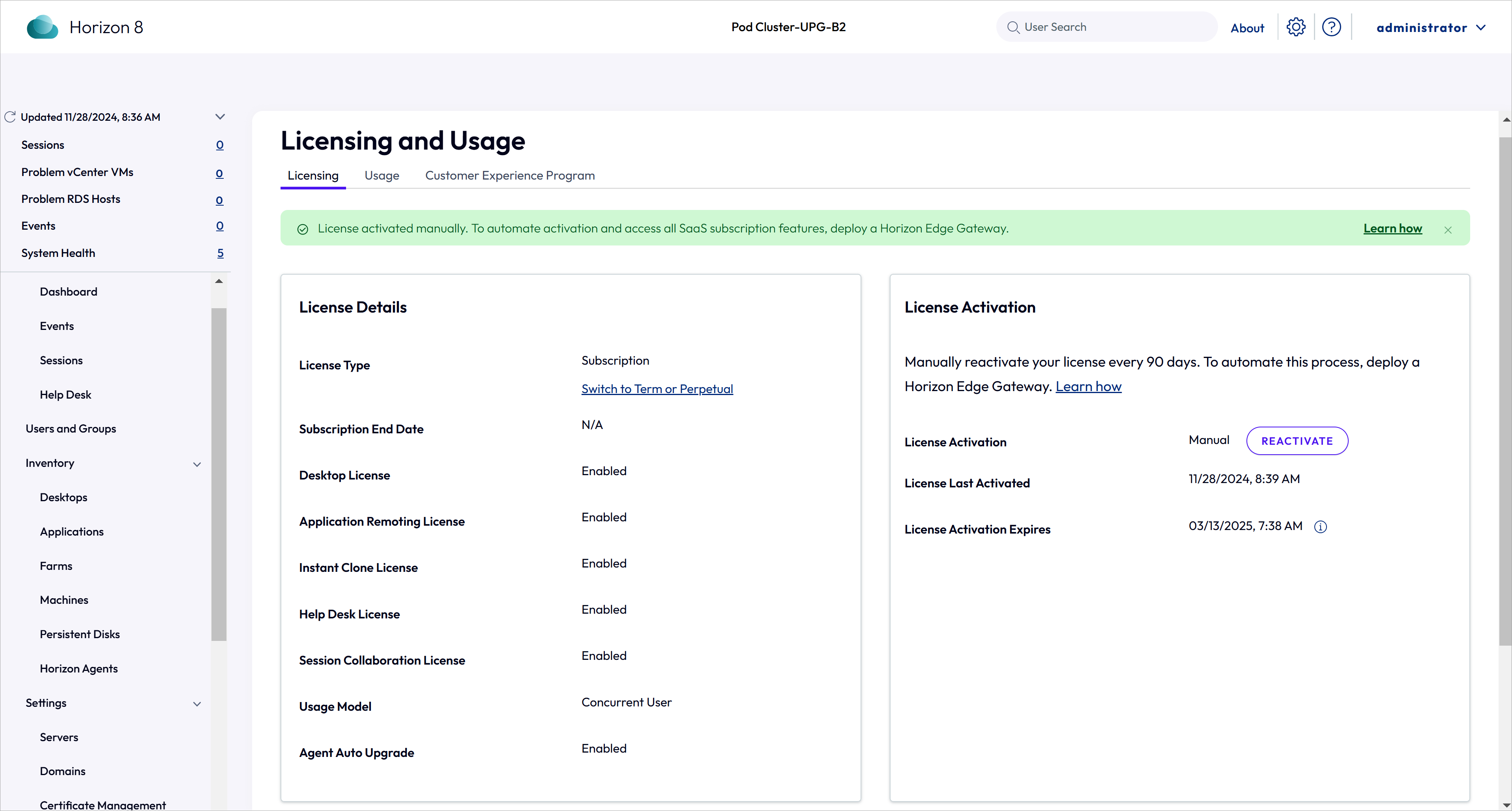
To view information about the activated license, go to Settings > Product Licensing and Usage in Horizon Console.
Procedure to Reactivate a Subscription License
You must renew your subscription license every 90 days by completing the activation steps again. The steps for reactivating a license are identical to the steps for initially activating a license, except for the email redemption step which is not required for reactivation.
For detailed instructions, see the Procedure to Activate a Subscription License.
If you do not reactivate your subscription license after 90 days, the license expires and Horizon Console is switched to restricted mode. To bring Horizon Console out of restricted mode, reactivate the subscription license.
About Restricted Mode
Horizon Console enters restricted mode in the following scenarios:
-
When a subscription license is unactivated or expired.
-
When a term license is expired.
-
For upgrades to Horizon 8 2412 or later, when a perpetual or term license is not updated to the Omnissa license key within 60 days.
In restricted mode, the Horizon Connection Server continues to broker desktops and applications to users from your existing pools. However, you cannot create new pools or add more machines to existing pools.
The following features are unavailable from Horizon Console in restricted mode.
| Location in Horizon Console | Unavailable Feature |
|---|---|
| Inventory > Desktops | Add button Duplicate button |
| Inventory > Farms | Add button |
| Inventory > Desktops > Automated Desktop Pool > Edit > Provisioning Settings > Desktop Pool Sizing | Maximum Machines setting |
| Inventory > Farms > Automated Farms > Edit > Provisioning Settings > Farm Sizing | Maximum Machines setting |
| Inventory > Desktops > Pools Summary > Maintain | Schedule button |
| Inventory > Farms > Farms Summary > Maintain | Schedule button |
Benefits of Deploying Horizon Edge
By deploying Horizon Edge, you gain access to the various features and benefits offered by the Horizon Control Plane. The Horizon Control Plane is a distributed, cloud-based control plane that provides containerized services for the delivery of Horizon Cloud Service - next-gen functions and resources.
See the following table for a summary of the key benefits that you gain when you deploy Horizon Edge for your Horizon 8 infrastructure.
| Benefit | Summary |
|---|---|
| Automated license activation and usage monitoring |
|
| Virtual endpoint monitoring with Workspace ONE Intelligence |
|
| Horizon 8 infrastructure monitoring and enhanced diagnostics for end-user issues |
|
| Cloud service capabilities that enhance multi-site deployments of Horizon 8 infrastructure |
|
Was this page helpful?