Some environments use Microsoft Entra hybrid join to provide single sign-on (SSO) access to both on-premises and cloud-hosted resources.
Note: Microsoft Entra is also known as Microsoft Azure Active Directory or Azure AD. This documentation page uses the official name "Microsoft Entra" to refer to the identity solution formerly called Microsoft Azure Active Directory or Azure AD.
The on-premises Active Directory identities must be synced to Microsoft Entra ID in these hybrid-join environments. To implement this synchronization, you can deploy Microsoft Entra in one of the following modes:
-
Federated Identity Infrastructure
This environment represents a federated identity provider (IdP) setup, in which Active Directory Federation Services (ADFS) serves as the identity provider. -
Managed Identity Infrastructure
This environment represents a setup in which Microsoft Entra ID serves as the identity provider.
Supported Microsoft Entra deployments
Omnissa Horizon 8 supports hybrid Microsoft Entra deployments in both Federated and Managed modes, where desktop machines are domain joined to on-premises Active Directory and registered to Microsoft Entra ID. To set up a hybrid Microsoft Entra deployment, refer to the Microsoft Entra documentation.
Supported Horizon pools
Microsoft Entra deployments in both Federated and Managed modes are supported on all types of pools including full-clone, instant-clone, manual, and RDSH, in both dedicated (persistent) and floating (non-persistent) modes.
True SSO support
To implement True SSO for a hybrid Microsoft Entra deployment, you must configure Microsoft Entra certificate-based authentication. With the True SSO feature, users can access a virtual desktop or published desktop or application without being required to enter their Active Directory credentials.
Hybrid Microsoft Entra in Federated mode
All supported versions of Horizon 7 and Horizon 8 support hybrid Microsoft Entra in Federated mode. ADFS is the supported identity provider in Federated mode.
SSO access to Microsoft Entra-assigned resources will not work until the desktop machine is in a state where it can issue a Microsoft Entra Primary Refresh Token (PRT) upon the end-user login. To learn more about PRTs, see the Microsoft Entra documentation.
For details and limitations, see Omnissa Knowledge Base article 89127.
Hybrid Microsoft Entra in Managed mode
Microsoft Entra hybrid join in Managed mode, where Microsoft Entra ID serves as the identity provider, uses Microsoft Entra Connect software that is installed on the on-premises domain controller. Microsoft Entra Connect is responsible for syncing on-premises user and device identities to Microsoft Entra ID.
Because Microsoft Entra Connect syncs these identities at pre-determined default intervals, you may experience a delay before the identities are synced and fully integrated into Microsoft Entra ID.
To account for this delay, you can configure a desktop to wait for the hybrid join process to be completed, ensuring that the desktop identity in Microsoft Entra ID is fully operational before allowing user connections. This configuration ensures a seamless integration with Microsoft Entra ID and an improved experience for end users connecting to the desktop.
Note: Enabling the Configure wait for hybrid join feature may cause a noticeable delay in machine availability as Horizon Agent waits for the completion of the Microsoft Entra hybrid join process. Contact Microsoft support if you encounter problems or delays longer than 120 minutes when attempting to register a machine with Microsoft Entra ID.
Prerequisites
Before enabling the Configure wait for hybrid join feature, verify that your deployment meets the following system requirements.
-
Omnissa Horizon Connection Server 2406 or later
Note: Alternatively, you can use the feature on Horizon Connection Server 2312 or earlier, with the display limitation described later on this page.
-
Horizon Agent 2406 or later installed on the desktop machines
-
Microsoft Entra Connect installed on the domain controller, configured for hybrid join with managed domains. Refer to these Microsoft documentation pages:
After meeting these prerequisites, proceed to the next section to enable the Configure wait for hybrid join feature for all the desktop machine that are configured for hybrid join with Microsoft Entra Connect.
Enable the wait for hybrid join feature
To enable the functionality to wait for hybrid join, turn on the Configure wait for hybrid join Group Policy Object (GPO) setting for every desktop machine that is configured for hybrid join with Microsoft Entra Connect.
For more information, see Agent Configuration ADMX Template Settings.
Monitor machine status during hybrid join
To monitor the availability of desktop machines, navigate to the machine status page in Omnissa Horizon Console.
The following outline describes the Microsoft Entra hybrid join process and the typical wait times that you may expect before machines become fully available.
-
When a new machine begins the hybrid join process, a computer object is created in Active Directory. The object enters a pending state as it waits for Microsoft Entra Connect to sync it with Microsoft Entra ID at the next scheduled sync event.
During this pending state, Horizon Console displays the machine status as Hybrid Domain Join In Progress.
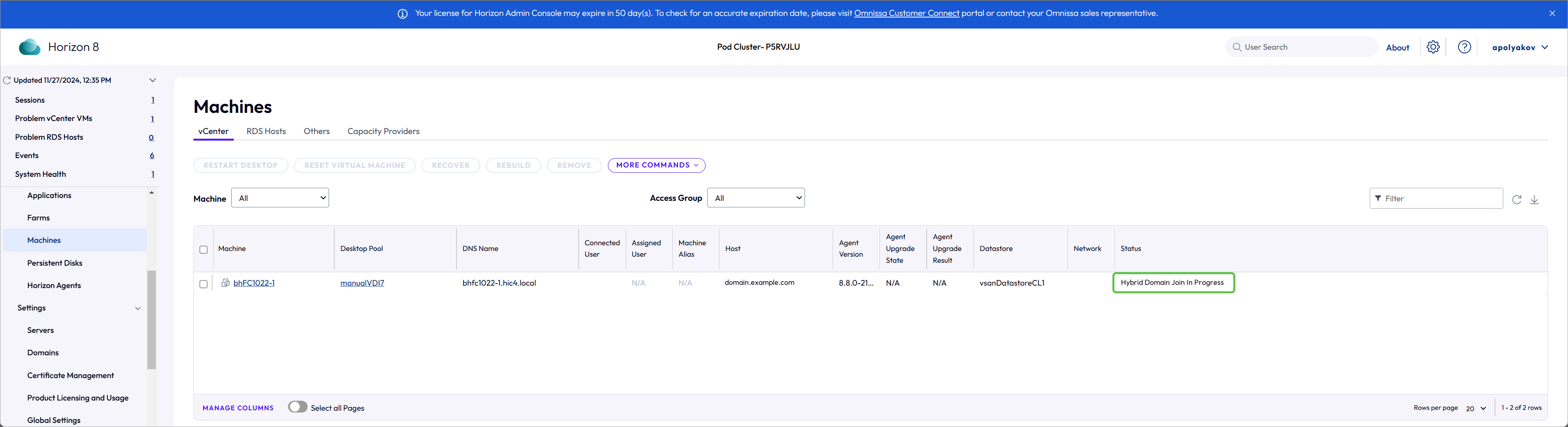
Note: For Horizon Connection Server 2312 or earlier, Horizon Console displays the machine status as Configuration Error during the pending state. The error display is only temporary and the status will change to Available when the hybrid join is complete.
-
Microsoft Entra Connect is scheduled to perform its sync tasks every hour. Therefore, you can typically expect the machine to remain in pending state and unavailable for up to 60 minutes.
Note: Machines might become available in less than 60 minutes, but they could also remain pending for longer depending on factors like environmental conditions and the Microsoft Entra Connect sync schedule.
-
At the next scheduled sync event, Microsoft Entra Connect registers the computer object with Microsoft Entra ID. Once Microsoft Entra Connect completes the sync and the computer object is fully integrated into Microsoft Entra ID, the hybrid join is complete and the machine status changes to Available.
Troubleshooting
Follow the suggested troubleshooting steps if you encounter a problem.
Hybrid join feature has been enabled but does not take effect.
-
On the machine, verify that the
HKLM\Software\Policies\Omnissa\Horizon\Agent\Configuration\WaitForHybridJoinregistry key is set to 1.If this key is not present, the Configure wait for hybrid join GPO setting may not be configured correctly or a problem occurred while pushing the GPO to the machine.
-
Verify that the GPO is associated with the correct OU or domain.
-
In the Microsoft Azure portal, verify that machine has successfully joined the domain.
-
Run the
gpupdate /forcecommand on the machine to force a refresh of the Group Policy configuration.
Machine status fails to reach Available after 90 to 120 minutes.
Run the dsregtool Microsoft PowerShell script to detect possible configuration issues.
Contact Microsoft support if problems persist and Microsoft Entra Connect fails to register the machine with Microsoft Entra ID.
Was this page helpful?