Before you can add certificates to the Windows local computer certificate store, you must add the Certificate snap-in to the Microsoft Management Console (MMC) on the remote desktops where the HTML Access Agent is installed.
Prerequisites
Verify that the MMC and Certificate snap-in are available on the Windows guest operating system where the HTML Access Agent is installed.
Procedure
-
On the remote desktop, click Start and type
mmc.exe. -
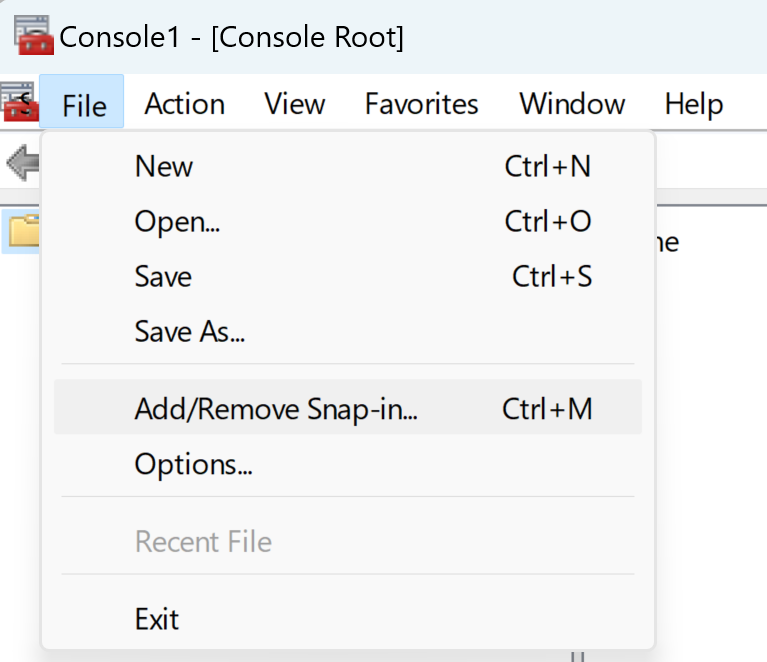
In the MMC window, go to File > Add/Remove Snap-in.
-
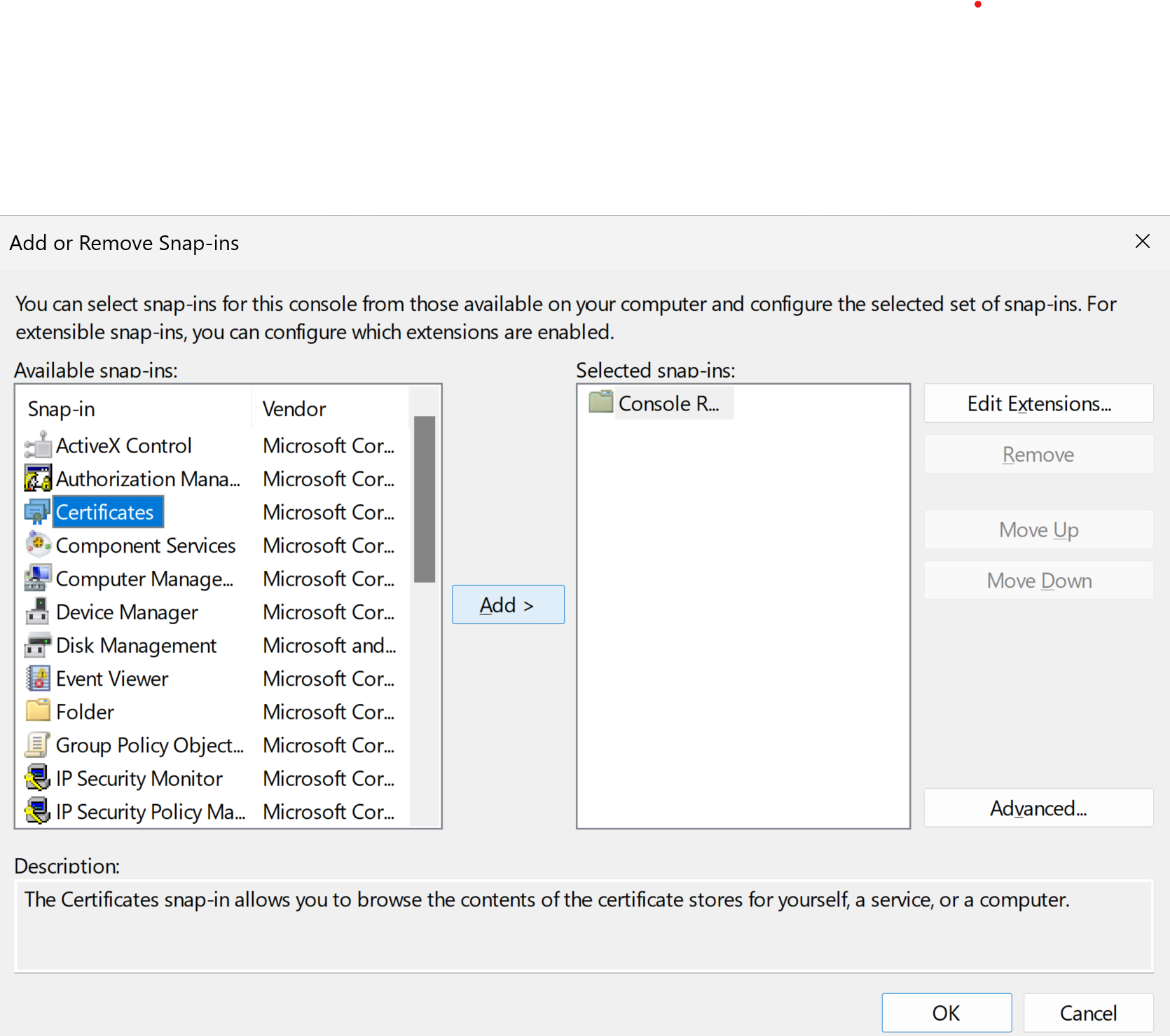
In the Add or Remove Snap-ins window, select Certificates and click Add.
-
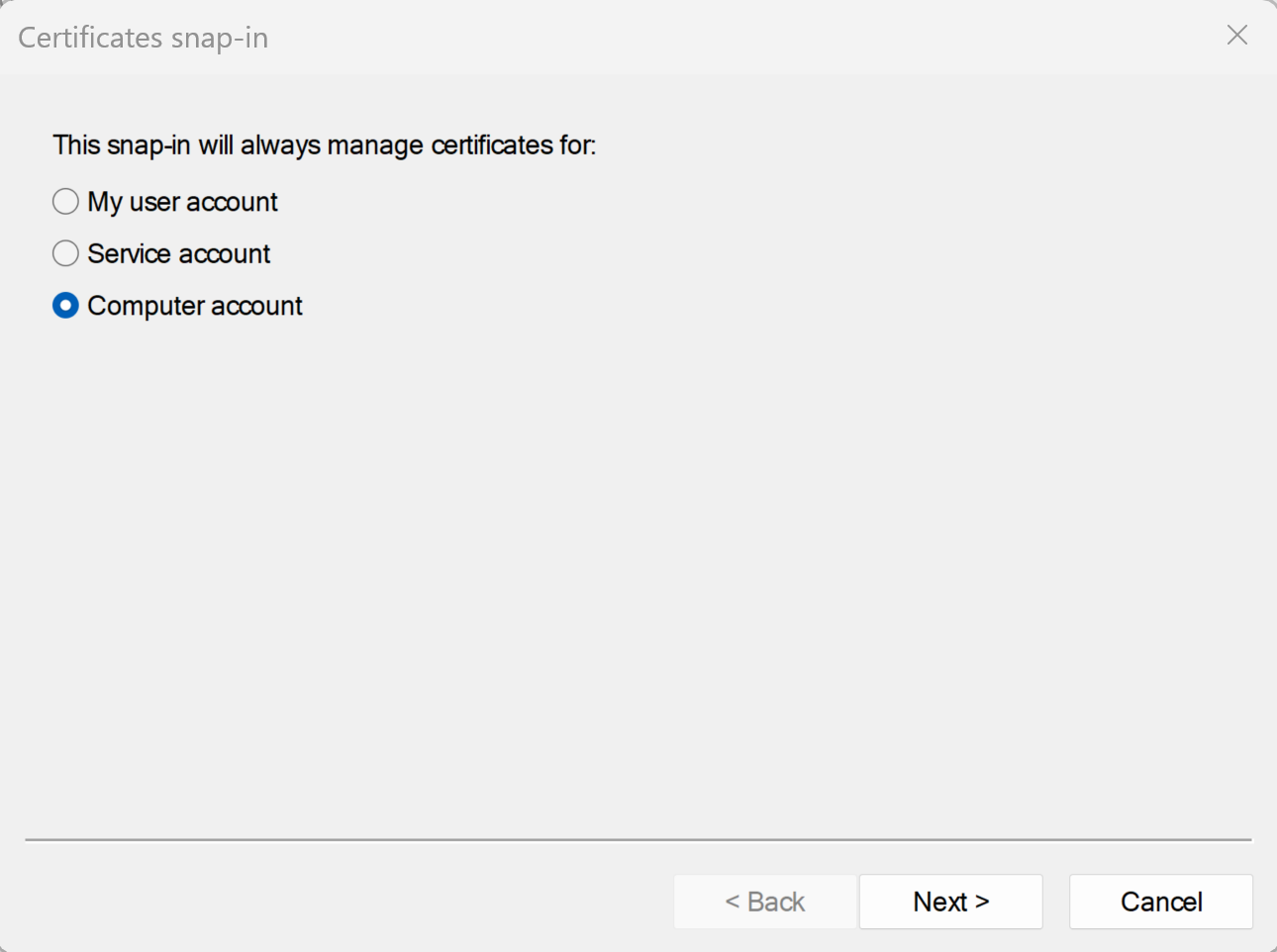
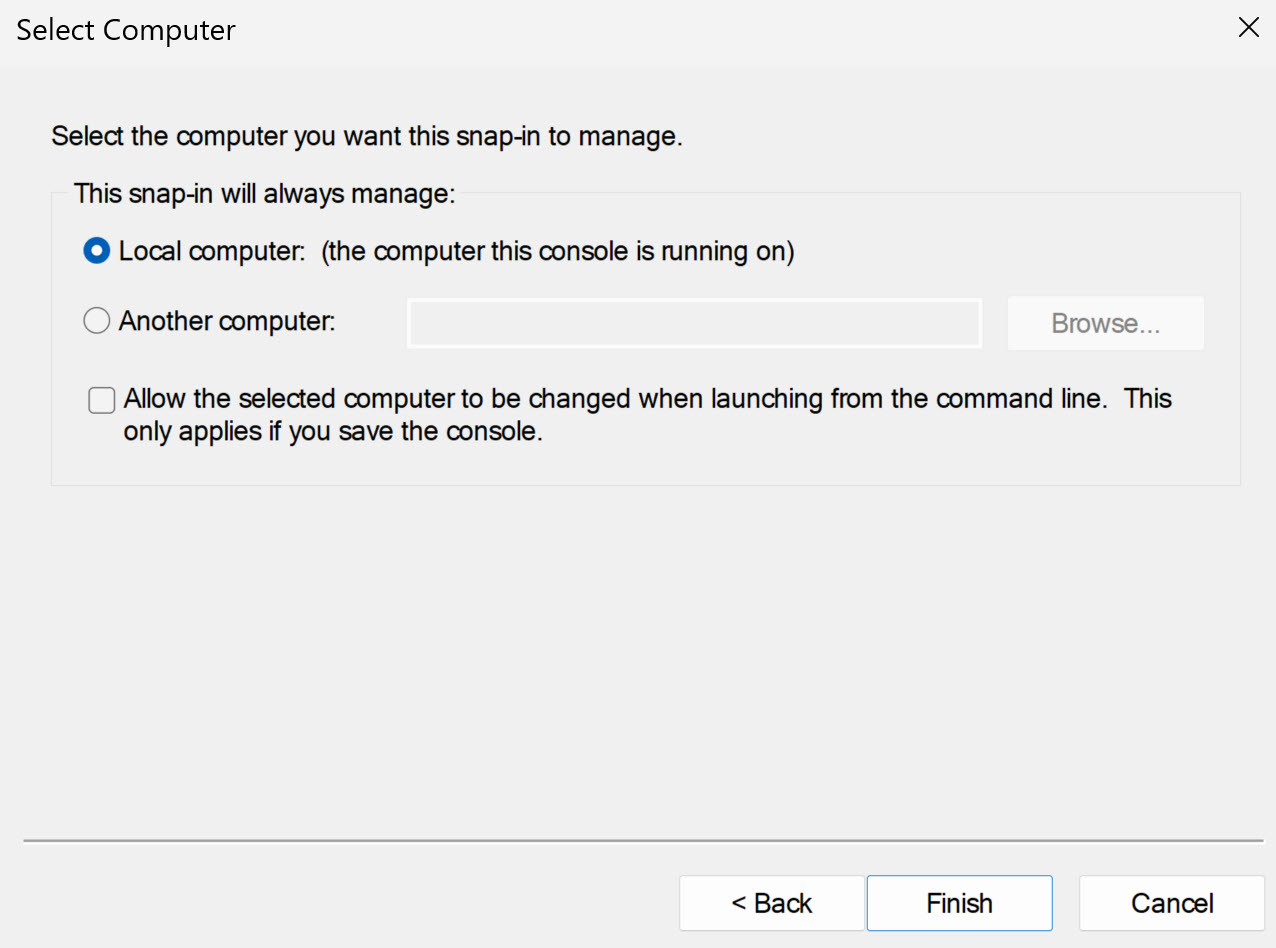
In the Certificates snap-in window, select Computer account, click Next, select Local computer, and click Finish.
-
In the Add or Remove snap-in window, click OK.
What to do next
Import the SSL certificate into the Windows local computer certificate store. See Import a Certificate for the HTML Access Agent into the Windows Certificate Store.
Was this page helpful?