When a user logs into the Horizon Client on a trusted environment, the user might not want to switch frequently between the Horizon Client and the browser or enter their username and password repeatedly. When a user logs in on a shared device, the user expects all login traces to be cleared when the user exits the Horizon Client.
In certain scenarios, a user might not prefer to cache any user information. In such cases, a user can select private mode so that the Horizon Client does not cache any user information. When the user exits the client, the client opens the browser and requests the user to log out from the corresponding identity provider (IDP). If a user does not select private mode, the client will cache the refresh_token and user information in the Horizon client.
On a shared device, the user can directly open native web browser, and authenticate to login to the device. The user information and the password will not be cached. However, few users might want to use private mode as the default login mode. In this mode, the user must enter the username and password in the IDP login page and the user is redirected to the logout page upon disconnection from the server.
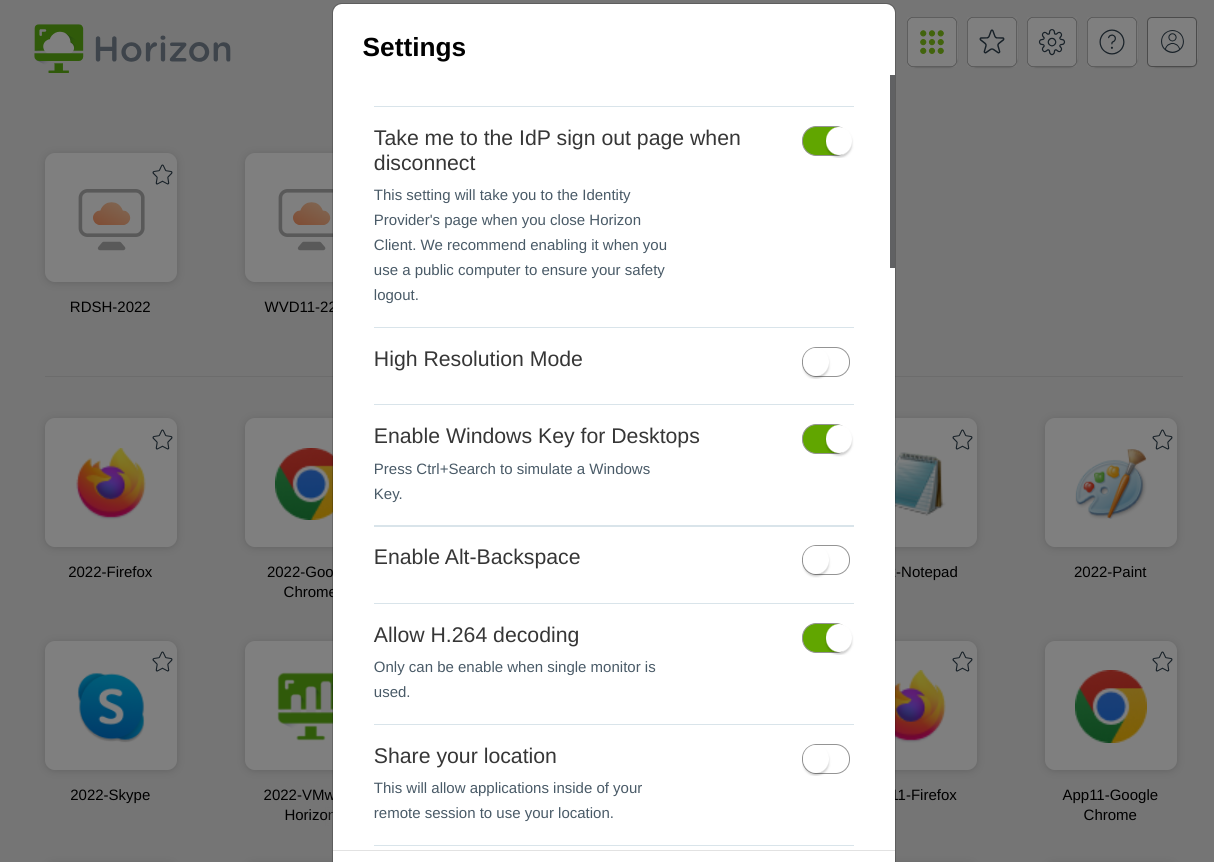
To enable private mode on your device, login to your Chrome client, click the Settings tab and select the Take me to the IdP signout page when disconnect option. When Take me to the IdP signout page when disconnect option is enabled, you will be redirected to the Identity provider's page upon closing the Horizon client.
Was this page helpful?