You can upload internal applications with local files to deploy them to your mobile network and take advantage of the mobile application management features of Omnissa Workspace ONE UEM.
Maximum Allowed File Size
If your workspace ONE UEM environment has CDN enabled, you can upload apps of up to 10 GB. Without CDN, you can upload apps that are 200 MB, maximum. All SaaS environments are set up with CDN by default.
If you should need more than this amount for an app, contact your Global Services representative.
How To Upload Your Local File
Complete the following steps to upload an internal application to the Workspace ONE UEM console as a local file.
-
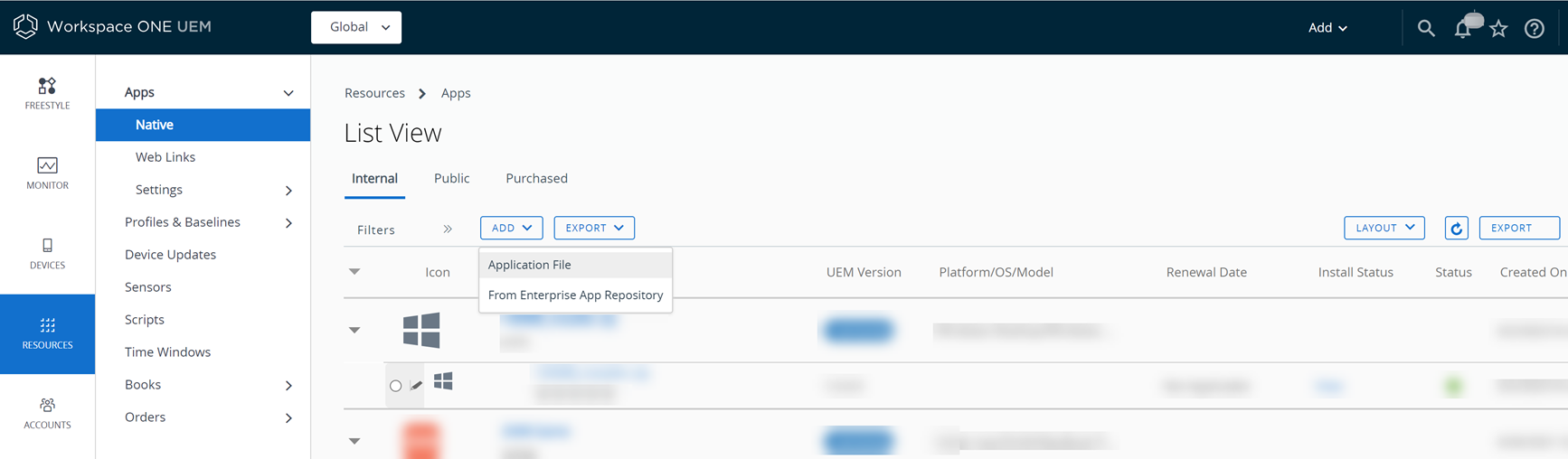
Navigate to Resources > Apps > Native > Internal.
-
Select ADD and then select Application File.
-
Select Upload > Local File and browse for the application file on the system.
-
Click Save.
-
Select Continue and configure the Details tab options. Not every option is supported for every platform.
Details Setting Details Description Name Enter a name for the application. Managed By View the organization group (OG) that the application belongs to in your Workspace ONE UEM OG hierarchy. Application ID Represents the application with a unique string. This option is pre-populated and was created with the application.
Workspace ONE UEM uses the string to identify the application in systems for applications that are on allowed and denied lists.App Version Displays the coded version of the application set by the application's developer. Build Version Displays an alternate "File Version" for some applications.
This entry ensures Workspace ONE UEM records all version numbers coded for applications because developers have two places within some applications where they can code a version number.UEM Version Displays the internal version of the application set by the Workspace ONE UEM console. Supported Processor Architecture Select the bit-architecture value for applicable Windows applications. Is Beta Tags the application as still under development and testing, a BETA version. Change Log Enter notes in this text box to provide comments and notes to other admins concerning the application. Categories Provide a category type in the text box to help identify how the application can help users.
You can configure custom application categories or keep the application's pre-coded category.Minimum OS Select the oldest OS that you want to run this application. Supported Models Select all the models that you want to run this application. Is App Restricted to Silent Install-Android Assigns this application to those Android devices that support the Android silent installation feature. The end user does not have to confirm installation activity when you enable this option. This feature makes it easier to uninstall many applications simultaneously.
Only Android devices in the smart group that support silent uninstallation benefit from this option. These Android devices are also called Android enterprise devices.Default Scheme Indicates the URL scheme for supported applications. The application is packaged with the scheme, so Workspace ONE UEM parses the scheme and displays the value in this field.
A default scheme offers many integration features for your internal applications, including but not limited to the following options:
Use the scheme to integrate with other platforms and web applications.
Use the scheme to receive messages from other applications and to initiate specific requests.
Use the scheme to launch Apple iOS applications in the AirWatch Container.Description Describe the purpose of the application.
Do not use '<' + String in the Description, as you might encounter an Invalid HTML content error.Keywords Enter words that might describe features or uses for the application. These entries are like tags and are specific to your organization. URL Enter the URL from where you can download the application and get information about it. Support Email Enter an email to receive suggestions, comments, or issues concerning the application. Support Phone Enter a number to receive suggestions, comments, or issues concerning the application. Internal ID Enter an identification string, if one exists, that the organization uses to catalog or manage the application. Copyright Enter the publication date for the application. Developer Information Setting Developer Information Description Developer Enter the developer's name. Developer Email Enter the developer's email so that you have a contact to whom to send suggestions and comments. Developer Phone Enter a number so that you can contact the developer. Log Notification for App SDK Setting - iOS Log Notification for App SDK Description - iOS Send Logs To Developer Email Enable sending logs to developers for troubleshooting and forensics to improve their applications created using a software development kit. Logging Email Template Select an email template used to send logs to developers. Installer Package Deployment Setting - Windows Desktop MSI Installer Package Deployment Description - Windows Desktop MSI Command Line Arguments Enter command-line options that the system uses to install the MSI application. Timeout Enter the time, in minutes, that the installer waits with no indication of installation completion before it identifies an installation failure.
When the system reaches the timeout number, it stops monitoring the installation operation.Retry count Enter the number of attempts the installer tries to install the application before it identifies the process as failed. Retry interval Enter the time, in minutes, the installer waits between installation attempts.
The maximum interval the installer waits is 10 minutes.Application Cost Setting Application Cost Description Cost Center Enter the business unit charged for the development of the application. Cost Enter cost information for the application to help report metrics concerning your internal application development systems to the organization. Currency Select the type of currency that pays for the development or the currency that buys the application, or whatever you want to record about the application. -
Complete the Files tab options. You must upload a provisioning profile for Apple iOS applications and you must upload the architecture application files for Windows Desktop applications. If you do not upload the architecture application files, the Windows Desktop application does not function.
Platform Auxiliary File Description All Application File Contains the application software to install and run the application and is the application you uploaded at the beginning of the procedure. Android Firebase Cloud Messaging (FCM) Token This is a Workspace ONE SDK feature and does not apply to all Android applications.
Some internal, Android applications support push notifications from the application to device users.
Select Yes for the Application Supports Push Notification option and enter the Server API key in the FCM Token (API Key) option. Get this from the Google Developer's site.
A developer codes a corresponding SenderID into the internal application.
To use the feature, push the notification from the applicable device record in the console using the Send admin function on the Devices tab.Apple iOS Provisioning Profile
APNs files for development or productionBy default, your application package contains the provisioning profile. However, for internal Apple iOS applications, you might have to provide a provisioning profile so that the internal application works when it is managed in Workspace ONE UEM if your application package does not contain the provisioning profile or if your provisioning profile has expired. You can obtain this file from your Apple iOS application developers.
A provisioning profile authorizes developers and devices to create and run Apple iOS applications. See Apple iOS Provisioning Profiles for information about Workspace ONE UEM integration with this auxiliary file.
Ensure this file covers enterprise distribution and not app store distribution and that it matches the IPA file (Apple iOS application file).
If your application supports Apple Push Notifications Services (APNs), you can enable this file for messaging functionality. Apple Push Notification service (APNs) is the centerpiece of the remote notifications feature that lets you push small amounts of data to devices on which your app is installed, even when your app isn't running. To make use of Apple Push Notifications Services (APNs), upload either the development or production APNs certificate.macOS Metadata file (pkginfo.plist) Create this file with a third-party utility tool like Munki or AutoPkgr.
You can also use the Admin Assistant to make this file. The file is available in the console when you upload an internal, macOS application.Windows Desktop Dependency files Contains the application software to install and run the application for Windows Desktop. Windows Phone Dependency files Contains the application software to install and run the application for Windows Phone. -
Complete the options on the Images tab.
Setting Description Mobile Images Upload or drag images of the application to display in the app catalog for mobile devices. Tablet Images Upload or drag images of the application to display for tablets. Icon Upload or drag images to display in the app catalog as its icon. Note: To achieve best results for Mobile and Tablet Images, refer https://help.apple.com/itunes-connect/developer/#/devd274dd925 for iOS and https://support.google.com/googleplay/android-developer/answer/1078870?hl=en for Android.
-
Complete the Terms of Use tab.
Terms of use state specifically how users are expected to use the application. They also make expectations clear to end users. When the application is pushed to devices, users view the terms of use page that they must accept to use the application. If users do not accept, they cannot access the application.
-
Complete the More > SDK tab.
Setting Description SDK Profile Select the profile from the drop-down menu to apply features configured in Settings & Policies (Default) or the features configured in individual profiles configured in Profiles. Application Profile Select the certificate profile from the drop-down menu so that the application and Workspace ONE UEM communicate securely. -
Complete the More > App Wrapping tab.
You cannot wrap an application that you previously saved in the Workspace ONE UEM console. You have two options:
- Delete the unwrapped version of the application, upload it to Workspace ONE UEM, and wrap it on the App Wrapping tab.
- Upload an already wrapped version of the application, if you have one, which does not require deleting the unwrapped version.
Setting Description Enable App Wrapping Enables Workspace ONE UEM to wrap internal applications. App Wrapping Profile Assign an app wrapping profile to the internal application. Mobile Provisioning Profile - iOS Upload a provisioning profile for Apple iOS that authorizes developers and devices to create and run applications built for Apple iOS devices. Code Signing Certificate - iOS Upload the code signing certificate to sign the wrapped application. Require encryption - Android Enable this option to use Data At Rest (DAR) encryption on Android devices.
Workspace ONE UEM uses the Advanced Encryption Standard, AES-256, and uses encrypted keys for encryption and decryption.
When you enable DAR in App Wrapping, the App Wrapping engine injects an alternative file system into the application that securely stores all the data in the application. The application uses the alternative file system to store all files in an encrypted storage section instead of storing files on a disk.
DAR encryption helps protect data in case the device is compromised because the encrypted files created during the lifetime of the application are difficult to access by an attacker. This protection applies to any local SQLite database because all local data is encrypted in a separate storage system. -
Select Save & Assign to configure flexible deployment options for the application.
Was this page helpful?