This section describes the required steps to prepare your platform for deploying Omnissa Unified Access Gateway to vCloud Director.
Pre-requisites to deploy Unified Access Gateway on vCloud Director
Prepare your platform for the PowerShell deployment.
- Install PowerShell 7.
- Ensure that vApps and Catalogs are created on vCloud Director. See Create a vApp from vApp Template and Add a Catalog to VMware vCloud Director in the VMware vCloud Director Tech Docs.
- Ensure that the user has the right privileges to manage vApps, Catalogs, and Networks features on vCloud Director. For more information, see VMware vCloud Director Tech Docs.
Recommended Operating Systems and PowerShell Versions
| Operating System | Recommended OS Version | PowerShell Version |
|---|---|---|
| Windows | 10 and 11 | 7 |
| Ubuntu | 20.04, 22.04, 24.04 | 7 |
Step 1. Upload the ova image to vCloud Director
-
Download the OVA file from the Omnissa Customer Connect portal.
-
Upload the
ovaimage on vCloud Director. For more information, see Create a vApp Template from an OVF File in the VMware vCloud Director Tech Docs.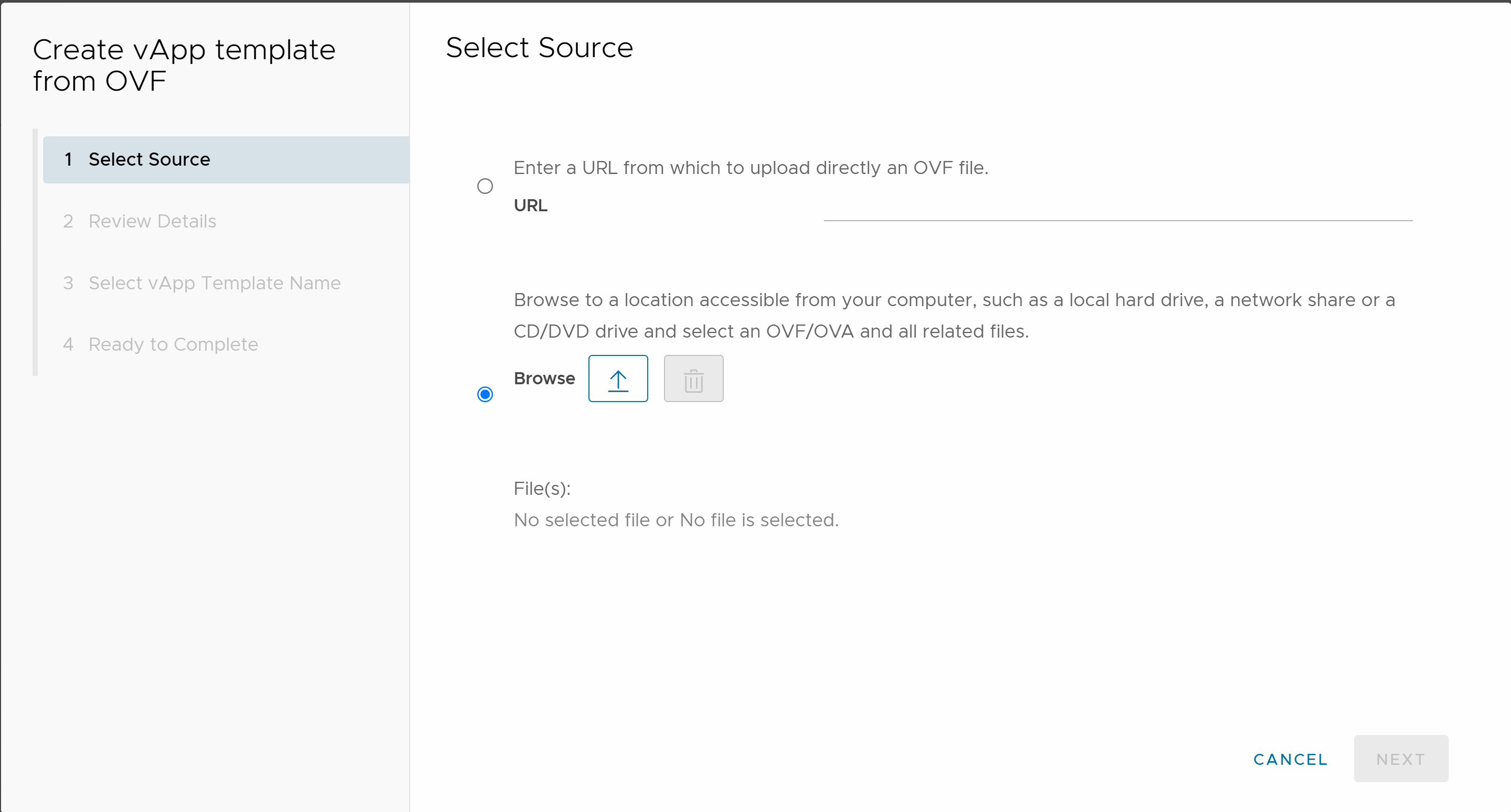
Step 2. Prepare the .ini file
To prepare the .ini file, configure the General settings and create a new section for vCloud and include the parameters mentioned in the following table.
For more information about configuring [General] section parameters, see PowerShell deployment parameters.
vCloud Director specfic settings
| Value | Example | Description |
|---|---|---|
vcUsername | user-01 | Enter the username for vCloud Director. |
vcHost | xxx-vcd01.oc.xyz.com | Enter the FQDN of vCloud Director application. |
vcOrgId | xxx-vcd01-xyz | Enter the Organisation ID of vCloud Director. |
catalog | uag-ova-files | Enter the catalog of the template. |
uagTemplate | Sample_template | Enter the name of the template. |
vcVappName | Newname | Enter the name of the vApp where UAG should be deployed. |
vcVdcName | Sample_Datacenter | Enter the name of the Data center where Unified Access Gateway should be deployed. |
Example of .ini file
[General]
name=uag-deployment
netInternet=t1-01-test-t-o11
netManagementNetwork=t1-01-test-t-o11
netBackendNetwork=t1-01-test-t-o11
defaultGateway=10.22.130.xxx
deploymentOption=onenic
ip0=
netMask0=255.255.255.0
requestTimeoutMsec=10000
snmpEnabled=false
sshEnabled=true
sshKeyAccessEnabled=true
sshPasswordAccessEnabled=true
DNS=10.12.120.xxx

[vCloud]
vcUsername=test
vcHost=test-01.oc.omnissa.com
vcOrgId=test-01-ws1uem-tunnel-t
catalog=uag-ova-files
uagTemplate=Sample_template
vcVappName=UAG Team
Step 3. Deploy Unified Access Gateway to vCloud Director
You can deploy Unified Access Gateway to vCloud Director by using the uagdeployoc.ps1 PowerShell command.
-
From the Omnissa Customer Connect, go to Unified Access Gateway (UAG) PowerShell Scripts file and click DOWNLOAD NOW.
A zip fileuagdeploy-xx.xx.x.x-xxxxxxxxis downloaded on your local machine. -
Extract the files from the zip file. Ensure that the following PowerShell scripts are available on your machine.
uagdeployoc.ps1anduagdeploy.psm1 -
Open PowerShell window and run the command.
.\uagdeployoc.ps1 .\Onecloud.ini -
Enter the vCloud password, root user password, and admin password when prompted. For more information about the root user and admin password requirements, see Password requirements.
Alternatively, you can use non-interactive mode to deploy. See Non-Interactive mode deployment parameters.
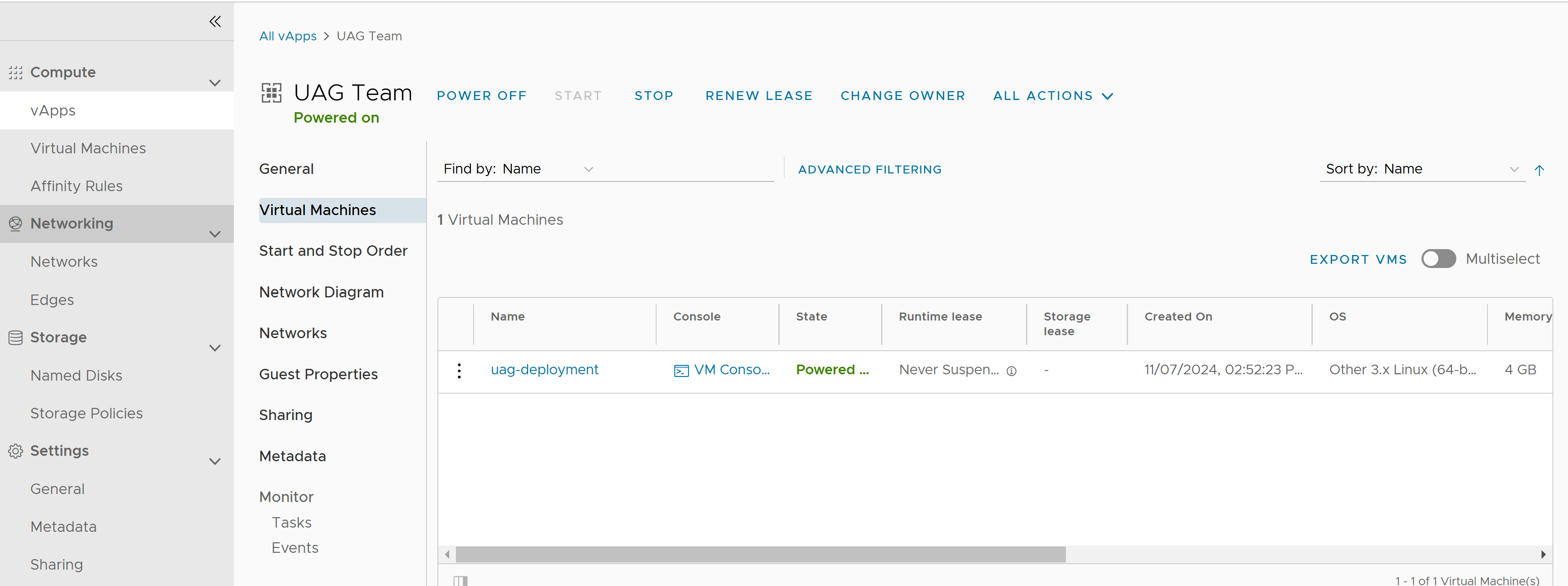
Virtual applications are created on the vApps.
-
Power on the virtual machine.
What's Next
- Using the IP information, login to the virtual machine to ensure all services are working as expected.
- Login to the admin UI with
https://uag-ip:9443and configure the settings based on your requirement.
Was this page helpful?