Workspace ONE UEM offers a suite of mobility management solutions for enrolling, securing, configuring, and managing your Windows device deployment. To utilize these management solutions, ensure that your devices meet the enrollment requirements for supported Windows OS versions. The availability of management solutions varies based on the Windows OS version of your devices.
Support for Windows Desktop and Server Devices
Workspace ONE UEM supports:
- Windows 10 and 11 desktop devices
- Windows Server 2016, 2019, 2022, and 2025
The same capabilities are provided for both Windows desktop and server devices, with the exception of Microsoft CSP-based policies and the Intelligent Hub application.
Omnissa is working to achieve parity in Workspace ONE capabilities between supported Windows desktop and server devices. All Windows-specific settings, including Intelligent Hub settings, are accessible under the Groups & Settings > All Settings > Devices & Users > Microsoft > Windows menu in the Console. You can find more information about the supported versions of Windows Desktop and Windows Server in the Workspace ONE Intelligent Hub for Windows Release Notes. For details on supported Windows LTSC and IoT versions with Workspace ONE UEM and Intelligent Hub, refer to KB92979.
Workspace ONE UEM Device Management for Windows Devices
Through the Workspace ONE UEM console, you have several tools and features for managing the entire lifecycle of corporate and employee-owned devices. You can also enable end users to perform tasks themselves, for example, through the Self-Service Portal and user self-enrollment, which saves you vital time and resources.
Workspace ONE UEM allows you to enroll both corporate and employee-owned devices to configure and secure your enterprise data and content. By using of our device profiles, you can properly configure and secure your Windows devices. Detect compromised devices and remove their access to corporate resources using the compliance engine.
Enrolling your devices into Workspace ONE UEM allows you to secure and configure devices to meet your needs.
Enrollment Requirements for Windows Devices
Before enrolling your Windows devices with Workspace ONE UEM, your devices and users must meet the listed requirements and configurations or enrollment does not work.
User-Side Requirements
Your Windows users must meet this list of requirements to enroll their devices with Workspace ONE UEM.
-
Admin Permissions – The logged in user enrolling the device must be an Administrator.
-
Group ID – If your Workspace ONE UEM environment prompts users for their Group ID, the logged in user needs this value.
-
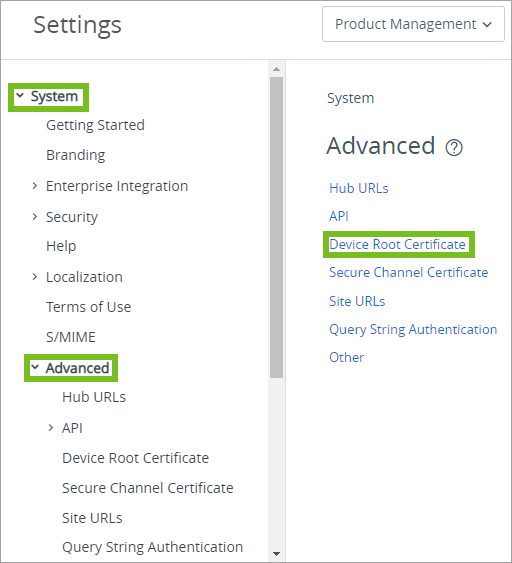
Device Root Certificate - All users need the Device Root Certificate configured in the System Settings before enrolling their devices. To configure the certificate, navigate to Groups & Settings > All Settings > System > Advanced > Device Root Certificate.
-
Enrollment URL – All users can enter a unique URL that takes them directly to the enrollment screen to enroll in a Workspace ONE UEM environment. For example, mdm.example.com.
Important: If your enrollment server is behind a proxy, you must configure the Windows service WINHTTP to be proxy-aware when configuring your network settings.
Device-Side Requirements
Your Windows devices must have access to the following sites, have specific settings enabled, and run required services to enroll in Workspace ONE UEM and use the Workspace ONE Intelligent Hub for Windows application. Some URLs and services might not be necessary for Windows Server and registered mode Windows Desktop devices.
- Omnissa Access URLs - Trust these URLs in your firewall policies so your enrolled devices can connect to Omnissa Access to utilize Hub Services features and authenticate if Omnissa Access is configured as the Source of Auth
- App Center API URLs - Allows Workspace ONE Intelligent Hub for Windows to provide crash information to the Microsoft Store. This is only required for Windows devices running the Workspace ONE Intelligent Hub application. It is not required on Windows Server devices that were deployed with UI=Headless parameter
-
api.appcenter.ms-api.mobile.azure.com - Microsoft Store API URL - Ensures that the Workspace ONE Intelligent Hub for Windows launches on your Windows Desktop devices no matter what Microsoft Store market your devices are used in. If you are interested in information on the Microsoft Store and app support by market, refer to Define Market Selection.
-
http://licensing.mp.microsoft.com/v7.0/licenses/contentHTTPSUsed - PowerShell Execution - Enable PowerShell Execution on your Windows devices because Workspace ONE UEM uses PowerShell for installation and operational changes through the Workspace ONE Intelligent Hub.
- Windows Services - Your Windows devices must have the listed services in a Service State: Running to enroll and work in your Workspace ONE UEM deployment.
- DmEnrollmentSvc (Device Management Enrollment Service) - not required for Windows Server and Registered Mode Windows Desktop devices
- DiagTrack (Connected User Experiences and Telemetry) - not required for Windows Server and Registered Mode Windows Desktop devices
- Schedule (Task Scheduler)
- BITS (Background Intelligent Transfer Service)
- dmwappushservice (Device Management Wireless Application Protocol (WAP) Push message Routing Service) - not required for Windows Server and Registered Mode Windows Desktop devices
Supported Windows Desktop Editions
Workspace ONE UEM supports enrolling and managing Windows Desktop devices with the following operating system editions:
- Windows Pro
- Windows Enterprise
- Windows Education
- Windows Home
- Windows S
Important: To see the OS version each update branch supports, see Microsoft's documentation on Windows release information: Windows release health.
Windows Desktop Edition and Windows Server Functionality Support Matrix
Workspace ONE UEM supports all versions of Windows 10 and Windows 11 Desktop OS as well as Windows Server 2016, 2019, 2022 and 2025 and the functions they support.
The different editions of Windows (Home, Professional, Enterprise, and Education) have different functionality. Windows Home edition does not support the advanced functionality available to the Windows OS. Consider using Enterprise or Education editions for the most functionality.
| Feature | Windows Desktop Home | Windows Desktop Professional | Windows Desktop Enterprise & Windows Desktop Education | Windows Server |
|---|---|---|---|---|
| Native Client Enrollment | ✓ | ✓ | ||
| Agent Based Enrollment | ✓ | ✓ | ✓ | ✓ |
| Requires a Windows Account ID | ||||
| Force EULA/Terms of Use Acceptance | ✓ | ✓ | ✓ | |
| Support for Option Prompts during Enrollment | ✓ | ✓ | ✓ | |
| Active Directory/ LDAP | ✓ | ✓ | ✓ | |
| Cloud Domain Join Enrollment | ✓ | ✓ | ||
| Out of Box Experience Enrollment | ✓ | ✓ | ||
| Bulk Provisioning Enrollment | ✓ | ✓ | ✓ | |
| Device Staging | ✓ | ✓ | ||
| SMS | ||||
| Email Messages | ✓ | ✓ | ✓ | |
| Password Policy | ✓ | ✓ | ✓ | |
| Enterprise Wipe | ✓ | ✓ | ✓ | |
| Full Device Wipe | ✓ | ✓ | ||
| Email & Exchange ActiveSync | ✓ | ✓ | ||
| Wi-Fi | ✓ | ✓ | ||
| VPN | ✓ | ✓ | ✓ | |
| Certificate Management | ✓ | ✓ | ||
| Device Restrictions and Settings | ✓ | ✓ | ✓ | |
| Windows Hello | ✓ | ✓ | ||
| Personalization | ✓ | |||
| Encryption | ✓ | ✓ | ||
| Application Control (AppLocker) | ✓ | |||
| Health Attestation | ✓ | ✓ | ||
| Windows Update for Business | ✓ | ✓ | ✓ | |
| Assigned Access | ✓ | |||
| Application Management | ✓ | ✓ | ✓ | |
| Asset Tracking | ✓ | ✓ | ✓ | ✓ |
| Device Status | ✓ | ✓ | ✓ | ✓ |
| IP Address | ||||
| Location | ✓ | ✓ | ✓ | ✓ |
| Network | ✓ | ✓ | ✓ | ✓ |
| Send Support Message (Email and SMS only) | ✓ | ✓ |
NOTE: An upgrade from Windows Home Edition to Windows Professional or Windows Enterprise will require a re-enrollment of the device.
Was this page helpful?