You can protect yourself against excessive device wipes, enterprise wipes, and device deletions by setting a wipe threshold in Workspace ONE UEM.
Remotely wiping a device of privileged corporate content, called an Enterprise Wipe, is one of the steps considered when a device becomes lost or stolen. Wipe protection safeguards against the threat of corporate content coming into contact with competitors. A Device Wipe is potentially more destructive, removing all content until the device returns to its factory state. Deleting a device is the least recoverable of these actions as it performs an enterprise wipe and also permanently removes the device's record from the console. Wipe protection covers all three actions.
-
Device Wipe – Send an MDM command to wipe a device clear of all data and operating system. This action cannot be undone.
- iOS Device Wipe Considerations
- For iOS 11 and below devices, the device wipe command also wipes the Apple SIM data associated with the devices.
- For iOS 11+ devices, you can preserve the Apple SIM data plan (if existed on the devices). Select the Preserve Data Plan check box on the Device Wipe page before sending the device wipe command.
- For iOS 11.3+ devices, you have an extra option to skip the Proximity Setup screen while sending down the device wipe command. When the option is enabled, the Proximity Setup screen is skipped in the Setup Assistant, preventing the device user from seeing the Proximity Set up option.
- For Windows Desktop Devices, you can select the type of device wipe.
- Wipe - This option wipes the device of all content.
- Wipe Protected - This option is similar to a normal device wipe, but the device end user cannot circumvent the action. The Wipe Protected command keeps trying to reset the device until it is successful. In some device configurations, this command can leave the device unable to start.
- Wipe and Persist Provisioning Data - This option wipes the device but specifies that provisioning data be backed up to a persistent location. After the wipe runs, the provisioning data is restored and applied to the device. The provisioning folder is saved. You can find the folder by navigating on the device to %ProgramData%\Microsoft\Provisioning.
- Windows Server devices retain managed applications by default. You can override this using the Managed Resources profile, which can also retain managed profiles and baselines.
- iOS Device Wipe Considerations
-
Enterprise Wipe – Enterprise Wipe a device to unenroll and remove all managed enterprise resources including applications and profiles. This action cannot be undone, and re-enrollment is required before Workspace ONE UEM can manage this device again. This device action includes options to prevent future re-enrollment and a Note Description text box for you to add information about the action.
- Enterprise Wipe is not supported for cloud domain-joined devices.
-
Delete Device – Delete a device to enterprise wipe it and remove its record from Workspace ONE UEM. When you initiate the action, the device enters a transient 'Deleting – name' state, and an unenroll or wipe command is queued. If the wipe threshold is not exceeded, the command is sent, the device is enterprise wiped, and its record is removed from the console. This action cannot be undone, and re-enrollment is required before Workspace ONE UEM can manage the device again.
- If the wipe threshold is exceeded, the delete is held along with other wipe commands. The wipe is not sent to the device; the device's record is not removed, and the device's original name is restored. The delete completes only if you later accept the held command; if you reject it, the device remains enrolled and unchanged.
However, there are circumstances when scheduled processes such as the Compliance Engine and other automated directives wipe multiple devices. In addition to automated wipes, an accidental wipe or delete initiated by an administrator can be problematic. As an administrator, you might want to be informed when such actions are initiated and be given the chance to intervene.
Configure wipe protection settings by defining a wipe threshold, which is a minimum number of devices wiped within a certain amount of time. For example, if more than 10 devices are wiped within 20 minutes, you can place future wipes and deletes on hold automatically until after you validate the commands. While the system is on hold, a device queued for deletion appears in the 'Deleting – name' state, and its original name is restored if the delete is held or rejected.
You can review wipe logs to see when devices were wiped or deleted and for what reason. After reviewing the information, you can accept or reject the on-hold commands and unlock the system to reset the wipe threshold counter.
- Accepting a held wipe sends the wipe to the device. Accepting a held delete wipes the device and removes its record from the console.
- Rejecting a held wipe cancels the command so no wipe is sent. Rejecting a held delete cancels the deletion - the record is not removed, no wipe is sent, and the device's original name is restored.
Configure Wipe Protection Settings for Managed Devices
Set a wipe threshold for managed devices and notify administrators through email when the threshold is met. You can only configure these settings at the Global or Customer level organization group.
-
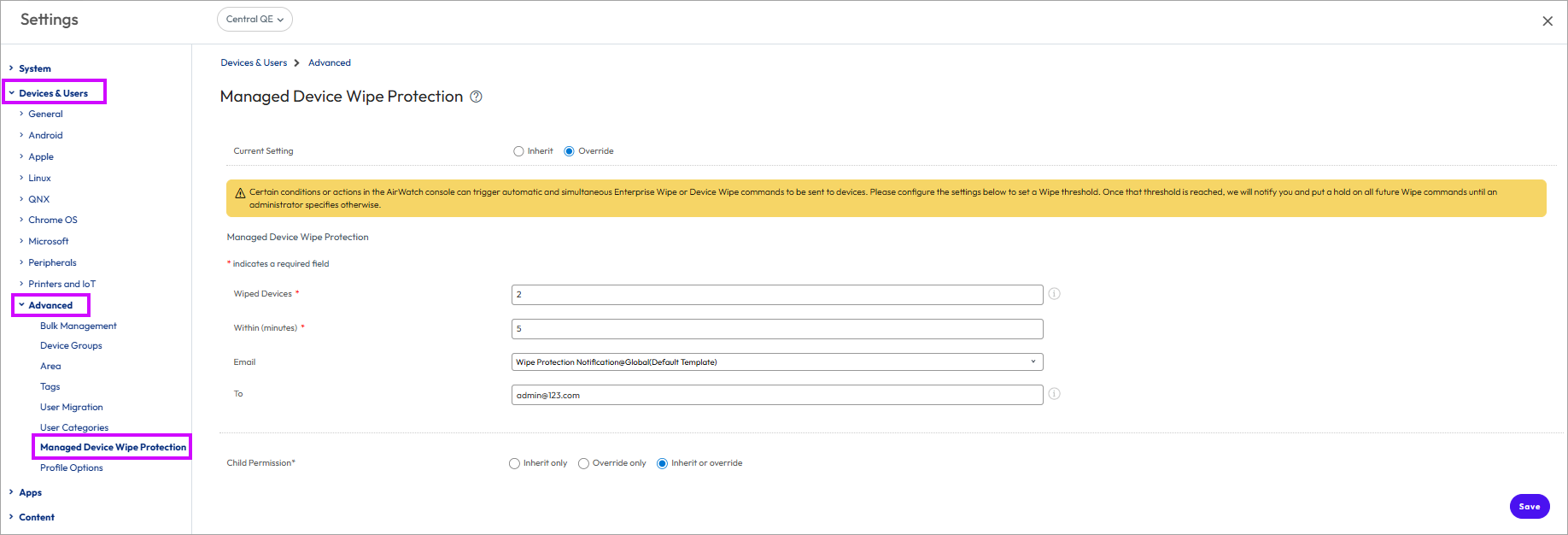
Navigate to Groups & Settings > All Settings > Devices & Users > Advanced > Managed Device Wipe Protection.
-
Configure the following settings.
Setting Description Wiped Devices Enter the number of Wiped Devices that acts as your threshold for triggering wipe protection. Within (minutes) Enter the value for Within (minutes) which is the amount of time the wipes must occur to trigger wipe protection. Email Select a message template to email to administrators.
Create a message template for wipe protection by navigating to Groups & Settings > All Settings > Devices & Users > General > Message Templates and select Add, Next, select Device Lifecycle as the Category and Wipe Protection Notification as the Type. You can use the following lookup values as part of your message template.- {EnterpriseWipeInterval} – The value of Within (minutes) on the settings page. - {WipeLogConsolePage} – A link to the Wipe Log page. To Enter the email addresses of administrators who must be notified. These administrators must have access to the Wipe Log page. For details, see Lookup Values.
-
Select Save.
View Wipe Logs
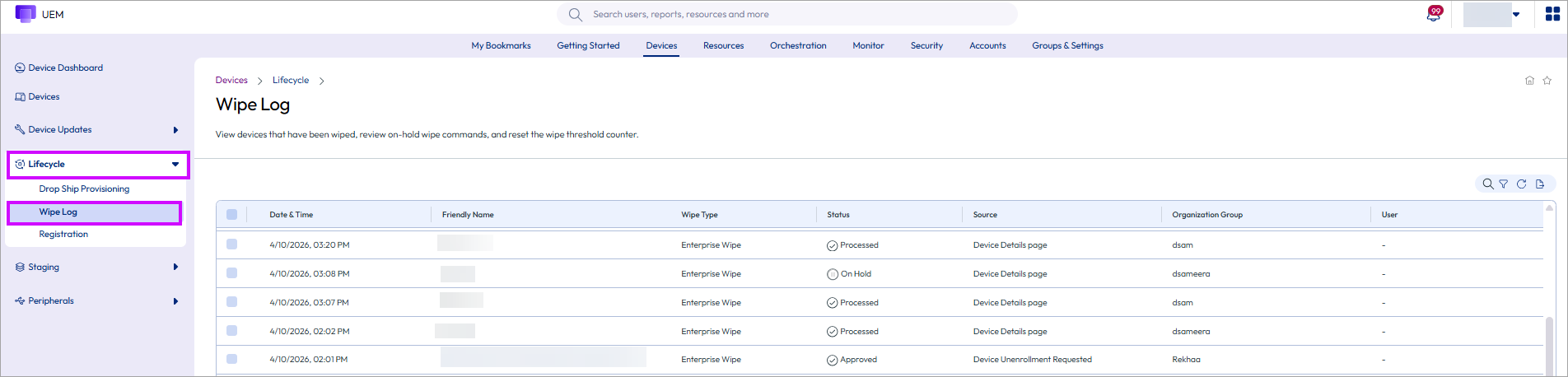
You can view the Wipe Log page to see when devices were wiped and for what reason. After reviewing the information, you can accept or reject any on-hold wipe commands and unlock the system to reset the wipe threshold counter.
If the system is locked, then you see a banner at the top of the page indicating this status.
-
Navigate to Devices > Lifecycle > Wipe Log.
The Report Device Wipe Log resource manages access to the Wipe Log page, and is available by default for system admins, SaaS admins, and Workspace ONE UEM admins. You can add this resource to any custom admin role using the Create Admin Role page.
-
Filter
 the Wipe Log by the following parameters.
- Date & Time
- Wipe Type
- Status
- Source
- Ownership
-
View the list of devices and determine whether the presented devices are valid wipes.
Device pending actions have a status of "On Hold." Devices wiped before the threshold limit is reached display as "Processed".
- If they are valid wipes, then select each device and then select Approve wipes from the command list. The status changes to Approved.
- If they are not valid wipes, then select each device and then select Reject wipes from the command list. The status changes to Rejected.
-
Reset the device threshold counter and allow wipe commands to go through by selecting Unlock System.
The system allows future automated wipe commands until the threshold limit is exceeded again. You can only perform this action at a Global or Customer level organization group.
Was this page helpful?