You can integrate Workspace ONE UEM with Google Workspace, as a BeyondCorp Alliance partner, to use endpoint compliance and management status to assess risk and enforce Context Aware Access policies.
This integration helps you use Workspace ONE UEM’s ecosystem of tools, including the powerful compliance engine, to determine device compliance with your organization’s security standards based on a wide variety of device and user attributes, and share the resulting status with Google. Google Workspace interprets this endpoint status information to help you configure detailed Context Aware Access policies.
Prerequisites
Omnissa
- Workspace ONE UEM (any currently supported version) with an administrator account.
- Intelligence
- Available by default for all SaaS environments. You must opt in to Omnissa Intelligence through your Workspace ONE UEM environment and remain opted in for uninterrupted functionality.
- If you access Omnissa services through Omnissa Connect, then the UEM Data Source must be authorized, and it must remain so. You can view the status from the Intelligence Console by navigating to Integrations > Data Sources > UEM.
- On-premises customers must configure Omnissa Intelligence, which might require deployment of an on-premises Omnissa Intelligence Connector.
For more information, see Omnissa Intelligence Requirements.
- Google Workspace with relevant licensing to configure and manage BeyondCorp Alliance partners and Context Aware Access
- Google Cloud with relevant licensing to enable the Cloud Identity API, create and manage a Service Account and Key for API integration
Supported Device Platforms
Only fully-managed, MDM-enrolled devices are supported for BeyondCorp Context Aware Access. Hub-registered or App-registered (through applications such as Boxer, Content, and so on) are not supported. Additional requirements per device platform are noted below.
- iOS: Intelligent Hub 2209 and later
- Shared Devices (Check-in/Check-out) are not supported
- Devices enrolled through Account Driven User Enrollment (ADUE) are not supported
- Android: Intelligent Hub 2209 and later
- Shared Devices (Check-in/Check-out) are not supported
- macOS: Intelligent Hub 2306 and later
- Windows: Intelligent Hub 2310 and later
Ensure your devices are on an OS version that Workspace ONE UEM supports, and that they comply with the OS version requirements for the latest release of Workspace ONE Intelligent Hub. For information specific to each platform, see the platform-specific guides at Omnissa Workspace ONE UEM. For information about the Hub, see Omnissa Workspace ONE Intelligent Hub.
Supported Deployments
Workspace ONE UEM currently supports Google BeyondCorp integration for both Omnissa-managed SaaS and On-premises deployments. However, this integration is not available in Omnissa-managed FedRAMP environments.
Additionally, you can now integrate a single Google Workspace domain (tenant) with multiple Workspace ONE UEM environments. Each Workspace ONE UEM Organization Group (OG) where you wish to configure the same Google domain for Context Aware Access must belong to a distinct Workspace ONE UEM environment. In other words, you can have one Google domain for multiple UEM environments, but you cannot have one Google domain for multiple OGs in a single UEM environment.
Additional considerations for On-premises environments
On-premises environments with a UEM Console server hosted on an internal or restricted network, including those without outbound access to the relevant Intelligence URLs as noted here, must use a Console URL with an associated SSL Certificate. Console URLs using just HTTP are not supported for conditional access integration.
The Conditional Access Log capability might not function in such environments, since it requires outbound access from Console to Intelligence.
Integrate Google BeyondCorp with Workspace ONE UEM
Follow the steps below to integrate Google BeyondCorp with Workspace ONE UEM.
1. Configure Google Cloud Console
The following configurations must be implemented in your Google Cloud Console for successful integration with Workspace ONE UEM.
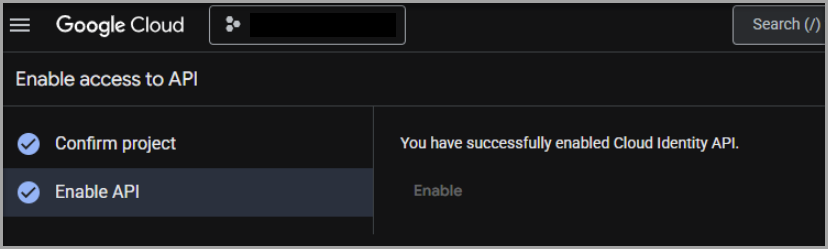
a. Enable Cloud Identity API
You must ensure that billing is activated in the relevant Google Cloud Project and then activate the Cloud Identity API for that project. For more information about managing billing for your Google Cloud project, see https://docs.cloud.google.com/billing/docs/how-to/modify-project.
You can find the Cloud Identity API under APIs & Services > Enabled APIs & services > Enable APIs and services in the Google Cloud Console or open the following URL (with the appropriate Google Cloud Project identifier).
https://console.cloud.google.com/apis/enableflow;apiid=cloudidentity.googleapis.com?project={{projectID}}
b. Create Service Account and Key
-
Navigate to APIs & Services > Credentials > Create service account to generate a service account. This account is used for authenticating calls from Workspace ONE UEM to Google Cloud Identity APIs.
-
Next, navigate to Service Account > Keys > Add key > JSON to create a key for the service account. The service account and key details are saved on your computer as a JSON file.
-
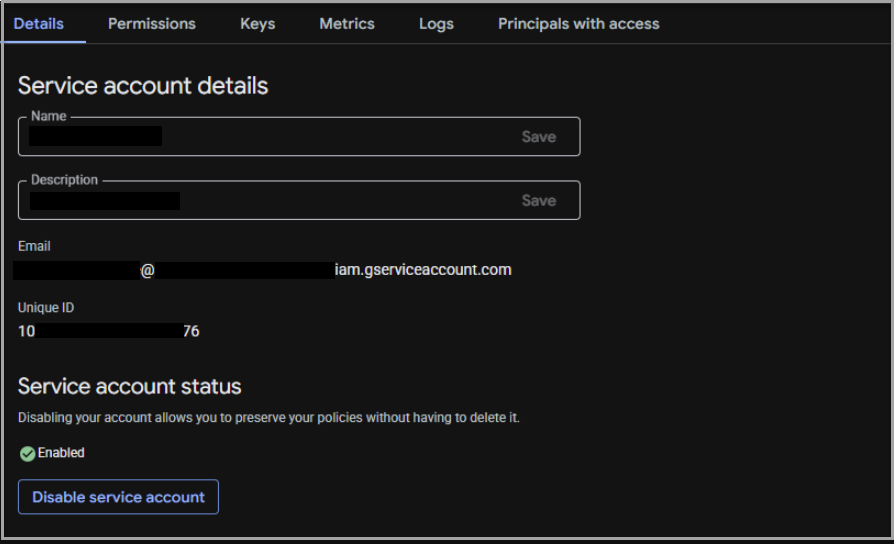
Navigate to IAM & Admin > Service accounts > Service account details, copy and save the Unique ID for the service account.
2. Configure Google Admin Console
Complete the following steps to prepare your Google Workspace for BeyondCorp integration.
a. Enable Domain-Wide Delegation
In your Google Admin Console, activate Domain-wide Delegation for the service account generated in the previous steps, from Security > Access and data control > API controls > Domain wide delegation > Add New.
Enter the following details:
- Client ID - Unique ID of the service account, obtained in the previous step from Google Cloud Console.
- Scope - https://www.googleapis.com/auth/cloud-identity.devices
b. Add Workspace ONE Intelligent Hub as Trusted App
Designate Workspace ONE Intelligent Hub as a trusted app in your Google Admin Console, so authentication requests from Hub, required for end-user registration, are inherently trusted.
-
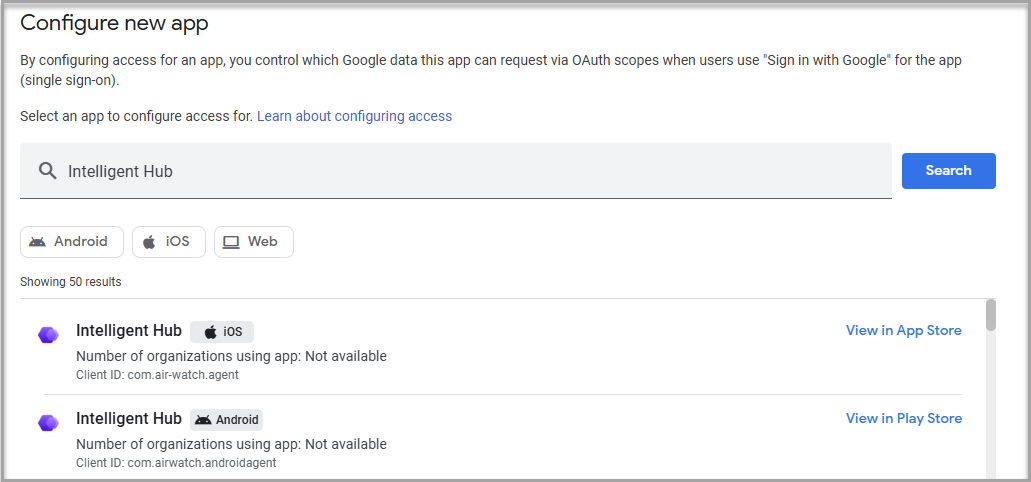
Navigate to Security > Access and data control > API controls > App Access Control > Manage App Access > Configure new app.
-
Search for Intelligent Hub. Perform the following steps for Client IDs
com.air-watch.agent(iOS) andcom.airwatch.androidagent(Android)a. Define Scope to relevant org units.
b. Set Access to Google Data as Trusted, and Finish/Save your changes.
c. If you have the option to Exempt from having API access blocked by Context-Aware Access levels, enable it and Finish/Save your changes.
c. Set Omnissa as BeyondCorp Alliance Partner
- Enable Omnissa as the BeyondCorp Alliance partner from Devices > Mobile & endpoints > Settings > Third-party integrations > Security and MDM partners > Manage Partners by clicking Open Connection for Omnissa.
- Under Devices > Mobile & endpoints > Settings > Third-party integrations > Android EMM, set Third-party Android mobile management to Not Enabled.
- Under Devices > Mobile & endpoints > Settings > Universal > General, configure the following:
- Mobile management: Basic
- Password requirements: Off
- Under Devices > Mobile & endpoints > Settings > Universal > Data Access, configure the following:
- Android Sync: On
- iOS Sync: On
- Device signals > Collect device signals using endpoint verification: On
d. Configure and Assign Access Levels
You can configure Context-Aware Access policies in Google Admin Console to allow or deny access to Google Workspace resources based on a device’s Workspace ONE UEM enrollment and compliance status. Configure Context-Aware Access policies from Security > Access and data control > Context-Aware Access> Access levels > Create Access Level, using the following steps:
-
Context-Aware policies are made up of conditions. To specify the values and conditions for these policies, you need to use Advanced Context conditions. Refer to Google’s documentation for examples.
- Create and Assign Context-Aware Access levels
- Advanced mode examples
- Common Expression Language (CEL): Device attribute specification
For example, the following access level allows devices that are enrolled and compliant in Workspace ONE UEM, and registered for Google Context-Aware Access through Workspace ONE UEM, only:(device.vendors["Omnissa"].is_compliant_device == true) && (device.vendors["Omnissa"].is_managed_device == true)
-
Assign an Access Level to the relevant Google Workspace application(s) from Security > Access and data control > Context-Aware Access> Access levels > Assign access levels > Assign access levels to apps.
a. Select one or more apps, and assign the relevant access level.
b. In the Policy Settings, do not activate Block other apps from accessing the selected apps via APIs, if access levels aren’t met. If you need to activate this setting, make sure that Exempt allowlisted apps so they can always access APIs for specific Google services, regardless of access levels is enabled and the iOS and Android instances of Intelligent Hub (noted in the Add Workspace ONE Intelligent Hub as Trusted App section, above) are added to the exempted allowlist.
-
Activate a Remediation Message for your end users from Security > Access and data control > Context-Aware Access> General Settings.
a. Enable Remediation messages.
b. Optionally, configure an additional custom message to provide relevant guidance to your end users. This is displayed to end users when they attempt to access a Google Workspace resource and are blocked by a Context-Aware Access Level. For example:
"Your corporate Google account is not connected to Workspace ONE Intelligent Hub to access this app. Click here to get connected to the Workspace ONE Intelligent Hub. https://{{Your Omnissa Intelligence URL}}/#/compliance/tenants/UEM_tenant/google/remediation".
You can find your Omnissa Intelligence URL by launching your Intelligence console and inspecting the URL. For example,
ap2.data.workspaceone.com
3. Connect Workspace ONE UEM to Google BeyondCorp
In your Workspace ONE UEM console, ensure you are in the Customer-type Organization Group. You can verify the Organization Group type from Groups & Settings > Groups > OG Details > Type.
-
Navigate to Groups & Settings > Integrations and click Setup for Google BeyondCorp Context Aware Access Integration.
-
Click Get Started and enter the following information:
- Customer ID - This can be obtained from your Google Admin Console under Account > Account Settings > Profile > Customer ID.
- Admin Email Address - Provide your Google Admin Console administrator’s email address.
- Import Google Service Account JSON File - Upload the .json file containing the Google Cloud service account and key details, obtained from Google Cloud Console. See Create Service Account and Key.
-
Click Connect to Google BeyondCorp and confirm that the integration is saved.
Integrate multiple Workspace ONE UEM environments with one Google Workspace domain
To integrate multiple Workspace ONE UEM environments, you must repeat the steps for Workspace ONE UEM configuration in each environment. The steps for configuring Google Cloud Console and Google Admin Console are performed just once. However, use a separate Google Cloud Service Account or Key for each Workspace ONE UEM environment. If you choose to do so, you must activate Domain-wide Delegation in the Google Admin Console for each Service Account.
Device Registration
Platforms requiring user interaction for device registration typically support two paths.
-
Self-service Registration Flow
Your device end users can self-register using a deeplink that you push to their devices, or through the Conditional Access registration button in Hub (on supported platforms), which you can activate from the Console. Steps for deploying the deeplink or registration button are specified in the platform-specific guides. -
Remediation Flow
Alternatively, the device user can log in or attempt to access data through a Google Workspace application that is subject to a Context Aware Access policy, which requires the device to be marked as compliant. If Google Workspace restricts the device end user’s access, they are presented with the Remediation Message configured in Google Workspace. The end user can follow the Remediation link to register for Conditional Access through Intelligent Hub. Direct the device end user to follow the prompts.
iOS
Intelligent Hub and at least one Google Workspace app (Gmail, Calendar, Drive, Docs, Sheets, and Slides) are required applications on iOS devices using the Context-Aware Access. Assign and deploy these applications to your iOS devices as managed applications through the Workspace ONE UEM Console. For more information, see Introduction to Managing iOS Applications.
Deploy and Configure a Google Workspace application
The procedure uses Gmail as an example. You can perform these steps for any of the Google Workspace apps mentioned above.
-
Add Gmail as a Public or VPP application in Workspace ONE UEM, and assign it to relevant devices.
-
In the assignment’s Restrictions section, ensure that Make App MDM Managed if User Installed is activated. This step allows Workspace ONE UEM to take over the management of the app if the end user previously installed the app as unmanaged. On Supervised devices, management is assumed silently. On Unsupervised devices, the end-user is prompted asking them to allow Workspace ONE to manage the app, and they must approve it. This is essential for the next step to succeed.
-
In the assignment’s Application Configuration section, activate Send Configuration and add the listed Key-Value pairs (KVPs):
Configuration key Value Type Configuration Value partner String 2e0b4c99-5fa7-489e-b256-1ca0f9d78113iosDeviceId String {DeviceUid}
These KVPs are deployed to the device once Workspace ONE UEM begins to manage the app.
The Self-service Registration Flow can be activated in two ways.
- Activate the Conditional Access Registration button on Intelligent Hub.
- Configure and deliver a deeplink as a Webclip.
Registration Button in Intelligent Hub (Recommended)
Starting with Intelligent Hub for iOS version 25.11, you can simplify the registration process for end users by activating the Conditional Access Registration button within Hub.
To activate the Registration button, follow the procedure:
-
In Workspace ONE UEM console, navigate to Groups & Settings > All Settings > Apps > Settings and Policies > Settings.
-
Enable Custom Settings, and paste the following Key-Value pair in the Custom Settings field and then select Save.
{ "displayRegisterConditionalAccessButton":true }
You can see the Conditional Access Registration button once the Hub applies these settings. On previously enrolled devices, you may need to force-quit and re-launch the Hub for the changes to take effect.
Registration Webclip
To configure and deliver a deeplink as a Webclip, follow the steps:
- In Workspace ONE UEM console, navigate to Resources > Apps > Web Links and select Add Application
- Select Apple iOS and then select Continue.
- In the Details tab, provide an appropriate Name for the Web Link - this appears as the name of the Webclip icon on the device and in the Hub Catalog.
- Set URL to
wsonehub://conditionalaccess?partner=google - Optionally, provide a relevant Description.
- In the Assignment tab, select the relevant Smart Groups for assignment and configure Exclusions if needed.
- Set Push to Auto (Recommended).
- Configure Advanced settings, select Save and Publish.
User Experience
The user’s experience varies based on their access to a Google Workspace application, for example, Gmail.
User is already logged in to Gmail
If the user already has access to their enterprise account in Gmail, they must complete the following steps:
- Ensure Gmail is managed by Workspace ONE UEM. UEM automatically deploys the app config KVPs as soon as it has assumed management of the application. As noted previously, on Unsupervised devices, the end-user must accept the prompt from Workspace ONE UEM to assume management.
- Open Gmail so the app can relay the KVPs to Google Workspace, allowing Google to uniquely associate the DURN with the device’s UEM DeviceUDID.
- Re-register for Conditional Access by either:
- Selecting the CA Registration Webclip that the administrator has deployed to their device, OR
- Using the Conditional Access Registration button within Intelligent Hub, if the administrator has enabled this option.
User is not logged-in to Gmail
If the user has not accessed their enterprise account in Gmail, they must complete the following steps:
-
Ensure Gmail is managed by Workspace ONE UEM. UEM automatically deploys the app config KVPs as soon as it has assumed management of the application. As noted previously, on Unsupervised devices, the end user must accept the prompt from Workspace ONE UEM to assume management.
-
Open Gmail and attempt to log in with the enterprise account.
a. If a CA policy requiring Enrollment and Compliance is enforced for the user for Gmail, they are shown a “Remediation Message” by Google, which redirects them to perform CA registration through Intelligent Hub. They must follow the registration prompts and successfully register for CA through Hub, and then return to log in to Gmail.
b. If a CA policy requiring Enrollment and Compliance is not enforced for the user for Gmail, Google authorizes the user, and they can access Gmail. They can initiate CA registration by either:
- Selecting the CA Registration Webclip that the administrator has deployed to their device, OR
- Using the Conditional Access Registration button in Intelligent Hub if the administrator has enabled this option.
Android
The Self-service Registration Flow can be activated in two ways.
- Activate the Conditional Access Registration button on Intelligent Hub.
- Configure and deliver a deeplink as a Bookmark.
Registration Button in Intelligent Hub (Recommended)
Starting with Intelligent Hub for Android version 25.11, you can simplify the registration process for end users by activating the Conditional Access Registration button within the Hub. To activate the Registration button, follow the procedure:
-
In Workspace ONE UEM console, navigate to Groups & Settings > All Settings > Apps > Settings and Policies > Settings.
-
Enable Custom Settings, and paste the following Key-Value pair in the Custom Settings field, and then select Save.
{ "displayRegisterConditionalAccessButton":true }
You can see the Conditional Access Registration button once the Hub applies these settings. On previously enrolled devices, you may need to force-quit and re-launch the Hub for the changes to take effect.
- Instruct end users to initiate registration by clicking on the “Register for Conditional Access” button in Intelligent Hub
Registration Bookmark
To configure and deliver a deeplink as a Webclip, follow the steps:
- In Workspace ONE UEM console, navigate to Resources > Apps > Web Links and select Add Application.
- Select Android as the platform, and then select Continue.
- In the Details tab, provide an appropriate Name for the Web Link - this appears as the name of the Bookmark icon on the device and in the Hub Catalog.
- Set URL to
wsonehub://conditionalaccess?partner=google - Optionally, provide a relevant Description.
- In the Assignment tab, select the relevant Smart Groups for assignment and configure Exclusions if needed.
- Set Push to Auto (Recommended).
- Set Add to Homescreen to Yes.
- Instruct end users to initiate registration by selecting the Bookmark deployed.
macOS
Google’s Chrome Endpoint Verification extension is required for CA registration on macOS devices. You must ensure that it is installed and enabled on end-user macOS devices so they can register for Context-Aware Access.
To enable the Self-service Registration Flow, take the following steps to configure and deliver a deeplink as a Webclip.
- In Workspace ONE UEM console, navigate to Resources > Apps > Web Links and select Add Application.
- Select Apple macOS as the platform and Continue.
- In the Details tab, provide an appropriate Name for the Web Link - this appears as the name of the Bookmark icon on the device and in the Hub Catalog.
- Set URL to
wsonehub://conditionalaccess?partner=google - Optionally, provide a relevant Description.
- In the Assignment tab, select the relevant Smart Groups for assignment, and configure Exclusions if needed.
- Set Push to Auto (Recommended).
- Instruct end users to initiate registration by selecting the Bookmark deployed.
Windows
Google’s Chrome Endpoint Verification extension is required for CA registration on Windows devices. You must ensure that it is installed and enabled on end-user Windows devices so they can register for Context Aware Access.
To enable the Self-service Registration Flow, take the following steps to configure and deliver a deeplink as a Webclip.
- In the Workspace ONE UEM console, navigate to Resources > Apps > Web Links and select Add Application.
- Select Windows as the platform and Continue.
- In the Details tab, provide an appropriate Name for the Webclip - this appears as the name of the Webclip icon in the Hub Catalog.
- Set url to
ws1winhub://conditionalaccess?partner=google - Optionally, provide a relevant Description.
- In the Assignment tab, select the relevant Smart Groups for assignment, and configure Exclusions if needed.
- Set Push to Auto (Recommended).
- Instruct end users to initiate registration by selecting the Bookmark deployed.
Monitoring and Troubleshooting the Google BeyondCorp Integration
Workspace ONE UEM provides multiple tools and interfaces to monitor the health of your Google BeyondCorp integration and troubleshoot device registration issues.
Integration Status
In the Workspace ONE UEM Console, you can view the Google BeyondCorp integration details under Groups & Settings > Integrations > Google BeyondCorp Context Aware Access Integration by clicking on View. The following information is available:
- Integration Status: Shows whether the integration has been enabled. This is not an indicator of current connectivity.
- Customer ID: Google Workspace account Customer ID.
- Admin Email Address: Google email address used when enabling the integration.
- Configured On: Date when integration was first set up.
Device Registration Status
The Device Details > Summary page displays a Google BeyondCorp Registration status in the security card. This status is set to Enabled when UEM receives a valid Google Device Identifier from a device, which Intelligent Hub relays to UEM.
The Google Device ID is displayed in the Device Info card. You can find this identifier in Google Admin Console under Devices > Mobile and endpoints > Device Details > Device information in the Device Resource ID field.
Conditional Access Log
The Device Details > More > Conditional Access Log page shows a history of interactions between Workspace ONE and Google for the device. It focuses on calls between the Compliance Broker and Google Cloud APIs. This history includes the Management and Compliance statuses relayed to Google, and the date/time at which this information was relayed. The Event Details typically contain the following.
- Request Send Time Stamp
- Partner Device ID - The full Google resource identifier for the user and device. This is typically in the format devices/{device}/deviceUsers/{Google Device ID}, where Google Device ID is the identifier displayed under Device Details > Summary > Device Info
- Message ID
- Device Management Status - The UEM Enrollment status of the device
- Compliance Status - The UEM Compliance status of the device
- API Request Body - The details included in the body of the API request sent to Google
- API Response Body - The details included in the response received from Google
Device Events and Device Troubleshooting Log
A subset of the information displayed in the Conditional Access Log is also available in the following pages.
- Device Events: Monitor > Events and Logs > Device Events
- Device Details > More > Troubleshooting > Event Log
These pages contain two types of events:
- Conditional Access Device Registration - Recorded when the UEM receives relevant data from the Hub, and relays it to the Compliance Broker (to be forwarded to Google)
- Conditional Access Device State Change - Recorded when UEM detects a change in the device’s Compliance or Enrollment status, and sends an update to the Compliance Broker (to be forwarded to Google)
The Event Data for these events typically contains:
- Device UUID - Workspace ONE UEM’s unique identifier for the device
- Device Management Status - Enrollment status in UEM
- Compliance Status - Compliance status in UEM
- Compliance Broker Request - Details of information relayed to the Workspace ONE compliance broker service, to be relayed to Google.
- Successful - Denotes if the request was successfully sent to the Compliance Broker
REST API
A REST API endpoint is available to retrieve the conditional access registration information for a given device, identified by its Workspace ONE UEM Device UUID.
GET /devices/{deviceUuid}/conditional-access-device-registration-information
The API response contains the following if a device is registered.
- partner_device_id - Google Device ID
- partner_tenant_id - Google Workspace account Customer ID
Refer to the REST API documentation available at
Was this page helpful?