You can integrate Workspace ONE UEM with Entra ID (formerly Azure AD) platforms from Microsoft, as a device compliance partner, to use endpoint compliance and management status to assess risk and enforce conditional access policies.
This integration enables you to use Workspace ONE UEM’s ecosystem of tools, including the powerful compliance engine, to determine device compliance with your organization’s security standards based on a wide variety of device and user attributes, and share the resulting status with Microsoft. Entra ID interprets this endpoint status information to help you configure detailed conditional access policies.
Prerequisites
-
Omnissa
-
Workspace ONE UEM (any currently supported version) with administrator account
-
Intelligence
- Available by default for all SaaS environments. You must opt in to Omnissa Intelligence through your Workspace ONE UEM environment and remain opted in for uninterrupted functionality.
- If you access Omnissa services through Omnissa Connect, then the UEM Data Source must be authorized, and it must remain so. You can view the status from the Intelligence Console by navigating to Integrations > Data Sources > UEM.
- On-premises customers must configure Omnissa Intelligence, which might require deployment of an on-premises Omnissa Intelligence Connector.
For more information, see Omnissa Intelligence Requirements.
-
-
Microsoft
- Entra ID with relevant Microsoft licensing to configure Microsoft Conditional Access, and administrator access to login, add Mobility and Enterprise applications, and grant consent for Enterprise Applications.
- Microsoft Entra ID (Commercial) - Uses
login.microsoftonline.comfor authentication and is supported in all Workspace ONE UEM SaaS Commercial and On-premises environments. - Microsoft Entra ID for US Government (GCC High) - Uses
login.microsoftonline.usfor authentication and is supported in Workspace ONE UEM SaaS FedRAMP environments only.
- Microsoft Entra ID (Commercial) - Uses
- Intune with relevant Microsoft licensing to configure Microsoft Partner Compliance Management, and administrator access to configure Partner Compliance Management.
Please contact your Microsoft representative for detailed licensing requirements for these Microsoft platforms.
- Entra ID with relevant Microsoft licensing to configure Microsoft Conditional Access, and administrator access to login, add Mobility and Enterprise applications, and grant consent for Enterprise Applications.
Supported Device Platforms
Only fully-managed, MDM-enrolled devices are supported for Entra ID conditional access. Hub-registered or App-registered (through applications such as Boxer, Content, and so on) are not supported. Additional requirements per device platform are noted below.
-
iOS
- Account Driven User Enrolled (ADUE) devices are supported with Intelligent Hub 25.05.1 and later.
- Devices enrolled through Intelligent Hub, Browser Enrollment, or Automated Device Enrollment/Device Enrollment Program are supported with all currently supported versions of Intelligent Hub.
- Shared Device Mode (SDM) registration and Microsoft Single Sign-on for shared devices are supported with Intelligent Hub 25.09 or later. For more information, see Microsoft Single Sign-On (SSO) and Shared Device Mode (SDM) with Entra ID Conditional Access.
Note: This feature is currently available as part of our Limited Availability program. To request access for your organization, reach out to your account team.
-
Android
- Shared Device Mode (SDM) registration with Microsoft Authenticator. See Shared Device Conditional Access for requirements.
- Microsoft Single Sign-On (SSO) for Shared Android Devices. See Microsoft Single Sign-on (SSO) for Shared Android Devices for more details
-
macOS
- Legacy Keychain-based registration is supported with Intelligent Hub 21.11 or later. Refer to the Register macOS Devices for Conditional Access Using Entra ID.
- Secure Enclave-based registration using Intune Company Portal (recommended). For requirements and configuration details, see Platform SSO and Device Compliance with Entra ID using Intune Company Portal.
-
Windows
- Windows OOBE-enrolled and hybrid-joined devices are supported in Workspace ONE UEM Commercial SaaS with Entra ID Commercial only. Entra ID GCCH is not supported.
Supported Deployments
Workspace ONE UEM currently supports the following deployments of Microsoft Entra ID.
-
Microsoft Entra ID (Commercial) - Uses
login.microsoftonline.comfor authentication.- Supported for all commercial SaaS and On-premise environments of Workspace ONE UEM.
-
Microsoft Entra ID for US Government (GCC High) - Uses
login.microsoftonline.usfor authentication.- Supported in Omnissa-hosted Workspace ONE UEM SaaS FedRAMP environments only.
Additionally, you can now integrate a single Entra ID tenant with multiple Workspace ONE UEM environments. Each Workspace ONE UEM Organization Group (OG) where you wish to configure the same Entra ID tenant for conditional access must belong to a distinct Workspace ONE UEM environment. In other words, you can have one Entra ID tenant for multiple UEM environments, but you cannot have one Entra ID tenant for multiple OGs in a single UEM environment.
On Premises Environments with Console on Closed Network
On-premises environments with a UEM Console server hosted on an internal/restricted network, including those without outbound access to the relevant Intelligence URLs as noted here, must use a Console URL with an associated SSL Certificate. Console URLs using just HTTP are not supported for conditional access integration.
The conditional access Log capability might not function on such environments, since it requires outbound access from Console to Intelligence.
Configure Conditional Access Using Entra ID
Take the following steps to enable conditional access with Entra ID. These steps assume you are running a browser supported by Workspace ONE UEM and that you can have multiple browser tabs open at the same time.
-
For iOS, Android, or macOS devices, in one tab of your browser, log in to the Microsoft Intune admin center using your administrator account credentials.
-
Navigate to Tenant Administration > Connectors and Tokens > Partner Compliance Management > Add Compliance Partner.
-
In the Create Compliance Partner > Basic tab, configure the following as applicable.
-
Compliance partner - Select Workspace ONE Conditional Access (in Entra ID GCC High, select Workspace ONE Conditional Access GCCH).
-
Platform - Select your desired platform (iOS, Android, and macOS).
-
-
In the Create Compliance Partner > Assignments tab, configure user and group inclusions and exclusions as required.
-
In the Create Compliance Partner > Review + create tab, review your configuration details then select Create.
If you want to configure conditional access for more than one platform, repeat these steps for each platform.
-
-
In a new tab of your browser, log in to the Microsoft Entra ID admin console using your administrator account credentials.
-
(OPTIONAL) Configure Entra ID conditional access policies based on your organizational needs. For more information, see Microsoft Conditional Access Overview.
-
For Windows devices, add AirWatch by Omnissa enterprise application to your Entra tenant.
-
In the Azure Management Portal instance, select your directory and navigate to the Mobility (MDM and WIP) tab.
-
Select Add Application, select the AirWatch by Omnissa app, and choose Add.
-
-
-
In a new tab of your browser, log in to your Omnissa Workspace ONE UEM environment using your administrator account credentials.
-
Switch to a Customer type organization group (OG). Entra ID conditional access and prerequisite configurations in Workspace ONE UEM are currently supported at customer type OGs only.
-
Navigate to Monitor > Intelligence and make sure you have opted in. If not, complete the opt-in process. For more information, see Omnissa Intelligence documentation.
-
Navigate to Groups & Settings > All Settings > System > Directory Services.
-
In the Server tab, scroll down to the Advanced section.
-
For Azure AD Integration, select the Enabled slider.
-
-
Switch to the Microsoft Entra ID tab of your browser.
-
Select Microsoft Entra ID from the menu. The Microsoft Entra ID Overview page appears. To find the Microsoft Entra tenant ID or primary domain name, look for Tenant ID and Primary domain in the Basic information section.
-
Copy this Tenant ID to the clipboard. For more information, see Microsoft Entra ID Tenant ID.
-
-
Switch back to the Workspace ONE UEM tab of your browser.
-
Paste the Tenant ID in the Directory ID text box under the Azure AD Integration slider.
-
Scroll down and locate the setting Use compliance data in Azure conditional access policies and then select its Enabled slider.
-
(OPTIONAL for Windows devices) For Use compliance data in Azure conditional access policies for Windows, select the Enabled slider.
-
(OPTIONAL for iOS, Android, and macOS devices) For Use compliance data in Azure conditional access policies for iOS, Android, and macOS, select the Enabled slider.
-
When prompted for a redirect to Microsoft, select Proceed, which launches a new tab in your browser. Authenticate with your Entra ID administrator credentials, and Accept the Permissions Request in the resulting consent page. Once consent is granted, the Workspace ONE Conditional Access app is added to your Enterprise applications in Azure.
-
Upon successful completion, return to UEM and select Complete.
-
-
The System Settings screen for Directory Services displays all the sliders you enabled previously.
-
Select the Save button.
-
You can use the same Entra ID tenant in more than one UEM environment by repeating the larger steps 3-5 above, while logged in as an administrator in each UEM environment. Entra ID will show only one instance of the Workspace ONE Conditional Access app even when integrated with multiple Workspace ONE UEM environments.
Register Devices for Conditional Access, Microsoft Entra ID
Platforms requiring user interaction for device registration typically support two paths.
Self-service Registration Flow: Your device end users can self-register using a deeplink that you push to their devices. Steps for deploying the deeplink are specified in the platform-specific guides below.
Remediation Flow: Alternately, the device end user can log in or attempt to access data through a native application that is subject to an Entra ID Conditional Access policy, which requires the device to be marked as compliant. If the device end user’s access is restricted, then the end user is redirected by Microsoft to register for Conditional Access through Intelligent Hub. Direct the device end user to follow these prompts.
Register iOS Devices for Conditional Access Using Entra ID
Intelligent Hub and Microsoft Authenticator are required applications on iOS devices using Entra ID conditional access. Assign and deploy both applications to your iOS devices as managed applications through the Workspace ONE UEM Console. For more information, see Introduction to Managing iOS Applications.
The Self-service Registration Flow can be activated in two ways.
- Activate the Conditional Access Registration button on Intelligent Hub.
- Configure and deliver a deeplink as a Webclip.
Registration Button in Intelligent Hub (Recommended)
Starting with Intelligent Hub for iOS version 25.11, you can simplify the registration process for end users by activating the Conditional Access Registration button within Hub. To activate the Registration button, follow the procedure:
-
In Workspace ONE UEM console, navigate to Groups & Settings > All Settings > Apps > Settings and Policies > Settings.
-
Enable Custom Settings, and paste the following Key-Value pair in the Custom Settings field and then select Save.
{ "displayRegisterConditionalAccessButton":true }
You can see the Conditional Access registration button once the Hub applies these settings. On previously enrolled devices, you may need to force-quit and re-launch the Hub for the changes to take effect.
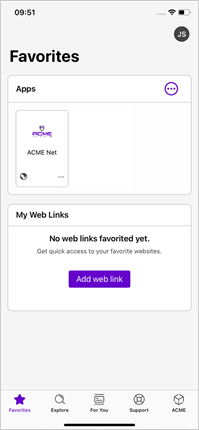
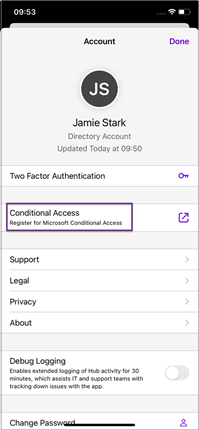
If Hub Services are already activated, tap Account in the top-right corner of your device’s screen. The Account Details page displays the Conditional Access button.
If Hub Services are not activated, the Account Details page appears automatically when you open the Hub app.
Registration Webclip
To configure and deliver a deeplink as a Webclip, follow the steps:
-
In Workspace ONE UEM console, navigate to Resources > Apps > Web Links, choose Add Application, select Apple iOS as the platform, and select Continue.
-
In the Details tab, provide an appropriate Name for the Web Link - this appears as the name of the Webclip icon on the device and in the Hub Catalog.
-
Set URL to
airwatch://conditionalaccess?partner=microsoft -
Optionally, provide a relevant Description.
-
In the Assignment tab, select the relevant Smart Groups for assignment and configure Exclusions if needed.
-
Set Push to Auto (Recommended).
-
Configure Advanced settings, select Save and Publish.
-
Instruct device end users to initiate registration by clicking on the Webclip deployed.
Prepopulate Entra ID account for user registration
Intelligent Hub for iOS 26.03 and later allows you to pre-populate the user's Entra ID username (typically the UserPrincipalName) to reduce the need for manual user input during registration. The user's account in Workspace ONE UEM must have their Entra ID username populated in one of their attributes.
Follow the steps to configure Intelligent Hub:
- Identify the user attribute that contains the Entra ID username. For this procedure, let's assume that the Entra ID username is stored in the user's User Principal Name field in Workspace ONE UEM.
- Add Intelligent Hub for iOS to the UEM console as either a Public or VPP app, and assign it to the appropriate Smart Groups.
- Configure the following options in the Assignment settings:
- Restrictions: Activate the Make App MDM Managed if User Installed setting.
- Application Configuration: Activate Send Configuration setting and add a row with:
- Configuration Key:
EntraIDUPN - Value Type:
String - Configuration Value:
{UserPrincipalName}. If the Entra ID username is stored in a different user attribute, use the corresponding lookup value.
- Configuration Key:
Intelligent Hub receives the application configuration when it is managed by Workspace ONE UEM. If a user installs Hub directly from the app store, Workspace ONE UEM can assume management silently on supervised devices. For unsupervised devices, users are prompted to accept and grant management of the app. After the application configuration has been applied, when the user attempts Conditional Access registration, their Entra ID username is automatically populated. This allows the user to authenticate to Entra ID using their password.
Managed app config for Microsoft Authenticator
You are not required to deploy managed app config for Authenticator through Workspace ONE UEM. It is recommended that the {sharedDeviceMode} configuration key is not used. If it is used, set the following parameters for dedicated devices.
Value Type: Boolean Configuration Value: False
Register Boxer and iOS Native Mail for Conditional Access Using Entra ID
Microsoft Conditional Access is available for applications that contain Microsoft Authentication Library (MSAL). This feature can be extended to applications such as Workspace ONE Boxer and the iOS Native Mail client that support SafariViewController through an SSO Extension profile.
-
In Workspace ONE UEM console, navigate to Resources > Profiles & Baselines > Profiles > Add Profile.
-
Create an Apple iOS profile with the Management Type set to Imperative and the Context set to Device. Add the following recommended configuration in the SSO Extension payload.
-
Extension Type: Generic.
-
Extension Identifier:
com.microsoft.azureauthenticator.ssoextension -
Type: Redirect
-
URLs:
- Additional Settings (Custom XML):
<dict> <key>TeamIdentifier</key> <string>SGGM6D27TK</string> </dict>- SGGM6D27TK is the Team Identifier for iOS applications published by Microsoft to the App Store.
-
-
Assign to the relevant Smart Groups, then Select Save and Publish.
Register Android Devices for Conditional Access Using Entra ID
Intelligent Hub and Microsoft Authenticator are required applications on an Android device using Entra ID conditional access. Assign and deploy both applications to your Android devices as managed applications through the Workspace ONE UEM Console. Additionally, deploy any other applications subject to conditional access policies as managed applications through Workspace ONE UEM. For more information, see Managing Android Applications using Omnissa Workspace ONE UEM.
You must also allow the addition of a Microsoft account on the device by deploying a Restrictions profile with 'Allow adding/deleting accounts' set to Enabled for the management type of your users' devices.
The Self-service Registration Flow can be activated in two ways.
- Activate the Conditional Access Registration button on Intelligent Hub.
- Configure and deliver a deeplink as a Bookmark.
Registration Button in Intelligent Hub (Recommended)
Starting with Intelligent Hub for Android version 25.11, you can simplify the registration process for end users by activating the Conditional Access Registration button within the Hub.
To activate the registration button, follow the procedure:
-
In Workspace ONE UEM console, navigate to Groups & Settings > All Settings > Apps > Settings and Policies > Settings.
-
Enable Custom Settings, and paste the following Key-Value pair in the Custom Settings field and then select Save.
{ "displayRegisterConditionalAccessButton":true }
You can see the Conditional Access Registration button once the Hub applies these settings. On previously enrolled devices, you may need to force-quit and re-launch the Hub for the changes to take effect.
Registration Bookmark
To configure and deliver a deep link as a Bookmark, follow the procedure:
-
In Workspace ONE UEM console, navigate to Resources > Apps > Web Links, choose Add Application, select Android as the platform and Continue.
-
In the Details tab, provide an appropriate Name for the Web Link - this appears as the name of the Bookmark icon on the device and in the Hub Catalog.
-
Set URL to
awagent://com.airwatch.androidagent?component=conditionalaccess&partnertype=microsoft -
Optionally, provide a relevant Description.
-
In the Assignment tab, select the relevant Smart Groups for assignment, and configure Exclusions if needed.
-
Set Push to Auto (Recommended).
-
Set Add to Homescreen to Yes.
-
Instruct end users to initiate registration by selecting the Bookmark deployed.
Android Shared Device Mode
Workspace ONE UEM supports Shared Device Mode (SDM) registration for Entra ID Conditional Access on Android devices. For more information, see Shared Device Mode (SDM) for Microsoft Azure Conditional Access Policies on Android Devices.
Microsoft Single Sign-On
In addition to Shared Device Mode (SDM), you can use MSAL-based Global Sign-in/Sign-out on Launcher-based Check-in/Check-out devices. For more information, see Microsoft Single Sign-on (SSO) for Shared Android Devices.
Register macOS Devices for Conditional Access Using Entra ID
Intelligent Hub is required on any macOS device to use Entra ID conditional access.
Entra ID conditional access registration is supported through two methods:
- Secure Enclave-based registration using Intune Company Portal (recommended). For information about requirements and configuration details, see Platform SSO and Device Compliance with Entra ID using Intune Company Portal.
- Legacy, Keychain-based registration using Hub-integrated registration utility. See the instructions below to configure this method.
To enable the Self-service Registration Flow, take the following steps to configure and deliver a deeplink as a Webclip.
- In Workspace ONE UEM console, navigate to Resources > Apps > Web Links, choose Add Application, select Apple macOS as the platform and Continue.
- In the Details tab, provide an appropriate Name for the Web Link - this appears as the name of the Bookmark icon on the device and in the Hub Catalog.
- Set URL to
wsonehub://conditionalaccess?partner=microsoft - Optionally, provide a relevant Description.
- In the Assignment tab, select the relevant Smart Groups for assignment, and configure Exclusions if needed.
- Set Push to Auto (Recommended).
- Instruct end users to initiate registration by selecting the Bookmark deployed.
For Conditional Access registration, macOS Intelligent Hub requires the end user to authenticate with Entra ID. The Entra ID account used for authentication (for example, user@your-entra-id-domain) must match a specific attribute in Workspace ONE UEM, associated with the user record to which the device is enrolled.
-
If you have configured Hub Service for macOS, then the UEM enrollment user record must include:
- UserPrincipalName = user@your-entra-id-domain. If UserPrincipalName is empty
- Email Address = user@your-entra-id-domain
-
If you have not configured Hub Services for macOS, then the enrollment user record in UEM must include:
- Email Address = user@your-entra-id-domain
To find the characteristics of the enrollment user in Workspace ONE UEM, navigate to Accounts > Users > Details View (of the specific user).
Register Windows Devices for Conditional Access Using Entra ID
Windows devices enjoy native support for Entra ID conditional access integration and do not require additional configuration for registration. Intelligent Hub relays the Azure Device Identifier and Azure User Identifier to Workspace ONE UEM through samples, once it obtains them from the OS. UEM marks the device as registered for conditional access, and relays management and compliance status updates to Entra ID.
Additional Resources, Features, and Troubleshooting
You have access to other resources for troubleshooting or investigatory purposes.
Device Registration Status
Version: Workspace ONE UEM 2310 and above
- The Device Details > Summary page displays an Azure Active Directory Registration status in the Security card. This status is set to Enabled when UEM receives a valid Azure Device Identifier (Azure Device ID) from a device - this data is relayed to UEM by Intelligent Hub.
- The Azure Device ID is displayed in the Device Info card.
Conditional Access Log
The Device Details > More > Conditional Access Log page provides a history of interactions between Workspace ONE and Microsoft for the device, focused on calls between the Compliance Broker and Microsoft's Intune/Graph APIs. This history includes the Management and Compliance statuses relayed to Microsoft, and the date/time at which this information was relayed. The Event Details typically contain the following.
- Request Send Time Stamp
- Partner Device ID - The Azure Device ID
- Partner User ID - The Azure User Identifier
- Message ID
- Device Management Status - The UEM Enrollment status of the device
- Compliance Status - The UEM Compliance status of the device
- API Request Body - The details included in the body of the API request sent to Microsoft
- API Response Body - The details included in the response received from Microsoft
Device Events and Device Troubleshooting Log
A subset of the information displayed in the Conditional Access Log is also available in the following pages.
-
Device Events: Monitor > Events and Logs > Device Events.
-
Device Details > More > Troubleshooting > Event Log.
These pages contain two types of events:
- Conditional Access Device Registration - Recorded when the UEM receives relevant data from the Hub, and relays it to the Compliance Broker (to be forwarded to Microsoft)
- Conditional Access Device State Change - Recorded when UEM detects a change in the device’s Compliance or Enrollment status, and sends an update to the Compliance Broker (to be forwarded to Microsoft)
The Event Data for these events typically contains:
- Device UUID - Workspace ONE UEM’s unique identifier for the device
- Device Management Status - Enrollment status in UEM
- Compliance Status - Compliance status in UEM
- Compliance Broker Request - Details of information relayed to the Workspace ONE compliance broker service, to be relayed to Microsoft
- Successful - Denotes if the request was successfully sent to the Compliance Broker
System Settings
The Directory Services page (navigate to Groups & Settings > All Settings > System > Enterprise Integration > Directory Services) presents additional capabilities for Entra ID conditional access.
- Sync Azure Services - You can initiate a one-time sync between Workspace ONE and Microsoft Intune so any changes made to Intune’s Partner Compliance configuration are reconciled to Workspace ONE UEM.
- Re-sync device data from UEM to Azure Services - You can initiate a one-time update to Microsoft, containing compliance and management status for all devices registered for conditional access in your Workspace ONE UEM tenant. Re-sync can be performed once every 4 hours.
REST API
A REST API endpoint is available to retrieve the conditional access registration information for a given device, identified by its Workspace ONE UEM Device UUID.
GET /devices/{deviceUuid}/conditional-access-device-registration-information
The API response contains the following if a device is registered.
- partner_device_id - Azure Device ID
- partner_user_id - Azure User ID (String of 0s for SDM-registered devices)
- partner_tenant_id - Entra ID Tenant ID
Refer to the REST API documentation available at <YourAPIURL>/api/help for additional details. To see an explanation about how to access API documentation in your specific environment, see Accessing API Documentation.
Omnissa Intelligence
The Azure Device Identifier is also available in Omnissa Intelligence, displayed as Microsoft AAD Device ID, and can be used in Reports and Freestyle Workflows.
Deactivate Conditional Access
If you want to deactivate Conditional Access integration with Entra ID in a proper and comprehensive manner, take the following steps.
-
Ensure that you are opted into Workspace ONE Intelligence.
-
In Workspace ONE UEM, navigate to Groups & Settings > All Settings > System > Enterprise Integration > Directory Services.
-
Disable Use compliance data in Azure Conditional Access policies for iOS, Android, and macOS and Use compliance data in Entra Conditional Access policies for Windows, if they are enabled.
-
Then disable Use compliance data in Azure Conditional Access policies. Save the changes.
-
Optionally, remove the Workspace ONE Conditional Access application from your Entra ID tenant, then remove partner compliance configurations from the associated Intune admin console.
Update Entra ID Tenant
If you have already enabled conditional access at a given OG and want to replace the Entra ID tenant associated with that OG, take the following steps.
-
Deactivate the existing integration in Workspace ONE UEM.
-
Ensure that you are opted into Workspace ONE Intelligence.
-
In Workspace ONE UEM, navigate to Groups & Settings > All Settings > System > Enterprise Integration > Directory Services.
-
Disable Use compliance data in Azure Conditional Access policies for iOS, Android, and macOS and Use compliance data in Entra Conditional Access policies for Windows, if they are enabled.
-
Then disable Use compliance data in Azure Conditional Access policies. Save the changes.
-
Optionally, remove the Workspace ONE Conditional Access application from your Entra ID tenant, then remove partner compliance configurations from the associated Intune admin console.
-
-
Configure integration with the new tenant by completing the Configuration steps across Workspace ONE UEM, Intune, and Entra ID.
Save Failure, Support, and Troubleshooting
| Category | Details |
|---|---|
| Issue | Configuration - Directory Services page fails to Save when conditional access is Enabled. |
| Symptoms | Console shows “Save Failed Provision tenant failure.” |
| Relevant Logs | Web Console |
| Resolution | Ensure Workspace ONE conditional access is selected as the compliance partner for at least one platform in the Intune admin console. See Microsoft Intune. |
| Additional Details | Web Console logs typically show the following. Could not save Conditional Access configurations at Organization Group: 1234 because of error: provision-tenant-failure and errorDetails: Failed to provision MICROSOFT tenant Followed by a status code. 401 UNAUTHORIZED |
Was this page helpful?