This page describes the areas you should assess, prepare, and update as needed prior to starting your first pod migration.
Introduction
Most of these assessments and preparation steps can be done at any time prior to logging into your new Horizon Cloud environment and seeing the Migration UI.
Some of these assessments and preparation steps involve the Microsoft Azure subscription environment and network in which the first-gen pod is deployed. For those, you might need assistance from your IT team who handles that environment.
Remember: As of this writing, eligibility for migrating a first-gen pod is a progressive rollout to first-gen tenants. When eligible, you'll receive a direct communication from Horizon Migration Communications.
Terminology
The Horizon Cloud service has new concepts and terminology. In the Horizon Cloud service, the deployment is called a Horizon Edge (instead of the term pod).
The self-service migration is designed to deploy a Microsoft Azure Horizon Edge into the same Microsoft Azure subscription that is used for the migrating first-gen pod, and using the same subscription information, VNets, and subnets.
As each pod is migrated, the process reuses the following items by default from that pod:
-
Microsoft Azure subscription ID, directory ID, service principal application ID and secret key.
-
VNet
-
Management subnet, tenant subnet, DMZ subnet
-
Active Directory domain information and domain bind and domain join service accounts that are registered in the first-gen tenant (domain bind and domain join users, auxiliary domain bind and domain join users).
When your first pod's migration is scheduled, the system copies all of the first-gen tenant's registered Active Directory domain information and service account information and registers the same in the Horizon Cloud environment.
Some items from the first-gen pod are not reused. For a few of those, you must set up new, additional resources.
Therefore, you must assess the following areas and prepare as necessary to accommodate the Horizon Cloud requirements.
Note: For pods having some special characteristics, the migration process might require use of a new VNet and management subnet different from the first-gen pod. This special case is described in this page's section.
Table of Prerequisites
The sections following this table provide the details of each of these prerequisites. This table is included as a convenient outline.
| ☐ | Obtain new FQDN and certificate for Horizon Cloud Unified Access Gateway. |
| ☐ | Assess first-gen pod and agent versions and update as needed. |
| ☐ | Ensure all images that need to be migrated are valid. |
| ☐ | Determine whether the pod's VNet or connected networks contain AKS-restricted IP addresses. |
| ☐ | Decide on your deployment type and fulfill its requirements. |
| ☐ | In first-gen, if the name of your Microsoft Azure subscription includes Non-English characters, rename the subscription to use English characters only before migrating to Horizon Cloud. |
| ☐ | Determine if the pod's Microsoft Azure subscription has policies around resource group tags. If yes, make a plan for how to handle the migration requirement. |
| ☐ | Networking - assess existing settings for your network traffic and update as needed. |
| ☐ | Verify the pod's associated application secret key is still valid. |
| ☐ | VNet - assess the current routing you're using for internal access to desktops. |
| ☐ | Assess Microsoft Azure vCPU family quotas and increase as needed. |
| ☐ | Assess the Azure Policies on the pod's subscription and resource group and ensure the policies allow provisioning of the Horizon Edge Gateway's storage accounts and fileshares. |
| ☐ | When the pod has App Volumes applications, adhere to the guidance in ensure the policies allow toggling of network access on the storage accounts. |
| ☐ | When you have a public IP for the Unified Access Gateway load balancer, follow the guidance in when a public IP for this load balancer. |
| ☐ | When you have a private IP for the Unified Access Gateway load balancer, follow the guidance in when a private IP for this load balancer. |
| ☐ | Assess ability to log in to your new Horizon Cloud environment and see the Horizon Universal Console. |
| ☐ | Decide on your identity provider and sync AD users and groups to it. |
| ☐ | Assess your use of Active Directory built-in users or built-in groups and update as needed. |
| ☐ | Assess your use of App Volumes application assignments. |
| ☐ | Special case - if your first-gen pod's app registration is using a custom role, update the permissions required for a Horizon Cloud deployment by following the guidance in If Your First-Gen Pod's App Registration Is Using a Custom Role. |
Obtain New FQDN and Certificate for Horizon Cloud Unified Access Gateway
Note: The FQDN for the Horizon Cloud Unified Access Gateway deployment must be different than the FQDN already in use for the to-be-migrated first-gen deployment. To support rollback to the first-gen deployment in the rare case of post-migration issues, the first-gen deployment's gateway's FQDN and its SSL certificate must remain as configured for the first gen deployment. Only after you finalize the migration can you update the Horizon Cloud gateway deployment's FQDN and SSL certificate if you want to at that time.
The scheduling wizard UI requires you to specify this FQDN in the wizard and provide the SSL certificate based on that FQDN.
For the Horizon Cloud environment, the SSL certificate can be in either PEM or PFX format.
The common name or FQDN set in the certificate must match the FQDN that you plan to enter in the scheduling wizard. The wizard validates that the data in the certificate matches the FQDN entered into the wizard.
Note: If your first-gen pod has both an external Unified Access Gateway configuration and internal Unified Access Gateway configuration, the post-migration Edge's Unified Access Gateway will have its access type set to Internal and external access with both the external FQDN and internal FQDN set to the same FQDN by default (the FQDN that you enter into the scheduling wizard). If post-migration you want to use a different FQDN for internal access, then at that time edit the Edge's Unified Access Gateway details to change its internal FQDN to the one you want used and configure the network ranges for internal users appropriately. Please note that the uploaded certificate must include both the external FQDN and the internal FQDN in the certificate's information (such as having the internal FQDN in the Subject Alternative Name data).
Assess First-Gen Pod and Agent Versions and Update as Needed
Before a pod can be migrated, the pod and agent versions must meet these criteria:
- Horizon Cloud Azure pods must run pod manifest 5041.0 or later. If running an earlier manifest, initiate a service request to upgrade the pod.
- The dedicated VDI desktops of the pod must run Horizon Agents Installer version 24.2.0 or later.
Ensure All Images to be Migrated are Valid
To avoid issues during the migration's pre-build phase, ensure that all of the first-gen images that need to be migrated are in a Published state and their VMs and snapshots are intact in Microsoft Azure.
Determine Whether the Pod's VNet or Connected Networks Contain AKS-Restricted IP Addresses
Important: The outcome of your determination will provide guidance about which type of Horizon Edge Gateway deployment you choose to use for the migration. The types are described in the next section titled Decide on Your Edge Gateway Deployment Type.
Determine whether the first-gen pod's management subnet or VNet or networks that the VNet is connected to (such as your on-premises network connected through ExpressRoute), contain IP addresses from the AKS-restricted ranges listed here:
169.254.0.0/16172.30.0.0./16172.31.0.0/16192.0.2.0/24
If yes, then to migrate that pod requires that you next assess whether your needs can be fulfilled by the Single VM deployment type or whether you have requirements that only the AKS deployment type can fulfill.
-
Either you use the Single VM deployment type to migrate that pod, or
-
If your requirements dictate that you use the AKS deployment type, you must set up a new VNet and management subnet of a minimum CIDR /26 in that VNet within the pod's subscription and peer that new VNet with the pod's existing VNet. The minimum /26 CIDR is a strong recommendation for the AKS deployment type.
Ensure that nothing in the new VNet contains or uses IP addresses from the restricted ranges. With the new VNet and management subnet, then you can use the AKS deployment type that provides for HA.
See the next section about deciding on your Edge Gateway deployment type for detailed guidance.
The reason why those specific ranges are AKS-restricted ranges is because Microsoft imposes this rule regarding its Azure Kubernetes Service (AKS) clusters that are used for the AKS type of Horizon Edge Gateway deployment.
If these restricted IPs are contained in the pod's management subnet or VNet, or contained in the on-premises network connected to the VNet, the migration process using the AKS type cannot re-use the pod's existing VNet.
Decide on Your Deployment Type and Fulfill Its Requirements
In the migration of a first-gen pod to the Horizon Cloud environment, the system deploys what is called a Horizon Edge Gateway into the pod's Microsoft Azure subscription.
The deployment comes in two types - either the Single Virtual Machine (Single VM) type or the Azure Kubernetes Service (AKS) type.
The system allows you to specify the type to use for each pod's migration.
Therefore, you must decide which type to use, based on the qualities you need, according to the following table.
| Edge Gateway Deployment | Key Qualities | Details |
|---|---|---|
| Single VM |
|
The Single VM type provides for more simplicity when migrating a first-gen pod over the AKS type.
The reason why this choice can provide for more simplicity is because the Single VM type involves less new requirements in the pod's Azure subscription than the AKS type requires. As a result, it accommodates first-gen pod deployments that cannot easily meet the requirements of the AKS type.
In addition to the simplicity, the Single VM type differs from the AKS type in its behavior if the deployed VM becomes unavailable. When unavailable:
|
| AKS |
| AKS is a Microsoft Azure standard for enterprise cloud-native apps in Microsoft Azure data centers. The AKS type provides an Edge Gateway of a clustered architecture, which provides for replicated services supporting the SSO login experience and monitoring data collection. |
- Two questions for the following decision table:
- Do you have requirements for >5K sessions or to have the SSO login experience and collection of monitoring data supported through services with full failover capability in the case of failure?
- Do you have any of the AKS-restricted IP ranges contained in the pod's management subnet, the pod's VNet, or in use by machines known to that VNet connected to your on-premises network?
| Your answers | Approach to use | Prerequisites to fulfill |
|---|---|---|
| Yes to the first question requires AKS type. When you need >5K sessions and need to meet requirements on the SSO login experience and monitoring data collection, the AKS type is required to provide those. | AKS type prerequisites |
| Yes to the first question requires AKS type.
In this case, you need the AKS type to provide >5K sessions and meet requirements on the SSO login experience and monitoring data collection, but the pod's VNet is contrary to the AKS type's IP address restrictions.
To support the AKS type's requirements, you must:
| AKS-type prerequisites |
| No to the first question means the Single VM type meets your needs. At the same time, because the pod's VNet satisfies the AKS-type's IP restrictions, you can alternatively decide to go with the AKS type for the migration. | The Single VM type hasn't any specific requirements beyond the ones detailed in the page 'Prerequisites for Migrating a First-Gen Horizon Cloud Pod' and all of its subsections. |
| No to the first question means the Single VM type meets your needs. Your choice of either:
| The Single VM type hasn't any specific requirements beyond the ones detailed in the page 'Prerequisites for Migrating a First-Gen Horizon Cloud Pod' and all of its subsections. |
Determine If the Pod's Microsoft Azure Subscription Has Policies Around Resource Group Tags
As of this writing, the deployment process for the Horizon Edge requires that the Microsoft Azure subscription allows creation of resource groups that do not have tags on them.
Immediately after you schedule the migration maintenance window's day and time, the system creates resource groups for the Horizon Edge Gateway and Unified Access Gateway instances.
Therefore, if the pod's subscription has Microsoft Azure Policies that block creation of untagged resource groups, or if the subscription has any type of resource tag requirement, the migration process will fail shortly after that scheduling step.
If the subscription has such policy, you can manage this requirement by making a plan to have that Azure Policy turned off just prior to the time that you complete the migration scheduling wizard and leave the policy off until the Horizon Edge Gateway and Unified Access Gateway instances are deployed in the subscription. When you see that the Horizon Edge Gateway and Unified Access Gateway instances are successfully deployed, then the Azure Policy for requiring tags when creating resource groups can be re-enabled without affecting migration activities.
Networking - Assess Existing Settings for Your Network Traffic and Update as Needed
Assess whether your current firewall settings allow connectivity to the endpoints and ports and protocols required by the Horizon Edge.
The end point URLs and ports required by the Horizon Cloud service are likely different from the ones your network team has already allowed for the first-gen pod.
For the list of required end points, ports, and protocols, see the following pages in the guide Using Horizon Cloud and determine the changes to make in the first-gen pod's environment.
- Make Appropriate Destination URLs Reachable to Deploy a Horizon Edge Gateway in a Microsoft Azure Environment
- Horizon Cloud Port and Protocol Requirements for Your Deployment in Microsoft Azure
For situations where using URLs is not possible, see KB 6000374 - IP Addresses for Service Components.
When a first-gen pod is configured with a proxy, migrated pools inherit the proxy configuration. During migration, dedicated desktop pools must connect directly to specific URLs through the internet, bypassing the proxy. If a firewall is in place for outbound connectivity from the desktop VDI subnet, these URLs must be permitted during the migration process. After the migration is finished, you can remove these URLs from the allow list.
| URLs to Allow for Dedicated VMs During Migration |
|---|
|
US: cloud-sg-us-r-westus2.horizon.omnissa.com cloud-sg-us-r-eastus2.horizon.omnissa.com EU: cloud-sg-eu-r-northeurope.horizon.omnissa.com cloud-sg-eu-r-germanywestcentral.horizon.omnissa.com cloud-sg-eu-r-uksouth.horizon.omnissa.com JP: cloud-sg-jp-r-japaneast.horizon.omnissa.com cloud-sg-jp-r-australiaeast.horizon.omnissa.com cloud-sg-jp-r-centralindia.horizon.omnissa.com |
Verify the Pod's Associated Application Secret Key Is Still Valid
Log in to the Azure Portal for your pod deployment and check that the application key used by the pod hasn't expired.
The Azure Portal uses the term client secret key, in the App Registration area. Look for the app registration associated with the pod.
VNet - Assess Routing for Internal Access to Desktops
Depending on the routing you have in place for the first-gen pod and internal access to desktops, you might need to adjust that routing to continue to work for internal access to desktops in the Horizon Edge.
Assess Microsoft Azure vCPU Family Quotas and Increase as Needed
Depending on the current vCPU family quotas in your first-gen pod's Microsoft Azure subscription, you might need to increase the quota for specific vCPU families to support the migration process.
The migration process deploys a Horizon Edge that consists of a minimum of one Horizon Edge Gateway and two Unified Access Gateway instances.
A Horizon Edge deployed in Microsoft Azure has a Horizon Edge Gateway of either Single VM deployment type or AKS deployment type.
You decide which type to use for the pod migration, as described in Decide on Your Edge Gateway Deployment Type.
| Purpose | Additional vCPU/Quota Needs |
|---|---|
| Unified Access Gateway instances | Additional quota to accommodate two (2) Standard_F8s_v2 |
| Horizon Edge Gateway - Single VM deployment type, if you opt for this type | Additional quota to accommodate 1 VM of the following VM SKU sizes:
|
| Horizon Edge Gateway - AKS deployment type, if you opt for this type |
Additional quota to accommodate 5 of the following VM SKU sizes:
|
| Images |
Each image is duplicated and migrated to Horizon Cloud.
As a result, you must have twice the amount of vCPUs per image in the family. For example, to migrate an image with Standard_DS2_v2 with 2 vCPU cores, two additional vCPU cores are required during migration, Hence, the Azure subscription must have at least 4 vCPU cores of the Standard DSv2 family on the corresponding region. However, since the images are migrated in batches of 20, this excess quota need not exceed 20 times the number of vCPU cores per image. In other words, you need your existing quota plus an excess quota of 20 times the image vCPU, not just a quota of 20 times the image vCPU. |
Ensure Your Azure Policies Allow Provisioning of Storage Accounts and Fileshares
Before scheduling the migration, verify with the pod's Azure subscription owner that the Microsoft Azure policies at the subscription level or on the pod's resource group do not block, deny, or restrict provisioning of storage accounts and fileshares in the first-gen pod's resource group.
If you are migrating a pod to an existing Horizon Edge, ensure that the Microsoft Azure policies on the existing Horizon Edge's subscription and resource group do not block, deny, or restrict provisioning of storage accounts and fileshares.
Successful Horizon Edge Gateway deployment requires provisioning of the App Volumes storage account and fileshares.
When the First-Gen Pod Has App Volumes Applications, Ensure Your Azure Policies Allow Toggling of Network Access on the Storage Accounts
If the first-gen pod has App Volumes applications, verify with the pod's Azure subscription owner that the Microsoft Azure policies at the subscription level or on the pod's resource group don't block, deny, or restrict the ability to toggle on public network access.
The system's migration of App Volumes applications involves copying those resources from the pod's Azure storage account to the Horizon Edge Gateway's storage account.
To facilitate this copying, the migration process needs access to both storage accounts. During migration, the system temporarily turns on public network access on the storage accounts and then turns it off after the copying has completed.
If an Azure policy prevents the migration process from turning on public network access on the storage accounts before it begins copying the App Volumes applications, the migration will fail. The system needs the ability to toggle on and off the network access during the migration's build-out phase and during the maintenance window.
When You Have a Public IP for the Unified Access Gateway Load Balancer
When your first-gen pod is using a public IP for its external Unified Access Gateway configuration's load balancer, the system will stand up the Horizon Edge to use a public IP for the Horizon Edge's Unified Access Gateway configuration.
The pod's subscription will need an additional public IP in this case. Therefore, before scheduling the migration, ensure that the subscription has capacity to provide for this additional public IP.
When You Have a Private IP for the Unified Access Gateway Load Balancer
When your first-gen external Unified Access Gateway deployment's load balancer is using a private IP, obtain the public IP address you want routed to the Horizon Cloud deployment's load balancer.
If your to-be migrated first-gen external gateway configuration is using a private IP for its load balancer, with a public IP routed to that private IP, the system detects this configuration when you start to schedule the migration.
This scenario was used in first-gen deployments when you have a firewall or NAT configured in front of the external gateway configuration's Azure load balancer for the purpose of controlling Internet-based traffic prior to allowing access to the external gateway configuration's Unified Access Gateway appliances.
The system detects the first-gen configuration during the scanning process, when it determines the Ready to migrate state.
When the system detects that configuration, the Schedule Migration wizard UI displays a Manual Public IP field. In that field, you will enter the public IP address you want used for the Horizon Cloud Unified Access Gateway deployment.
Note: This public IP must be different from the public IP already in use for the to-be-migrated pod's gateway, to support rollback to the first-gen deployment state if rollback is needed.
Therefore, if you have this configuration, obtain a new public IP address to use, an address different from the one currently used for the first-gen pod's external gateway.
Assess Ability to Log In to Your New Horizon Cloud Environment and See the Horizon Universal Console
Try logging into connect.omnissa.com and after login, check if you see a card labeled Workspace ONE Cloud in the Services UI. The following screenshot is an example.
-
First check if you see a card labeled Workspace ONE Cloud in the Services UI. The following screenshot is an example.
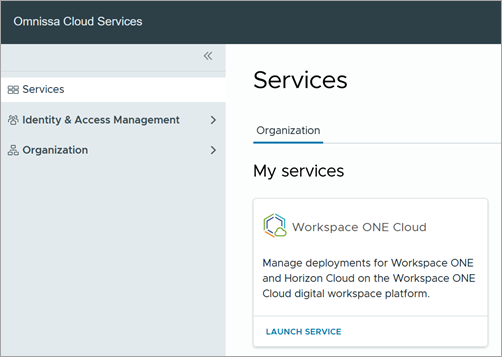
-
If you see that card, click its Launch Service link and then check if you see a card labeled Horizon Cloud. This screenshot illustrates that card within the services. Your specific set of cards might differ.
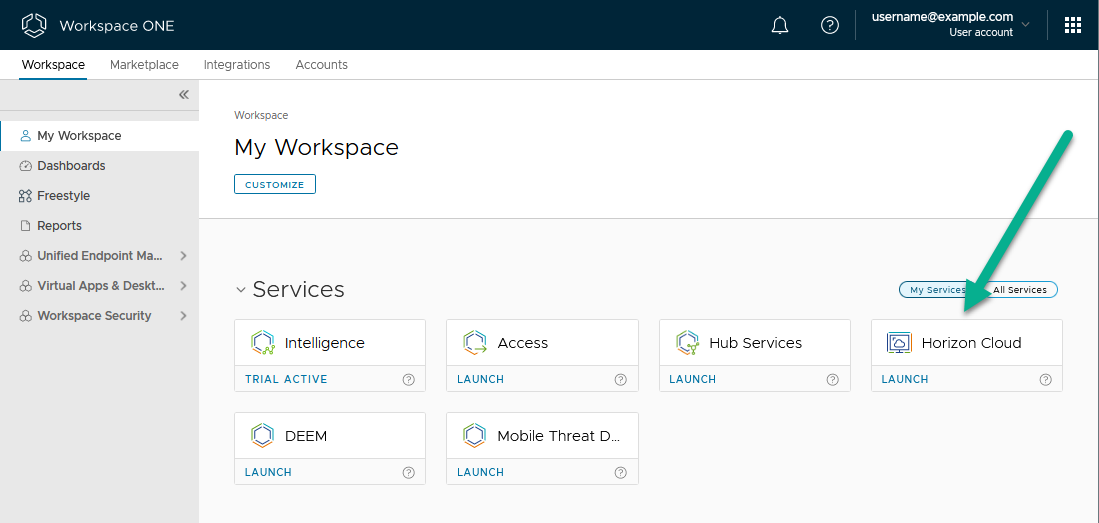
Clicking on that Horizon Cloud card will begin opening the Horizon Universal Console.
- If you previously onboarded to your Horizon Cloud environment, you'll see the Horizon Universal Console with the Migration screen available.
- If you haven't previously completed onboarding to your Horizon Cloud environment, the system presents the region selection UI, as described in the section Cloud Region Selection and you can perform the steps described there to complete onboarding and see the console with the Migration screen available.
If performing the above steps doesn't result in displaying the Horizon Universal Console and you're already engaged with the Horizon Migration team, please contact the person from that team that you're working with. If you aren't already engaged with the Horizon Migration team, please contact Global Support and request Horizon Cloud migration assistance.
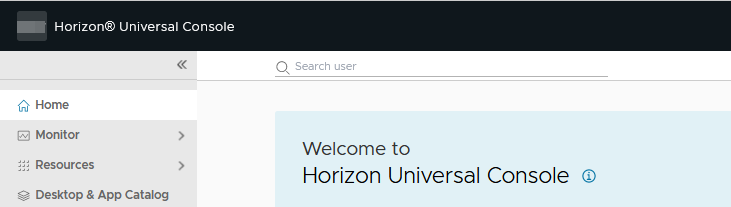
The following screenshot illustrates what the top of the Horizon Cloud console's navigation side looks like at the end of Step 2 above. The main area might or might not display the Welcome contents that's shown in this screenshot. The main area might automatically display the Migration screen. Seeing this type of navigation means you're in the Horizon Cloud console.
Decide on Your Identity Provider and Sync AD Users and Groups To It
In the Horizon Cloud environment, the service relies on use of both an external identity provider and an Active Directory domain.
Background
In your first-gen tenant, your registered Active Directory domains were used for both machine identity and user identity, to authenticate the end-user access to desktops and published apps.
In the Horizon Cloud environment, you bring to the service an external identity provider to fulfill the user identity part.
Using an external identity provider allows for integration with third-party solutions to provide capabilities such as multi-factor authentication.
In the migration of a first-gen pod to a Horizon Edge, that post-migration Horizon Edge will use your Active Directory domain for machine identity, same as in the first-gen environment. The migrated virtual desktops and those virtual machines that provide published (remote) applications are joined to the Active Directory domain.
Note: The identity provider that you choose for your Horizon Cloud environment should be connected to the first-gen pods' Active Directory domains, the ones registered in your first-gen tenant.
Decide on the Identity Provider You'll Use
The identity provider you decide to register with the Horizon Cloud service must fulfill the requirements of Horizon Cloud.
As of this writing:
- Only one identity provider can be used with the Horizon Cloud environment.
- Supported types are:
- Microsoft Entra ID Commercial (for Azure Commercial environments) and Microsoft Entra ID Government (for Azure US Government environments). When your first-gen pod is deployed in Azure US Government environments, you'll use Microsoft Entra ID Government.
- Omnissa Access (cloud or on-premises)
For additional background, see Connecting Your Identity Provider in the Horizon Cloud documentation.
Prerequisites - Microsoft Entra ID Commercial or Microsoft Entra ID Government
You'll run a wizard in the Horizon Universal Console to configure the Horizon Cloud settings to use Microsoft Entra ID.
You'll need the following items to complete that wizard.
| Required item | Details |
|---|---|
| User that has Global Administrator privileges | This user in the Microsoft Entra ID is needed to:
|
| Tenant subdomain | The wizard will ask you to enter a string into a field labeled Tenant subdomain. It must start and end with a letter [a-Z] or number [0-9], and contain only letters, numbers, and dashes [-].
This string is your own creation, a string that you and your team make up to use. Most people enter a string that is related to their company or organization name or company domain.
However, keep in mind that later when your end users log in to their desktops and apps using the migrated Horizon Cloud environment, they will enter this string in the Use Company Domain field. This field is presented as part of the end-user login flow. |
Prerequisites - Omnissa Access Cloud or On Premises
You'll run a wizard in the Horizon Universal Console to configure the Horizon Cloud settings to use Access.
You'll need the following items to complete that wizard.
| Required item | Details |
|---|---|
| User that has admin privileges | This user in your Omnissa Access is needed to:
|
| Tenant subdomain | The wizard will ask you to enter a string into a field labeled Tenant subdomain. It must start and end with a letter [a-Z] or number [0-9], and contain only letters, numbers, and dashes [-]. This string is your own creation, a string that you and your team make up to use. Most people enter a string that is related to their company or organization name or company domain. However, keep in mind that later when your end users log in to their desktops and apps using the migrated Horizon Cloud environment, they will enter this string in the Use Company Domain field. This field is presented as part of the end-user login flow. |
| Access tenant FQDN | In the wizard, you enter your Access tenant FQDN. This FQDN is typically in the format yourcompany.workspaceoneaccess.com. You can obtain this FQDN from your Access console. |
| Access tenant client ID and client secret (if using Access On-Premises) | When using Access On-Premises, the wizard asks for the OAuth client ID and OAuth client secret that you configured for the purpose of integrating with your Horizon Cloud environment. |
Synchronize the Active Directory (AD) Users and Groups with that Identity Provider
Before you select the pods to migrate, verify that all the AD users and AD groups that are entitled to desktops and applications from the to-be-migrated pods are synchronized with your chosen identity provider.
During the system's pre-validation checks, the system obtains the set of AD users and groups from the first-gen pod's desktop and application assignments and checks the identity provider registered in the Horizon Cloud environment for those AD users and groups. If the system does not locate one of those AD users or groups in the registered identity provider, the pre-validation step will fail. The failure report you get from the UI will report the missing AD user or group.
Assess Your Use of Active Directory Built-In Users or Built-in Groups and Update as Needed
If your first-gen Horizon Cloud on Microsoft Azure deployment is configured to use Azure Active Directory (Azure AD), you have to update wherever you have specified built-in users or built-in groups prior to migrating and change to non-built-in groups and users.
The system scans the first-gen pods to determine if they meet the migration criteria, then collects the information about the users and groups that are specified in each assignment and attempts to create the equivalent configuration in the Horizon Cloud environment's configured identity provider. If you have Microsoft Azure AD as your identity provider in your Horizon Cloud environment, Microsoft Azure AD Connect synchronizes your Active Directory domain to Microsoft Azure AD.
However, as stated in the Microsoft documentation, the Microsoft Azure AD Connect sync that handles synchronizing an Active Directory group to Azure AD excludes built-in security groups from its directory synchronization. As a result, when the system attempts to create in that identity provider the equivalent first-gen configuration in which you used built-in groups and built-in users, the system finds no equivalent entity in Azure AD because those built-ins are never synchronized. The system will report that the pods where the built-in users and built-in groups are involved cannot be migrated.
In this scenario, create regular Active Directory groups which have the same memberships as the built-in groups and built-in users, and wherever you specified the built-in groups and built-in users to receive desktops or remote apps, update those settings to use the regular Active Directory groups.
Assess Your Use of App Volumes Application Assignments
If your first-gen tenant has App Volumes application assignments, verify that your Horizon Cloud environment has a valid App Volumes license subscription.
During the system's pre-validation checks, the system checks your Horizon Cloud environment for the presence of a valid App Volumes license subscription.
If not found, the system prevents scheduling the pod's migration with an error.
In the Horizon Cloud console, you can verify presence of licenses in your Horizon Cloud environment by using the steps described in Use the Horizon Universal Console to Track Your Horizon Licenses.
Special Case - If Your First-Gen Pod's App Registration Is Using a Custom Role
If your first-gen pod is configured to use a custom role for its subscription's Horizon Cloud app registration, then a migration prerequisite is to update that custom role with the permissions required in a Horizon Cloud environment.
Use of a custom role is atypical. Most first-gen pod deployments are using the Contributor role for their Horizon Cloud service principal's app registration.
Back when your first-gen pod was deployed, it might have used a custom role as described in the first-gen documentation page When Your Organization Prefers to Use a Custom Role.
If your pod falls into this scenario, that existing custom role must be updated to include the permissions required by the Horizon Cloud environment to make its required API calls.
In the first-gen pod's subscription, confirm that the following operations are permitted in the Horizon Cloud app registration's custom role, the app registration used by the pod.
Some of these are the same as were required for a first-gen pod deployment. The table notes which ones are additionally required for the Horizon Cloud environment.
Important: Don't remove operations already allowed in the custom role.
Horizon Cloud Mandatory Permissions
| Operations | |
|---|---|
| Additional new ones to allow for Horizon Cloud |
|
| Needed by Horizon Cloud which should be already allowed in your first-gen pod's custom role | If any of these aren't already allowed in the custom role, include the missing ones when you update the role for the preceding operations.
|
Optional Permissions
Although the following permissions are not mandatory for the deployment of the Horizon Edge in Microsoft Azure, the service's features that depend on these optional permissions won't work if you don't include them.
| Operations | Purpose | |
|---|---|---|
| Additional new ones to allow for Horizon Cloud |
Microsoft.Network/natGateways/join/action
Microsoft.Network/natGateways/read
Microsoft.Network/privateEndpoints/write
Microsoft.Network/privateEndpoints/read
Microsoft.Network/routeTables/join/action Microsoft.Network/routeTables/read |
|
| Needed by Horizon Cloud which could be already allowed in your first-gen pod's custom role | If any of these aren't already allowed in the custom role, include the missing ones when you update the role for the preceding operations.
|
Key vault permissions are required for disk encryption of pool VMs. Public IP addresses permission is required to deploy a Horizon Edge instance with Unified Access Gateway instances behind a load balancer with a public IP address. Also, this public IP addresses permission is required to deploy and to add a public IP address to an image. |
Note: This information here is added for convenience, looking ahead to the post-migration Horizon Cloud environment. When you are updating permissions in advance of the pod migration, you might consider including this permission at the same time.
This scenario is when your identity provider for your Horizon Cloud environment is Microsoft Entra ID, and you want to use it for machine identity.
For details, see the Note about Microsoft Entra ID on the Horizon Cloud documentation page.
Was this page helpful?