You use this wizard to start the self-service migration from your first-generation Horizon Cloud environment (Horizon Cloud - first-gen) to Horizon Cloud.
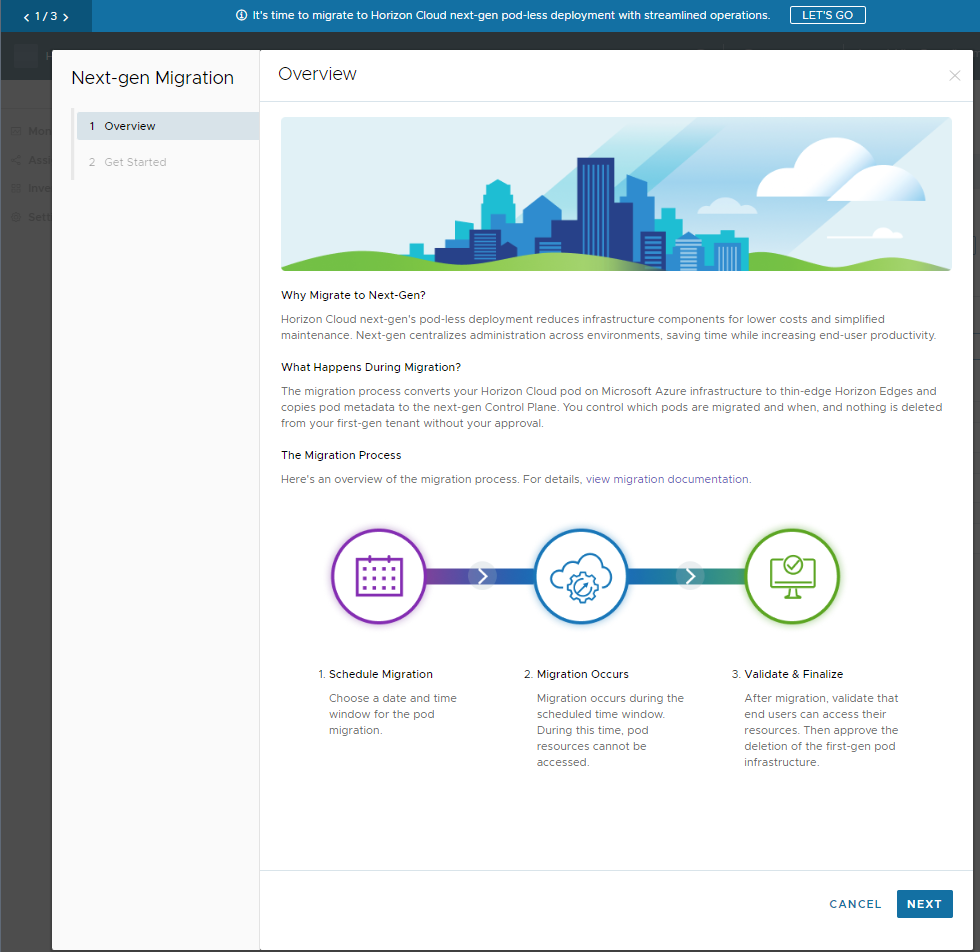
When the Horizon Migration team has enabled your first-generation environment for migration, the Horizon Universal Console displays a migration-related banner, as illustrated in the following screenshot.

Clicking the LET'S GO button in that banner starts the Horizon Cloud Migration wizard at its first step.
Overview
This first step gives an overview of the migration process. To move forward, you click Next to the wizard's Get Started step.
Get Started
The following screenshot illustrates this step when initially displayed.

In this wizard step, read the on-screen question and select the choice that corresponds to your scenario.
-
No - have not ever logged in to the Horizon Cloud console
Follow the on-screen guidance and complete the onboarding to the Horizon Cloud environment. This initial onboarding is required before you can migrate your pods. For documentation, refer to Phase 1 - Initial Onboarding and Determine the Cloud Services Organization to Use.
After you are onboarded in the Horizon Cloud environment, navigate to the Migration page in the Horizon Cloud console and follow the on-screen guidance there. For documentation, refer to Phase 2 - Pair Your First-Gen and Horizon Cloud Environments.
-
Yes - have previously logged in to the Horizon Cloud console
When you click Yes, the displayed Get Started changes. The following screenshot depicts the step with Yes selected. The redacted portion is the pairing code redacted for privacy.
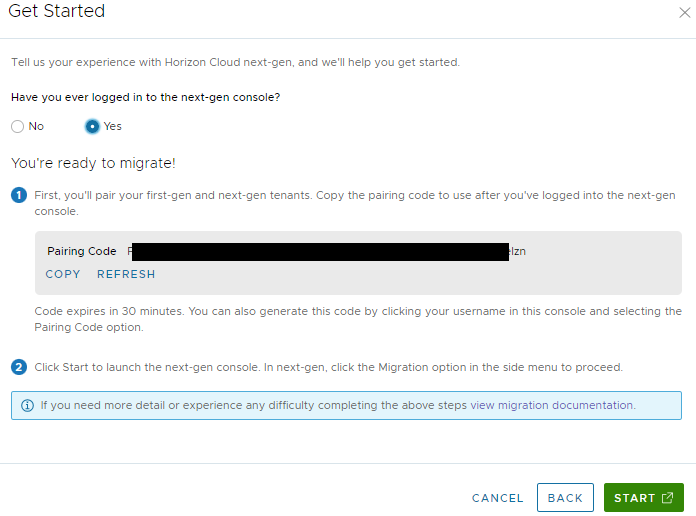
- Copy the pairing code (Pairing Code > Copy.
- Click Start to launch the Horizon Cloud console and display the Migration page.
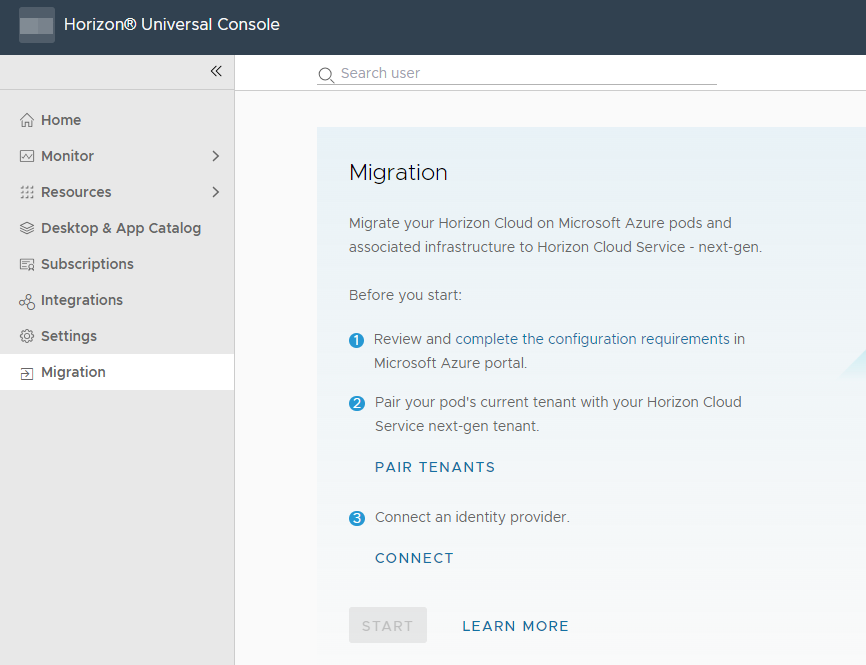
When you can see that Migration screen, you can then begin with the steps described in Pair Environments.
Was this page helpful?