Before you can start the self-service migration, you must complete a few steps in your Horizon Cloud environment by using the administration console. Prior to signing into that console and completing those steps, you must have a Cloud services organization, and establish an association between that organization and your Horizon Cloud tenant.
Important: This content is meant for existing first-generation Horizon Cloud service tenants who are planning to migrate their Horizon Cloud on Microsoft Azure deployments to their Horizon Cloud environments. This content is written with that context in mind and cannot be extended to other contexts or situations.
Relationship Between Your Horizon Cloud Tenant and Omnissa Cloud Services
- Horizon Cloud is a service within the overall set of Omnissa services. The console for your Horizon Cloud tenant is only accessible using its card located within your set of subscribed services.
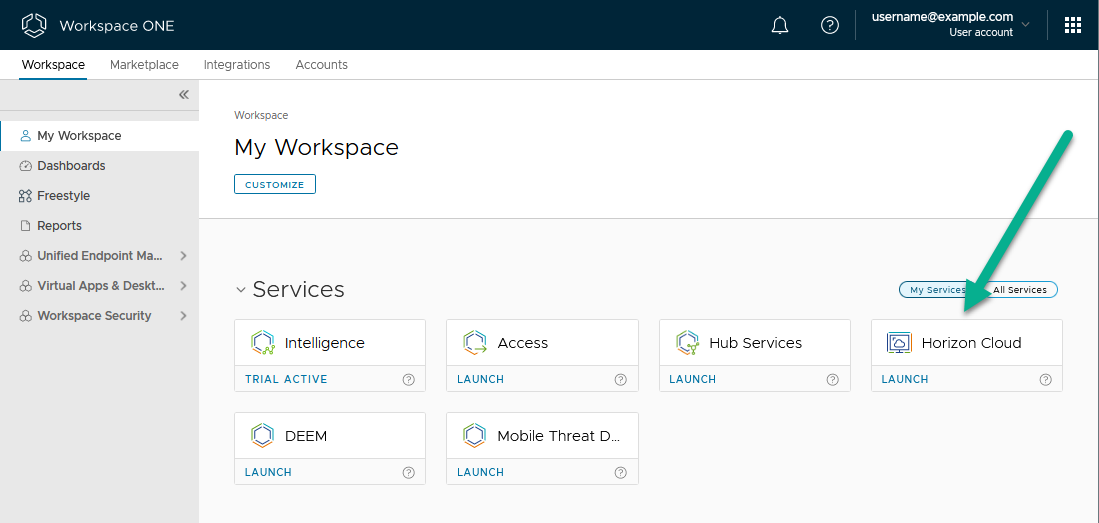
- Omnissa Connect is the underlying platform used to access these services.
- Signing in to your Horizon Cloud tenant means logging in to Omnissa Connect, navigating to My services, launching the Workspace ONE Cloud card there, to ultimately land in the UI showing your services and use the Horizon Cloud service card depicted above
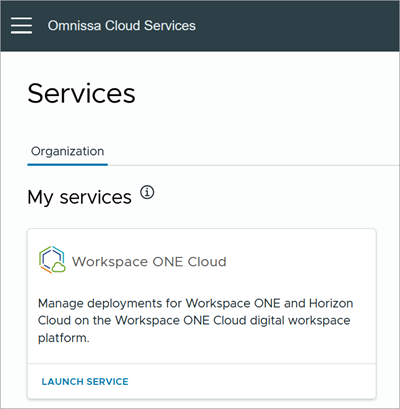
For the above sign-on flow to work, your account must be associated with a Cloud services organization, where that organization is also associated with your subscribed services.
The next section describes how this association can be established.
Fulfilling the Cloud Services Organization Requirement
At this time, there are various ways in which your account can get associated with a Cloud services organization where that organization is also associated with your services, which provides for your Horizon Cloud environment access.
Tip: In this platform's terminology, this organization is a logical container used to control access to your Cloud services.
The following sections describe these various ways, so that you can determine whether you already have access or whether you need to reach out to Horizon Cloud Support to request the initial access invitation.
Already have access to Omnissa Connect and you see a Horizon Cloud services card within your services?
You might already have access to Omnissa Connect and an existing Cloud services organization there. Sign in at https://connect.omnissa.com/ and on the Services page, do you see a Workspace ONE Cloud card under My Services as shown in the preceding screenshots? If yes, then launch that card and see if the Horizon Cloud services card is visible. If yes, then your services organization exists, is associated with your sign-in account, and that services organization is associated with your Horizon Cloud environment.
Note: Depending on your company or enterprise, you might have access to multiple Cloud services organizations, where some have access to the Workspace ONE Cloud card and some not. If your account is associated with multiple Cloud services organizations, the Change Organization button is available within the account name menu. To check each of your associated organizations, click your account name in the Cloud services banner and then click Change Organization to switch to another one of your organizations to see if it shows the Workspace ONE Cloud card in your services set.
Already have access to a Cloud services organization but without the Workspace ONE Cloud card?
In this case, when you sign in at https://connect.omnissa.com/, the Services page has no Workspace ONE Cloud card for any of the organizations associated with your account.
The lack of a Workspace ONE Cloud card in the My Services area for any of your associated organizations can indicate that the emailed Get Started invitation has not been redeemed.
Note: If you previously had access to the card, review KB 89945 and see if Workspace ONE or Horizon Cloud sent you or an administrator in your organization an email that describes changes to the console login experience.
In most cases, the subject line for that email has the pattern "A better way to access your Workspace ONE services!". The body of the email contains headings as shown in that KB, such as "Accessing Workspace ONE through Cloud Services".
As illustrated in the KB article, the body of that email has a blue box Get Started. Clicking that box kicks off the invitation redemption process. See the KB article for details of that process and the steps to take.
- If you did not previously have access to the services, you must obtain an invitation email that contains a Get Started redemption button.
To obtain an invitation email for the purposes of setting up the required Cloud services organization for the self-service migration process, use the Get Support path from your account in Customer Connect.
This invitation email is sent by an automated system. Because Horizon Cloud service is within the set of Omnissa services, the email might be written oriented to Omnissa Workspace ONE.
The invitation email typically has a subject line that says Get started with Workspace ONE. Depending on the timing of when the automated system sends your email to you, the body of the email might contain different introduction sentences, such as Thank you for choosing... or Thank you for your interest....
Clicking the blue box Get Started starts the invitation redemption process. The hyperlink underlying the blue box has the pattern https://connect.omnissa.com/csp/gateway/os/api/service-invitations?serviceInvitationLink=/csp/..., and clicking Get Started opens that URL in your browser.
Important: This redemption URL can be used only once. Therefore, when you click Get Started, you must be prepared to complete the flow of signing in to Cloud services and deciding whether to choose an existing Cloud services organization or create a new one.
Guidance for Redeeming the Invite When Your Account is Associated with Multiple Cloud Services Organizations
As described above, clicking the blue box Get Started starts the invitation redemption process using the URL that underlies the blue box in the invitation email.
That URL starts with the pattern https://connect.omnissa.com, which is the Cloud services portal.
After signing in, if your account is associated with existing Cloud services organizations, this point of the redemption process usually presents a choice of either select an existing organization or create a new named one.
If presented with this choice, keep in mind these best practices.
- When you have administrators already managing a Horizon Cloud tenant that is registered in one geographic control plane region, and your to-be-migrated Horizon Cloud on Microsoft Azure deployments are in a first-generation tenant registered in a different geography, select to create a new
organizationwhen redeeming the invitation for the migration purposes. - If you do not already have an existing Horizon Cloud tenant in use at this point:
-
When you have an existing Cloud services
organizationthat you are using for other cloud service offerings, and you want to have the same administrators managing your Horizon Cloud environment, you would select that existingorganization. Then when one of those administrators sign in, they can access those other cloud services from within that sameorganization. -
When you have an existing
organizationfor other cloud service offerings, and you want to separate your Horizon Cloud administrators from managing those, select to create a neworganization.Note: With this choice, access to the services will stay separate. Those organizations cannot later be combined together.
-
Cloud services Organization Example
-
When you sign in to Cloud services at https://connect.omnissa.com/, the
organizationname appears in the upper right account menu.Some companies and enterprises might have more than one Cloud services
organization, with different services available in the separate organizations.If your team has a specific organization for accessing your services, which includes Horizon Cloud service, you can specify that organization as your account's default organization. Then each time you log in, you can more quickly access the services.
The following screenshot and green callout illustrate the location of the Set Default Organization setting in the account menu after you log in to Cloud services. In this example, this user has three organizations in Cloud services, and they have set their default organization to the one named
My WS1Cloud Org.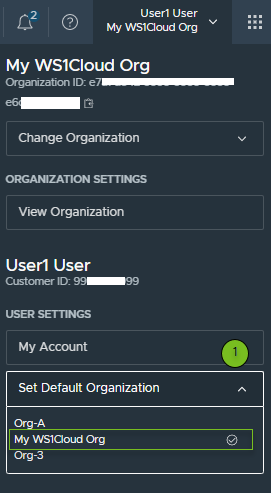
Was this page helpful?