You can generate an audit events report in the Omnissa Access service that lists the events related to a user, including the type of action within a specific date. This feature is useful for troubleshooting purposes.
Note: Horizon Service Universal Broker end-user virtual desktops and remote apps launch events are not included in the Omnissa Access Audit Events report results.
Procedure
-
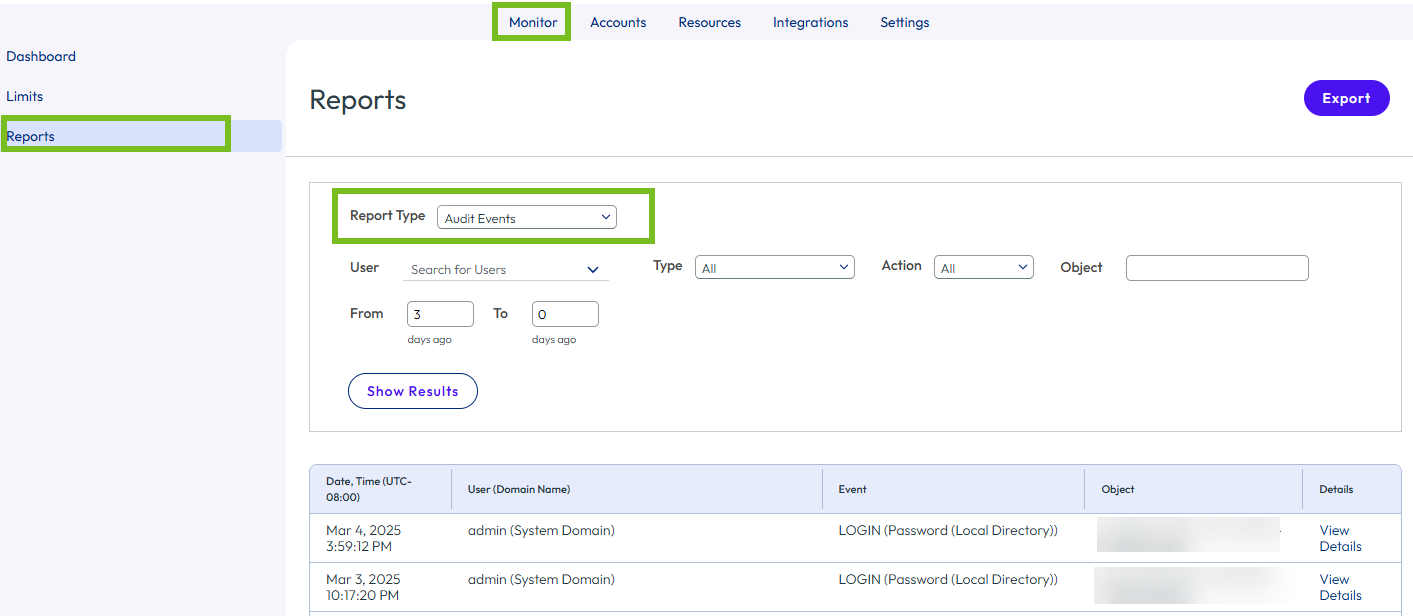
In the Omnissa Access console Monitor > Reports page, select Audit Events.
-
Select audit event criteria.
Audit Event Criteria Description User Select this text box to narrow the search of audit events to those generated by a specific user. Type This drop-down menu lets you to narrow the search of audit events to a specific audit event type. The drop-down menu does not display all potential audit event types. The list only displays event types that have occurred in your deployment. Audit event types that are listed with all uppercase letters are access events, such as LOGIN and LAUNCH, which do not generate changes in the database. Other audit event types generate changes in the database. Action This drop-down menu lets you to narrow your search to specific actions. The list displays events that make specific changes to the database. If you select an access event in the Type drop-down menu, which signifies a non-action event, do not specify an action in the Action drop-down menu. Object This text box lets you to narrow the search to a specific object. Examples of objects are groups, users, and devices. Objects are identified by a name or an ID number. Date range These text boxes let you to narrow your search to a date range in the format of "From ___ days ago to ___ days ago." The maximum date range is 30 days. For example, from 90 days ago to 60 days ago is a valid range while 90 days ago to 45 days ago is an invalid range because it exceeds the 30-day maximum.
For Omnissa Access cloud tenant deployments, audit event records are retained for the last 90 days.
10,000 records is the maximum number of records that can be exported in one audit report. Export a date range that produces less than 10,000 records and combine the results. -
Click Show.
An audit event report appears according to the criteria you specified.
-
For more information about an audit event, click View Details for that audit event.
Was this page helpful?