If you encounter issues in your Omnissa Access environment, you can file a support request through the Omnissa Customer Connect portal. If the Omnissa support team needs to access your Omnissa Access environment to resolve the issue, you can grant them access from the Omnissa Access console Settings > Support Access page.
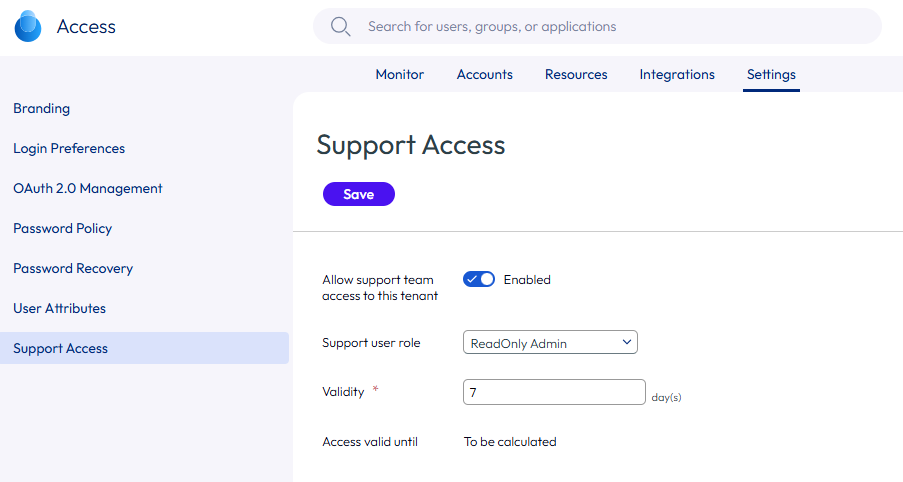
When enabling support access, you select a support user admin role, which determines the tasks the support team member can perform. The default role is ReadOnly Admin. You also set a duration for the support access, with the default set to 7 days.
When the support team member logs into your console, a just-in-time user is created with a first name, last name, and email address, along with the access settings permissions of the assigned support user role in ws1-support directory and domain. After your issue is resolved, remember to disable the support access setting. Disabling support access removes the just-in-time user from your users and groups list and removes the ws1-support directory and domain.
If you do not disable support access, the support team can continue to access your environment until the expiration date, after which support access is disabled. In this case, the Just-in-time user, ws1-support directory, and domain are not deleted and remains in your users and groups list.
You can view the audit events report to see when support access is enabled or disabled and to see the changes that the support team made.
Note: To enable or disable Support Access, the admin must have the Super Admin role or a custom role with Identity and Access Management permissions.
Procedure
-
Navigate to the Omnissa Access Settings > Support Access page.
-
Enable Allow support team access to this tenant.
-
Select the Support user role. ReadOnly Admin is the default role. Your support team might recommend another role, based on the type of issues. Best practice is to assign the least privileged role that is required for the current issue.
Role Description Directory Admin The directory administrator role can access users, groups, and directories. IAM and Directory Admin This combined role administrator can access directories, policies in Resources, integrations and settings. ReadOnly Admin The read-only administrator role can view the details in the Omnissa Access console pages, including the dashboard and the reports, but cannot make changes. Super Admin The super administrator role can access and manage all features and functions in the Omnissa Access services. The drop-down menu also lists custom user defined roles that are created.
-
In Validity enter the duration in days that support access is enabled. The minimum is 1 day, maximum is 365 days, and default is 7 days. The actual end date and hour is calculated and the Access valid until field displays the date after you save the configuration.
-
Click SAVE.
-
An Allow Support Access message displays. Click Allow.
The Access valid until date and time is displayed in the Support Access page.
Important: After an issue is resolved, make sure to disable Support Access in the Omnissa Access console.
Disable Support Access from Omnissa Access Console
-
Navigate to the Omnissa Access Settings > Support Access page.
-
Disable Allow support team access to this tenant.
-
Click SAVE.
-
A Turn off Support Access message displays. Click TURN OFF.
Was this page helpful?