With role-based access control in Omnissa Access, you can create a simple administrator role in Omnissa Access to manage password resets for specific domains.
Procedure
-
In the Omnissa Access console, select Accounts > Roles, then click Add.
-
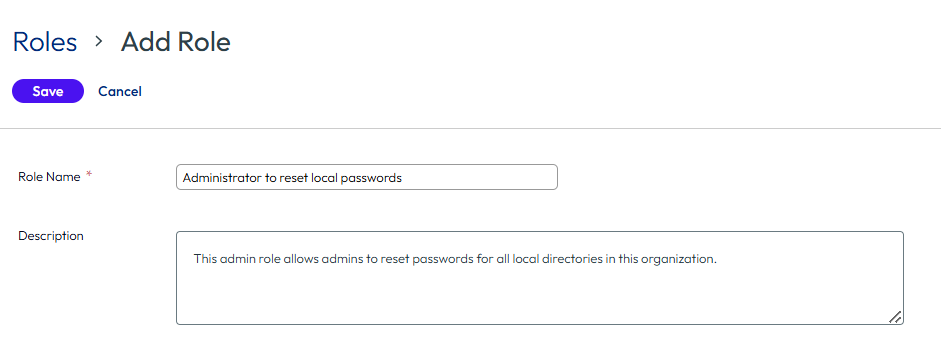
Create a descriptive role name and describe the purpose of the role.
-
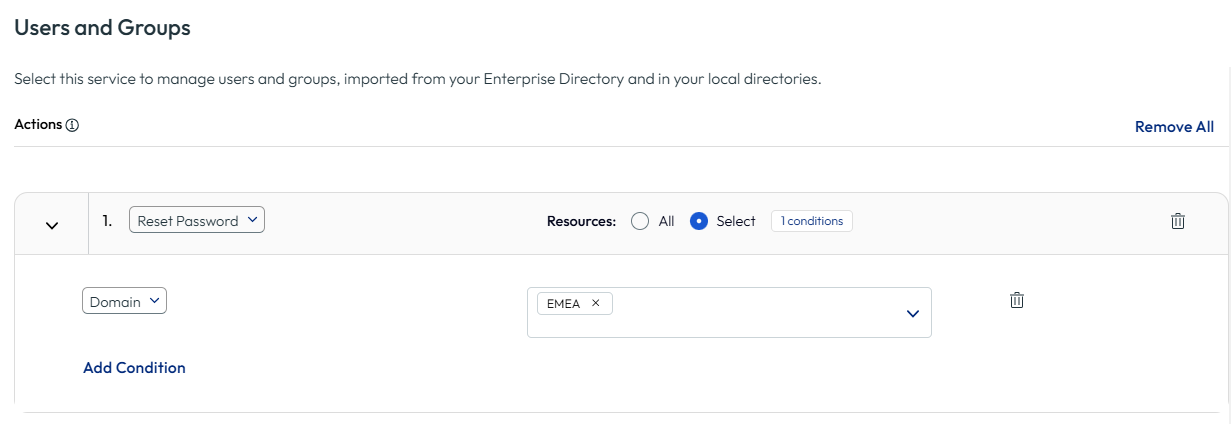
In the Users and Groups box in the Service section, click Add and make the following selections:
-
For Actions, select Reset Password.
-
For Resources, select Select.
-
For Add Conditions, select Domain and select or enter the local directory domain.
-
Click Save.
-
-
Click Save to save the role.
-
Select the role you created and click Assign.
-
Select the users and group to which you want to assign the role, and click Save.
The users and groups now have this administrator role. The profile page is updated to show the assigned administrator role.
Was this page helpful?