This section describes common problems and solutions for the AirWatch Provisioning app.
Provisioning Status Shows User Is Not Provisioned
After you configured the AirWatch Provisioning app and assigned users to the app, users are not provisioned in Workspace ONE UEM.
Problem
When you are provisioning users, and you receive the error Error not provisioned in the assignment screen, when you point to the error, you see this message, Failed to validate attributes while trying to provision users.
Cause
The value of the attribute names you mapped in the User Provisioning page is missing.
Solution
Make sure that the users created in Omnissa Access include all the attributes required to create the user account in Workspace ONE UEM. When using JIT, make sure that the GUID sent as part of the SAML attributes is valid. This GUID is mapped to the External ID and provisioned to Workspace ONE UEM.
Enrolling a Device with the Workspace ONE Intelligent Hub App Causes an Error
You cannot enroll your device with the Workspace ONE Intelligent Hub app.
Problem
When users try to enroll a device using the Workspace ONE Intelligent Hub app, they receive a generic error: An Error has occurred.
Cause
-
The GUID sent as part of the SAML attribute for JIT might not be mapped to the External ID.
or
-
A Workspace ONE UEM basic users account is using the Verify (Intelligent Hub) authentication method to access the service to enroll.
Solution
Make sure that the attribute named External Id is correctly mapped and provisioned to Workspace ONE UEM.
Note: The Verify (Intelligent Hub) authentication method is not currently supported for Workspace ONE UEM basic users accounts.
Provisioning the Mobile SSO Profile With AirWatch Provisioning Generates an Error
When admins try to provision the Mobile SSO profile with the AirWatch Provisioning app, they receive an error that the PrincipalName contains an invalid value.
Problem
You see the following error codes.
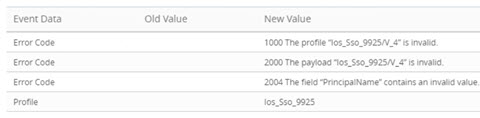
Cause
The Workspace ONE UEM account might be configured to use an email address as the User Name attribute value.
When the Mobile SSO certificate payload is created, the payload uses the user name attribute value as the principal name on the certificate. You cannot use the @ character in the principal name.
Solution
Two ways to resolve this issue are described.
-
In the User Provisioning page of the AirWatch Provisioning app, select another attribute that does not include the @ sign to represent the user name. You might need to edit the value that is imported into . Make sure that the user name and the prefix of the UPN remain the same.
-
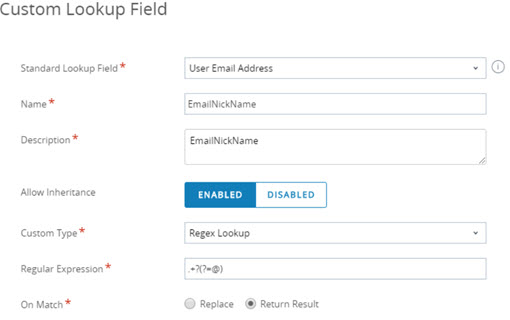
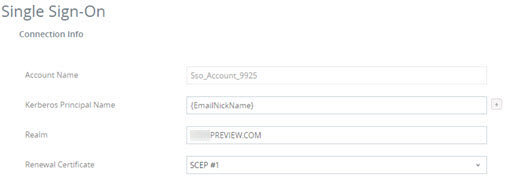
Configure a custom lookup field in the Workspace ONE UEM console to parse the prefix of the email address. Use that custom setting in the certificate payload.
- In the Workspace ONE UEM console, go to Group & Settings > All Settings > Devices & Users > General > Lookup Fields.
- Select Add Custom Field.
- Create a name, for example,
EmailNickName, and create a regex such as".+?(?=@)".
-
You can then use the name you created in the Certificate Payload.
Was this page helpful?