By configuring settings in Omnissa Access, you can provide users the ability to change their Active Directory passwords from the Omnissa Workspace ONE® Intelligent Hub app or portal at any time. Users can also reset their Active Directory passwords from the login page if the password has expired or if the Active Directory administrator has reset the password, forcing the user to change the password at the next login.
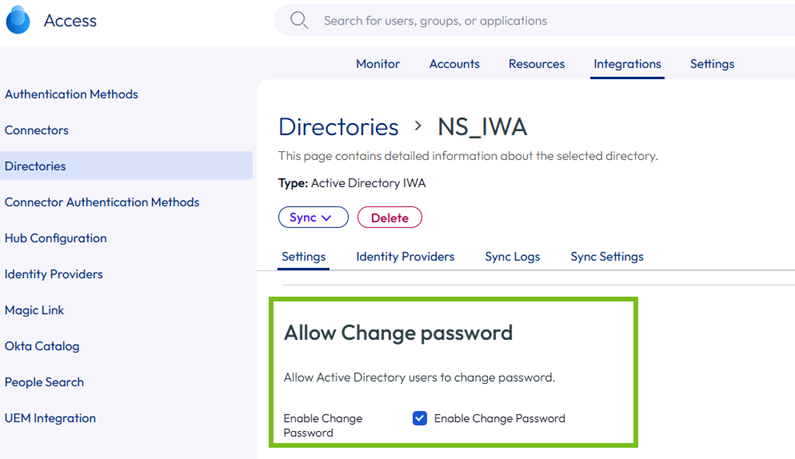
You set this option per directory, by selecting the Enable Change Password option in the directory's Settings tab.
Users can change their passwords when they are logged into Intelligent Hub from a browser by clicking their name in the top-right corner, selecting Account from the drop-down menu, and clicking the Change Password link. In the Intelligent Hub app, users can change their passwords by clicking the triple-bar menu icon and selecting Password.
Expired passwords or passwords reset by the administrator in Active Directory can be changed from the login page. When a user tries to log in with an expired password, the user is prompted to reset the password. The user must enter the old password as well as the new password.
The Active Directory password policy determines the requirements for the new password. The number of tries allowed also depends on the Active Directory password policy.
Note: If the Omnissa Access connector is running in FIPS mode, additional requirements apply to passwords. See Omnissa Access Connector and FIPS Mode for your version of the connector.
The following limitations apply to the Enable Change Password option.
- When a directory is added to Omnissa Access as a Global Catalog, the Enable Change Password option is not available. You can add the directory as Active Directory over LDAP or Integrated Windows Authentication, using ports 389 or 636.
- The password of a Bind DN user cannot be reset from Omnissa Access, even if it expires or the Active Directory administrator resets it.
Using a Bind DN user account with a non-expiring password is recommended. - Passwords of users whose login names consist of multibyte characters (non-ASCII characters) cannot be reset from Omnissa Access.
- The UPN format alternativePrefix@alternativeSuffix does not support password reset from the login page. Users with this UPN format can only change their password after logging in to Intelligent Hub. See Requirements and Limitations for UPN Format.
Note: The Enable Change Password option is not available for ACC directories.
Prerequisites
-
The domain functional level of the Active Directory domain controllers must be set to Windows 2008 or later.
-
Port 464 must be open from the Directory Sync service to the domain controllers.
-
The Active Directory must use one of the following UPN formats:
- Regular UPN format: samaccountname@domain
- Alternative UPN prefix format: alternativePrefix@domain
- Alternative UPN suffix format: samaccountname@alternativeSuffix
- The following UPN format: alternativePrefix@alternativeSuffix
Note: The UPN format alternativePrefix@alternativeSuffix is supported beginning with Omnissa Access Connector 26.05. See Requirements and Limitations for UPN Format for the requirements and limitations for this format.
-
Clocks on the Directory Sync service host and the domain controllers must be synchronized.
Procedure
-
In the Omnissa Access console, select Integrations > Directories.
-
Click the directory you want to configure.
-
Select the Settings tab.
-
In the Allow Change Password section, select the Enable Change Password check box.
-
Enter the Bind DN password in the Bind User Details section, and click Save.
Requirements and Limitations for UPN Format alternativePrefix@alternativeSuffix
The UPN format alternativePrefix@alternativeSuffix is supported beginning with Omnissa Access Connector 26.05.
Requirements
This feature is only available with:
- Omnissa Access Connector 26.05 or later
- Directories that use a secure mode of communication with Active Directory. These include:
- IWA directory
- AD over LDAP directory that uses StartTLS to communicate with domain controllers
- AD over LDAP directory that uses LDAPS to communicate with domain controllers
How to enable support for the alternativePrefix@alternativeSuffix format
- Log into the Windows server on which the Omnissa Access connector is running.
- Stop the Directory Sync Service and User Auth Service.
- Edit the
application.propertiesfile in the<INSTALL_FOLDER>\Access Connector\Directory Sync Service\conffolder. - Add the following to the end of the
application.propertiesfile:
pwd.change.strategy=jndi - Edit the
application.propertiesfile in the<INSTALL_FOLDER>\Access Connector\User Auth Service\conffolder. - Add the following to the end of the application.properties file:
pwd.change.strategy=jndi - Restart the Directory Sync Service and User Auth Service.
Limitations
The UPN format alternativePrefix@alternativeSuffix is supported only for password change after login. It is not supported for password reset. Users will be able to change their password after they log in to Intelligent Hub but they will not be able to reset their password from the login page.
Was this page helpful?